🛒 Best Price Today on Amazon
Prime members get fast, free shipping on everything above, plus member-only deals. New members get a 30-day free trial — cancel anytime.
- Top 3 Picks
- Quick Comparison
- How We Chose
- 1. UTLGAMENG OCuLink eGPU Dock – Best for Low-Commitment OCuLink
- 2. Minisforum DEG1 – Best Overall OCuLink Dock
- 3. Thunderbolt 4/3 and USB4 Enclosure with 240W PSU – Best All-in-One for Thunderbolt Hosts
- 4. OCuLink eGPU Dock with 19.7 in Cable – Best for Flexible Cable Runs
- 5. GODLIY eGPU Dock (First Listing) – Best for Thunderbolt Hubbing and Laptop Charging
- 6. GODLIY eGPU Dock (Second Listing) – Best as an Alternative Package of the Same Dock
- 7. Beelink EX Docking Station – Best Only for Compatible Beelink Mini PCs
- OCuLink, Thunderbolt and USB4: What Actually Differs
- Power Supply Sizing and Safety
- What Performance Gain Should You Expect?
- Cooling, Noise and Desk Setup
- Software Setup: Drivers, Display and Troubleshooting
- Compatibility Checklist Before You Buy Any Dock
- How to Choose an External GPU Dock
- Frequently Asked Questions
- Our Recommendation by Situation
The best external GPU dock for a handheld PC is the Minisforum DEG1 if your handheld has, or can be adapted to, an OCuLink connection. It uses a native PCIe 4.0 x4 link, takes a standard ATX or SFX power supply, includes a signal-amplifier chip, and comes from a company that publishes clear specifications and a parts warranty. If your handheld only offers Thunderbolt or USB4, the 240W-supply Thunderbolt 4/USB4 enclosure is the simplest all-in-one choice, because the power supply is part of the package. For the lowest-commitment way to try OCuLink, the UTLGAMENG dock is a bare-bones open-frame option. Whichever dock you pick, you still need to bring your own graphics card, and with an ATX-style dock a suitable power supply, so budget for those parts and read the compatibility notes below before you buy.
Quick answer: For most people in 2026, the best external gpu dock for handheld pc is the UTLGAMENG OCuLink eGPU Dock — our #1 rated choice. See the full ranked comparison, alternatives and buying advice below.
Top 3 Picks
Best overall: Minisforum DEG1. A compact open-air OCuLink dock with a PCIe x16 slot running at PCIe 4.0 x4 speed, ATX 24-pin power handling, a “follow startup” feature that powers the GPU with the host, and support listed up to cards of the RTX 4090 and RX 7900 XTX class. It is the safest default for OCuLink-capable handhelds and mini PCs.

UTLGAMENG OCuLink eGPU Dock, PCIe 4.0 x4 64Gbps, ATX External GPU Enclosure
Included for 'Best External Gpu Dock for Handheld PC in 2026' because the listing specifies PCIe 4.0 x4 64Gbps and ATX External GPU Enclosure, details this guide uses to compare options.
View on Amazon
MINISFORUM DEG1 eGPU Dock, External GPU Docking Station for RTX 4090, AMD RX 7900 XTX, eGPU Enclosure Graphics Card Extension Support ATX/SFX Standard Power, Oculink Expansion Graphics Docking Station
Included for 'Best External Gpu Dock for Handheld PC in 2026' because the listing specifies External GPU Docking Station for RTX 4090 and AMD RX 7900 XTX, details this guide uses to compare options.
View on Amazon
External GPU Enclosure,Thunderbolt 4/3 & USB4 eGPU Dock with 240W PSU
Included for 'Best External Gpu Dock for Handheld PC in 2026' because the listing specifies Thunderbolt 4/3 & USB4 eGPU Dock with 240W PSU, details this guide uses to compare options.
View on Amazon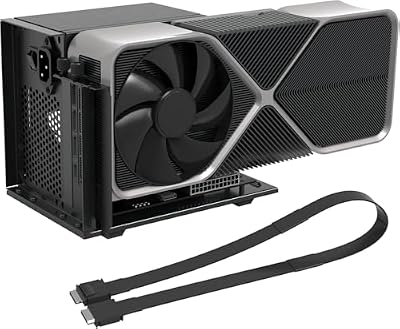
OCuLink eGPU Dock, PCIe 4.0 x4 64Gbps 19.7in SFF-8611 Cable SFF-8612 8311 PCIe x16 OCuLink eGPU External GPU Enclosure, External GPU Dock for Laptop Mini PC External Graphics Card
Included for 'Best External Gpu Dock for Handheld PC in 2026' because the listing specifies External GPU Dock for Laptop Mini PC External Graphics Card, details this guide uses to compare options.
View on Amazon
GODLIY External eGPU Dock, 2* Thunderbolt 4/3 USB4 Port, 85W PD
Included for 'Best External Gpu Dock for Handheld PC in 2026' because the listing specifies 2* Thunderbolt 4/3 USB4 Port and 85W PD, details this guide uses to compare options.
View on Amazon
GODLIY External eGPU Dock, 2* Thunderbolt 4/3 USB4 Port, 85W PD
Included for 'Best External Gpu Dock for Handheld PC in 2026' because the listing specifies 2* Thunderbolt 4/3 USB4 Port and 85W PD, details this guide uses to compare options.
View on Amazon
Beelink EX Docking Station, GPU Dock External Graphics PCIe x 16 Slot
Included for 'Best External Gpu Dock for Handheld PC in 2026' because the listing specifies GPU Dock External Graphics PCIe x 16 Slot, details this guide uses to compare options.
View on AmazonBest for simple, low-commitment OCuLink: UTLGAMENG OCuLink eGPU Dock. It offers the same basic idea at a lower commitment: a PCIe 4.0 x4, 64 Gbps open-frame dock that accepts a standard ATX power supply and any desktop card. It is a good way to learn the format, but you give up the extras and the brand support of the Minisforum.
Best for Thunderbolt or USB4-only handhelds: External GPU Enclosure with 240W PSU. If your device has no OCuLink path, this Thunderbolt 4/3 and USB4 enclosure with a built-in power supply is the most turnkey option. It trades raw bandwidth for convenience, and its 240W supply points toward mid-range graphics cards rather than flagship ones.
Quick Comparison
| Dock | Best for | Key specs |
|---|---|---|
| UTLGAMENG OCuLink eGPU Dock | Low-commitment OCuLink entry | PCIe 4.0 x4, 64 Gbps, open frame, ATX power supply, bring your own GPU |
| Minisforum DEG1 | Best overall OCuLink dock | OCuLink 4i, PCIe 4.0 x4, ATX/SFX power, signal amplifier, follow-startup, roughly 270 x 174 x 41 mm |
| Thunderbolt 4/3 and USB4 Enclosure with 240W PSU | All-in-one for Thunderbolt/USB4 hosts | 40 Gbps link, power supply included, suited to mid-range cards |
| OCuLink eGPU Dock, 19.7 in cable | OCuLink with a longer cable run | PCIe 4.0 x4, 64 Gbps, SFF-8611 cable at about 50 cm, SFF-8612/8611 connectors, PCIe x16 slot |
| GODLIY eGPU Dock (first listing) | Thunderbolt/USB4 hubbing with laptop charging | Two Thunderbolt 4/3 USB4 ports, 85W PD, 40 Gbps; confirm included power supply on the product page |
| GODLIY eGPU Dock (second listing) | Same dock under a second listing | Same headline specs as the first; compare package contents and warranty before choosing |
| Beelink EX Docking Station | Owners of compatible Beelink GTi mini PCs | PCIe x16 slot, proprietary connection, built-in power supply on the original EX; not a general handheld dock |
How We Chose
This guide is built from maker specifications, listing details, retailer spec tables and independent technical write-ups, not from firsthand product evaluation. For a handheld PC, an external GPU dock only makes sense if it answers three questions. First, how does it connect? OCuLink delivers a direct PCIe 4.0 x4 link, while Thunderbolt 4 and USB4 tunnel PCIe over a 40 Gbps connection with more overhead. Second, who supplies power? Some docks include a power supply; others require a standard ATX or SFX unit that you buy separately. Third, will it work with your device? Handhelds have wildly different ports, so we favored listings that state their connection type clearly and flagged where a dock is limited to a specific brand. We also looked at documented extras such as signal amplification, laptop charging and warranty terms. Where a listing is vague, we say so and tell you to confirm on the product page.
1. UTLGAMENG OCuLink eGPU Dock – Best for Low-Commitment OCuLink
As an Amazon Associate we earn from qualifying purchases at no extra cost to you.

The UTLGAMENG OCuLink eGPU dock is a stripped-down open-frame dock that converts an OCuLink SFF-8612 connection to a standard PCIe x16 slot. The listing name states PCIe 4.0 x4, 64 Gbps and ATX external GPU enclosure. In practice that means it supports the common OCuLink approach: you connect the dock to your handheld or mini PC with the supplied cable, mount a desktop graphics card in the slot, and power the whole thing with an ATX power supply that you supply. Similar listings from other sellers describe the same hardware, which is why brand support and return policies matter more than a spec sheet here.
Key specs
- OCuLink connection with PCIe 4.0 x4 bandwidth, stated as 64 Gbps
- PCIe x16 physical slot for a desktop graphics card
- Designed for standard ATX power supplies
- Open-frame layout for large, multi-slot cards
- Cable supplied by the seller; check length on the product page
Who it suits
It suits a tinkerer who is comfortable assembling a bare desktop component set: a dock, a graphics card, a power supply and a cable. It also appeals to someone who already owns a spare ATX power supply and graphics card and wants to test whether an OCuLink setup works with their handheld before investing in a more polished dock. Because the platform is open, you can swap cards or reuse the power supply later.
Important caveats
OCuLink does not support hot plugging in the way Thunderbolt does. Power everything off before you connect or disconnect the cable, and install the graphics driver before the first boot with the dock attached so the card is detected. The dock does not include a graphics card or power supply. Treat the open frame with care: it exposes the card’s fans, edge connectors and power plugs, so keep it on a stable, non-conductive surface away from pets, children and liquids.
Pros
- Native PCIe 4.0 x4 link without Thunderbolt overhead
- Works with standard ATX power supplies and desktop cards
- Open frame accommodates large cards
- Reusable parts: swap the GPU or PSU later
- Simple hardware with little to go wrong
Cons
- No hot plugging; shut down before connecting
- No included GPU or power supply
- Thin brand support and documentation
- Requires an OCuLink port or an M.2-to-OCuLink adapter on the host
How it compares
The nearest alternative in this list is the Minisforum DEG1. The Minisforum adds a documented signal-amplifier chip, a follow-startup feature and a clearer warranty, which makes it the safer choice if you value support. The UTLGAMENG matches the core bandwidth and layout, so it is the more attractive pick if you want to try OCuLink with minimal commitment and are comfortable troubleshooting a lesser-known brand. Compared with the Thunderbolt enclosures in the list, it offers far more bandwidth but no laptop charging and no hot plugging.
2. Minisforum DEG1 – Best Overall OCuLink Dock

The Minisforum DEG1 is the dock that most handheld and mini PC enthusiasts reach for first, and for good reason. Its listing describes an eGPU dock for cards as large as the RTX 4090 and the RX 7900 XTX, with support for ATX and SFX power supplies. Minisforum’s own materials describe a single OCuLink 4i upstream connection, a PCIe x16 slot operating at PCIe 4.0 x4, an onboard ATX 24-pin connector, a power indicator and a four-pin header for forcing power on. A built-in signal amplifier is meant to keep the link stable, and a follow-startup feature switches the dock on and off with the host.
Key specs
- OCuLink 4i, PCIe 4.0 x4, rated at about 64 Gbps
- PCIe x16 slot, ATX 24-pin power connector
- Supports ATX and SFX power supplies
- Signal amplifier chip and follow-startup feature
- Open-air metal chassis of roughly 270 x 174 x 41 mm
- No Thunderbolt or USB4 input
Who it suits
It suits anyone with a handheld or mini PC that already has an OCuLink port, found on certain handheld and mini PC models, or someone willing to fit an M.2-to-OCuLink adapter. The footprint is compact for what it does, so it fits on a shelf next to a monitor. Because it supports SFX power supplies, you can build a small, tidy, travel-friendly eGPU rig with an SFX unit and a compact card.
Setup notes
Mount the card, connect the power supply’s 24-pin plug to the dock, and use the supplied or compatible OCuLink cable. Many users shut down, connect, then power the dock before the host. The follow-startup feature handles this automatically once configured. Keep the PCIe power cables correct: use the card’s own PCIe power cables from the power supply, never CPU power cables.
Power supply pairing
Because the dock leaves the power supply to you, think about size and noise. An SFX unit keeps the rig compact, while a full ATX unit offers more connector choices and often runs quieter at low load. Either way, pick a unit with the right number of PCIe power cables for your chosen card, and choose a fully modular one if you want a neat cable layout on an open frame.
Pros
- Native PCIe 4.0 x4 link with minimal protocol overhead
- Established brand with a stated parts warranty
- Signal amplification for cable stability
- Compact for its class and SFX friendly
- Follow-startup makes it feel integrated
Cons
- No Thunderbolt or USB4, so it only works with OCuLink hosts
- Power supply and graphics card are separate purchases
- Open-air design leaves components exposed
- No laptop charging or USB hub features
How it compares
Against the generic OCuLink docks in this list, the DEG1 is a step up in polish and support, though the underlying bandwidth is the same class. Against the Thunderbolt and USB4 docks it delivers much more PCIe bandwidth to the card but loses their plug-and-play flexibility. If your handheld has OCuLink, this is the first dock to shortlist.
3. Thunderbolt 4/3 and USB4 Enclosure with 240W PSU – Best All-in-One for Thunderbolt Hosts

This enclosure is the plug-and-go answer for a handheld that has a Thunderbolt 4, Thunderbolt 3 or USB4 port but no OCuLink. The listing name states a Thunderbolt 4/3 and USB4 eGPU dock with a 240W power supply, which is the key difference from the bare ATX docks: you do not need to buy, mount and wire a separate power supply. You add a graphics card, connect one cable to the handheld, and the enclosure handles power for the card. Because the listing is brief, confirm on the product page how many watts are reserved for the card, whether laptop charging is offered and what slot length and card thickness are supported.
Key specs
- Thunderbolt 4/3 and USB4 host connection at 40 Gbps
- Built-in 240W power supply, per the listing name
- Enclosure format with a PCIe slot for a desktop card
- Hot plugging through Thunderbolt, subject to your operating system
Who it suits
It suits a player whose handheld offers a Thunderbolt or USB4 port, such as certain Windows handhelds, and who wants a tidy setup with fewer loose parts. It also suits shared or portable setups where you want to unplug and carry the unit. Since 240W is a modest ceiling, plan around a mid-range card with a total board power comfortably below that figure, leaving headroom for fans and conversion losses. Check the card’s rated board power, and compare it with the supply’s output.
Bandwidth reality
A 40 Gbps link is an upper limit for the whole connection. PCIe traffic inside a Thunderbolt or USB4 tunnel is commonly cited at about 22 Gbps, or roughly 2.75 GB/s, which is much lower than OCuLink’s PCIe 4.0 x4 path. Expect a bigger performance gap from a desktop card than you would see with an OCuLink dock, especially at lower resolutions where the CPU and bus matter more. At higher resolutions and settings, the gap narrows because the card becomes the bottleneck.
Pros
- Power supply included, so there is no ATX build
- Single-cable connection to Thunderbolt or USB4 hosts
- Hot plugging support where the host allows it
- Tidy enclosure format that is easier to carry
Cons
- Lower effective bandwidth than OCuLink
- 240W limit rules out many high-end cards
- Listing is sparse, so confirm connectors and charging on the product page
- Requires a Thunderbolt 3/4 or USB4 port on the host
How it compares
Compared with the GODLIY dock in this list, this unit includes its supply, whereas the GODLIY main listing is described as needing an ATX unit. Compared with the Minisforum DEG1, it is simpler but slower and limited in GPU power. It is the right pick when convenience matters more than the last few percent of performance.
4. OCuLink eGPU Dock with 19.7 in Cable – Best for Flexible Cable Runs

This listing describes an OCuLink eGPU dock with PCIe 4.0 x4 and 64 Gbps bandwidth, a 19.7-inch SFF-8611 cable and SFF-8612/8311 connectors feeding a PCIe x16 slot. That cable length, about 50 cm, is the practical difference to note. A shorter cable keeps the signal clean and the setup compact, but it limits how far the dock can sit from the handheld. Many OCuLink cables are best kept short, because high-speed PCIe signals degrade over distance, so a 50 cm cable is a reasonable compromise rather than a limitation.
Key specs
- OCuLink SFF-8612 host connection with SFF-8611 cable of about 19.7 inches
- PCIe 4.0 x4 link, stated as 64 Gbps
- PCIe x16 slot for desktop graphics cards
- Designed for standard ATX power
Who it suits
It suits users who have an OCuLink host and want a no-frills dock. It is also a sensible pick if you plan to mount the dock under a desk or on a shelf near the handheld and a short cable is acceptable. As with all open docks, you provide the graphics card, power supply and a screen or monitor, and you should switch everything off before you connect the cable.
Setup advice
Install the graphics driver before connecting the dock. Power the dock’s power supply first, then boot the handheld, or use the dock’s power-on header if provided. If the card is not detected, reseat the OCuLink cable at both ends and make sure the PCIe power cables on the graphics card are fully seated. If you use an M.2-to-OCuLink adapter on the handheld, check that the adapter and the dock agree on the PCIe lane configuration.
Cable care
OCuLink connectors are not built for constant plugging and unplugging, and the thin high-speed cable can be damaged by sharp bends. Route the cable in a gentle curve, avoid pulling it by the cable instead of the connector shell, and leave a little slack so that moving the handheld does not tug on the port. If you notice random disconnects, a worn or kinked cable is one of the first things to replace, and a shielded replacement of the same standard and length is the safest swap.
Pros
- Native PCIe 4.0 x4 bandwidth
- Short, clean cable for signal integrity
- Works with standard ATX power supplies
- Supports full-size desktop graphics cards
Cons
- No hot plugging
- Thin brand identity; support is a listing-level matter
- No built-in power supply or GPU
- Short cable limits placement
How it compares
It is functionally close to the UTLGAMENG dock, since both are generic OCuLink docks. Choose between them based on cable length, warranty, return terms and how clearly the seller states the specifications. The Minisforum DEG1 remains the safer option if you want stronger brand support.
5. GODLIY eGPU Dock (First Listing) – Best for Thunderbolt Hubbing and Laptop Charging

The GODLIY eGPU dock lists two Thunderbolt 4/3 USB4 ports and 85W power delivery. In similar GODLIY listings, the product is described as a Thunderbolt 3/4 and USB4 dock for 40 Gbps hosts, based on a JHL7440-class controller, with support for NVIDIA and AMD PCIe cards, daisy chaining, 85W charging and DC, ATX or SFX power input. Because this listing and a second one share the same name, treat the details as a family description and confirm the package contents and power options on the specific product page you open.
Key specs
- Two Thunderbolt 4/3 USB4 ports with a 40 Gbps host link
- 85W power delivery for charging a handheld or laptop
- Support for desktop PCIe graphics cards
- Daisy-chain capability, per related listings
Who it suits
It suits a user with a Thunderbolt or USB4 handheld who wants one cable that also charges the device while it drives the graphics card. A single port that carries video, data and charging is a genuine convenience. The second port adds hub-like flexibility for peripherals or a second display, depending on the model.
What to verify
- Whether a power supply is included or must be supplied separately
- Maximum supported card power and slot dimensions
- Warranty length and return terms
- Whether your handheld can negotiate Thunderbolt or USB4 tunneling for external graphics
Charging and power budgeting
An 85W power delivery rating is the most the dock can send back to the host, and your handheld may draw less than that or may need more under heavy load. Many handhelds charge with a 65W or smaller adapter, so 85W is usually ample, but check your device’s maximum input before you rely on it. Also remember that the power supply feeding the dock has to cover both the graphics card and the 85W charging output, so size it with extra headroom when you plan to charge and play at once.
Cable and port tips
Use the Thunderbolt-rated cable supplied with the dock or a certified 40 Gbps cable. A cheap charging-only USB-C cable will not carry the data link, and the symptom is that the dock appears dead or the card is never detected. Plug into the handheld’s Thunderbolt or USB4 port, not a plain USB-C port that only handles charging and display.
Pros
- One cable for graphics, data and charging
- Two ports offer hubbing flexibility
- Hot plugging through Thunderbolt or USB4 hosts
- Flexible power input options in related listings
Cons
- Thunderbolt tunneling limits effective graphics bandwidth
- Duplicate listings can confuse buyers
- May require a separate power supply
- Thin support from a lesser-known brand
How it compares
Against the 240W enclosure in this list, the GODLIY adds hub-like ports and laptop-style charging but may need a power supply you buy separately. Against OCuLink docks it is more flexible but slower for the same card. It is the better choice when your handheld lacks OCuLink and you want to keep charging through the same cable.
6. GODLIY eGPU Dock (Second Listing) – Best as an Alternative Package of the Same Dock
The second GODLIY listing carries the same headline as the first: an external eGPU dock with two Thunderbolt 4/3 USB4 ports and 85W PD. Sellers often publish several versions of one product with different bundles, colors or revisions, and the listing text for this one describes support for Thunderbolt 3 and 4 and USB4 hosts at 40 Gbps, NVIDIA and AMD PCIe cards, and a note that the package does not include the ATX power supply or the graphics card. That detail is the one that matters most when comparing it with the first listing and with the enclosure that has its own supply.
Key specs
- Two Thunderbolt 4/3 USB4 ports on a 40 Gbps link
- 85W power delivery to the host
- Support for NVIDIA and AMD PCIe graphics cards
- Power input from an ATX or similar supply; supply not included, per the listing text
- Daisy-chain and hub-like use in the related listing family
Who it suits
It suits someone who already owns an ATX power supply and a graphics card, and wants a dock that can also charge a handheld and expose an extra Thunderbolt port. If you are comparing the two GODLIY listings, read both pages side by side and note any differences in included accessories, warranty, shipping, and stated card support. If the specs and terms are identical, choose the one with the clearer return policy.
Power and safety
Because this dock relies on an external ATX supply, wire it carefully. Use a certified power supply with the right connectors, plug the graphics card into its dedicated PCIe power sockets and never use a CPU power cable for the card. One related listing warns that connecting a CPU cable to the dock’s PCIe power port triggers automatic protection and shut-off. Keep the dock on a hard, dry, non-flammable surface, give the card room to breathe and do not open the power supply case.
Pros
- Combines eGPU use with 85W charging to the host
- Works with Thunderbolt 3, Thunderbolt 4 and USB4 hosts
- Uses an ATX supply you may already own
- Flexible for NVIDIA and AMD cards
Cons
- Power supply and card are not included
- Thunderbolt tunneling limits GPU bandwidth
- Duplicate listing requires careful comparison
- Limited brand history
How it compares
Next to the first GODLIY listing it is nearly identical on paper. Next to the 240W enclosure it is less turnkey but more flexible about GPU power, since an ATX supply can be chosen to match the card. Next to an OCuLink dock it offers much more convenience and less speed.
7. Beelink EX Docking Station – Best Only for Compatible Beelink Mini PCs

The Beelink EX Docking Station is a different animal from the other docks in this guide, and it is important to say so plainly. The listing describes a GPU dock with a PCIe x16 slot, and Beelink’s own materials, along with retailer listings, name compatibility with the GTi12 and GTi14 mini PC lines. The connection is proprietary, so it is not a general-purpose dock for a Steam Deck, ROG Ally, Legion Go or other handheld. If you do not own a compatible Beelink mini PC, this is not the product to buy, and you should treat it as a reference point for what a tightly integrated dock can do.
Key specs
- One PCIe x16 slot that runs at PCIe x8 speed, according to Beelink’s description
- Proprietary connection designed for Beelink GTi series mini PCs
- Built-in 600W power supply on the original EX dock, per Beelink’s materials
- Extra I/O including M.2 slots and a USB port, depending on the revision
- Open design that accommodates large graphics cards
Who it suits
It suits owners of a compatible GTi mini PC who want a desktop-class graphics upgrade without OCuLink or Thunderbolt limitations. It is also an example of why shoppers should read compatibility lines: the dock has more bandwidth than a typical x4 link, but only inside its own ecosystem. Newer revisions and a separate EX Pro model exist for later GTi machines, so confirm the exact dock revision for your mini PC.
Why it does not suit a typical handheld
Handheld PCs such as the Steam Deck, ROG Ally and Legion Go do not have this proprietary connector. Even if you could physically connect something, there is no supported path. If you own a handheld, choose an OCuLink dock if your device supports it, or a Thunderbolt or USB4 dock if it offers those ports.
Check the revision
Beelink has released more than one dock generation, and retailer pages sometimes blend details from different versions. Compare the connector, the supported mini PC names and the supply wattage on the product page against your mini PC’s manual before ordering.
Pros
- Integrated power supply and tidy design on the original dock
- More bandwidth than a typical OCuLink x4 link
- Extra M.2 and USB I/O for expansion
- Designed and supported by the mini PC maker
Cons
- Proprietary and tied to specific Beelink models
- Not suitable for generic handheld PCs
- Listing details can vary between seller pages
- Limited choice of upgrades outside the brand
How it compares
Against every other dock in this list it is the outlier. It cannot replace an OCuLink or Thunderbolt dock for a handheld, but for a compatible Beelink mini PC it outperforms them on bandwidth. Buy it only after you have matched the dock to your exact mini PC model.
OCuLink, Thunderbolt and USB4: What Actually Differs
The biggest decision in this category is not the brand of the dock, it is the connection type. Understand it and the rest of the choice becomes easier.
OCuLink
OCuLink is a cable standard that carries PCIe lanes directly. A four-lane PCIe 4.0 connection runs at 16 GT/s per lane, so four lanes provide about 64 Gbps of raw bandwidth and roughly 7.9 GB/s of usable throughput after encoding. There is no protocol tunneling, so overhead is minimal, which is why OCuLink is the favored route for performance. The trade-offs are the lack of hot plugging, the need for an OCuLink port or an adapter, and a separate power cable path for the host.
Thunderbolt 4 and Thunderbolt 3
Thunderbolt carries PCIe, DisplayPort, USB and power over one cable. The link is 40 Gbps, but PCIe traffic is limited inside the tunnel, commonly cited at about 22 Gbps, or roughly 2.75 GB/s. That is roughly a third of OCuLink’s usable throughput, so the same card runs slower. Thunderbolt does offer hot plugging, daisy chaining and charging, so it feels like a normal peripheral.
USB4
USB4 is closely related to Thunderbolt and also runs at up to 40 Gbps. Whether a USB4 port supports PCIe tunneling for external graphics depends on the device. Many USB4 hosts do, but some do not, so confirm on the handheld’s spec sheet or support pages. Do not assume that a USB4 label guarantees eGPU support.
Where the Steam Deck fits
The Steam Deck’s USB-C port is not a Thunderbolt or USB4 port, so Thunderbolt and USB4 docks are not an option there, and external graphics are not an officially supported use. Handhelds with USB4 or Thunderbolt ports, or with OCuLink, are the target audience for these products. Always check your own device’s technical specifications.
Power Supply Sizing and Safety
For ATX-style docks you choose the power supply, and sizing it correctly is the most important safety step. Start with the graphics card’s rated total board power, which the card maker publishes. Then add headroom for short power spikes and for the dock itself.
A worked example
Suppose a card is rated at 285 W total board power. Multiply by 1.3 to leave about 30 percent of headroom: 285 x 1.3 is about 370 W. Round up to the next common unit size, which is 450 W, and check that it has the right number of PCIe power connectors. If the card uses two eight-pin connectors, the supply must provide two separate PCIe power cables, not one cable with a daisy-chained pair, if the card maker recommends that. If the card is rated at 200 W, the same calculation gives 260 W, so a 300 W to 450 W unit is enough. In every case the dock itself adds little draw, and the host is powered separately.
Safety checklist
- Use a certified power supply from a known maker and never open the case.
- Use only PCIe power cables for the card; CPU cables use a similar-looking connector with a different pinout.
- Seat every power connector fully and route cables so nothing touches a fan.
- Place the dock on a stable, dry, hard surface with airflow around the card.
- Power everything down before connecting an OCuLink cable.
- Keep liquids, pets and children away from open-frame hardware.
What Performance Gain Should You Expect?
Handheld PCs are limited by two things: the integrated graphics and the power budget of the whole device. An external desktop card removes the first limit and mostly sidesteps the second, because the card has its own power supply. The result can be a large jump in graphics performance, but it is not unlimited. Four factors decide how much you actually gain.
- The link. OCuLink delivers close to full PCIe 4.0 x4 bandwidth. Thunderbolt and USB4 give less, so the same card trails behind it.
- The handheld’s processor. A low-power handheld CPU can bottleneck a fast card in games that lean on the processor, such as large open worlds and strategy titles. In those games, a mid-range card may look nearly identical to a high-end one.
- Resolution and settings. At higher resolutions the graphics card does more work, which hides the bus and CPU limits. At low resolutions and very high frame rates, the limits show up sooner.
- The display path. Output to a monitor connected directly to the card uses the full graphics path. Output back to the handheld’s own screen has to cross the link again and costs performance.
Plan for a strong but not perfect result, and treat claims about exact frame-rate multipliers with caution unless they come from a source that explains its method.
Cooling, Noise and Desk Setup
An eGPU rig turns a handheld into a small desktop, and desktop hardware needs room. Place the dock on a hard, flat surface with several inches of space around the card’s fans. Avoid carpets, bedding and cramped cabinets, which restrict airflow and trap heat. Keep the power supply’s intake and exhaust clear, and orient the dock so that warm air does not blow across the handheld or the cable connectors. If you add a stand, make sure it is sturdy enough for the weight of the card, since large cards are heavy and can stress the slot if the dock is lifted by one end. Dust is the main long-term problem on an open frame: schedule a gentle clean every few months with a soft brush and compressed air, always with everything powered off and unplugged. Finally, keep the dock away from windows, radiators and direct sun.
Software Setup: Drivers, Display and Troubleshooting
Most external GPU problems are software problems. Follow a clean order to avoid them. First, update the handheld’s operating system and chipset drivers. Second, download the latest driver package for your graphics card and install it while the dock is disconnected, so the system is ready when the card appears. Third, power off, connect the dock and power supply, and power on in the order the manufacturer suggests. Fourth, check Device Manager or the equivalent to confirm that the card is listed without a warning mark. Fifth, connect a monitor to the card and set it as the primary display for gaming.
If the card is not detected
- Reseat the cable at both ends with everything powered off.
- Check that the power supply is on and that the dock’s power indicator is lit.
- Confirm that all PCIe power connectors on the card are fully seated.
- For OCuLink, confirm the adapter or port is wired for PCIe, not SATA.
- For Thunderbolt or USB4, confirm you are using a data-capable 40 Gbps cable and the correct port.
- Look for firmware or BIOS options related to external PCIe devices on the handheld.
If performance is lower than expected
Verify that games are using the external card and not the integrated graphics. Many systems let you assign a preferred graphics device per game in the operating system’s graphics settings. Also confirm that the monitor is plugged into the card, that the power plan is set to performance and that the card is not thermally throttling.
Compatibility Checklist Before You Buy Any Dock
An external GPU dock is a system, not a single product, and it only works when every piece agrees. Walk through this checklist before you place an order.
- Identify your handheld’s high-speed port. Look at the official specifications. Does it list OCuLink, Thunderbolt 3 or 4, USB4, or only USB 3.2? A plain USB 3.2 port cannot carry PCIe graphics traffic.
- Check eGPU support in the documentation. USB4 labeling does not guarantee external graphics support. Search the manufacturer’s support pages and community forums for your exact model.
- Decide on adapters. If your handheld has an M.2 slot but no OCuLink port, an M.2-to-OCuLink adapter can bring OCuLink out, but it typically involves opening the device, may affect warranty terms and requires you to confirm that the slot provides PCIe lanes rather than SATA.
- Plan the power. Choose between a dock with its own supply and an ATX dock where you pick the supply. Match the supply wattage to the graphics card, as shown in the sizing example.
- Check the physical card size. Open-frame docks accept almost any card length, while enclosures limit length and thickness. Measure before you buy.
- Plan your display. Connect a monitor to the card for the best performance. Sending frames back to the handheld’s internal screen costs bandwidth and usually reduces performance.
- Prepare drivers. Install the graphics driver on the handheld before first connection, and keep the integrated GPU driver current.
- Consider your operating system. Windows handhelds are the best-supported target. Linux-based handhelds may require extra manual steps.
How to Choose an External GPU Dock
With the background in place, you can narrow the field quickly. Start with the port you have, move to the power plan, and then pick the model whose trade-offs you can live with.
Decision matrix
| Your situation | Best pick | Why |
|---|---|---|
| Handheld with an OCuLink port, want the best-supported dock | Minisforum DEG1 | Documented specs, signal amplifier, ATX and SFX support |
| OCuLink handheld, want to try the format with minimal commitment | UTLGAMENG OCuLink eGPU Dock | Same core bandwidth, bare-bones layout |
| OCuLink host, prefer a roughly 50 cm cable and open frame | OCuLink dock with 19.7 in cable | Short cable keeps the signal clean |
| Thunderbolt 4 or USB4 handheld, want no PSU shopping | Thunderbolt 4/3 and USB4 enclosure with 240W PSU | Power supply included |
| Thunderbolt or USB4 handheld, want charging through one cable | GODLIY dock (either listing) | 85W PD, two ports |
| Own a compatible Beelink GTi mini PC | Beelink EX Docking Station | Proprietary, designed for that line |
| Steam Deck owner | Check your device first | No Thunderbolt or USB4 port; external graphics are not a supported use |
Match the card to the connection
A faster link does not rescue an oversized card. A mid-range desktop card on OCuLink usually delivers a large jump over a handheld’s integrated graphics, while a flagship card on Thunderbolt leaves more performance unused because the link and the handheld’s CPU hold it back. As a rule of thumb, pair OCuLink with upper-mid to high-end cards and pair Thunderbolt or USB4 with mid-range cards. Remember that a handheld’s CPU also limits frame rates in CPU-heavy games, so a very powerful card may show smaller gains.
Check the bandwidth math yourself
Here is a quick way to compare. A PCIe 4.0 lane transfers 16 gigatransfers per second. Four lanes give 64 gigatransfers, and the encoding overhead of 128 out of 130 bits leaves about 63 Gbps, or roughly 7.9 GB/s. A Thunderbolt tunnel often delivers around 22 Gbps of PCIe data, or roughly 2.75 GB/s. Divide 7.9 by 2.75 and you get about 2.9. In plain terms, OCuLink offers close to three times the usable PCIe throughput. This matters most when the game streams lots of textures or when you send the picture back to a laptop display.
Budget the whole stack
List everything: the dock, the graphics card, the power supply (unless included), a monitor, cables and any M.2 adapter. A dock is often the smallest part of the spending. If the total pushes beyond what you are comfortable with, consider a mini PC or a gaming laptop instead, since a complete system can be a more efficient answer than an eGPU stack.
Think about portability
Open-frame docks are not meant for a backpack. The exposed card, fans and power supply make them desk-bound. Enclosure-style docks with a built-in supply are more portable, but they are still bulky next to a handheld. If you travel often, ask whether an eGPU is really the right tool. Many players run the handheld natively while traveling and use the dock only at home.
Think about the next upgrade
Ports and standards move on. A dock you buy today should still make sense when you replace the handheld in two or three years. ATX-style OCuLink docks age well because the slot, power supply and card are all standard desktop parts, and the next handheld with OCuLink will use the same cable standard. Thunderbolt and USB4 docks also carry over to newer devices, but their bandwidth ceiling stays fixed. Proprietary docks are the riskiest, since they depend entirely on one maker’s future models. If you expect to change handhelds soon, favor an open standard.
Noise and heat
A graphics card under load can be loud, and an open-frame dock does nothing to muffle it. If the dock will sit on your desk, look for a card with large, slow-spinning fans and a power supply with a semi-passive mode. A shelf slightly below desk level moves the noise away from your ears. Make sure warm exhaust air does not blow onto the handheld, which can throttle its own processor when it gets hot.
Warranty and returns
Lesser-known brands can vary in support quality. Prefer listings that clearly state a warranty period, list the package contents and describe the return window. Keep boxes and packaging for the first weeks, and test the setup promptly so that any defect shows up while returns are easy.
Frequently Asked Questions
Can the Steam Deck use an external GPU dock?
Not in a supported way. The Deck’s USB-C port is not a Thunderbolt or USB4 port, and external graphics are not an official feature. Docks in this guide are aimed at handhelds with OCuLink, Thunderbolt or USB4 connections, so check your device specifications.
Is OCuLink faster than Thunderbolt for external graphics?
Generally, yes. OCuLink carries PCIe lanes directly, giving about 64 Gbps of raw bandwidth on a four-lane PCIe 4.0 link. Thunderbolt tunnels PCIe inside a 40 Gbps connection and leaves less bandwidth for graphics, so the same card usually runs slower.
Do I need to buy a separate power supply?
For ATX-style docks such as the Minisforum DEG1 and the generic OCuLink docks, yes. Enclosures with an included supply, like the 240W model in this list, remove that step but limit how powerful a card you can use.
Can I hot-plug an OCuLink dock?
OCuLink is not designed for hot plugging. Shut the host and dock down before you connect or disconnect the cable, and power them on in the order the maker recommends. Thunderbolt and USB4 docks usually support hot plugging.
Will an eGPU improve performance on the handheld’s own screen?
It can, but the best results come from connecting an external monitor to the card. Sending frames back to the internal display uses bandwidth and can reduce gains, especially over Thunderbolt.
Is it safe to leave an open-frame dock running?
It is safe if you use a certified power supply, secure the cables, provide airflow and keep the hardware away from liquids, children and pets. Do not leave it unattended in a closed space, and never open the power supply case.
What graphics card should I buy?
Choose a card whose rated board power fits your supply, whose physical size fits your dock, and whose performance matches your handheld’s CPU. Mid-range to upper-mid cards are usually the sweet spot, because a faster card is limited by the link and the processor.
Why are there two nearly identical GODLIY listings?
Sellers frequently publish multiple versions of a product with different bundles or revisions. Compare the package contents, power options and warranty on each page, and choose the one with clearer terms.
Our Recommendation by Situation
If your handheld has OCuLink, buy the Minisforum DEG1 and pair it with a power supply sized to your card. If you want a cheaper way to try the format, the UTLGAMENG or the 19.7 in cable dock covers the basics. If you are limited to Thunderbolt or USB4, choose the 240W enclosure for simplicity or a GODLIY dock if you want charging and an extra port. If you own a compatible Beelink GTi mini PC, the Beelink EX is the matched option. And if your handheld has none of these ports, consider whether an eGPU is the right upgrade at all.
Before you commit, write down your handheld’s exact model name, the high-speed port it offers, the graphics card you have in mind and the monitor you will connect. If those four items line up with a dock on this list, you can buy with confidence. If any one of them is a question mark, resolve it first, because a single mismatched cable or connector is the most common reason these projects stall.
Ready to decide? Our #1 pick for 2026 is the UTLGAMENG OCuLink eGPU Dock.
Live price & availability on Amazon.