Table of Contents
- 0.1 🛒 Best Price Today on Amazon
- 1 Best Monitors for Photo Editing and Gaming Compared
- 2 ASUS ProArt PA32UCDM — Best Overall
- 3 BenQ PD3226G — Best IPS Monitor for Creators Who Game
- 4 Dell UltraSharp U3225QE — Best for Editing and Productivity
- 5 AORUS FO32U2P — Best for High-End Gaming Connectivity
- 6 LG UltraGear 32GS95UE-B — Best for Competitive Gaming
- 7 How to Choose the Best Monitor for Photo Editing and Gaming
- 7.1 Color Accuracy and Gamut
- 7.2 4K Resolution and Screen Size
- 7.3 Refresh Rate
- 7.4 OLED vs IPS
- 7.5 USB-C, Thunderbolt, HDMI, and DisplayPort
- 8 FAQ
- 8.1 Can a gaming monitor be good for professional photo editing?
- 8.2 Is 4K worth it for photo editing and gaming?
- 8.3 Is OLED good for photo editing?
- 8.4 Is 120Hz enough for photo editing and gaming?
- 8.5 Do I need hardware calibration for photo editing?
- 9 Conclusion
🛒 Best Price Today on Amazon
Prime members get fast, free shipping on everything above, plus member-only deals. New members get a 30-day free trial — cancel anytime.
- Best Monitors for Photo Editing and Gaming Compared
- ASUS ProArt PA32UCDM — Best Overall
- BenQ PD3226G — Best IPS Monitor for Creators Who Game
- Dell UltraSharp U3225QE — Best for Editing and Productivity
- AORUS FO32U2P — Best for High-End Gaming Connectivity
- LG UltraGear 32GS95UE-B — Best for Competitive Gaming
- How to Choose the Best Monitor for Photo Editing and Gaming
- FAQ
- Conclusion
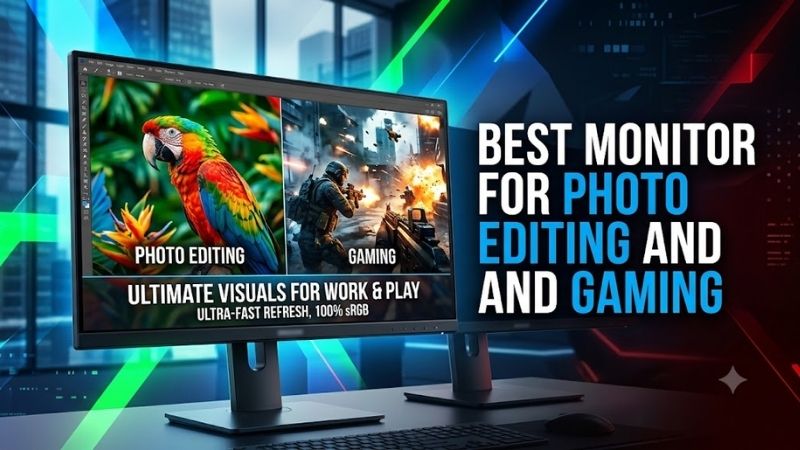
The best monitor for photo editing and gaming must combine dependable color accuracy with smooth motion, sharp 4K detail, and practical connectivity. This roundup focuses on displays that genuinely bridge creative work and play, from calibrated IPS screens to high-refresh OLED models built for HDR, fast games, and detailed image editing.
Quick answer: For most people in 2026, the best monitor for photo editing and gaming is the ASUS ProArt PA32UCDM — our #1 rated choice. See the full ranked comparison, alternatives and buying advice below.
Best Monitors for Photo Editing and Gaming Compared
A creator-gaming monitor has to do more than look vivid. Photo work benefits from accurate color modes, broad gamut coverage, calibration support, and consistent tone reproduction, while gaming rewards refresh rate, low response time, VRR, and HDMI 2.1 or DisplayPort bandwidth. The best choice depends on which side of that balance matters most.
| Monitor | Panel / Resolution | Max Refresh Rate | Color Coverage | Best For |
|---|---|---|---|---|
| ASUS ProArt PA32UCDM | 31.5-inch QD-OLED, 4K | 240Hz | 100% sRGB, 99% DCI-P3 | Best overall creator-gaming balance |
| BenQ PD3226G | 31.5-inch IPS, 4K | 144Hz | 100% sRGB, 100% Rec.709, 95% P3 | Photo editing with IPS |
| Dell UltraSharp U3225QE | 31.5-inch IPS Black, 4K | 120Hz | 100% sRGB, 99% Display P3 | Creative work and connectivity |
| AORUS FO32U2P | 31.5-inch OLED, 4K | 240Hz | 99% DCI-P3 | High-end PC gaming connectivity |
| LG UltraGear 32GS95UE-B | 31.5-inch OLED, 4K | 240Hz / 480Hz FHD | 98.5% DCI-P3 typical | Competitive gaming plus editing |
ASUS ProArt PA32UCDM — Best Overall
The ASUS ProArt PA32UCDM is the strongest all-around fit for users who edit photos seriously but still want premium gaming speed. Its 31.5-inch 4K QD-OLED panel runs at up to 240Hz, covers 99% DCI-P3 and 100% sRGB, supports 10-bit color, and is specified for Delta E below 1 color accuracy for demanding creative work.
What separates it from ordinary gaming OLEDs is the creator toolset: hardware calibration, ProArt presets, Adobe RGB and Rec.709 modes, plus Thunderbolt 4 with up to 96W power delivery. The trade-off is OLED itself, which needs sensible static-image management if Photoshop, Lightroom, or desktop UI elements stay fixed for long sessions.
Best For: Professional photo editing combined with premium 4K gaming.
Key Features:
- 31.5-inch 3840 × 2160 QD-OLED
- Up to 240Hz refresh rate
- 100% sRGB and 99% DCI-P3
- 10-bit color
- Delta E <1 specification
- Hardware calibration support
- Thunderbolt 4
- USB-C power delivery up to 96W
- Adaptive-Sync
- Adobe RGB, Rec.709, DCI-P3, and sRGB presets
What Makes It Different: It combines ProArt-level calibration features with the refresh rate normally associated with flagship gaming monitors.
Pros:
- Strong factory color accuracy specification
- Hardware calibration support
- 240Hz 4K gaming
- Deep OLED contrast
- Useful professional color presets
- High-power Thunderbolt connection
Cons:
- OLED requires more care with static desktop content
- Gaming-oriented buyers may not need its professional color tools
Use Case: Editing RAW photos during the day and playing 4K RPGs, shooters, or racing games on the same display.
Who It’s For: Photographers, content creators, and gamers who want one premium monitor rather than separate creative and gaming screens.
BenQ PD3226G — Best IPS Monitor for Creators Who Game
The BenQ PD3226G is a better fit for photographers who prefer an IPS panel and still want fluid gaming. Its 31.5-inch 4K screen reaches 144Hz, covers 100% sRGB, 100% Rec.709 and 95% P3, and carries a factory calibration report with an average Delta E of 2 or less. It also supports Adaptive-Sync and FreeSync Premium.
Its advantage is workflow stability rather than OLED contrast. BenQ adds hardware-oriented color tools, uniformity technology, ICCsync, a KVM switch, Thunderbolt 4 with 90W power delivery, and a Hotkey Puck G3. The 144Hz ceiling is lower than 240Hz OLED rivals, but it is still a clear step above traditional 60Hz creator monitors.
Best For: Photography-first users who prefer IPS but still want high-refresh gaming.
Key Features:
- 31.5-inch 4K IPS panel
- 144Hz refresh rate
- 100% sRGB
- 100% Rec.709
- 95% P3
- Average Delta E ≤2
- Factory calibration report
- Uniformity Technology
- FreeSync Premium
- Thunderbolt 4 with 90W power delivery
- Built-in KVM
What Makes It Different: It starts from a professional creator-monitor platform rather than adding color modes to a gaming-first display.
Pros:
- Creator-focused color management
- No OLED static-image concern
- 144Hz refresh rate
- Factory calibration
- Strong laptop connectivity
- KVM and workflow controls
Cons:
- Lower refresh rate than 240Hz alternatives
- IPS cannot match OLED black levels
- P3 coverage is narrower than several OLED rivals
Use Case: Lightroom, Photoshop, design work, and general PC gaming where 144Hz is sufficient.
Who It’s For: Photographers who spend long hours in static desktop applications and want gaming performance without moving to OLED.
Dell UltraSharp U3225QE — Best for Editing and Productivity
Dell’s UltraSharp U3225QE targets photographers who also use their monitor as a desktop hub. The 31.5-inch 4K IPS Black panel runs up to 120Hz, reaches a native 3000:1 contrast ratio, covers 99% DCI-P3 and Display P3 plus 100% sRGB, and is specified for average Delta E below 1.5 for color-sensitive workflows.
Gaming is not its primary identity, yet 120Hz and HDMI support for 4K at 120Hz with VRR make it much smoother than a standard office or photo display. Its bigger attraction is connectivity: Thunderbolt 4 can deliver up to 140W, while USB, 2.5GbE Ethernet, daisy chaining, and KVM support simplify a laptop-plus-desktop editing setup.
Best For: Photo editing, productivity, laptop docking, and casual-to-enthusiast gaming.
Key Features:
- 31.5-inch 4K IPS Black panel
- Up to 120Hz
- 3000:1 native contrast ratio
- 100% sRGB
- 99% Display P3
- 99% DCI-P3
- Average Delta E <1.5
- Thunderbolt 4
- Up to 140W power delivery
- 2.5GbE Ethernet
- KVM support
What Makes It Different: The extensive Thunderbolt and USB hub functions allow the display to replace much of a separate laptop dock.
Pros:
- Strong color coverage
- Better native contrast than conventional IPS
- 120Hz refresh rate
- Extensive connectivity
- High laptop charging capacity
- No OLED burn-in consideration
Cons:
- 120Hz is modest beside gaming-focused 240Hz models
- Not designed primarily for competitive gaming
- Lacks OLED-level black depth
Use Case: A workstation connected to a MacBook or creator laptop during working hours and a desktop or console for gaming later.
Who It’s For: Photographers who place connectivity, productivity, and dependable image work ahead of maximum esports refresh rates.
AORUS FO32U2P — Best for High-End Gaming Connectivity
The AORUS FO32U2P suits users who prioritize PC gaming connectivity without giving up credible color performance. Its 31.5-inch 4K OLED panel runs at 240Hz, covers 99% DCI-P3, displays 10-bit color, and ships factory calibrated to Delta E below 2. It also includes anti-reflection treatment and DisplayHDR True Black 400 support.
Its standout feature is the port set: DisplayPort 2.1 UHBR20, HDMI 2.1, USB-C with up to 65W power delivery, KVM, and DisplayPort output. That makes it appealing for a high-end gaming tower sharing peripherals with another system. For photo work, its color specs are useful, but the software is less creator-focused than ProArt or BenQ.
Best For: Gaming-first users who also edit photos and want DisplayPort 2.1.
Key Features:
- 31.5-inch 4K OLED
- Up to 240Hz
- 0.03ms GtG specification
- 99% DCI-P3
- 10-bit color
- Factory calibration with Delta E <2
- DisplayPort 2.1 UHBR20
- HDMI 2.1
- USB-C with up to 65W power delivery
- KVM
- DisplayHDR True Black 400
What Makes It Different: DisplayPort 2.1 UHBR20 gives high-end PC builders a more forward-looking display connection than many competing 4K OLEDs.
Pros:
- 4K at up to 240Hz
- DisplayPort 2.1
- Wide DCI-P3 coverage
- Factory calibration
- Built-in KVM
- Strong gaming feature set
Cons:
- Creator software is less extensive than dedicated professional monitors
- USB-C charging is lower than several productivity-focused competitors
- OLED needs sensible static-image management
Use Case: A powerful gaming PC used for both high-refresh 4K gaming and Lightroom, Photoshop, or content creation.
Who It’s For: Enthusiast PC gamers who care about accurate color but place gaming connectivity and refresh rate near the top of the priority list.
LG UltraGear 32GS95UE-B — Best for Competitive Gaming
The LG UltraGear 32GS95UE-B is the most specialized pick for photographers who also play competitive games. Its 31.5-inch OLED can switch between 4K at up to 240Hz and Full HD at up to 480Hz, so one panel can favor detailed editing one moment and extreme motion clarity the next. LG specifies typical DCI-P3 coverage at 98.5%.
It is also factory color calibrated and listed as hardware-calibration ready with LG Calibration Studio support, which makes it more credible for image work than a purely gaming-oriented OLED. The compromise is that competitive 480Hz mode drops resolution to 1920×1080, while serious editing is best kept in native 3840×2160 mode.
Best For: Photographers who regularly switch between image editing and competitive esports titles.
Key Features:
- 31.5-inch 4K OLED
- 4K at up to 240Hz
- Full HD at up to 480Hz
- 0.03ms GtG specification
- Typical 98.5% DCI-P3 coverage
- 1.07 billion colors
- Factory color calibration
- Hardware calibration ready
- LG Calibration Studio support
- G-SYNC Compatible
- FreeSync Premium Pro
What Makes It Different: Dual Mode lets the same screen prioritize 4K detail for creative work or exceptionally high refresh rates for competitive gaming.
Pros:
- Flexible 4K/240Hz and FHD/480Hz modes
- Factory color calibration
- Hardware calibration support
- Wide P3 coverage
- OLED contrast and response speed
Cons:
- 480Hz requires dropping to Full HD
- Competitive features may be unnecessary for slower games
- OLED remains less ideal for permanently static interfaces
Use Case: Editing high-resolution images in 4K before switching to 480Hz Full HD for games such as Counter-Strike 2 or Valorant.
Who It’s For: Competitive gamers who also require credible color tools for photography or creative content.
How to Choose the Best Monitor for Photo Editing and Gaming
Color Accuracy and Gamut
For photo editing, color accuracy matters more than exaggerated saturation. Look for a factory calibration report, a clearly stated Delta E target, useful sRGB or P3 modes, and support for calibration tools. Wide gamut is valuable for P3 workflows, but controlled color modes matter so web images do not appear unnaturally saturated.
4K Resolution and Screen Size
Resolution sets how much image detail and interface space you can see at once. A 4K panel is especially useful at 31.5 to 32 inches because it gives Lightroom, Photoshop, Capture One, or similar tools room for a large preview and side panels. The trade-off is gaming load: driving modern titles at 4K requires far more GPU performance than 1440p.
Refresh Rate
Refresh rate changes how responsive games feel, but the right target depends on what you play. A 120Hz or 144Hz monitor is already a major improvement over 60Hz for mixed creative use, while 240Hz or 480Hz makes more sense for fast shooters and powerful GPUs. Higher refresh rates do not improve photo quality, so buy speed only when you will use it.
OLED vs IPS
OLED gives photo editors deep blacks, strong per-pixel contrast, and convincing HDR presentation while also delivering very fast pixel response for gaming. IPS and IPS Black panels avoid OLED’s long-term static-image concerns and can suit extended desktop sessions. Choose based on how much time you spend in fixed editing interfaces versus games.
USB-C, Thunderbolt, HDMI, and DisplayPort
Connectivity matters when one display has to serve a gaming PC, laptop, camera workflow, and peripherals. Thunderbolt or USB-C can carry video, data, and laptop power through one cable, while KVM support lets two computers share a keyboard and mouse. HDMI 2.1 helps with current consoles, while DisplayPort is central to high-refresh PC gaming.
FAQ
Can a gaming monitor be good for professional photo editing?
Yes, a gaming monitor can work well for professional photo editing if it has verified color accuracy, suitable gamut coverage, and usable calibration controls. High refresh rate alone does not make a display suitable for creative work. Prioritize accurate sRGB or P3 modes and calibration support before extras such as lighting or gaming overlays.
Is 4K worth it for photo editing and gaming?
For a mixed photo-editing and gaming setup, 4K is usually the most practical resolution at 32 inches because it combines fine image detail with ample workspace. It also looks sharp in games, but the GPU requirement is higher. If your graphics card cannot sustain the frame rate you want at 4K, lowering settings or using upscaling may be necessary.
Is OLED good for photo editing?
OLED is excellent for photo editing when you value deep blacks, high contrast, wide color, and HDR previewing, but it is not automatically the best choice for every workflow. Editors who keep static panels, timelines, or toolbars on screen for long periods may prefer IPS. OLED care features help, yet static-image habits still deserve attention.
Is 120Hz enough for photo editing and gaming?
A 120Hz display is enough for many people who split time between photo editing and gaming. It makes desktop motion and most games feel much smoother than 60Hz without forcing you into a gaming-first monitor. Competitive players may benefit from 240Hz or higher, but photographers gain little from those extra refresh cycles during editing itself.
Do I need hardware calibration for photo editing?
Hardware calibration is useful when color consistency is important because supported monitors can store calibration adjustments at the display level rather than relying only on a computer profile. It is not mandatory for every hobbyist, but photographers preparing paid work, print output, or multi-display setups can benefit from repeatability.
Conclusion
The best monitor for photo editing and gaming is the one that matches your creative priorities without sacrificing the speed you actually use. ASUS ProArt leads for a premium color-and-240Hz blend, while BenQ and Dell favor long-form creator workflows. AORUS and LG make more sense when high-refresh gaming carries greater weight.
Ready to decide? Our #1 pick for 2026 is the ASUS ProArt PA32UCDM.
Live price & availability on Amazon.