🛒 Best Price Today on Amazon
Prime members get fast, free shipping on everything above, plus member-only deals. New members get a 30-day free trial — cancel anytime.
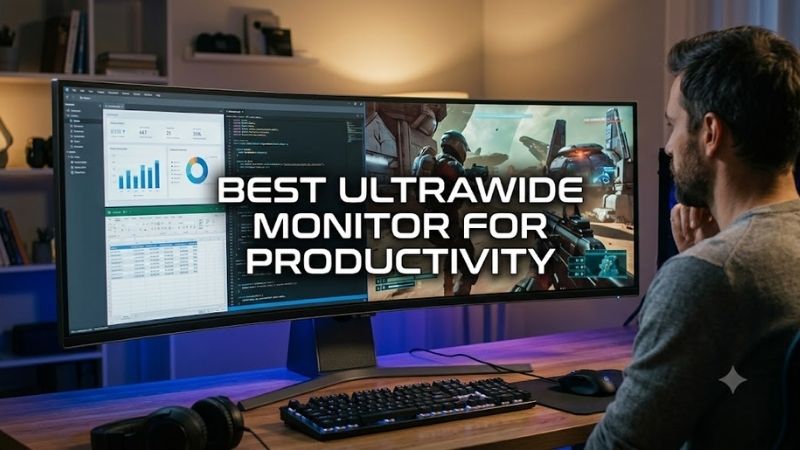
The best ultrawide monitor for productivity should replace a dual-screen setup without sacrificing text clarity, connectivity, or ergonomic control. This roundup focuses on ultrawide displays that make spreadsheets, coding, creative work, meetings, and multi-app workflows easier while keeping cable clutter and window switching under control.
Quick answer: For most people in 2026, the best ultrawide monitor for productivity is the Dell UltraSharp U4025QW — our #1 rated choice. See the full ranked comparison, alternatives and buying advice below.
Best Ultrawide Monitors for Productivity Compared
| Monitor | Best For | Size / Resolution | Refresh Rate | Laptop Power |
|---|---|---|---|---|
| Dell UltraSharp U4025QW | Premium all-in-one workstation | 39.7-inch, 5120 x 2160 | 120Hz | Thunderbolt 4, up to 140W |
| LG 38WR85QC-W | Productivity plus gaming | 37.5-inch, 3840 x 1600 | 144Hz | USB-C, 90W |
| Dell UltraSharp U3425WE | Compact Thunderbolt desk | 34.1-inch, 3440 x 1440 | 120Hz | Thunderbolt 4, up to 90W |
| BenQ PD3420Q | Creative and color workflows | 34-inch, 3440 x 1440 | 60Hz | USB-C, 65W |
| Samsung Odyssey Neo G9 57 | Maximum multi-window space | 57-inch, 7680 x 2160 | Up to 240Hz | No USB-C charging |
Dell UltraSharp U4025QW
Best For: Premium single-monitor productivity workstation
Key Features
- 39.7-inch 21:9 IPS Black display
- 5120 x 2160 resolution at up to 120Hz
- 140 PPI
- Thunderbolt 4 with up to 140W power delivery
- 2.5GbE Ethernet
- KVM, Picture-by-Picture, and Picture-in-Picture
- Height, tilt, and swivel adjustment
What Makes It Different
Dell’s U4025QW combines a 39.7-inch 5120 x 2160 IPS Black panel with a 120Hz refresh rate, giving office users both 140 PPI text density and smoother scrolling than typical 60Hz productivity displays. Thunderbolt 4 can deliver up to 140W, while 2.5GbE and a large USB hub turn the monitor into a capable desk dock.
Pros
- High 5K2K resolution for detailed text and dense interfaces
- 120Hz refresh rate is unusually fast for a productivity-focused 5K2K monitor
- Extensive Thunderbolt, USB, and Ethernet connectivity
- High power delivery suits demanding compatible laptops
- No center bezel when arranging several apps
Cons
- Large footprint compared with 34-inch ultrawides
- High native resolution may require display scaling
- More monitor than basic document and email workflows require
Use Case
Its 21:9 5K2K workspace fits several documents, browser windows, timelines, or code panes without the center bezel of dual monitors. The trade-off is scale: 5120 x 2160 can demand operating-system scaling, and the 39.7-inch chassis needs a deeper desk than a standard 34-inch ultrawide, especially with the stock stand.
Who It’s For
Choose the U4025QW if your day moves between a laptop, desktop, spreadsheets, dashboards, editing tools, and video calls, and you want one display to act as the center of the desk. It is especially relevant to USB-C or Thunderbolt laptop users who value charging, Ethernet, peripherals, and high pixel density in one connection.
LG 38WR85QC-W
Best For: Mixed productivity and high-refresh gaming
Key Features
- 37.5-inch curved IPS display
- 3840 x 1600 resolution
- 144Hz maximum refresh rate
- 2300R curvature
- USB-C with 90W power delivery
- Built-in KVM
- RJ45 Ethernet
- Picture-by-Picture and Picture-in-Picture
- Height, tilt, and swivel adjustment
What Makes It Different
The LG 38WR85QC-W uses a 37.5-inch 3840 x 1600 IPS panel with a 144Hz refresh rate, 2300R curve, built-in KVM, 90W USB-C power delivery, RJ45, and Picture-by-Picture. Its extra vertical pixels give documents and timelines more breathing room than 3440 x 1440, while 144Hz keeps cursor movement and scrolling visibly fluid.
Pros
- 1600-pixel vertical resolution provides extra workspace
- 144Hz suits office use and gaming
- Integrated KVM supports multi-computer desks
- USB-C charging and Ethernet simplify laptop connections
- PBP and PIP add useful source-management options
Cons
- Lower pixel density than a 40-inch 5K2K display
- Requires more desk space than a 34-inch model
- 144Hz over DisplayPort requires suitable graphics support
Use Case
This size is a practical middle ground for people who want more usable height than a 34-inch ultrawide but do not need 5K2K density. PBP and the KVM suit two-computer desks, while the 144Hz panel also makes the display more comfortable for after-hours gaming. It still occupies substantially more desk width than a 34-inch model.
Who It’s For
The LG fits hybrid workers, developers, analysts, and creators who split time between productivity and gaming. It is particularly useful when a work laptop and personal desktop share one keyboard, mouse, network connection, and screen. Buyers focused mainly on razor-sharp text may still prefer a higher-PPI 5K2K model.
Dell UltraSharp U3425WE
Best For: Compact Thunderbolt productivity setups
Key Features
- 34.1-inch curved IPS Black panel
- 3440 x 1440 resolution
- Up to 120Hz refresh rate
- 1900R curvature
- Thunderbolt 4 upstream and downstream connectivity
- Up to 90W laptop power delivery
- 2.5GbE Ethernet
- Picture-by-Picture and Picture-in-Picture
What Makes It Different
Dell’s U3425WE brings a 34.1-inch 3440 x 1440 IPS Black panel to 120Hz, while Thunderbolt 4 supplies up to 90W to a compatible laptop. The monitor also includes 2.5GbE, multiple USB-A and USB-C ports, and daisy-chain support, giving compact desks many of the docking features found on Dell’s larger 40-inch model.
Pros
- Easier to accommodate than larger 38- and 40-inch displays
- 120Hz makes everyday desktop motion smoother
- Thunderbolt 4 supports a streamlined laptop workstation
- Integrated 2.5GbE connection
- IPS Black panel provides a 2000:1 listed native contrast ratio
Cons
- Less vertical workspace than 3840 x 1600
- Lower pixel density than 5K2K alternatives
- HDMI does not reach the monitor’s full 120Hz specification
Use Case
A 34-inch 21:9 screen is easier to position than 38- or 40-inch alternatives and still gives enough width for two large apps or three narrower columns. The 120Hz refresh rate makes office motion feel smoother, but 3440 x 1440 at this size is less pixel-dense than 5K2K, so fine text and dense interfaces are not as crisp.
Who It’s For
The U3425WE is aimed at laptop-first professionals who want a single-cable workstation without committing to a very large screen. It works well for email, browser research, code, document editing, and side-by-side collaboration tools. Its balanced size also makes it easier to use on shallower desks or in shared home offices.
BenQ PD3420Q
Best For: Designers and color-managed creative work
Key Features
- 34-inch IPS panel
- 3440 x 1440 resolution
- 60Hz refresh rate
- 100% sRGB coverage
- 100% Rec.709 coverage
- 98% P3 coverage
- USB-C with up to 65W power delivery
- HDR10 and VESA DisplayHDR 400
- Hotkey Puck G2 included
What Makes It Different
BenQ’s PD3420Q is built around a 34-inch 3440 x 1440 IPS panel running at 60Hz, with 100% sRGB, 100% Rec.709, and 98% P3 coverage listed by BenQ. USB-C supplies up to 65W, and creator-focused color modes target workflows where predictable color spaces matter more than high refresh rates or gaming-oriented motion.
Pros
- Multiple documented color-space modes
- 21:9 canvas suits editing timelines and tool panels
- USB-C combines display, data, and laptop charging
- Hotkey Puck provides quicker access to display controls
- Matte IPS display suits conventional creator workstations
Cons
- Limited to 60Hz
- 65W charging may be insufficient for some powerful laptops
- Does not provide the high pixel density of 5K2K models
Use Case
For photo work, video editing, design review, and content production, the PD3420Q emphasizes color workflow tools over raw speed. Its 21:9 canvas leaves room for timelines, palettes, and a preview window, while the Hotkey Puck can reduce menu digging. The 60Hz ceiling is the main compromise for users who also want very fluid gaming.
Who It’s For
Choose this model when color-space support and creative workflow controls matter more than dock-class charging or 120Hz-plus motion. It is a natural fit for designers and editors using sRGB, Rec.709, or P3 deliverables. Laptop users should also confirm that 65W USB-C power is enough for their system under sustained workloads.
Samsung Odyssey Neo G9 57
Best For: Extreme multi-window productivity
Key Features
- 57-inch 32:9 curved VA display
- 7680 x 2160 Dual UHD resolution
- 1000R curvature
- Up to 240Hz refresh rate
- DisplayPort 2.1
- Three HDMI 2.1 inputs
- Picture-by-Picture
- Picture-in-Picture
- KVM switch
- No USB-C charging
What Makes It Different
Samsung’s 57-inch Odyssey Neo G9 stretches 7680 x 2160 pixels across a 32:9 curved VA panel, effectively providing the horizontal workspace of two 32-inch 4K displays without a center bezel. It also supports Picture-by-Picture, a KVM switch, DisplayPort 2.1, HDMI 2.1, and refresh rates up to 240Hz with suitable hardware.
Pros
- Massive 7680 x 2160 desktop area
- Replaces the visual layout of two 4K-class screens
- PBP helps divide the display between sources
- Integrated KVM supports multi-PC setups
- 240Hz capability also serves demanding gaming systems
Cons
- Extremely wide physical footprint
- No USB-C laptop charging
- Full Dual UHD at 240Hz requires appropriate GPU output support
- Larger stand and viewing area demand substantial desk space
Use Case
The huge canvas is useful for finance dashboards, engineering tools, long editing timelines, large spreadsheets, and multi-window command centers. The cost is physical scale: the chassis is over 52 inches wide, the stand is deep, and there is no USB-C charging. Full 7680 x 2160 at 240Hz also requires a compatible GPU and connection.
Who It’s For
This is for users who would otherwise run two 32-inch 4K monitors and want a continuous workspace for many applications at once. It also suits professionals who game on the same desk and can use the high refresh rate. It is excessive for basic office work, small desks, and laptop setups that depend on one-cable USB-C charging.
How to Choose an Ultrawide Monitor for Productivity
Screen Size and Desk Space
Start with workspace shape, not diagonal size. A 34-inch 3440 x 1440 panel is manageable on ordinary desks, while 38- to 40-inch models add useful height and room for wider layouts. A 49- or 57-inch 32:9 screen targets people replacing two monitors, but its width, viewing distance, and stand depth become major setup constraints.
Resolution and Text Clarity
Resolution determines how much information fits on screen and how sharp text looks. A 3440 x 1440 ultrawide is comfortable for general office work, while 3840 x 1600 adds vertical space. A 5120 x 2160 5K2K display raises pixel density substantially, although many users will apply scaling rather than run the desktop at native size.
USB-C and Thunderbolt Connectivity
For laptop users, USB-C or Thunderbolt can matter more than panel speed. One cable can carry video, data, and power, while an integrated USB hub, Ethernet, and KVM reduce the need for a separate dock. Check your laptop’s charging requirement first because 65W, 90W, and 140W power delivery suit different classes of systems.
Refresh Rate
Refresh rate affects productivity even when games are not the priority. Moving from 60Hz to 120Hz or 144Hz makes scrolling, cursor movement, window dragging, and animations appear smoother. It does not increase spreadsheet capacity or text sharpness, so treat higher refresh as a comfort feature rather than a substitute for resolution.
KVM and Picture-by-Picture
A KVM switch and Picture-by-Picture are valuable when two computers share one display. KVM support can let the same keyboard and mouse move between systems, while PBP shows two sources at once. These features are especially useful for work-laptop plus desktop setups, but implementation and required USB connections vary by monitor.
FAQ
Can an ultrawide monitor replace two monitors?
Yes. An ultrawide can replace two monitors when your workflow benefits from one continuous desktop and flexible window snapping. A 21:9 model suits two or three applications at once, while a 32:9 display is closer to a dual-monitor replacement. Separate displays still offer more independent positioning and mixed portrait-landscape layouts.
What ultrawide size is best for productivity?
For most office users, 34 inches is the easiest ultrawide size to accommodate, while 38 to 40 inches offers more vertical room and a more expansive workspace. A 49- or 57-inch screen makes sense for dense dashboards and many simultaneous windows, but it needs more desk depth, wider viewing movement, and stronger mounting support.
Is 3440 x 1440 enough for productivity?
Yes, 3440 x 1440 is enough for email, documents, coding, browsing, and common spreadsheet work, especially at 34 inches. Users who stare at small text all day or work with dense creative interfaces may prefer 3840 x 1600 or 5120 x 2160 for more vertical space and finer detail, provided their computer can drive the higher resolution.
Do I need USB-C on an ultrawide monitor?
USB-C is not required, but it can simplify a laptop workstation by carrying video, data, and charging through one cable. If the monitor also includes Ethernet and USB ports, it can replace part of a dock. Desktop users connected by DisplayPort or HDMI may gain little from USB-C unless they also need upstream USB or KVM functions.
Is a curved ultrawide better for office work?
A curved screen is useful on large ultrawides because it keeps the far edges more consistently oriented toward the viewer. The effect becomes more noticeable on 38-inch, 40-inch, and 32:9 displays. Curvature does not create extra workspace, though, and very strong curves can be less appealing for users doing geometry-sensitive visual work.
Conclusion
The best ultrawide monitor for productivity depends on how much workspace, pixel density, docking capability, and refresh rate your desk actually needs. Dell’s U4025QW targets premium single-cable workstations, while LG, Dell, BenQ, and Samsung cover smaller desks, mixed-use setups, color work, and extreme multi-window workflows.
Ready to decide? Our #1 pick for 2026 is the Dell UltraSharp U4025QW.
Live price & availability on Amazon.