🛒 Best Price Today on Amazon
Prime members get fast, free shipping on everything above, plus member-only deals. New members get a 30-day free trial — cancel anytime.
- Which Ryzen 5 9600X power mode should you use for gaming?
- What changes when you select the higher power profile?
- What do published gaming tests show about 65W and 105W?
- How do you compare both modes on your own PC?
- When should you return to the 65W profile?
- How do you tell a useful 105W gain from a misleading one?
- Conclusion
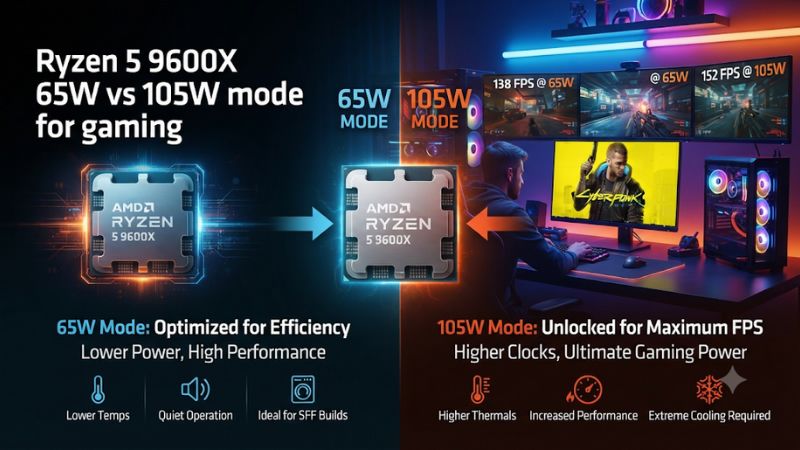
Keep the Ryzen 5 9600X at 65W for everyday gaming unless the same repeatable scene runs measurably better at 105W. This Ryzen 5 9600X 65W vs 105W mode for gaming comparison explains what the BIOS setting changes, how to verify its limits, and how to judge frame times, heat, and fan noise before keeping the higher mode.
Which Ryzen 5 9600X power mode should you use for gaming?
Start with the default 65W profile. Try the supported 105W setting if the system has cooling headroom and you can show that the 65W profile is holding back a particular workload.
The higher mode allows more processor power under the right conditions. It does not promise higher FPS.
| Factor | Default 65W mode | Supported 105W mode |
|---|---|---|
| Nominal TDP class | 65 W | 105 W |
| Common processor PPT limit | 88 W | 142 W on the corresponding 105 W profile |
| Best reason to use it | Good default for gaming and easier cooling | A measured benefit in a power-limited game or sustained CPU task |
| Likely gaming result | Similar performance in many ordinary games | Small, variable, or unmeasurable effect when another limit dominates |
| What to verify | Actual limits, frame times, and fan noise | Active preset, supported BIOS, cooling, and repeatable benefit |
Start at 65W for a gaming-only PC
Most gaming systems benefit from a simple baseline. The default mode keeps the processor within its standard lower power profile while letting automatic boost respond to the work. If the game stays below the relevant power limits, an increased ceiling leaves the same work essentially unchanged.
This is especially useful in a compact case or a machine tuned for lower noise. Less allowable sustained processor power can make cooling easier when another task uses all the cores.
In games that barely use the additional headroom, you may see little temperature difference across modes. Measure the actual workload before drawing a thermal conclusion.
Choose a clear decision point before testing. For a competitive game, that might be the slowest important part of a match.
For a single-player game capped comfortably below the system’s limit, it might simply be how quiet the PC stays. The 65W profile is an easier starting point for both.
Try 105W for a repeatable workload that depends on CPU power
The 105W option makes more sense when a sustained task approaches the stock socket power or current limit and still has thermal headroom. In that situation, allowing more power can let the processor sustain a different operating point. Rendering or another all-core job is often a more useful reason to test the mode than a GPU-limited game.
Some players use the same PC for CPU-heavy background work while gaming. Reproduce that workload as you usually run it. If the 105W mode improves slow-frame delivery or application throughput and the temperatures and noise remain acceptable, there is a concrete reason to keep it.
A borderline improvement can disappear between repeated runs. Compare both modes again if the difference is close to the ordinary variation in your baseline. Use the setting that gives a dependable result in the workloads you actually care about.
What changes when you select the higher power profile?
AMD introduced official support for the 105W option for the Ryzen 5 9600X and Ryzen 7 9700X through the AM5 AGESA 1.2.0.2 era. Motherboard vendors distribute that support in their own firmware. Check the exact board model and release notes for the available option.
Separate TDP from the power readings you measure
TDP describes the processor’s thermal design class or configured profile. PPT is AMD’s processor socket power limit.
The default 65W profile for the 9600X is commonly specified with an 88 W PPT limit. A corresponding 105W profile normally raises that limit to 142 W. Check the active value on your board, particularly if older firmware or custom limits are involved.
Neither number tells you how much every game will draw. A lighter workload can operate far below the ceiling.
Actual CPU Package Power and a PPT percentage can also appear as different readings. When you can see a percentage and its allowed maximum, record the pair rather than comparing two percentages with different denominators.
A wall meter captures the behavior of the entire PC, including the GPU and power supply losses. Use it for whole-system energy or heat questions. For the mode comparison itself, record the same processor power sensor at the same point in each run.
Use the official firmware setting for a clean comparison
Look for the board’s documented 105W TDP or cTDP mode for the 9600X. Some boards place it within CPU power or overclocking menus, but names differ.
Confirm that the setting is the vendor’s implementation of AMD’s supported mode. A motherboard PBO preset or a manually entered power limit is a different configuration.
Keep Boost Override, Curve Optimizer, memory settings, and other CPU options fixed. Changing firmware and enabling the 105W setting at the same time also adds another variable. If the board needs a firmware update, establish a fresh 65W baseline on the new version before enabling 105W.
AMD announced warranty support for the official 105W mode on these models. That announcement applies to the supported option and does not establish coverage for other manual tuning. Check your normal purchase terms if service matters, and use the documented control for your CPU and board.
Decide whether your cooler can handle sustained load
A higher power allowance can let the processor draw more power in tasks that use it. The cooling impact depends on the case, ambient temperature, fan settings, and how long the task runs. A small enclosure that is comfortable in games may become louder during a sustained CPU job.
Track CPU temperature and effective clocks in the same late section of each test. If clocks fall while your temperature reaches a limit, the additional power allowance may be providing heat rather than useful throughput. Check the cooler and airflow before assuming the 105W mode will solve the original problem.
Check fan sound at the place where you actually play. Fan RPM can help explain the difference even if peak temperatures are similar.
Different fan curves can trade temperature for noise without changing the final game result. Keep them fixed at first so you can attribute what changes.
What do published gaming tests show about 65W and 105W?
Tests of the same CPU at multiple power settings help show how often the extra allowance matters. They are most useful when the motherboard, memory, GPU, game settings, and firmware are shared across modes.
Read the settings behind the result
Tom’s Hardware reported on an ASCII comparison of the 9600X and 9700X using 65W, 105W, and a separate 120W configuration. On the 9600X, Black Myth: Wukong and F1 24 showed little useful uplift from the higher settings in those tests.
Counter-Strike 2 showed a somewhat more favorable trend for the 9600X at higher settings. That is evidence of game-dependent behavior in one test setup.
Keep the conditions attached to the conclusion. The tests did not establish that 105W improves every Counter-Strike 2 scene or that no game can benefit.
They also did not test every graphics card, memory configuration, or BIOS release. Build your decision around the mode change at your actual gaming settings.
The custom 120W configuration in that report is separate from AMD’s supported 105W profile. An advantage in the custom setting cannot be assigned wholesale to the official mode. Compare the specific pair of results before using them to judge the mode you can actually set.
Understand why more power often changes little
A game can be limited by the GPU, a frame cap, or an engine thread that gains little from more package power. In those cases the 9600X may already complete its CPU work without approaching its current ceiling. Raising that ceiling gives the processor permission to use more power when needed.
A CPU-limited game is also not automatically power-limited. Its slowest section can depend on memory, the engine’s threading, or short bursts already near their allowed boost. A useful test checks both actual package behavior and frame timing during the demanding scene.
For example, if total CPU power stays similar between modes and the frame-time traces overlap, there is little practical case for keeping 105W for that game. If the first run repeatedly approaches the 65W profile’s limit and the higher mode changes throughput, the extra power is more relevant. Confirm with a second matched run.
How do you compare both modes on your own PC?
Use a repeatable scene and keep the rest of the configuration fixed. Measure a stock run, apply the documented higher mode, and repeat under comparable conditions. Include cooling and power measurements so you can see why the result changed.
Record the 65W baseline
- What to do Confirm the active lower mode, then record a repeatable gameplay segment. Track average FPS, frame times, CPU package power or PPT readings, effective clocks, and temperature.
- Expected result You have a usable baseline with known settings and a record of whether a processor power limit was approached.
- If the check fails Reproduce the scene after shaders or updates finish, and verify the sensor names and units. Avoid mixing a capped run with an uncapped one.
Use the same game build, render resolution, graphics preset, frame cap, and capture method. Use comparable starting temperatures when you want to compare thermals as well as performance. If one run starts immediately after a long game, the system may begin warmer than the other.
Include a GPU workload check. If your card was fully occupied at the slowest point, the higher CPU profile may leave the result mostly unchanged. An optional lower render-scale run can help diagnose the bottleneck, but both mode comparisons should still use identical settings.
Select the supported 105W profile and verify it
- What to do Use the motherboard’s documented option, save the change, restart, and read back the active limit under a compatible monitor.
- Expected result The selected mode stays active and shows a higher available power limit under a workload that can reveal it.
- If the check fails Confirm the board supports the mode for this CPU and that another profile is not overriding it. Restore the working original setting before making unrelated changes.
Where a supported BIOS update is necessary, obtain it through the board vendor and follow the manufacturer’s exact process. Record the original boot and tuning settings before updating. If your board already supports the mode, no other firmware change is needed for the comparison.
Re-run the game using the same measurement setup. Later, use a sustained render or another familiar CPU-heavy task if you want to see whether that workload responds differently. Keep the gaming conclusion separate from the productivity result.
Compare the slow frames and the cost of the change
Compare slow-frame behavior and average FPS from the same interval. A small average gain matters less if the demanding moments remain unchanged. If your normal frame cap is already reached, consider whether either profile changes how long frame times stay outside your preferred range.
Check average CPU power, late-run temperature, and fan speed or audible noise. The extra mode is a reasonable choice when it produces a result you need at a cost you accept. If both game captures look similar, the default profile remains the practical choice for routine play.
Run one more pass with the original setting if the difference is small. An A/B/A comparison can reveal that a warmer room, another application, or a slightly different route moved the result. If both stock runs bracket the higher mode, the mode change is probably not the explanation for the measured gap.
When should you return to the 65W profile?
Switch back when the higher mode adds noise or heat without a repeatable improvement, or when it causes an unwanted stability problem. A return to your known baseline makes it easier to diagnose a change in behavior.
Use a clear decision rule after testing
- Keep 65W for GPU-limited or frame-capped play when the higher mode shows no meaningful benefit.
- Consider 105W if a reproducible CPU power limit is relieved and gaming or sustained work improves in a way you value.
- Restore the original setting if temperatures, noise, or stability are unacceptable.
- Save the matched results so you know which mode was active if the firmware or workload changes later.
If your PC is used for different jobs, decide which workload gets priority. A quiet gaming profile can be the everyday choice even if a separate render benchmark benefits at 105W. If you switch modes, recheck the active profile and its cooling behavior after a reboot.
How do you tell a useful 105W gain from a misleading one?
The strongest case for keeping 105W is a performance difference that appears repeatedly at the point you expect it. CPU power, clocks, and frame timing should tell a consistent story.
Match each data point to the workload
| What you record | Why it matters | How to compare it |
|---|---|---|
| Game frame intervals | Shows where the game slowed | Capture the same segment with the same tool and cap |
| CPU Package Power or PPT | Shows the demand and headroom under each mode | Use the same reading and confirm whether it is watts or percent |
| CPU effective clock | Helps explain a sustained throughput difference | Inspect the active cores during equivalent work |
| CPU temperature and fan speed | Shows the cooling cost | Compare after a similar warm-up with the same fan policy |
| GPU work | Helps identify a graphics limit | Compare the same settings and the same part of the route |
An average package-power value taken across menus and gameplay can hide what happened during the demanding scene. Mark the start and end of the segment you want, then inspect the aligned portion. A higher number that appears while the game is loading does not automatically explain a change measured during play.
If you compare slow frames, use the same reported statistic and sample duration. A game route with more activity in one pass can produce more long frames regardless of the power mode. Repeat the scene or use a replay when the choice depends on a small difference.
Compare a GPU-limited example with a power-limited one
Imagine that both modes average essentially the same FPS and present long frames in the same part of the route. The GPU is heavily occupied and CPU Package Power stays well below the stock limit. Raising the ceiling is unlikely to change what you see in that scene unless another setting changes the workload.
A different hypothetical result is a sustained CPU-heavy task that reaches the lower profile’s operating limit and then finishes sooner in 105W mode. Effective clocks are higher for the same work, and cooling remains within the behavior you are willing to accept. That is a stronger reason to use the higher power profile for that task.
Gaming and a render run can lead to different choices on the same PC. A mode that improves completion time in an all-core application can leave the most important game unchanged. Write down the result for each workload separately so the render gain does not become an unsupported gaming claim.
If both tests approach the same high temperature and clocks fall in the higher mode, check whether cooling limits the result. Extra permitted power can increase the cooler load without improving the work output. A faster fan setting can change those observations, which is why it should be tested separately from the mode itself.
Keep the right comparison when the firmware changes
After a BIOS update, check the active mode before interpreting changes in FPS or power. A memory profile, boost option, or fan setting may have returned to a default or changed behavior. Compare 65W and 105W on the same supported release once you have restored the intended settings.
If you previously ran a manual PBO profile, save its values for reference and compare it separately. A custom profile can change more than the nominal power limit. The aim of this comparison is to isolate the supported 65W and 105W settings under otherwise similar conditions.
Restore the profile that best matches the computer’s main job. For a gaming-focused machine where the results tie, 65W keeps the simpler baseline. For a system with measurable all-core gains at 105W, the broader allowance can be useful when the cooling and sound are acceptable.
If one mode refuses to behave as documented, record the board model, BIOS version, selected profile, and monitor readings. A percentage alone is usually insufficient to identify an override. The full setting and its corresponding limit are more useful when asking the motherboard vendor to verify the observed behavior.
Use published temperature results as workload-specific evidence
PCGamesN reported a peak of 68°C at 65W and 81°C at 105W while testing its Ryzen 5 9600X in a sustained Cinebench workload. Those readings describe its cooling setup and test conditions. They show that the extra power allowance can materially change the cooling requirement when an application uses it.
A game may draw substantially less power than that render. Avoid using the reported temperature increase as a forecast for your PC.
Check average power and the cooler’s behavior while running your own capture. If neither mode produces the same all-core demand, the temperature gap can be much smaller.
Decide whether noise, temperature, or performance is the binding constraint before interpreting the result. If a repeatable game gain is small and the PC becomes more audible only during background CPU work, your decision may come down to when that work runs. Measure both the intended game session and the separately demanding job before choosing one everyday profile.
Conclusion
Keep the Ryzen 5 9600X at 65W for most gaming. Use the documented 105W mode when a matched test shows a repeatable gain in a CPU power-limited workload and your cooling remains acceptable. Compare the same scene, actual power readings, and frame times before deciding whether the extra headroom has value.