🛒 Best Price Today on Amazon
Prime members get fast, free shipping on everything above, plus member-only deals. New members get a 30-day free trial — cancel anytime.
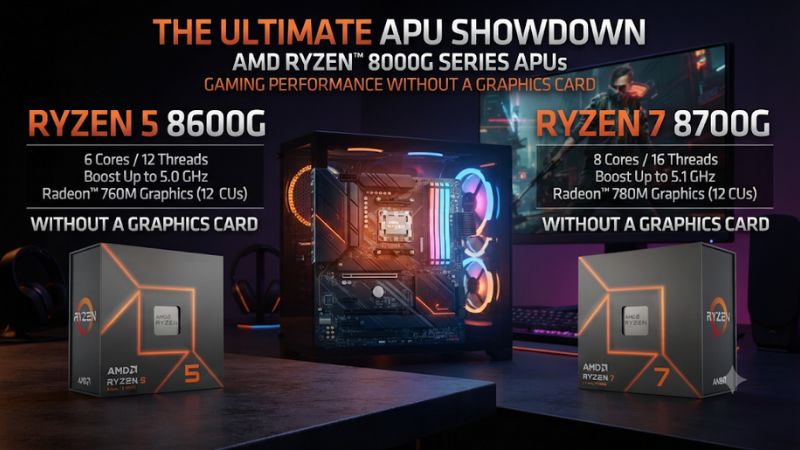
Choose the Ryzen 5 8600G for lower-cost esports and lighter games. Choose the Ryzen 7 8700G if the PC will stay GPU-free and the extra graphics headroom is worth the premium. This Ryzen 5 8600G vs Ryzen 7 8700G without a graphics card comparison shows what the Radeon iGPUs can do and how DDR5 affects both.
Which Ryzen APU is better when there is no graphics card?
The Ryzen 5 8600G is generally the better starting point when price matters most and you can adjust settings to suit the games you play. The Ryzen 7 8700G offers the faster Radeon 780M and two more CPU cores. Those advantages make it the stronger self-contained option if the machine will rely on integrated graphics for years.
| Feature | Ryzen 5 8600G | Ryzen 7 8700G |
|---|---|---|
| CPU architecture | Zen 4 | Zen 4 |
| Cores and threads | 6 cores, 12 threads | 8 cores, 16 threads |
| Base and maximum boost | 4.3 GHz and up to 5.0 GHz | 4.2 GHz and up to 5.1 GHz |
| Integrated graphics | Radeon 760M | Radeon 780M |
| Graphics compute units and clock | 8 CUs, up to 2.8 GHz | 12 CUs, up to 2.9 GHz |
| L3 cache | 16 MB | 16 MB |
| Socket and memory | AM5 with shared DDR5 | AM5 with shared DDR5 |
| Default TDP | 65 W | 65 W |
| Boxed cooler listed in AMD’s launch guide | Wraith Stealth | Wraith Spire |
Pick the 8600G to leave room for a balanced build
The Radeon 760M makes sense for games that tolerate modest graphics settings, older titles, and esports at practical resolution and effects levels. It also suits a shared PC that needs a display and useful light gaming without space or budget for a separate card.
Start by protecting the memory budget. A system with the 8600G and a matched DDR5 pair can be a better allocation than an 8700G purchase that forces you to use one module or a capacity below what your games need. Amount and bandwidth matter because the CPU and iGPU share system memory.
If the no-card phase is temporary, consider how long you will actually use integrated gaming and what kind of card arrives later. A cheaper 8600G can make the interim period workable.
If the card will arrive very soon and the platform cost is the same, compare against an alternative designed primarily for discrete gaming. That is a different use case from buying an APU specifically to play without a card.
Pick the 8700G for a stronger permanent no-card system
The Radeon 780M has 12 compute units, compared with eight in the Radeon 760M. The extra resources give it more room in graphics-limited games. The Ryzen 7 also has eight CPU cores, which can help in work that runs beside the game or when the machine doubles as a productivity PC.
The CU difference is a specification. It does not imply a 50% increase in game FPS.
Shared memory bandwidth, the scene, render scale, and processor power allocation can narrow or broaden the result. Pay for the 8700G when tests in the games you intend to run show that the margin matters.
A compact living-room PC, a build with no practical way to add a card, or a small desk machine you intend to keep GPU-free are sensible use cases. In those situations the stronger iGPU is part of the system for its entire useful life. Check that the case and cooler can sustain performance without distracting fan noise.
What can the Radeon 760M and 780M actually run?
Look up results for your title at the resolution and render scale you will use. The difference between the two APUs is usually easier to see once the game is working the iGPU steadily. In light titles, both can already meet a practical frame cap.
Read matched 1080p and 720p results
Tom’s Hardware compared both APUs at the same stock DDR5-5200 settings. In its suite, the 8700G was about 10% faster than the 8600G in the 1080p aggregate, with a narrower gap of roughly 7% at 720p. Those figures belong to that particular selection of titles, test hardware, and settings.
The same review separated native tests from an upscaling demonstration. That matters because 1080p on the display can be produced from a lower internal resolution. Native 1080p, upscaled 1080p, and a frame-generation result belong in separate comparisons if you want to understand the rendering load.
Use averages and the low end of the results when available. A game averaging above a target can still feel rough at the slowest points. For a home system, a stable capped result at a setting that looks good to you can be more useful than a higher uncapped average with inconsistent delivery.
Use the right settings for the type of game
Start at a moderate or low preset for a demanding title and turn expensive effects down individually. Shadows, reflections, world detail, and volumetric effects can impact different games differently. If the game uses substantial VRAM even at low settings, check texture choices and shared memory pressure.
Esports and lighter games may run comfortably with an emphasis on visibility and consistent frame times. A game with more demanding graphics can be a better fit for a lower render resolution or a slower frame cap. Neither APU can be assumed to deliver native 1080p at high quality in demanding new releases.
Try image scaling where the game provides a mode you find visually acceptable. On a low-resolution source, softer text or unstable fine details may be more noticeable.
Check motion and input response, especially if a title provides frame generation. Generated frames can improve displayed motion while base rendering performance and input latency require separate evaluation.
Choose for the real display and room
A 4K television setting in Windows does not require you to render games at 4K. You can send an appropriate output mode to the TV and use a lower game resolution or scale. Check TV input mode, port capability, and the resolution menus the board and display expose.
For a desk monitor, compare the result at your normal viewing distance. Lower render resolution can be easier to accept on a small screen, while a large nearby display may expose more softness. You can also trade background detail for clearer character silhouettes or UI when playing competitive games.
Use the same route to compare settings on your own PC. Check that the GPU driver is installed, the title is using the intended resolution, and the frame cap is the one you want. Evaluate gameplay after any initial shader compilation has finished so the first experience does not dominate the comparison.
Why does the DDR5 configuration matter on both APUs?
The Radeon graphics engine uses system memory. There is no separate pool of graphics memory on a discrete card in this setup. That makes module count, bandwidth, capacity, and stability relevant to game performance.
Use a matched memory pair before chasing fast settings
Start with a matched two-module DDR5 kit in the slots recommended by the motherboard. On a two-slot board the layout is usually straightforward.
On a four-slot board, follow the vendor’s placement diagram. Verify that the system sees the full capacity before enabling a memory profile.
A paired setup allows the processor to use both memory channels. This is especially important for an iGPU that shares memory with the CPU.
A marketing label saying DDR5 describes the memory technology. It does not prove that your particular layout has the bandwidth the platform can provide with two properly installed modules.
The official supported rates depend on the CPU and DIMM layout. DDR5-5200 is the rated rate for the standard two-module configurations listed by AMD for these parts.
An EXPO profile such as DDR5-6000 may be worth evaluating if compatible and stable, but it is a tuning setting. Test a normal workload before treating a faster kit as guaranteed performance.
Keep enough RAM for Windows, the game, and shared graphics
Capacity and bandwidth are separate questions. A PC can have enough total RAM and still be constrained by a single-module configuration.
A fast pair can also run out of usable capacity when more applications or higher textures are active. Start with enough capacity for your real games and background use.
Consider a 32 GB matched pair if the budget and workloads justify it. The right capacity depends on what you run, so check your games and how much memory they need alongside Windows. Reallocating more reserved UMA memory does not manufacture additional bandwidth or physical RAM.
Leave automatic graphics memory allocation in place while establishing the baseline unless a specific application requires another setting. Some games report a VRAM warning based on reserved memory even though shared allocation is available. Verify actual behavior and the board vendor’s controls before setting aside a large fixed amount.
Check memory stability along with frame-time gains
A more aggressive memory profile can raise performance in bandwidth-sensitive tests and still introduce instability elsewhere. Use a supported configuration, test it, and return to a known working setting if the machine resets or the game crashes. Changing the processor, memory profile, and graphics settings at the same time makes the source harder to identify.
Record which kit and profile produced the test result. Tom’s Hardware found faster memory important in its APU testing, but some of its fastest configurations also used other tuning. Use comparable stock settings to identify the processor difference, then evaluate any stable memory tuning separately.
In a small system, check temperatures and clocks after the PC warms up. The processor and integrated graphics share the package’s operating constraints. Case airflow, cooler capability, and fan tuning can alter sustained behavior even if both APUs carry the same default 65 W TDP.
What else should you compare before placing an order?
Buy an APU, motherboard, memory kit, and cooler that can work together out of the box. This is especially important for a small machine that relies on the motherboard video connector for its only display output.
Verify motherboard video outputs and firmware
Check which HDMI or DisplayPort connectors are available and what mode the board supports with the selected processor. Case size, monitor cable, and TV connector can shape the installation. Confirm the intended output on the exact board revision.
Check the board vendor’s CPU support list and BIOS requirement. An AM5 board shipped before the Ryzen 8000G family may need firmware support added before this APU can boot. If necessary, use a documented update feature or ask the seller to confirm compatibility before purchase.
Install the supported graphics driver and test a normal game. Connecting to a motherboard display output lets you use the integrated GPU, but a basic display driver can limit features and performance. Confirm the Radeon 760M or 780M appears as expected before troubleshooting frame rates.
Compare full cost for compact and future-upgrade builds
For a permanent GPU-free build, compare APU, board, matched DDR5, cooler, and case. AMD’s launch documentation lists different stock coolers for the two boxed models. Confirm what the actual seller includes, especially on tray or small-system packages.
Both use PCIe 4.0 from the processor and provide eight PCIe lanes for graphics according to AMD’s family guide. This does not affect the fact that the iGPU works without a card.
It does matter if you later install a discrete GPU in a physical x16 slot that runs with eight processor lanes. Verify how your board routes them with this specific APU.
If the 8700G premium would make sense only until a dedicated card arrives, compare what you could save with the 8600G now. If the PC will remain card-free, the higher graphics ceiling may justify the premium for the entire life of the build. Use total cost and the intended game list to make that distinction.
Make a decision using the titles you play most
- Choose the 8600G for value, esports and lighter games, or when buying the 8700G would undermine the matched memory and cooling budget.
- Choose the 8700G when you will stay with integrated graphics and matched tests show useful headroom in your heavier games or you also need the extra CPU cores.
- Use the same render settings for each result and separate native performance, upscaling, and frame generation.
- Verify the output and BIOS before buying so the GPU-free system can start and display at the mode you need.
How can you check that an integrated build will meet your gaming goal?
Pick two or three difficult sections from the actual games you play. Evaluate a practical preset rather than assuming a higher integrated graphics tier will meet an arbitrary quality or frame-rate target.
Check the game, preset, and type of FPS first
Record native display resolution and the game’s internal render setting separately. Then note what parts of the graphics preset change between tests. This helps you tell whether a result comes from switching APUs, reducing the rendering load, or letting an upscaler do more work.
For a matched review, look for the same game build and the same RAM speed, module count, and resolution. A test using two modules and a tuned profile cannot be compared cleanly with a one-module budget desktop. Compare stock results when possible, then treat validated memory tuning as a separate part of the build decision.
Imagine a game that runs close to the frame-rate floor you find comfortable on the 8600G. A measured improvement from the 8700G might be worthwhile if it holds the cap more often at the same settings. In a title where both stay far below your goal, a 10% suite average cannot rescue the result by itself.
The exact quality setting that works can differ across rooms and screens. A game at upscaled 1080p may look acceptable at television distance yet show soft details at a desk monitor.
Test static text and characters in motion. Treat image quality, responsiveness, and frame delivery as different outputs of the same setup.
Verify a known good iGPU baseline before tuning
- Set up the hardware with the display connected to the board, both memory modules visible, and the intended graphics driver installed.
- Run the same scene twice with the game’s internal resolution, display output mode, and frame cap documented.
- If performance drops after warming up check CPU and iGPU clocks, temperature, and where the case gets intake air.
- If frame times spike after changing textures return to your previous texture budget and check available system memory.
A new AM5 system can perform memory training on first boot. Let the vendor’s documented process complete and use the board’s diagnostics instead of assuming the display will appear instantly. Once the system is running, verify the default memory configuration and GPU name before tuning graphics performance.
If the iGPU seems slower than expected, start with the settings that most directly change its work. Confirm the game is not rendering at the TV’s full 4K desktop resolution when you meant to use 1080p. Check the native resolution and adaptive scaling settings if both the game and the driver offer controls.
Try a repeatable run using the oldest or least demanding title in your library as a quick sanity check. Then move to the title you bought the system for.
A normal result in one does not establish that the harder game is configured correctly. It does give you a known working baseline for output, driver, and memory before you troubleshoot the other title.
Include streaming, browser use, and general CPU work
A no-card build can do more than play games. If it also hosts a stream, runs a browser and voice chat, or occasionally compiles or renders work, evaluate the complete workload. The 8700G’s extra CPU cores can help a separate threaded task even in a game where its FPS lead is modest.
Use a compatible capture or encoder setting and keep it constant when testing. Check both how the game feels and whether the recording or stream sustains its settings. The iGPU and CPU share the memory system, so a chart taken in an otherwise idle test does not represent every mixed workload.
Think about who will use the machine. A family PC that plays older or casual games may benefit from buying the 8600G and preserving the budget for storage, input devices, or enough memory. A single permanent GPU-free PC for demanding play and work can justify the 8700G if title-specific and application evidence both support it.
If you expect demanding games to replace your current library, estimate what settings you would accept before spending more on integrated graphics. A stronger APU buys some headroom, while a permanent card-free system also limits the future graphics options. A case that can accept a card later offers a different expansion path if enough room and power are available.
Read the cache figures consistently
AMD lists 16 MB of L3 cache for both processors. Higher total cache numbers in product listings include L2 as well.
Compare like with like when reading specifications. For this GPU-free comparison, the differences you are paying for are mainly the 8700G’s additional graphics compute units and CPU cores.
A faster result with a later dedicated card also calls for a different benchmark. Use integrated graphics tests for the system you are building now. Use a discrete-card test if your longer-term plan makes that card the primary graphics device.
Conclusion
Choose the Ryzen 5 8600G if you want an affordable AM5 PC that handles lighter games and esports without a graphics card. Choose the Ryzen 7 8700G when you plan to keep integrated graphics permanently and its faster Radeon 780M or extra CPU cores will matter. Give either APU a matched DDR5 kit, a compatible motherboard output, and realistic render settings.