🛒 Best Price Today on Amazon
Prime members get fast, free shipping on everything above, plus member-only deals. New members get a 30-day free trial — cancel anytime.
Here’s how to choose a Ryzen APU for a living room PC based on what you do from the couch. A Ryzen 5 8600G is a practical starting point for a new DIY build that will game without a separate GPU. For a media-first PC or a compact prebuilt, compare the TV output, playback support, and cooling first.
Start with what you want to do from the couch
A living room PC can spend most of its time playing video, streaming games from another computer, or rendering games locally. These jobs place different demands on the integrated graphics. Decide which one will justify most of the cost and noise.
| Main use | Where to start | What to verify |
|---|---|---|
| Video, music, and light desktop use | Ryzen 5 8500G for a suitable AM5 DIY build, or reuse a compatible Ryzen 5 5600G system | TV output, app and codec compatibility, and quiet cooling |
| Light 1080p gaming or older games without a GPU | Ryzen 5 8600G with Radeon 760M | Benchmarks for your games and intended RAM configuration |
| More demanding integrated graphics gaming | Compare Ryzen 7 8700G with Radeon 780M against the total cost of a compact GPU build | Frame rates and lows at settings you would use |
| Small prebuilt with newer Ryzen AI hardware | Evaluate a complete system built with a Ryzen AI 400 desktop chip such as a 450G-family model | Exact CPU and graphics, actual I/O, acoustics, and warranty |
| Modern games at high settings above 1080p | Plan a discrete GPU if the tested integrated graphics results fall short | Case clearance, power supply, TV link, and cooling |
| Game streaming from another PC | Choose the client system for decode, network stability, and the TV connection | Network path, supported refresh, and controller latency |
An APU combines the CPU and integrated graphics in one package. The graphics share system memory rather than using a graphics card’s separate VRAM. That can save space, simplify component selection, and suit a living room cabinet. The trade-offs appear when the game needs more graphics performance, the memory configuration limits bandwidth, or the motherboard lacks a TV feature you need.
Decide whether 4K means the desktop, video, or games
Driving a 4K Windows desktop and playing supported 4K video are different jobs from rendering a new 3D game at 4K. One system can draw a clear 4K desktop, decode a video stream efficiently, and still benefit from a 1080p game render. The TV can display all three.
For media, match the GPU’s decoding support to the content and playback app. For gaming, look up benchmarks at the render resolution and quality preset you are willing to use. When you see a review of a game at 1080p Low, judge that result in the context of your own seating distance, TV size, and tolerance for visual compromises.
If you want a 4K desktop and a 1080p game, you can often keep the TV output at 4K and select a lower game resolution or internal render scale. Compare the result with the TV receiving a 1080p signal and doing its own scaling. Text sharpness, latency, and presentation can differ. Choose the setup that still feels comfortable from your normal seat.
If you plan to stream games from another PC, the host renders the game and the client decodes the stream. Put more weight on wired networking or a strong Wi-Fi path and decoder support. Test the network through the walls and devices that sit between the machines, especially if both PCs are on wireless connections.
Compare Ryzen APUs as complete builds
Use the Ryzen 5 8600G as a balanced DIY starting point
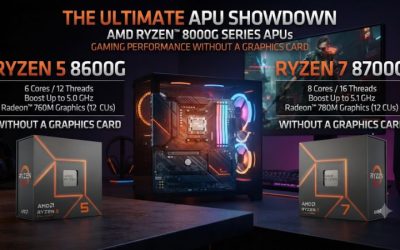
The AM5 Ryzen 5 8600G pairs six CPU cores and twelve threads with Radeon 760M graphics. It is a sensible baseline for a new build that will regularly run games on integrated graphics. Check independent results in two or three titles you actually play and compare them with the settings you would accept on the TV.
Think in terms of a repeatable experience. A game reaching a respectable average in an empty area can slow in a busy fight or town. Look for percentile measures or frame-time plots when reviewers provide them. If a title is well suited to a stable 60 fps cap at settings you like, the 8600G may be a better purchase than a more expensive chip whose extra capacity you rarely need.
Price the motherboard, two memory modules, cooler, case, storage, and remote or controller together. A compact case and a quiet cooler can improve the experience in every use. A small upgrade to the processor is less attractive if it forces you to use a louder cooling setup or buy a board missing the video output you need.
If the planned game list changes frequently, leave enough case room and power capacity for a future graphics card when practical. Check the exact motherboard’s PCIe behavior with the 8600G rather than assuming the full number of lanes printed beside the physical slot is available with every CPU.
Move to the Ryzen 7 8700G when its extra graphics or cores matter
The Ryzen 7 8700G gives you eight cores, sixteen threads, and Radeon 780M graphics. It is a stronger 8000G-series option for a desk or cabinet that cannot accommodate a separate graphics card. Check the performance gain against the 8600G in the specific games and the memory configuration you plan to use.
The stronger iGPU can buy needed headroom in supported games, but it still shares memory with the system. If you plan to play demanding recent games at high settings, compare the complete 8700G system with a conventional CPU and discrete GPU before deciding. An integrated build can win on space and simplicity. A small dedicated graphics card may make sense when the extra rendering capability changes which games are playable at your preferred settings.
The two extra CPU cores can also matter for media organization, light video work, or background jobs while the system is in use. If the machine is mainly a streaming-video client, those workloads may never justify the higher cost. Use the workload you expect to run regularly and budget the rest of the system around it.
Examine acoustic tests and your case cooler clearance alongside processor comparisons. A living room PC sits near the people trying to hear dialogue. A larger slow fan and clear intake path may be more noticeable in daily use than a processor upgrade. Plan the build so the cooler fits without blocking an intake or sitting directly against a cabinet wall.
Consider the Ryzen 5 8500G or an existing AM4 system for media
The Ryzen 5 8500G has Radeon 740M graphics and less integrated gaming capacity than the 8600G and 8700G. It is worth pricing for a new AM5 machine focused on media, a browser, remote game streaming, and occasional lighter local games. Check the motherboard’s output and expansion behavior with that specific CPU, particularly if you expect to add a graphics card later.
A compatible AM4 PC with a Ryzen 5 5600G can also serve as a media-first system if you already have suitable DDR4 and a usable motherboard. It uses an older Radeon graphics design. Verify the codecs, streaming applications, and display modes you need before buying one as a fresh build. The savings are strongest when you reuse working parts and the system already meets the required playback features.
A Ryzen 7 5700G is another AM4 candidate if a compatible system also needs more CPU cores. Judge it against the actual 5600G system cost and the tasks that will use those extra cores. For a living room PC whose main job is video service playback, platform output support and fan noise can matter more than adding CPU cores.
An existing system also gives you a zero-cost baseline. Connect it to the TV, try two demanding videos and a game or remote session, and measure what falls short. That evidence can tell you whether to replace the APU, improve networking or cooling, switch an app, or keep the machine as it is.
Evaluate Ryzen AI 400 desktop chips through the system you can buy
AMD’s Ryzen AI 400 desktop family gives compact prebuilt shoppers additional options. The Ryzen AI 7 450G uses Radeon 860M graphics, and the Ryzen AI 5 440G uses Radeon 840M. AMD identifies OEM systems as a channel for this desktop family. Check the exact computer configuration rather than treating the chip listing as a promise about retail boxed availability or TV ports.
For a small prebuilt, verify the CPU suffix, cooling, memory layout, display connectors, and power behavior of the finished machine. A lower-power GE variant can fit a compact design, but the actual sustained performance and noise depend on the system. A prebuilt with DisplayPort and no suitable native HDMI may require an adapter, which can change whether HDR, VRR, or a specific refresh rate works.
The iGPU model number alone also does not rank every integrated option for every game. Compare actual system benchmarks when available. Pay attention to RAM, power settings, cooling, and title-specific performance. Give real playback, gaming, and acoustics more weight than a newer processor name or an AI performance figure if you do not use an application that benefits from the NPU.
Verify the complete connection to the TV
Check the motherboard port and every device in between
Look up the physical HDMI or DisplayPort output on the exact motherboard or prebuilt. Read the supported resolution and refresh, including any notes that depend on the installed CPU. A CPU can supply an integrated graphics engine while the specific motherboard’s connector and implementation limit the mode that reaches your TV.
For a 4K60 media setup, verify 3840×2160 at 60Hz and any HDR features you need. For a high-refresh living room game setup, check the exact combinations of 4K120 or 1440p120, VRR, and HDR. Look up the TV’s port numbers and input settings. A soundbar, receiver, splitter, or adapter in the path can have a lower mode ceiling than the PC and TV.
Start with PC-to-TV HDMI directly if you are having trouble. Once the expected mode works, add the receiver or soundbar back and verify the signal again. If audio is returned from the TV to a sound system, check what the TV and sound system support over ARC or eARC. Your equipment may handle different audio formats when the PC connects to the receiver directly than when video goes straight to the television.
In Windows display settings, check the active resolution and refresh. On the TV, look for its signal information screen or game dashboard if present. Confirm performance with the entire chain active, including the long cable you will actually use through the cabinet or along the wall.
Check local playback, protected streaming, and HDR separately
For a local library, test the codecs and formats you actually have, including H.264, HEVC, AV1, subtitles, and any HDR files. Verify hardware decoding for your exact GPU, driver, and application. An older integrated GPU may play common video well and rely more on the CPU for certain newer formats.
Protected streaming has additional requirements. Service plan, app or browser, codec availability, HDCP compatibility, and display behavior can determine whether a particular service delivers 4K or HDR. A PC that plays a local 4K clip smoothly can still receive a lower resolution in a subscription service. Test the actual services you pay for and use any available playback diagnostics or information overlay to check what arrived.
Test audio through the intended sound path. Start with stereo and verify dialogue, then test the formats your speakers or receiver are supposed to receive. Check what happens when the system wakes or the TV switches inputs. Some setups revert to a different Windows audio device after HDMI disconnects. If a playback app offers device selection, verify the correct output after a restart.
For desktop use, read a web page from your couch and check the TV’s scaling and input mode. A technically correct 4K signal can still be unpleasant if text is too small or processed with excessive sharpening. Adjust OS scaling and the TV’s supported PC or game setting as needed. Keep a working baseline before troubleshooting multiple HDR, color, and sound settings simultaneously.
Build around shared memory, cooling, and later upgrades
Use an appropriate two-module memory kit
Integrated graphics share system memory bandwidth with the processor. For 8000G DIY builds, use a compatible two-module kit with the modules installed in the correct paired slots. Check the motherboard manual. A configuration optimized for one large module today can leave integrated gaming performance below what the same system could deliver with two matching modules.
A two-module 16GB configuration may fit a lean media system. A two-module 32GB kit is a useful starting point for integrated gaming, a browser, and other simultaneous work when budget permits. Compare memory capacity against the games and applications you run. Increasing a fixed UMA reservation can help with a title that checks a minimum amount of reported graphics memory. It does not add physical memory and reduces the amount available elsewhere while reserved.
Use a stable memory configuration before tuning. Start with the settings supported by the motherboard and processor, then test any EXPO profile you enable. Verify several boots, video playback, and representative games. In a family living room PC, repeatable wake and playback are more important than a small gain from an unstable memory setting.
Set up quiet airflow for cabinet use
Measure the external space as well as case clearance. A small case can fit a shelf and still be starved of cool intake air when the door is shut. Leave space around vents and provide a path for warm air to leave. Check cable bend room behind the HDMI and power connectors so the cabinet does not push the PC against its exhaust.
For media duty, aim for a low and steady noise floor. In short games or menus, the processor temperature may jump rapidly. A supported fan response delay or hysteresis can prevent the fan from reacting loudly to each brief change. Verify the curve during a long session before committing to it. Keep safe temperatures under the loudest and warmest normal workload.
Test a movie scene with quiet dialogue and a longer game session. Listen from the seat you actually use. A PC can meet temperature goals with a higher-pitched fan sound that is still bothersome in a quiet room. If fan speed rises after thirty minutes with the cabinet closed but settles with the door open, improve cabinet ventilation before replacing the APU or cooler.
Decide now whether a discrete GPU will come later
Inspect physical slot space, clearance, PSU connectors, and the motherboard’s supported graphics-link width with your exact processor. The Ryzen 7 8700G, for example, exposes a PCIe 4.0 x8 graphics connection in a typical supported setup. Some other G-series models have different allocations. Verify the motherboard’s PCIe and M.2 sharing notes before buying for a future upgrade.
If a dedicated graphics card is already likely in the near term, compare a conventional Ryzen build with a separate GPU now. A stronger APU can be sensible when it lets you use the system for a long period without the card. When the card is arriving soon, the CPU and motherboard combination that matches your eventual workload may be a better use of the budget.
If the design will stay graphics-card-free, consider the benefits that follow. You can select a smaller case, simpler cooling, and a PSU sized for the real system. Keep enough expansion and storage capacity for what you will actually add. A living room PC should remain easy to take out, clean, and reconnect after the first build.
Conclusion
Choose according to how the PC will be used from the couch. The Ryzen 5 8600G is a balanced DIY starting point for integrated gaming, and the Ryzen 7 8700G is worth comparing when Radeon 780M or eight CPU cores serve a clear need. For media-first use, compare an 8500G, a compatible AM4 system you already own, or a complete compact prebuilt. Verify the TV signal, app playback, paired memory, and cabinet cooling before deciding.