Table of Contents
- 0.1 🛒 Best Price Today on Amazon
- 1 Best Monitors With KVM Switch Compared
- 2 Gigabyte M32U — Best 4K KVM Monitor for Mixed Use
- 3 MSI MPG 321URX QD-OLED — Best Premium Gaming Pick
- 4 ASUS ROG Swift OLED PG32UCDM — Best ROG KVM Monitor
- 5 Gigabyte M27Q X Rev. 2.0 — Best 1440p 240Hz KVM Monitor
- 6 Gigabyte M27Q Rev. 2.0 — Best Mainstream 1440p Option
- 7 BenQ PD3225U — Best KVM Monitor for Creators
- 8 Dell UltraSharp U2723QE — Best 27-Inch Office KVM Monitor
- 9 How to Choose the Best Monitor With KVM Switch
- 9.1 Check USB-C Power Delivery
- 9.2 Match Resolution and Refresh Rate to Your GPU
- 9.3 Look at the KVM Switching Method
- 9.4 Count the USB Ports You Need
- 10 FAQ
- 10.1 Can a KVM monitor control two PCs with one keyboard and mouse?
- 10.2 Does USB-C mean I only need one cable for my laptop?
- 10.3 Is a built-in KVM good for gaming?
- 10.4 Can a monitor KVM replace an external KVM switch?
- 10.5 How should I connect a gaming PC and laptop to a KVM monitor?
- 11 Conclusion
🛒 Best Price Today on Amazon
Prime members get fast, free shipping on everything above, plus member-only deals. New members get a 30-day free trial — cancel anytime.
- Best Monitors With KVM Switch Compared
- Gigabyte M32U — Best 4K KVM Monitor for Mixed Use
- MSI MPG 321URX QD-OLED — Best Premium Gaming Pick
- ASUS ROG Swift OLED PG32UCDM — Best ROG KVM Monitor
- Gigabyte M27Q X Rev. 2.0 — Best 1440p 240Hz KVM Monitor
- Gigabyte M27Q Rev. 2.0 — Best Mainstream 1440p Option
- BenQ PD3225U — Best KVM Monitor for Creators
- Dell UltraSharp U2723QE — Best 27-Inch Office KVM Monitor
- How to Choose the Best Monitor With KVM Switch
- FAQ
- Conclusion
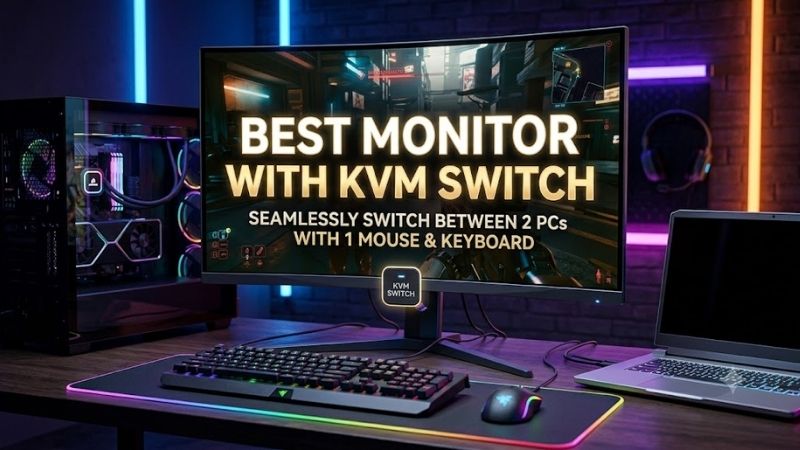
The best monitor with KVM switch lets one keyboard and mouse control two computers without an extra desktop box. For gamers, creators, and hybrid workers, the strongest options also pair fast refresh rates, USB-C, and useful hubs with simple source switching, so a gaming PC and laptop can share one clean desk setup.
Quick answer: For most people in 2026, the best monitor with kvm switch is the Gigabyte M32U — our #1 rated choice. See the full ranked comparison, alternatives and buying advice below.
Best Monitors With KVM Switch Compared
| Monitor | Resolution | Refresh Rate | Panel | USB-C Power | Best For |
|---|---|---|---|---|---|
| Gigabyte M32U | 3840 x 2160 | 144Hz | SS IPS | USB-C | 4K gaming and work |
| MSI MPG 321URX QD-OLED | 3840 x 2160 | 240Hz | QD-OLED | 90W | Premium 4K gaming |
| ASUS ROG Swift OLED PG32UCDM | 3840 x 2160 | 240Hz | QD-OLED | 90W | High-end gaming plus laptop |
| Gigabyte M27Q X Rev. 2.0 | 2560 x 1440 | 240Hz | SS IPS | 18W | Competitive 1440p gaming |
| Gigabyte M27Q Rev. 2.0 | 2560 x 1440 | 165Hz, 170Hz OC | SS IPS | 10W | Mainstream gaming |
| BenQ PD3225U | 3840 x 2160 | 60Hz | IPS | 85W | Creative work |
| Dell UltraSharp U2723QE | 3840 x 2160 | 60Hz | IPS Black | 90W | Office and productivity |
Gigabyte M32U — Best 4K KVM Monitor for Mixed Use
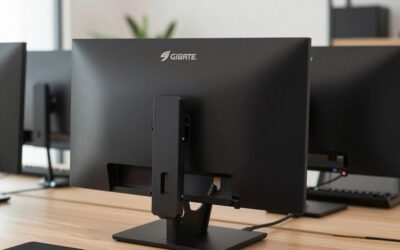
The Gigabyte M32U is one of the most balanced 4K KVM monitors for a mixed gaming and work desk setup today. Its 31.5-inch SS IPS panel runs at 3840 x 2160 and up to 144Hz, while the built-in KVM can move your keyboard and mouse between connected systems without adding a separate switch box to the setup.
Its port mix is especially practical for a desktop plus laptop combination: two HDMI 2.1 inputs, DisplayPort 1.4 with DSC, USB-C, three USB downstream ports, and a headphone jack. The main limitation is that the standard M32U is more gaming-focused than dock-focused, so buyers should verify laptop charging needs separately.
The M32U stands out because it combines a large 4K desktop, high refresh gaming, console-friendly HDMI, and KVM control in one chassis. It is not an OLED and its HDR hardware is modest, but buyers who value text clarity, broad compatibility, and low-friction device switching may prefer that trade-off for everyday use.
Best For: 4K gaming, productivity, and desktop-plus-laptop setups
Key Features:
- 31.5-inch SS IPS panel
- 3840 x 2160 resolution
- Up to 144Hz
- Built-in KVM
- Two HDMI 2.1 ports
- DisplayPort 1.4 with DSC
- USB-C
- Three USB 3.0 ports
What Makes It Different: It combines 4K gaming specifications with a practical KVM and USB hub without moving into premium OLED territory.
Pros:
- 4K and 144Hz in a large 31.5-inch format
- Dedicated KVM functionality
- Strong desktop and console connectivity
- Three downstream USB ports
Cons:
- USB-C implementation is less laptop-dock-focused than 85W or 90W models
- IPS contrast cannot match OLED
Use Case: Switch between a gaming desktop and secondary computer while sharing a keyboard, mouse, and monitor.
Who It’s For: Gamers who want one monitor to handle both work and 4K gaming.
MSI MPG 321URX QD-OLED — Best Premium Gaming Pick
The MSI MPG 321URX QD-OLED targets buyers who want KVM convenience without giving up premium gaming speed. Its 31.5-inch QD-OLED panel delivers 3840 x 2160 at up to 240Hz with a quoted 0.03ms GtG response time, making it far more performance-focused than typical office monitors that happen to include a KVM.
Connectivity is equally strong for a two-system desk. MSI provides DisplayPort 1.4a, two HDMI 2.1 ports, USB-C with DisplayPort Alt Mode and up to 90W power delivery, plus USB upstream and downstream ports for the KVM path. That means a laptop can carry video, data, and charging over one USB-C cable while a desktop uses a second input.
The trade-off is the nature of OLED itself: buyers should be comfortable with panel-care routines and understand that long static desktop use differs from LCD ownership. MSI includes OLED Care features and lists a three-year warranty that includes burn-in, making this model easier to justify for people mixing PC gaming with daily productivity.
Best For: Premium 4K PC gaming with a USB-C laptop
Key Features:
- 31.5-inch QD-OLED panel
- 3840 x 2160 resolution
- 240Hz refresh rate
- 0.03ms GtG specification
- Built-in KVM
- USB-C with 90W power delivery
- Two HDMI 2.1 ports
- DisplayPort 1.4a
What Makes It Different: Its KVM, 90W USB-C connection, and 4K 240Hz QD-OLED panel combine gaming performance with a capable laptop workstation.
Pros:
- 4K at up to 240Hz
- 90W USB-C charging
- OLED contrast and pixel response
- Full KVM functionality
Cons:
- OLED requires more consideration for static desktop use
- More performance than many GPUs can fully exploit at native 4K
Use Case: A high-end gaming PC paired with a work or creator laptop on the same desk.
Who It’s For: Enthusiasts who want premium gaming hardware without maintaining separate work peripherals.
ASUS ROG Swift OLED PG32UCDM — Best ROG KVM Monitor
The ASUS ROG Swift OLED PG32UCDM is another 32-inch-class 4K 240Hz QD-OLED option with an integrated KVM switch. It is aimed at high-end gaming rigs that also need to share peripherals with a notebook or secondary PC, and it adds three USB-A hub ports around the KVM workflow rather than treating switching as an afterthought.
USB-C supports DisplayPort Alt Mode and up to 90W power delivery, while two HDMI 2.1 inputs and DisplayPort 1.4 DSC handle higher-bandwidth gaming sources. That combination suits a desktop GPU plus work laptop particularly well, because the monitor can serve as display, peripheral hub, and laptop charger without a separate dock for many users.
Compared with the MSI, the ASUS choice is less about basic KVM capability and more about surrounding connectivity and ROG-specific controls. Both target 4K 240Hz gaming, so buyers should compare the exact hub layout, firmware features, local pricing, and preferred OLED-care implementation rather than assuming panel speed alone settles the decision.
Best For: High-end gaming combined with one-cable laptop connectivity
Key Features:
- 32-inch 4K QD-OLED
- 240Hz refresh rate
- Integrated KVM switch
- USB-C DisplayPort Alt Mode
- Up to 90W USB-C power delivery
- Three USB 3.2 Gen 1 Type-A ports
- Two HDMI 2.1 ports
- DisplayPort 1.4 DSC
What Makes It Different: It combines ROG gaming features, OLED, 90W charging, and a relatively generous USB hub.
Pros:
- 4K 240Hz OLED specification
- 90W USB-C power delivery
- Three USB-A hub ports
- Integrated KVM
Cons:
- Premium hardware may be unnecessary for moderate gaming PCs
- OLED ownership requires more care than a conventional IPS display
Use Case: Connect a high-end gaming tower and USB-C notebook to one premium display.
Who It’s For: ROG users and enthusiasts building a combined gaming and productivity station.
Gigabyte M27Q X Rev. 2.0 — Best 1440p 240Hz KVM Monitor
The Gigabyte M27Q X Rev. 2.0 is the strongest fit here for competitive players who prefer 1440p over 4K. Its 27-inch SS IPS panel runs at 2560 x 1440 and up to 240Hz, while the built-in multi-platform KVM lets a gaming tower and second computer share the same keyboard and mouse without sacrificing a high-refresh esports-oriented format.
Its connectivity includes two HDMI 2.0 ports, DisplayPort 1.4, USB-C with DisplayPort Alt Mode, two USB 3.0 downstream ports, and a USB upstream port. USB-C power delivery is limited to 18W, so the Type-C link is more useful for video and KVM data than for replacing a full laptop power adapter on demanding systems.
What makes the M27Q X different is the QHD and 240Hz balance. Driving 2560 x 1440 at high frame rates is more realistic for many gaming PCs than pushing 4K at similar speeds, while KVM support keeps a work laptop practical on the same display. The compromise is less desktop detail than a 4K 32-inch model.
Best For: Competitive gaming with a second work computer
Key Features:
- 27-inch SS IPS
- 2560 x 1440 resolution
- 240Hz refresh rate
- Multi-platform KVM
- DisplayPort 1.4
- Two HDMI 2.0 ports
- USB-C with 18W power delivery
What Makes It Different: QHD reduces the GPU workload compared with 4K while retaining a 240Hz ceiling and integrated KVM.
Pros:
- 240Hz at 1440p
- Built-in KVM
- USB-C video and upstream capability
- More attainable frame-rate target than 4K 240Hz
Cons:
- Only 18W USB-C power delivery
- Lower resolution than 4K alternatives
Use Case: Competitive gaming on a desktop while keeping a work notebook connected.
Who It’s For: Players who prioritize frame rate over 4K pixel density.
Gigabyte M27Q Rev. 2.0 — Best Mainstream 1440p Option
The Gigabyte M27Q Rev. 2.0 is a more moderate 27-inch KVM gaming monitor for buyers who do not need 240Hz. It uses a 2560 x 1440 SS IPS panel with a maximum 165Hz refresh rate and an overclocked 170Hz mode, giving mainstream PC players a useful middle ground between 60Hz office displays and faster esports models.
Its built-in KVM works with a USB-C upstream path and a separate USB upstream connection, while two HDMI 2.0 ports and DisplayPort handle traditional video sources. USB-C can deliver up to 10W, so charging is the weak point; a laptop that normally expects 45W, 65W, or more will usually need its own power supply.
This model makes the most sense when KVM convenience matters more than premium HDR or top-tier refresh speed. QHD remains sharp at 27 inches, 165Hz-class motion is enough for many single-player and multiplayer games, and the lower specification ceiling can be easier to drive with a midrange GPU than a 4K high-refresh panel.
Best For: Mainstream 1440p gaming and occasional laptop use
Key Features:
- 27-inch SS IPS
- 2560 x 1440
- 165Hz, up to 170Hz OC
- Built-in KVM
- USB-C
- Two USB 3.0 downstream ports
- Two HDMI 2.0 ports
What Makes It Different: It keeps KVM functionality and high-refresh QHD gaming without moving to a 240Hz or 4K specification.
Pros:
- Practical 1440p resolution
- 165Hz-class refresh rate
- Built-in KVM
- USB-C input and upstream support
Cons:
- 10W USB-C charging is limited
- No 4K resolution
Use Case: Share a gaming desktop and basic work laptop on a midrange gaming setup.
Who It’s For: Buyers who value KVM functionality but do not need enthusiast-level specifications.
BenQ PD3225U — Best KVM Monitor for Creators
The BenQ PD3225U is a productivity-first KVM monitor rather than a gaming-first one, but it belongs in this roundup for creators who use two computers. Its 31.5-inch 4K IPS display runs at 60Hz and emphasizes color work, offering a 2000:1 native contrast ratio, 98% P3 coverage, factory calibration, and professional display modes.
The KVM is supported by a broad workstation port layout that includes two HDMI 2.0 inputs, DisplayPort 1.4, Thunderbolt 3 with 85W power delivery, USB Type-B upstream, USB-C downstream, and three USB 3.2 downstream ports. For a desktop plus MacBook or mobile workstation, that connectivity can reduce the need for an external dock.
Its limitation for GamingReviewGuide readers is obvious: 60Hz is not aimed at high-refresh PC gaming. The PD3225U fits users whose priority is design, video, photography, or software work across two systems, with occasional gaming after hours. Anyone focused on fast shooters should choose a 144Hz or 240Hz KVM monitor instead.
Best For: Designers, editors, photographers, and Mac users
Key Features:
- 31.5-inch 4K IPS panel
- 60Hz refresh rate
- Integrated KVM
- 85W Thunderbolt 3 power delivery
- 98% P3
- 2000:1 native contrast
- Three USB 3.2 downstream ports
What Makes It Different: The emphasis is professional color workflow, Thunderbolt connectivity, and two-computer productivity rather than gaming speed.
Pros:
- Strong creator-oriented connectivity
- 85W laptop charging
- Integrated KVM
- Factory-calibrated color workflow
Cons:
- Limited to 60Hz
- Not designed around competitive gaming
Use Case: Share a desktop workstation and MacBook while keeping one keyboard, mouse, and display.
Who It’s For: Creative professionals who game occasionally but prioritize productivity.
Dell UltraSharp U2723QE — Best 27-Inch Office KVM Monitor
The Dell UltraSharp U2723QE is another work-focused option for users who want a compact 27-inch 4K hub with KVM support. It uses IPS Black technology at 3840 x 2160 and 60Hz, and its dense 163-ppi image is well suited to text, spreadsheets, coding, and general office work where clarity matters more than high refresh rates.
Dell equips the U2723QE with USB-C power delivery up to 90W, DisplayPort input and output, HDMI, multiple USB ports, and a USB-C hub architecture. Dell also documents KVM and Auto KVM use for two-PC multitasking, so the monitor can serve as the center of a work laptop and personal desktop setup with shared USB peripherals.
Choose the Dell when desk organization, Ethernet-and-hub style connectivity, and sharp 4K productivity take priority over gaming speed. Its 60Hz refresh rate makes it a poor match for buyers specifically shopping for high-refresh competitive gaming, but the KVM workflow and USB-C charging are stronger than on many gaming-oriented value models.
Best For: Office productivity and desktop-plus-work-laptop setups
Key Features:
- 27-inch IPS Black panel
- 3840 x 2160 resolution
- 60Hz refresh rate
- KVM and Auto KVM support
- USB-C with up to 90W power
- DisplayPort output
- Extensive USB hub
What Makes It Different: It combines a smaller 27-inch 4K screen with a workstation-oriented hub and Auto KVM functionality.
Pros:
- Sharp 163-ppi 4K image
- 90W USB-C charging
- Broad hub connectivity
- KVM support for two computers
Cons:
- 60Hz limits gaming appeal
- Not designed for high-refresh competitive play
Use Case: Switch between a personal desktop and company laptop without duplicating peripherals.
Who It’s For: Programmers, office users, and hybrid workers who occasionally game.
How to Choose the Best Monitor With KVM Switch
Start by checking how the monitor routes USB data, not just video. A real monitor KVM needs an upstream USB connection for each computer path, while the keyboard and mouse sit on downstream USB ports. USB-C can often carry video and USB data together, but a second desktop may still need USB-B or USB-C upstream in addition to HDMI or DisplayPort.
Check USB-C Power Delivery
USB-C power delivery matters most when one of the two systems is a laptop. A 10W or 18W Type-C port can be useful for data and light charging, but it will not replace the normal adapter for many performance notebooks. Models with 85W or 90W power delivery are much better suited to a one-cable work laptop setup.
Match Resolution and Refresh Rate to Your GPU
Match resolution and refresh rate to the GPU and games you actually use. A 27-inch QHD 240Hz monitor can be easier to drive at high frame rates in competitive titles, while a 32-inch 4K 144Hz display gives more desktop space and sharper detail. A 4K 240Hz OLED asks the most from the GPU but offers the highest ceiling.
Look at the KVM Switching Method
Pay attention to how switching is triggered. Some monitors provide a dedicated KVM button, while others rely on the on-screen menu, automatic input behavior, or software shortcuts. A hardware control is especially useful when one computer is locked down by an employer and cannot run display-management software or custom hotkey utilities.
Count the USB Ports You Need
Also count the downstream USB ports before buying. Two ports may be enough for a keyboard and mouse, but a webcam, USB headset, microphone interface, or receiver can quickly exhaust the hub. If you plan to share several devices, confirm whether a downstream port supports the speed required by storage or other bandwidth-heavy peripherals.
FAQ
Can a KVM monitor control two PCs with one keyboard and mouse?
Yes, a KVM monitor can switch one keyboard and mouse between two computers when both systems are connected to the monitor through the required video and USB upstream paths. The exact cabling differs by model, so follow the manufacturer’s KVM diagram rather than assuming that changing the video input automatically changes USB control.
Does USB-C mean I only need one cable for my laptop?
No, USB-C does not automatically mean a laptop can run from one cable. The port must support video input, USB data for the KVM, and enough power delivery for the notebook. A monitor offering only 10W or 18W may carry display and peripherals correctly while the laptop still needs its original charger for sustained workloads.
Is a built-in KVM good for gaming?
For gaming, a built-in KVM usually adds convenience rather than frame-rate performance. The important question is whether the monitor still provides the resolution, refresh rate, adaptive-sync support, and input bandwidth you need. Models such as 1440p 240Hz and 4K 240Hz displays show that KVM support no longer requires settling for 60Hz.
Can a monitor KVM replace an external KVM switch?
A monitor KVM can replace an external KVM when you only need to share peripherals and the display between a small number of computers supported by the monitor. External KVM boxes still make more sense for complex multi-monitor layouts, unusual USB devices, more than two systems, or workflows that need switching independent of the monitor input.
How should I connect a gaming PC and laptop to a KVM monitor?
For a desktop plus laptop setup, the cleanest arrangement is usually USB-C from the laptop and DisplayPort or HDMI plus a USB upstream cable from the desktop. This lets the laptop use one cable for display, KVM data, and charging when enough USB-C power is available, while the desktop keeps a direct high-bandwidth video connection.
Conclusion
The best monitor with KVM switch depends on whether your desk is built around gaming speed, laptop convenience, or professional work. The Gigabyte M32U balances 4K and 144Hz, 240Hz models suit faster gaming, and USB-C models with 85W to 90W charging are better when a work laptop must share the same keyboard and mouse.
Ready to decide? Our #1 pick for 2026 is the Gigabyte M32U.
Live price & availability on Amazon.