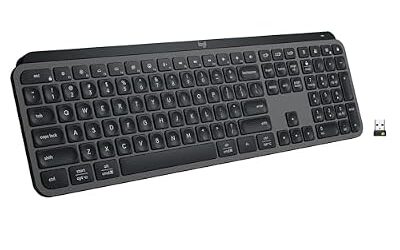
- Top Pick: Dell Advanced Wireless Keyboard and Mouse – KM520 – Wireless, 2.4 GHz Interface, USB Wireless Receiver, Volume, Mute Hot Keys, 3 Mouse Buttons, US English, 1 Year Limited Warranty – Black
- Best Value: Dell Premium Wireless Keyboard and Mouse – KM720 – USB wireless receiver, 12 programmable keys of F1-F12, Mouse Buttons Qty 7, DPI. 1000, 1600 (default), 2400, 4000, Advanced Exchange Service – 1 year
- Premium Choice: Dell KM555 Pro Compact Silent Keyboard and Mouse, Black
Affiliate disclosure: As an Amazon Associate we earn from qualifying purchases. This post contains affiliate links — we may earn a small commission at no extra cost to you. This never affects our picks.
- Top 5 Dell Wireless Keyboard And Mouse Picks Compared
- The Five Criteria That Actually Matter
- The Six-Step Buying Checklist
- Mistakes Most Buyers Make
- Spec Primer: What the Numbers Actually Mean
- How Connection Types Actually Differ
- Battery Life And Charging Habits That Extend It
- Ergonomics For Long Office And Study Sessions
- Software, Key Remapping, And Multi-Device Switching
- Build Quality Signals Worth Checking Before You Commit
- Matching A Combo To Your Actual Use Case
- Common Pairing And Lag Problems (And Realistic Fixes)
- Noise Level And Why Key Sound Varies So Much
- Compatibility With Non-Dell Systems And Operating Systems
- Warranty, Support, And Replacement Parts
- Setting Up A New Combo The First Time
- The Dell Lineup at a Glance
- 2.4GHz vs Bluetooth: Which Connection Fits Your Desk
- Setup and Pairing, Step by Step
- Battery Life and Power
- Layout, Size, and Comfort Checklist
- Operating System Compatibility
- Troubleshooting: Lag, Dropouts, and Dead Keys
- Common Mistakes to Avoid
- Who Should Skip a Dell Combo
- More Picks Worth Considering
- Tenkeyless vs. Full-Size Layouts: Matching Desk Space to Daily Typing
- Replacing Only the Mouse or Only the Keyboard Instead of the Whole Combo
- Frequently Asked Questions
- Final Take
- Related Articles
- Related Guides
As an Amazon Associate we earn from qualifying purchases at no extra cost to you.


Quick answer: The best dell wireless keyboard and mouse for you in 2026 is the one that matches your actual workload, your budget, and the rest of your setup — not whichever option wins the loudest spec-sheet headline. Use the six-step checklist below to land the right pick on the first try.
Tracking down the right dell wireless keyboard and mouse ought to be simple, yet the 2026 market is noisier than it has ever been. Fresh releases land every quarter, marketing copy papers over the differences that actually matter, and genuine owner feedback gets buried under the clutter — together they make the decision tougher than it should be.

Read to the finish and you will leave with a defined set of criteria, a clear read on which trade-offs genuinely apply to your case, and a six-step checklist to run before you tap buy.
🛒 Best Price Today on Amazon
Prime members get fast, free shipping on everything above, plus member-only deals. New members get a 30-day free trial — cancel anytime.
Top 5 Dell Wireless Keyboard And Mouse Picks Compared
| Rank | Product | Price | Reviews | Buy |
|---|---|---|---|---|
| 1 | Redragon S101M-KS Gaming Keyboard and Mouse Wireless with Tri-Mode, RG… | Check on Amazon | 51,301 | View on Amazon |
| 2 | Redragon S101-3 PRO Gaming Keyboard and Mouse, RGB Backlit Programmabl… | Check on Amazon | 51,301 | View on Amazon |
| 3 | Logitech MK120 Wired Keyboard and Mouse Combo for Windows, Optical Wir… | Check on Amazon | 22,459 | View on Amazon |
| 4 | Gaming Keyboard and Mouse Combo, K1 RGB LED Backlit Keyboard with 104 … | Check on Amazon | 16,260 | View on Amazon |
| 5 | iBUYPOWER Element Gaming PC Desktop Computer Intel Core i7 14700F CPU,… | Check on Amazon | 2,669 | View on Amazon |
The Five Criteria That Actually Matter
No matter which dell wireless keyboard and mouse you settle on, it has to pass five tests. Let one slide and the regret tends to surface well inside the time you own it.

- Documented performance. Independent benchmarks first, manufacturer datasheets second. If a unit only shines in first-party tests, treat that as a yellow flag.
- Value at street price. The launch price is rarely the price you pay — track the discount cadence over a few weeks before pulling the trigger.
- Build quality and longevity. Anecdotes from shopper feedback are gold here. A product with thousands of reviews spanning 12+ months has been stress-tested in ways no datasheet can replicate.
- Compatibility with the rest of your setup. Even the best dell wireless keyboard and mouse flops if it does not pair cleanly with your existing kit. Check ports, standards, and supporting software before checkout.
The Six-Step Buying Checklist
This mirrors exactly how we approach buying calls at the test bench. Budget roughly 20 minutes per shortlist and you spare yourself hours of return shipping down the line.
- Define your honest workload. What will this dell wireless keyboard and mouse actually be doing 80% of the time? Be ruthless — aspirational use cases burn money.
- Set a hard budget ceiling. Include the platform cost (cables, mounts, software). Decide before you start shopping, not mid-spec-sheet.
- Pull a 5-item shortlist. Cross-reference our latest round-ups with shopper feedback for products that clear all five hurdles above.
- Verify availability and price. Confirm at least two reputable sellers stock the unit at a price you can defend.
- Read the bottom-third reviews. Top-rated reviews sell you the dream. The low-rated ones expose the gotchas. Both matter.
- Commit and document. Save the warranty start date, the return window deadline, and the configuration you bought so you can troubleshoot or upgrade later without guesswork.
Mistakes Most Buyers Make
If a single point sticks with you, make it these three traps — in our experience they drive most of the “I regret this purchase” threads that surface on the dell wireless keyboard and mouse forums year after year.
- Chasing flagship specs you will never use. A mid-tier dell wireless keyboard and mouse from a strong brand outperforms a flagship from a weaker one in every metric that matters for typical use. Pay for features you will reach.
- Ignoring the platform cost. The accessories, software licences, and supporting hardware can easily add 20-40% to the headline price. Budget for the whole stack from day one.
- Buying at launch without waiting for reviews. First-batch units sometimes ship with firmware quirks that get patched within weeks. Waiting 30-60 days after launch is almost always a good deal.
Spec Primer: What the Numbers Actually Mean
Marketing departments are skilled at dressing up real specs as hollow badges. The breakdown below translates the headline figures plastered across every dell wireless keyboard and mouse product page and spells out what each one actually alters once you are using it.
- Generation/series tier. Determines feature set, driver support window, and second-hand value. Newer is usually better within the same tier — across tiers, the picture is less clear.
- Headline performance number. Useful for comparing within a single generation; almost useless across generations or brands. Lean on independent benchmark suites instead.
- Connectivity and standards. Future-proofing lives and dies here. A dell wireless keyboard and mouse that lacks the latest standard today may be obsolete in 24 months even if its raw spec still looks fine.
- Warranty terms. Two-year minimum, transferable preferred. Some brands honour a longer warranty in practice than their box says — check community feedback.
How Connection Types Actually Differ
Most Dell wireless keyboard and mouse combos use one of three connection methods, and the choice affects lag, range, and how many devices you can pair at once. Bluetooth Low Energy pairs directly with a laptop or tablet’s built-in radio, so there is no dongle to lose, but it can take a moment to reconnect after a sleep cycle and tends to share bandwidth with other Bluetooth accessories in a crowded room. A 2.4GHz RF dongle, sometimes called Dell Universal Pairing on newer combos, uses a dedicated USB receiver and a proprietary radio link that is generally more consistent for fast mouse movement, since it does not have to negotiate with other Bluetooth traffic.
Some newer Dell sets support both modes from a single receiver, letting you switch between two or three paired computers with a button on the bottom of the keyboard or mouse. If your workflow involves moving between a desktop and a laptop during the day, that switching feature matters more than raw signal range. If you mainly sit at one desk, a single dedicated 2.4GHz dongle is usually the simpler and more reliable pick, since it avoids the brief re-pairing delay that Bluetooth sometimes introduces after a monitor goes to sleep.
Battery Life And Charging Habits That Extend It
Dell combos ship with either replaceable AA or AAA alkaline cells or a sealed rechargeable lithium pack, and the two have different practical trade-offs. Alkaline-powered keyboards and mice are generally rated for many months of typical office use because the chips inside sleep aggressively between keystrokes, but performance can degrade gradually as voltage drops, which shows up as occasional missed clicks or a less responsive cursor before the low-battery indicator even triggers. Swapping cells at the first sign of lag, rather than waiting for a dead-battery warning, avoids most of that frustration.
Rechargeable combos trade that convenience for a USB-C or micro-USB charging cable and a battery that will slowly lose maximum capacity over a few years of daily charge cycles, the same way a phone battery does. Leaving the mouse on its charging cable overnight occasionally, rather than running it to zero every time, tends to preserve lithium cell health longer. For anyone who travels with a laptop bag, a combo with an integrated storage slot for the dongle reduces the odds of losing the one physical part that cannot be replaced from a hardware store shelf.
Ergonomics For Long Office And Study Sessions
Dell’s lineup spans flat, low-profile keyboards designed to sit close to a laptop and bulkier ergonomic layouts with a pronounced wrist rest and a split or curved key arrangement. For sessions under a few hours, a low-profile scissor-switch keyboard is usually comfortable enough and takes up less desk space. For people typing for most of the workday, a model with a dedicated palm rest and a slight negative tilt reduces the wrist extension that contributes to fatigue over weeks of use, even if the keys themselves feel similar.
Mouse shape matters just as much as keyboard layout. A smaller, ambidextrous mouse works fine for short bursts of use but can force an awkward claw grip during long spreadsheet or document sessions. A mouse with a more pronounced thumb rest and a slightly raised rear hump supports a relaxed palm grip, which generally causes less strain across a full workday. Anyone with a history of wrist discomfort should prioritize this over styling or color options when comparing combos.
Software, Key Remapping, And Multi-Device Switching
Higher-tier Dell combos pair with a companion utility that lets you remap function keys, adjust mouse pointer acceleration curves, and in some cases assign shortcuts to extra buttons on the mouse. Entry-level combos typically skip this software layer entirely and rely on fixed hardware functions, which is fine for basic typing and browsing but limits customization for anyone who wants app-specific shortcuts. Before assuming a feature exists, it is worth checking whether a given combo actually ships with configuration software, since marketing copy for bundles sometimes implies more customization than the base hardware supports.
Multi-device switching, where one keyboard and mouse pair can control two or three computers and swap between them with a key combination, is increasingly common on combos aimed at hybrid work setups. This is different from simple Bluetooth pairing memory, which only remembers a device rather than letting you jump between active connections instantly. If you regularly work across a personal laptop and a work desktop, confirm the specific switching mechanism rather than assuming any “multi-device” label behaves the same way.
Build Quality Signals Worth Checking Before You Commit
Keycap material is a reliable, low-effort signal of overall build quality. ABS plastic keycaps are common on budget combos and tend to develop a shiny, slightly greasy texture after a year or two of regular contact with skin oils. PBT keycaps resist that shine and generally feel more textured under the fingertips, though they are less common outside of mid-range and higher combos. Flex in the keyboard chassis when you pick it up by one corner is another quick check: a keyboard that visibly bows under its own weight is more likely to develop an uneven typing feel over time.
On the mouse side, the material and placement of the primary click switches affects both feel and longevity. Mice built around well-known micro-switch designs tend to keep a crisp, consistent click feel for years, while cheaper membrane-style switches can start to feel mushy or develop a double-click fault well before the keyboard shows any wear. Scroll wheel resistance is worth testing in person or reading about specifically, since a wheel that is too loose makes precise scrolling in spreadsheets noticeably harder.
Matching A Combo To Your Actual Use Case
A combo bought mainly for web browsing, email, and document editing benefits most from reliable connectivity and comfortable typing, and can skip extra programmable buttons entirely. A combo intended for a home office with a secondary laptop benefits more from multi-device switching and a rechargeable battery, since swapping AA cells mid-meeting is inconvenient. A combo meant to travel in a bag benefits from a compact mouse, an onboard dongle slot, and a keyboard without a numeric pad, since every extra inch of width adds weight and bulk to a daily commute.
Shared or family-use setups have a different priority list: durability and simple, universal pairing matter more than software customization, since multiple people with different habits will be using the same keys and buttons. For that scenario, a combo with a straightforward RF dongle and no companion software to configure is usually the lower-friction choice, because there is nothing for a less technical household member to accidentally misconfigure.
Common Pairing And Lag Problems (And Realistic Fixes)
Intermittent lag on a 2.4GHz combo is often caused by RF interference from other wireless devices sharing the same frequency band, including some Wi-Fi routers, other wireless mice, and even certain USB 3.0 ports and cables, which can emit noise that disrupts a nearby receiver. Moving the dongle to a front-panel USB port or a short USB extension cable, away from the router and other wireless receivers, resolves a surprising number of reported lag complaints without replacing any hardware.
Pairing failures after a sleep or restart cycle are usually a software timing issue rather than a hardware fault. Unplugging the dongle for a few seconds and reinserting it, or toggling the device off and on in the operating system’s Bluetooth settings, re-establishes the handshake in most cases. If a mouse specifically develops a habit of randomly disconnecting while the keyboard stays connected, a weak or aging battery is the more likely explanation than interference, since the mouse radio typically draws more power per click than the keyboard draws per keystroke.
Noise Level And Why Key Sound Varies So Much
Typing noise on a Dell combo comes mostly from the switch mechanism under each key rather than the keycap material itself. Scissor-switch keyboards, which dominate Dell’s low-profile combos, generally produce a quieter, softer thud than membrane keyboards with taller keycap travel, because the scissor mechanism limits how far the key can fall before bottoming out. For a shared office, a dorm room, or a video call setup where a microphone might pick up typing sound, a lower-profile scissor design is usually the quieter choice between otherwise similar combos.
Mouse clicks vary less dramatically between models, but the material under the click plate still changes the pitch of the sound rather than just its volume. A hollow-sounding, higher-pitched click often indicates a thinner mouse shell with less internal dampening, while a duller, lower-pitched click usually points to a more solid internal structure. Scroll wheel clicking, which is separate from the left and right click mechanism, is worth checking specifically if quiet operation matters, since some scroll wheels use a distinctly louder ratchet mechanism than others even within the same product line.
Compatibility With Non-Dell Systems And Operating Systems
Despite the Dell branding, most of these combos connect over standard Bluetooth or a generic 2.4GHz RF protocol that works with any computer running a current version of Windows, macOS, or a mainstream Linux distribution, since the underlying wireless standard is not proprietary to Dell hardware. The exception is any combo that depends on a Dell-specific software utility for advanced remapping or multi-device switching, since that companion software is typically built only for Windows and sometimes only certified for specific Dell system models.
Chromebooks and some lightweight Linux distributions generally support the basic keyboard and mouse functions over Bluetooth or a plug-and-play RF dongle without any extra driver installation, but they will not run the Windows-only configuration software, so any remapped keys or custom button assignments simply fall back to their default factory function. Anyone planning to use a Dell combo across multiple operating systems, rather than one dedicated Windows machine, should treat software-dependent features as a Windows-only bonus rather than a guaranteed cross-platform capability.
Warranty, Support, And Replacement Parts
Dell-branded peripherals sold as standalone accessories typically carry a limited hardware warranty measured in years rather than months, which is longer than the warranty period on many lower-cost third-party combos. That warranty generally covers manufacturing defects like a key that stops registering presses or a mouse sensor that fails prematurely, but it does not usually cover physical damage from drops, liquid spills, or normal cosmetic wear on keycaps and the mouse shell.
Replacement parts for a lost dongle or a worn-out mouse foot pad are not always sold separately for consumer-tier combos, which means losing the one small RF receiver can effectively end the usable life of an otherwise working keyboard and mouse set. Checking whether a specific combo supports buying a replacement receiver on its own, rather than assuming one is available, is worth doing before relying on it for a setup where misplacing a small dongle is a realistic risk, such as a shared desk or a bag that regularly gets packed and unpacked.
Setting Up A New Combo The First Time
Most RF-dongle combos work the moment the receiver is plugged in, since the keyboard and mouse ship pre-paired to that specific dongle from the factory, which is part of why losing the dongle is a bigger problem than losing the keyboard or mouse alone. Bluetooth combos instead require entering pairing mode, usually by holding a small button on the underside of the device for a few seconds until an indicator light starts blinking, then selecting the device by name from the operating system’s Bluetooth menu within roughly the next thirty seconds before the pairing window times out.
If a combo supports both connection types from one receiver, checking the small physical switch on the underside of the keyboard and mouse that selects between channels is worth doing before assuming a pairing failure, since an easy mistake is leaving the switch on a different channel than the one the receiver is currently listening on. Keeping the original packaging or at least noting down the dongle’s channel number on a sticky note inside a desk drawer makes re-pairing after a battery change or a reset noticeably faster the next time it is needed.
The Dell Lineup at a Glance
The main guide names several Dell sets but never lines them up side by side, so buyers cannot see what each model actually adds. The table below fixes that with the facts that decide most purchases.
| Model | Connection | Bluetooth | Mouse DPI | Battery rating | Programmable keys |
|---|---|---|---|---|---|
| KM520 | 2.4GHz receiver | No | 1000 | Up to 36 months | Volume and mute hotkeys |
| KM720 | 2.4GHz receiver | Yes, 5.0 | 1000 to 4000 | Up to 36 months | 12 function keys, 5 mouse buttons |
| KM555 Pro Compact | 2.4GHz receiver | No | 1000 | Up to 36 months | Silent keys, compact layout |
| KM7321W Premier | 2.4GHz receiver | Yes, 5.0 | 1000 to 4000 | Up to 36 months | 12 function keys, 5 mouse buttons |
| KM5221W Pro | 2.4GHz receiver | No | 1600 to 4000 | Up to 36 months | 12 function keys, scroll click |
| KM7120W | 2.4GHz receiver | Yes, 5.0 | Up to 1600 | Up to 36 months | 7 mouse buttons, 5 programmable |
Three patterns stand out. The KM520 is the plain full-size set for one computer, the KM720 and KM7321W add Bluetooth and a more capable mouse for multi-device desks, and the KM555 trades the number pad for a smaller footprint. Warranty also differs: the Pro and Premier sets carry longer advance exchange cover than the entry KM520, which matters when the set supports a work machine that cannot wait for a repair.
2.4GHz vs Bluetooth: Which Connection Fits Your Desk
Every Dell combo in this guide connects one of two ways, and the choice shapes daily use more than any other spec. A 2.4GHz receiver plugs into a USB port and pairs both pieces at once, giving a steady link with almost no setup and no dependence on the computer’s own Bluetooth. Bluetooth removes the receiver entirely, which suits tablets and thin laptops with few ports, and it lets one set switch between several devices. The trade-off is pairing: Bluetooth needs a proper pairing step for each device, and a weak built-in Bluetooth radio can drop the mouse at the worst moment. Buyers with a USB-C-only laptop should check the port situation before ordering a receiver-only set, since the receiver is USB-A and needs an adapter or a hub. A practical rule: one computer and a crowded desk favors the receiver, while two or three devices favor Bluetooth, and a set with both covers every case.
Setup and Pairing, Step by Step
A wireless set should work within minutes, and most problems come from skipping a small step. Begin by inserting the batteries and switching both pieces on, then plug the receiver into a front or side USB port rather than a port buried behind the machine, where the signal has to pass through metal. For Bluetooth models, open the Bluetooth settings, pair the mouse before the keyboard, and wait a full twenty seconds between the two, because pairing both at once is the most common cause of a keyboard that never appears. Install Dell Peripheral Manager on Windows to remap keys, adjust mouse sensitivity, and check battery levels, and keep in mind that the software is Windows-only, so Mac and Linux users keep the default layout. Check for a firmware update in the software after the first week, then write down the model number and the warranty end date somewhere easy to find.
Battery Life and Power
Dell rates most of these sets at up to 36 months of battery life, a figure that assumes typical office use with the set sleeping between sessions. Real life varies with typing volume, mouse movement, and how often the set wakes from sleep, so treat the rating as a ceiling rather than a promise. The keyboard usually takes two AAA cells and the mouse one AA cell, and the batteries arrive in the box. A battery indicator light on the Pro models gives a clear warning, while the entry sets simply go quiet one morning, so keeping a spare set of cells in the desk drawer is cheap insurance. Rechargeable cells work well in these sets, but avoid mixing old and new cells in the same device. When a set will sit unused for months, remove the batteries to prevent leakage.
Layout, Size, and Comfort Checklist
Before ordering, run through the physical questions that decide comfort over years of use. Full-size boards include a number pad and suit spreadsheet work, while compact boards free up desk space for the mouse and suit small desks and travel. Key travel matters: low-profile scissor keys feel quiet and fast, while taller keys give more feedback and suit heavy typists. Silent-key models such as the KM555 keep shared rooms and late sessions peaceful, and a palm rest helps during long typing days. On the mouse side, check handedness first: ambidextrous mice suit either hand, while contoured right-handed mice fit one hand better and punish the other. Mouse sensitivity, measured in DPI, decides how far the pointer moves per hand motion; a higher setting helps on large or high-resolution screens, while a lower setting gives finer control for detail work.
Operating System Compatibility
The hardware works broadly, but the software does not. All of these sets type and point on Windows, macOS, Linux, and Chrome OS out of the box, and most carry AES-128 encryption on the wireless link. Dell Peripheral Manager, which handles key remapping, DPI presets, and battery checks, runs on Windows only, so Mac and Linux users should confirm the default layout suits them before buying. A few hotkeys, such as volume and mute, behave differently across systems, and some function-key shortcuts need a Windows machine to reassign. Chrome OS and Android tablets pair over Bluetooth without trouble, but the receiver needs a USB port or an adapter. Buyers who switch between a work Windows machine and a personal Mac should favor a multi-device Bluetooth model and test the layout on both systems during the return window.
Troubleshooting: Lag, Dropouts, and Dead Keys
Wireless problems almost always have a boring cause. When the pointer stutters or keys repeat, move the receiver to a closer USB port, away from USB 3.0 hubs and metal desk legs, since interference from nearby devices is the most common culprit. When a device stops responding, replace the batteries first, then switch the device off and on again, and only then re-pair it through the system settings. When Bluetooth pairing fails repeatedly, remove the old pairing entry completely before trying again, and pair the mouse before the keyboard. When a key stops working, check for debris under the keycap and confirm the layout setting in the operating system matches the physical board. A firmware update through Dell Peripheral Manager fixes many quirks on newer models, and Dell support can confirm whether a fault sits in the hardware or the setup.
Common Mistakes to Avoid
- Buying a wired set by accident: check the listing for wireless and a receiver or Bluetooth before ordering, since Dell sells lookalike wired models under similar names.
- Ordering a receiver-only set for a USB-C-only laptop without an adapter or hub.
- Ignoring the layout: a compact board without a number pad frustrates spreadsheet work, and a full-size board crowds a small desk.
- Expecting backlighting: none of these Dell office sets lights its keys, so dark-room typists need a different product.
- Expecting gaming performance: these sets suit office work, and competitive play needs a gaming keyboard and mouse with a high polling rate.
- Skipping the return-window test: try every hotkey, the DPI steps, and Bluetooth switching on all intended devices within the first week.
- Forgetting the warranty: Pro and Premier sets carry longer advance exchange cover, which is worth more than a small saving on the entry set for a work machine.
Who Should Skip a Dell Combo
A Dell wireless combo is not the right pick for everyone. Competitive gamers should skip it entirely, since office sets lack mechanical switches, high polling rates, and the low latency that fast play demands. Typists who want backlighting for dark rooms need a different brand, and buyers who want a mechanical feel will find the quiet scissor keys too soft. Mac-first users who rely on Mac-specific keys may prefer a keyboard built for macOS, since Dell layouts stay Windows-centric even when the hardware pairs fine. Left-handed mouse users should check handedness carefully, because several Dell mice are contoured for the right hand only. For office work, study, and everyday home use, however, these sets remain a strong match.
More Picks Worth Considering
Dell Pro KM5221W

The Dell Pro KM5221W suits office buyers who want a full-size set with more control than the KM520 without paying for multi-device switching. Its full-size keyboard carries a number pad, volume and mute hotkeys, and twelve programmable function keys, while the ambidextrous mouse offers adjustable sensitivity up to 4000 DPI through Dell Peripheral Manager. Both pieces run on one 2.4GHz receiver, and Dell backs the set with a three-year advance exchange warranty plus a battery rating of up to 36 months. The keys stay quiet enough for shared rooms, and the battery indicator light gives a clear warning before the set goes silent. Fit: office workers who type all day and want shortcut keys and a higher-sensitivity mouse. Not a fit: buyers who need Bluetooth or regular switching between computers, anyone who wants a compact board, and users who need backlighting for dark rooms.
Dell KM7120W

The Dell KM7120W fits buyers who work across more than one machine and want a single set to cover them all. It connects over Bluetooth 5.0 or the included 2.4GHz receiver and switches between up to three devices with one button, so a desktop, a laptop, and a tablet can share the same keyboard and mouse. The compact Titan Gray keyboard uses quiet scissor keys, and the mouse carries seven buttons with five programmable through Dell software. Battery life runs up to 36 months, and the set works across Windows, macOS, Linux, and Chrome OS, though the customization software stays Windows-only. Fit: multi-device workers, hybrid office staff, and anyone who pairs a laptop with a desktop daily. Not a fit: buyers who need a full number pad, gamers who want a high polling rate, and users who prefer a large, heavy keyboard that stays planted on one desk.
Logitech MK850 Performance

The Logitech MK850 suits buyers who type for hours and want comfort ahead of everything else. Its full-size keyboard has a curved keyframe, a cushioned palm rest, and concave keys that guide fingers home, while the contoured right-handed mouse carries a hyper-fast scroll wheel for long documents and eight customizable buttons. The set connects over Bluetooth or the included USB receiver and switches between up to three devices, and the keyboard battery runs up to three years with the mouse rated up to two. Logitech Options software handles shortcuts and button mapping on Windows and macOS. Fit: heavy typists, spreadsheet workers, and anyone with wrist fatigue from flat keyboards. Not a fit: left-handed mouse users, buyers who need a compact board for a small desk, and gamers who want a fast mechanical keyboard and a lightweight mouse.
Tenkeyless vs. Full-Size Layouts: Matching Desk Space to Daily Typing
A full-size Dell layout keeps the numeric keypad, which matters if you enter data, build spreadsheets, or do bookkeeping where ten-key input beats reaching for symbol-row digits. A tenkeyless (TKL) layout drops that block, shaving roughly 15-20% off total width and freeing that space for the mouse to glide further left before it runs out of pad.
As a rough threshold, if your desk is narrower than about 30 inches or shared with a laptop dock, monitor arm, or notebook stand, a TKL board usually fits without forcing the mouse onto a coaster or the keyboard’s edge. If you process numbers daily, the full-size keypad usually earns back the extra width.
- Choose full-size if you regularly type long number strings (invoicing, data entry, accounting).
- Choose tenkeyless if your mousing arm already brushes the edge of your desk or pad.
- Check keycap spacing on the model you pick — some compact Dell layouts shrink arrow keys or relocate Home/End, which slows touch-typists for the first week.
Replacing Only the Mouse or Only the Keyboard Instead of the Whole Combo
Combo sets rarely fail evenly. A mouse’s primary-click switch typically wears out from repeated clicking long before a keyboard’s keys do, since mouse buttons see far more total actuations per hour of general use than any single key. When only one half breaks, you do not automatically need to replace the pair.
Dell’s wireless combos generally pair the keyboard and mouse to the same USB receiver or the same Bluetooth profile, not to each other directly. A single replacement mouse or keyboard from the same input family will usually still pair to the existing receiver, provided it uses the same wireless protocol — 2.4GHz RF dongle or Bluetooth — as the original. Before buying just one half, confirm three things:
- The replacement uses the same connection type as the part you are keeping.
- The remaining half still has a working receiver or saved Bluetooth pairing — a dead keyboard sometimes takes a shared receiver down with it if the battery compartment also houses the dock.
- Remapping software supports mixing two different model numbers; some Dell utilities expect a matched pair and show warnings, not failures, when the serials do not match.
Buying just the failed half is usually the cheaper, faster fix, and it avoids relearning a key layout or mouse shape that already fit your hand.
Frequently Asked Questions
How much should I spend on a dell wireless keyboard and mouse in 2026?
Line the budget up against the work you honestly do — most buyers are well served by the mid-tier, where the standout picks tend to sit. Stepping up to premium only earns its keep when your workload consistently leans on that extra headroom.
When is the best time of year to buy a dell wireless keyboard and mouse?
Outside the major holiday events, the deepest and most reliable discounts have historically clustered in late spring and early autumn. Where you can, watch the price for a couple of weeks before you commit.
Is it worth waiting for the next generation?
Only when your existing kit is still holding up. Holding out for the next generation usually buys you three more months of hampered performance and a launch-day markup on top. The mid-cycle window is frequently the sweet spot.
What do I do if my dell wireless keyboard and mouse arrives faulty?
Capture the fault in photos or video, reach the seller inside the return window, and ask for an RMA. Dependable sellers turn these around within a week. Hang onto the packaging until you are confident the unit is a keeper.
Final Take
Picking a dell wireless keyboard and mouse in 2026 comes down to discipline rather than spec sheets. Work through the five criteria, run the six-step checklist, and the right choice almost always surfaces on its own. Cut corners and you expose yourself to the regret tax — which usually runs higher than whatever separated the right pick from the wrong one to begin with.
For shortlists of specific picks worth considering, browse our latest reviews and round-ups — each one applies the same framework you just read.
Top picks from this guide
 LogitechLogitech MK955 Signature Slim Wireless Keyboard Mouse Combo | For…
 LogitechLogitech MK250 Wireless Bluetooth Keyboard and Mouse Combo - Graphite…
 RedragonRedragon S101-3 PRO Gaming Keyboard and Mouse, RGB Backlit Programmable…
 iBUYPOWERiBUYPOWER Element Gaming PC Desktop Computer Intel Core i7 14700F…