🛒 Best Price Today on Amazon
Prime members get fast, free shipping on everything above, plus member-only deals. New members get a 30-day free trial — cancel anytime.
An iPad can already run demanding games, from cloud-streamed shooters to the growing number of iPad titles with full mouse support, yet the wrong mouse turns that promise into a chore. Bluetooth is the only connection that works without an adapter on most iPads, and iPadOS treats a mouse as a pointer rather than a gaming peripheral, so sensitivity, extra buttons and software profiles behave differently than they do on a Windows PC. Picking well means matching the mouse to the games you actually play, the grip you use and the bag it has to fit into.

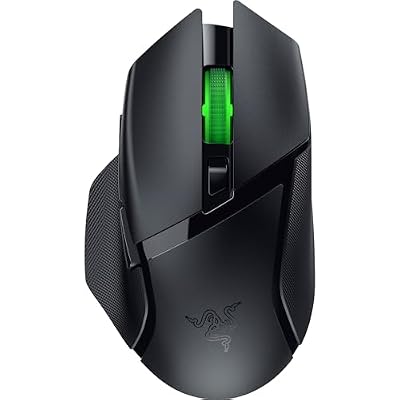
This guide is for iPad gamers who play through cloud streaming, remote play or native titles with mouse support, and for students and travellers who want one mouse for games and everyday work. Every pick below is a Bluetooth gaming mouse chosen from the name and specifications on its Amazon product page, so you can check the same details yourself before buying.
Quick Picks
As an Amazon Associate we earn from qualifying purchases.
| Product | Best for | Key spec from title |
|---|---|---|
| Razer Orochi V2 | Travel and small hands | 5G Advanced 18K DPI optical sensor |
| Razer DeathAdder V2 X HyperSpeed | Comfortable long sessions | 14K DPI optical sensor, 235-hour HyperSpeed battery life |
| Logitech G604 LIGHTSPEED | Many-button games | 15 programmable controls, up to 240-hour battery life |
| Razer Basilisk V3 X HyperSpeed | Everyday all-rounder with lighting | 5G Advanced 18K optical sensor, 535-hour battery life |
How to Choose
Bluetooth First, Dongle Second
Every mouse in this guide connects to an iPad over Bluetooth, and that matters more than any sensor figure. iPads have no USB-A port, so a 2.4 GHz dongle only works with a USB-C adapter or hub, which adds bulk and another thing to lose on a trip. Bluetooth pairs directly from iPadOS Settings, keeps the port free for charging and works the moment the tablet wakes. The trade-off is a lower polling rate than a dongle, which competitive players may notice in fast shooters. When a mouse provides both modes, use Bluetooth on the iPad and keep the dongle for a PC.
Know What iPadOS Can and Cannot Do
iPadOS supports a mouse pointer, but it does not run the companion apps that unlock a gaming mouse. Razer Synapse and Logitech G Hub are desktop programs, so DPI steps, lighting and button remapping must be set on a PC or Mac first and stored on the mouse, where the model supports onboard memory. Right-click works in apps and games that accept it, while the scroll wheel and side buttons depend on each game. Many iPad games were built for touch only, so check that your favourites accept mouse input before buying. A mouse still helps enormously in menus, cloud gaming and remote play.
Shape, Weight and Grip
Gaming mice are shaped for palm, claw and fingertip grips, and the wrong shape causes fatigue long before the battery runs out. Large ergonomic mice suit palm grips and long sessions, while small symmetrical mice suit claw and fingertip players and slip into a tablet sleeve. Weight matters on an iPad because the mouse often travels with the tablet rather than sitting on a desk, so a lighter mouse is easier to carry and quicker to flick. Try to match the length of the mouse to your hand, and remember that a mouse that feels cramped after ten minutes will feel worse after two hours.
Battery Life and Charging
Battery life decides whether a mouse is a travel companion or a chore, and the figures on the box deserve a close look. Mice that run on a single AA or AAA cell can be revived with a spare battery from any shop, which suits long trips, while rechargeable mice need a USB-C cable and a pause in play. Bluetooth usually stretches battery life further than a 2.4 GHz dongle, so the headline figure often assumes Bluetooth mode. Check whether the mouse charges over USB-C or an older connector, and whether it keeps working while plugged in, because a dead mouse in the middle of a session ends the game.
The 4 Best Options
Razer Orochi V2
The Orochi V2 is the smallest mouse here, and its size is the whole point. At under 60 grams without a battery it disappears into a tablet sleeve, and its symmetrical shape suits claw and fingertip grips during short, fast sessions. Bluetooth pairs straight to an iPad, while the HyperSpeed dongle stays in the bag for a PC. Battery life is the headline: up to 950 hours on Bluetooth or 425 hours on HyperSpeed from a single AA or AAA cell, so it can go months between changes. The 18K DPI sensor keeps tracking sharp in shooters and strategy games alike.
Specs
- 5G Advanced 18K DPI optical sensor
- Bluetooth and Razer HyperSpeed Wireless
- Up to 950 hours on Bluetooth, up to 425 hours on HyperSpeed
- Under 60 g without battery
- 2nd-gen Razer mechanical mouse switches rated for 60 million clicks
- Runs on one AA or AAA battery
Best for: Travelling light and small hands.
Watch out for: Its compact shape can feel cramped for large hands or palm grips, and extra buttons cannot be remapped on the iPad itself.
Razer DeathAdder V2 X HyperSpeed
The DeathAdder V2 X HyperSpeed is the comfort pick of this group, with the tall ergonomic shape that has made the DeathAdder line a default for palm-grip players. It connects to an iPad over Bluetooth and to a PC through its HyperSpeed dongle, with up to 615 hours on Bluetooth or 235 hours on HyperSpeed from a single battery. Seven programmable buttons give cloud and remote-play sessions more control than a basic mouse, and the 14K DPI sensor is more than enough for iPad games. It is larger than the Orochi V2, so it suits a desk or a large bag better than a slim sleeve.
Specs
- 14K DPI optical sensor
- Razer HyperSpeed Wireless and Bluetooth
- Up to 235 hours on HyperSpeed, up to 615 hours on Bluetooth
- 7 programmable buttons
- Gen-2 Razer mechanical mouse switches
- Ergonomic design
Best for: Long sessions and palm-grip players.
Watch out for: Its size makes it less pocketable than the smaller mice here, and button remapping needs a PC or Mac.
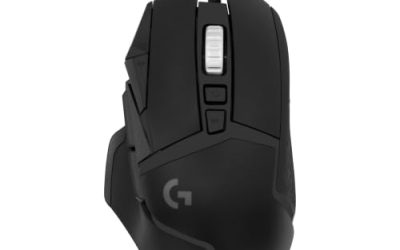
Logitech G604 LIGHTSPEED
The G604 is the button-heavy choice, built for games that reward shortcuts. Fifteen programmable controls, including six thumb buttons, cover abilities, inventory and macros in one hand, and the hyper-fast scroll wheel moves through long lists quickly. It pairs with an iPad over Bluetooth and switches to LIGHTSPEED on a PC, running up to 240 hours on LIGHTSPEED or up to five and a half months on Bluetooth from one AA battery. The HERO 16K sensor tracks cleanly at any sensitivity an iPad game needs. Its size and weight suit larger hands and desk play more than travel.
Specs
- HERO 16K sensor
- 15 programmable controls, including 6 thumb buttons
- Dual connectivity: Bluetooth and LIGHTSPEED wireless
- Up to 240 hours in LIGHTSPEED mode, up to 5.5 months in Bluetooth mode on one AA battery
- Hyper-fast scroll wheel
Best for: Games with many commands and shortcuts.
Watch out for: Bluetooth polling is slower than LIGHTSPEED, and G Hub profiles must be set on a computer first.
Razer Basilisk V3 X HyperSpeed
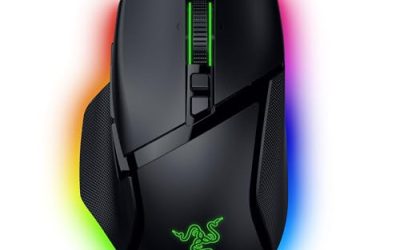
The Basilisk V3 X HyperSpeed is the all-rounder, pairing a right-handed ergonomic shape with lighting and a long battery. Its 5G Advanced 18K optical sensor and nine programmable controls cover shooters, strategy and everyday browsing, while Chroma RGB lighting adds colour to a desk setup. Bluetooth connects it to an iPad without a dongle, and HyperSpeed takes over on a PC. Battery life reaches up to 535 hours, so charging or battery swaps are rare. It sits between the Orochi V2 and the DeathAdder V2 X in size, fitting most hands without dominating a bag.
Specs
- 5G Advanced 18K optical sensor
- Bluetooth and Razer HyperSpeed Wireless
- 9 programmable controls
- Chroma RGB lighting
- Up to 535 hours of battery life
- Mechanical switches Gen-2
Best for: Everyday gaming with lighting and long battery life.
Watch out for: Lighting shortens battery life, and Chroma settings cannot be changed from the iPad.
Which One Fits Your Situation
Travelling Light With an iPad
Pick the Razer Orochi V2. Its weight and size make it the easiest mouse here to carry beside a tablet, and Bluetooth pairing means no dongle or adapter to pack. Battery life measured in months removes the worry of finding a charger on a trip, and the symmetrical shape works for either hand in short sessions.
Long Gaming Sessions at a Desk
Pick the Razer DeathAdder V2 X HyperSpeed. Its tall ergonomic body supports a palm grip through hours of play, and the seven programmable buttons keep common commands within reach. Pair it over Bluetooth to the iPad and keep the dongle for a PC, where HyperSpeed gives the lowest latency for competitive play.
Games With Lots of Commands
Pick the Logitech G604 LIGHTSPEED. Fifteen programmable controls put abilities, items and macros under your thumb, which matters in MMOs and strategy games where touch controls slow you down. Bluetooth handles the iPad, while LIGHTSPEED serves a PC, and one AA battery lasts for months of Bluetooth use between charges.
One Mouse for Play and Everyday Work
Pick the Razer Basilisk V3 X HyperSpeed. It balances a comfortable shape, nine programmable controls and long battery life, so it works for evening games and daytime browsing without swapping hardware. Bluetooth keeps the iPad setup cable-free, and the lighting can be set on a PC before a session starts.
Common Mistakes
- Buying a gaming mouse with no Bluetooth and no way to connect it to an iPad without an adapter.
- Expecting Razer Synapse or Logitech G Hub to run on iPadOS — settings must be made on a computer first.
- Assuming every iPad game accepts a mouse; many touch-first titles do not.
- Choosing a mouse by DPI alone when shape, grip and battery life matter more on a tablet.
- Forgetting that Bluetooth polling is slower than a 2.4 GHz dongle, which matters in fast competitive games.
Frequently Asked Questions
Can any Bluetooth mouse work with an iPad?
Yes, iPadOS supports standard Bluetooth mice as pointers, so most Bluetooth mice pair from Settings and work for pointing, clicking and scrolling. Gaming mice add value through better sensors, extra buttons and longer battery life, but their companion software does not run on iPadOS. Check that the mouse lists Bluetooth in its specifications before buying.
Do gaming mice work with iPad games?
They work with iPad games that accept mouse input, including many cloud-streamed titles, remote-play apps and native games with mouse support. Touch-only games ignore the mouse entirely, so check your favourite titles first. Even where a game lacks mouse support, a mouse still helps in menus, lobbies and the iPad interface itself.
Can I change DPI or remap buttons on an iPad?
No, not directly. iPadOS has no version of Razer Synapse or Logitech G Hub, so DPI steps and button assignments must be set on a PC or Mac and stored on the mouse where onboard memory is supported. On the iPad itself, iPadOS Settings provides basic pointer speed and button behaviour, which covers the essentials for most players.
Should I use Bluetooth or a USB-C dongle with an iPad?
Bluetooth is the simpler choice for most iPad players because it pairs directly, keeps the USB-C port free for charging and needs no adapter. A 2.4 GHz dongle can give lower latency, but it needs a USB-C adapter or hub on an iPad, which adds bulk. Use Bluetooth on the iPad and keep the dongle for a PC.