🛒 Best Price Today on Amazon
Prime members get fast, free shipping on everything above, plus member-only deals. New members get a 30-day free trial — cancel anytime.
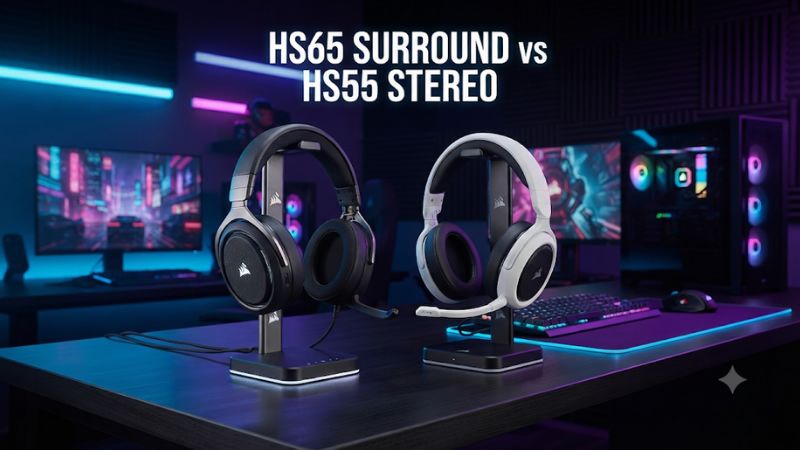
Buy the HS55 Stereo for a simple 3.5 mm connection to a console controller or a PC with a good headset jack. Pick the HS65 Surround if you want USB audio, custom EQ, or SoundID at your desk. In Corsair HS65 Surround vs Corsair HS55 Stereo, the value of the HS65 depends on whether you will use its included USB adapter.
Which wired Corsair headset should you buy?
Buy the HS55 Stereo for an uncomplicated analog connection
The HS55 Stereo is the clearer choice when your everyday setup is a compatible 3.5 mm controller or computer jack and you mainly want game audio and voice chat. Plug in, position the boom, and adjust the level with the wheel. The headset does not require a charging routine or a platform-specific tuning utility.
The same approach is useful if you move between a console controller and another device with a headset jack. Check whether the second device accepts both headphones and microphone on the same plug. A jack that only handles stereo output will give you game sound while leaving the headset mic unavailable.
Make your price comparison against the real HS55 Stereo listing. The HS55 Surround and HS55 Wireless are different products. A seller may show a family name or grouped variants, so confirm you selected Stereo before comparing the price or included accessories with the HS65.
Buy the HS65 Surround if its USB connection solves a problem
The HS65 Surround includes a USB adapter and still offers a 3.5 mm analog connection. Its USB route lets a supported computer use Corsair iCUE and features such as custom EQ, personalized SoundID, and Dolby Audio 7.1. This is the more flexible headset when the desk setup regularly uses those controls.
The adapter is also useful when a desktop has separate headphone and mic jacks, or when you want an audio endpoint independent of its analog output. Install and test the software on the computer on which you will use it. The need for an adapter, an available port, and a supported software setup matters if you use a work machine or a compact dock.
For a setup built around Xbox or PlayStation controller audio, the HS65 can still connect over analog. Its PC-oriented features are a smaller part of the buying decision there. Compare fit, price, and microphone behavior through the controller’s own jack before paying for the adapter.
| Buying criterion | Corsair HS65 Surround | Corsair HS55 Stereo |
|---|---|---|
| Main connection options | 3.5 mm analog and included USB adapter | 3.5 mm analog |
| Personal EQ on a supported computer | iCUE custom EQ or SoundID through the USB adapter | Depends on the source or platform |
| Dolby Audio 7.1 | Available on the supported USB and iCUE path | No bundled Dolby 7.1 feature |
| Headphone driver size | 50 mm | 50 mm |
| Boom microphone | Fixed, omnidirectional, flip-to-mute | Fixed, omnidirectional, flip-to-mute |
| Published headset weight in product descriptions | 282 g | 273 g |
| Xbox use | Analog through a compatible controller jack | Analog through a compatible controller jack |
| Charging | No battery required | No battery required |
What changes between the HS65 USB adapter and a 3.5 mm jack?
USB gives the computer a distinct audio path
The HS65 adapter appears as a USB audio device on a supported computer. Set it as the output for your game and as the input for voice chat when you want to hear and speak through the same headset. This is particularly useful when a PC has a noisy analog output, unclear jack labels, or separate ports for headphones and microphone.
If the USB port already carries a high number of peripherals through a hub, check the adapter from a direct port during setup. Confirm both playback and recording before investigating sound quality. A working game output alone says nothing about which mic the chat software selected.
The adapter gives you a consistent device to look for across compatible computers. It does not guarantee identical sound or available features between systems.
Operating system settings, iCUE support, and game output can change the experience. On a work computer, verify whether you can install the necessary software before assuming the tuning features are available.
Analog keeps the console setup simple
Both headsets can work through a compatible 3.5 mm headset jack. An analog headset plug carries stereo playback and a mic connection when the jack supports the appropriate headset wiring. Start with the cable seated fully, the microphone down, and the headset selected in the console’s audio menu where there is a device choice.
On Xbox, use a compatible controller headset jack for the analog path and check party chat separately from game sound. On PlayStation, turn to the controller headset jack for the simplest like-for-like comparison. Console features such as system headphone processing operate separately from the HS65’s iCUE effects on a supported computer.
A PC with separate microphone and headphone sockets needs the appropriate headset splitter for the analog route. Confirm the box contents of the exact regional package and order a compatible splitter if needed. If you already own the HS65 and its adapter is available, switching to USB can be the simpler fix at the desk.
Confirm which features follow the headset between devices
When you unplug the HS65 adapter and connect its analog cable to a controller, the headset plays the signal the controller sends. The PC’s iCUE EQ and Dolby Audio processing do not travel with that analog connection. Set up the analog mode and the computer mode independently if you use both.
That difference matters if you choose the HS65 after hearing or reading about a particular software profile. Listen in the configuration you will use most.
For example, a player who divides time between a PC and console can value EQ on PC while keeping the console settings simple. An Xbox-only player may rarely touch the software that accounts for much of the HS65 price.
The HS55 Stereo also plays any suitable headphone mix your device creates. A game can send a stereo mix with its own binaural cues through the 3.5 mm port. This is a separate path from the HS65’s included Dolby feature and can suit someone who already prefers the game’s headphone output.
How do sound, microphone performance, and fit compare?
Compare the gaming mix before switching on surround
Both models list 50 mm drivers, which gives you a size specification. Tuning, pad seal, output level, and the source can make two headsets with that driver size sound different. To compare them, start with ordinary stereo, the same game scene, and similar listening volume.
In a quiet part of a game, listen for dialogue, small movement effects, and a repeated cue at the side of the screen. Then repeat in a louder scene.
The useful question is whether you can keep track of the quieter information once effects and music build. If one headset is louder, match the playback level before deciding which one produces more audible detail.
External testing from SoundGuys found the HS65’s microphone a plus for voice chat and described the headset’s USB features and fit. That does not establish a directly measured audio-quality advantage over the HS55 Stereo on your controller. These are separate models, and the buying comparison gives most weight to direct architectural differences and the path you will use.
Use Dolby virtual surround as an option for PC
The HS65’s bundled virtual 7.1 can change how a supported PC mix appears in the headphones. Try the feature if it makes games easier to follow or more immersive.
For competitive use, first check whether direction calls and distance judgments improve. A larger apparent space can come with cues that feel less familiar.
Set up one renderer at a time. If the game has a headphone HRTF mode that already sounds clear, test that as a separate condition from Corsair’s virtual surround. Leave other spatial effects off during each comparison so you can attribute any change to the selected mode.
SoundID is a different kind of control. Its preference test builds a personalized EQ profile.
Use it to tune the tonal balance for the way you listen, then compare that profile with a normal preset. It does not add channels or change how many physical drivers the headset has.
Test both boom microphones through the intended source
Both models have fixed omnidirectional boom microphones with flip-to-mute. Position the boom near the corner of your mouth to help preserve speech at a manageable input level. The mic can pick up the surrounding room, especially if input gain is high and the boom sits too far away.
On a PC, select the actual USB or analog recording input, then record the same sentence with each setup at an appropriate level. Include one quiet line and one louder line, and type briefly while speaking. A comparison helps you hear differences in intelligibility and background pickup that an input meter alone cannot show.
Use caution drawing conclusions across different input paths. If the HS65 sounds cleaner over USB than an HS55 plugged into a front-panel jack, the computer’s analog input can be part of that difference. Compare both through a known compatible analog jack if you want to evaluate the microphones on the same source, or use each the way you would actually run it to choose a practical winner.
Give pad fit more weight than nine grams on a spec sheet
Corsair’s product descriptions list 282 grams for the HS65 Surround and 273 grams for the HS55 Stereo. That makes the models reasonably close in stated weight. Cushion shape, clamp, headband fit, and cable routing can have more effect on comfort than the small gap.
Try each headset with your ordinary glasses, hairstyle, or headwear and see whether the pads seal evenly. If an ear touches the inside or the pad presses on a glasses arm, judge that fit after a game-length session. If low frequencies change when you support the cups lightly with your hands, readjust the headband and cup position before changing EQ.
Both are wired, so check the cable while you move between the positions you use most. A couch setup brings the cable to your controller, whereas a desk layout runs it toward a PC or hub. If it tugs during normal seating adjustments, the tether’s route can matter more than the headset’s weight.
Which features matter on different platforms?
A Windows desk is the strongest case for the HS65
Pick the HS65 if you want to make repeatable changes to EQ or mic behavior and switch between types of games. Plug the included adapter into the computer, select it as your input and output, and confirm that iCUE recognizes it before judging the value of SoundID or surround.
Start with a simple stereo configuration. Add one EQ change or personalize the profile after the basic sound and mic are correct.
If your game sounds different when the software closes, reopen the profile and verify that the intended effect is still active. Keep a known baseline so you can undo an experiment.
The HS55 still makes sense when your computer already has a clean combo jack or a suitable audio interface with a headset path. Use system or game controls you already like. The total cost should include any necessary splitter, extension, or USB hardware before you compare the two prices.
A console controller usually favors the simpler HS55
With a compatible analog controller jack, the HS55 offers the core functions people typically need for a console session. Check the console’s output selection and set comfortable levels, then verify whether the microphone appears in party chat. A compatible system-level headphone option can still be available if you choose to use it.
The HS65 remains reasonable on a console when you prefer its fit or plan to move it to a PC often. Treat a small price difference differently from a large one. When the two models feel similar in analog use and the console is your only platform, the simpler product has a clearer value case.
Look up the input mode on handhelds, phones, and docks separately. A USB-C device with a USB-C-to-3.5 mm adapter may need one that carries microphone input. For a device that only provides headphone output, the headset will still be usable for listening while an external or built-in mic handles chat if supported.
How can you verify either headset and avoid buying the wrong version?
Check the port, mic, and exact box before buying
- Identify the actual jack. Confirm it is a headset combo port if you want playback and microphone on one plug. If a PC uses separate sockets, plan a splitter or the HS65’s USB adapter.
- Confirm the product suffix. Look for HS65 Surround or HS55 Stereo in the order summary. A listing titled HS55 or HS65 Series can group models with different hardware.
- Check accessories. When buying the HS65 for iCUE, verify that the original compatible USB adapter comes with it. If it is missing, value the headset according to the connection you can actually use.
- Verify the platform settings. On the device you will use, select both input and output. Play a game sound and record a sentence before deciding whether the setup works.
A used HS65 with a missing adapter may still be a functional analog headset. That does not deliver the feature that justifies its premium in many PC setups.
Check replacement availability and total cost before buying. For either model, examine the cable near the plug and verify that the microphone reliably mutes when raised.
Troubleshoot one connection at a time
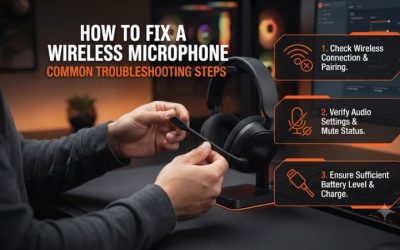
If you can hear the game but the mic is silent, make sure the boom is down and that your application has the right input. Next, inspect whether you used an output-only jack or a splitter that maps the microphone incorrectly. Give the headset mic a quick recording test so you can distinguish software input selection from a connection fault.
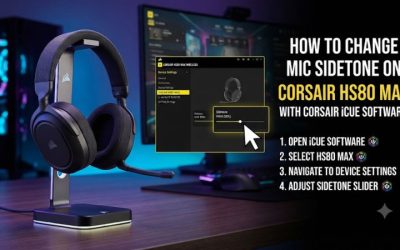
If the HS65’s Surround or SoundID option is missing, make sure you are using its USB adapter and a supported computer setup. Confirm the correct device is selected before reinstalling software. The plain analog jack will play sound even when the adapter-dependent settings are unavailable.
If one set sounds unexpectedly thin or distant, reseat the plug and check fit. Then turn off extra sound processing and run the same scene with normal stereo.
Add the feature you want back once the baseline makes sense. A consistent test saves more time than changing hardware, EQ, and game settings all at once.
Reproduce your main setup before comparing the price
Start with the model you expect to buy and connect it the way you intend to play. On a desktop, try its USB or analog path and verify a normal game and a voice call.
On a console controller, test the level from the controller’s output and ask whether your mic remains easy to hear at an ordinary gain setting. The setup that needs the fewest recurring changes is more likely to stay in use.
If you can try both models, make two comparisons. First use a shared compatible analog source at similar listening levels to check fit, tonal balance, and microphone position.
Then test the HS65 through its USB adapter with the EQ or SoundID settings you would actually use. The second test gives the extra features a chance to earn the price difference.
A useful three-minute check involves a quiet menu effect, an action scene, and a short voice sample. Test the volume wheel near the level you normally use.
An easy listening level that is difficult to set every day can be more irritating than a feature you rarely turn on. Notice any hiss or connector movement when the cable is normally positioned.
Decide whether the HS65 adapter saves you a separate purchase
The HS65 makes more sense if you would buy a separate headset adapter for the HS55 anyway. Compare the full cost of the HS55 plus whatever connection hardware your computer needs against the HS65 package. An adapter may give the HS55 a compatible USB connection, while the Corsair software features still depend on the HS65’s supported hardware and setup.
If your PC already has a headset port and you like its playback and mic response, that part of the HS65’s value is smaller. Put the money toward the headset whose cups fit well and whose microphone works where you sit. A cheaper headset that fits your exact desktop can be easier to live with than one bought only for a surround label.
If two people share the same headset or you frequently switch rooms, check how often the adapter would move with it. A setup with one well-labeled USB endpoint may be simpler on a crowded desk. When both users plug into compatible controller jacks, the extra adapter will probably spend more time in its box.
Conclusion
Buy the HS55 Stereo for simple 3.5 mm play when the compatible jack already provides the game and microphone connections you need. Choose the HS65 Surround if the included USB adapter, custom EQ, SoundID, or Dolby processing will get real use at your computer. Compare comfort and speech on your intended audio path, and pay the premium only for features your setup can use.