🛒 Best Price Today on Amazon
Prime members get fast, free shipping on everything above, plus member-only deals. New members get a 30-day free trial — cancel anytime.
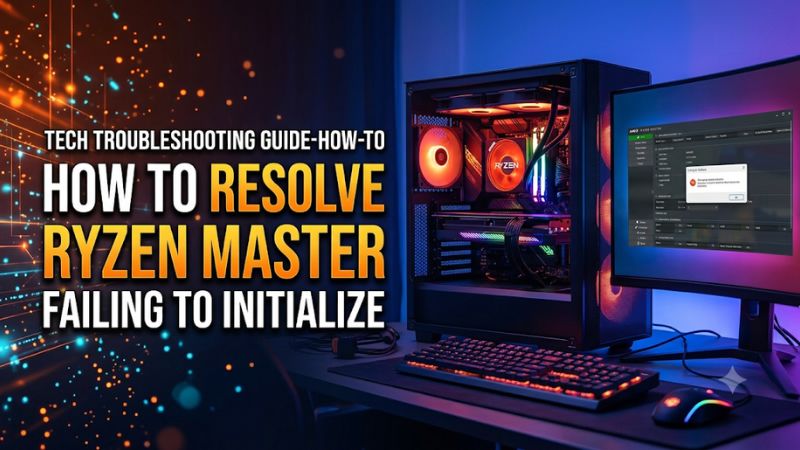
Restart Windows, then verify your exact CPU model and the AMD installer intended for it. To learn how to resolve Ryzen Master failing to initialize, capture the error text and identify whether the app, its driver, or platform support is blocking startup. Then follow the repair path that matches the evidence.
What should you check before reinstalling Ryzen Master?
Start with compatibility, a normal Windows restart, and the exact error. A generic initialization message can appear on a supported desktop with an installation problem. A different message may identify a processor or tuning restriction directly.
Identify your processor and Windows version
- What to do Open System Information by searching for it in Windows. Record the full processor name, Windows edition and build, system model, and BIOS version.
- Expected result You can identify the exact Ryzen model and compare it with AMD’s Ryzen Master downloads and supported platform documentation.
- If the check fails Use your system maker’s specifications or the motherboard’s UEFI information screen to confirm the CPU model. Include suffixes such as X3D, G, or mobile designations.
Check the download branch AMD provides for that processor generation. The app name can be identical across installers, while the applicable branch and enabled features differ. If you installed a package a long time ago, compare its version with AMD’s current listing for the exact hardware.
A DCH graphics driver or an AMD chipset package is a different installer. Reinstalling either solely because it contains the AMD name adds another variable. Check the Ryzen Master version first and update other software through the relevant hardware support path only when it is part of the diagnosis.
Confirm what your platform is allowed to do
AMD documents Ryzen Master for supported desktop platforms. A Ryzen product name by itself does not establish support for a laptop, an OEM system, or every tuning feature. An application that opens to a monitoring dashboard but lacks tuning controls may be behaving as documented for a platform with restricted tuning.
| What you see | Possible explanation | First response |
|---|---|---|
| Processor or platform unsupported message | The package or platform is outside supported coverage | Verify the exact CPU, system type, and AMD download branch |
| Dashboard opens without tuning | Tuning may be restricted or unavailable | Check AMD and OEM documentation for the feature |
| Generic failure with a driver warning | Ryzen Master’s driver may be blocked or incompatible | Record the driver name and use a supported AMD update |
| Generic failure following an update | A pending restart or installation mismatch may remain | Restart, then check the installed version and error time |
| App opens until another tuning program starts | Startup software may be interfering | Test Ryzen Master by itself and restore programs one at a time |
Check whether you are working on a personal PC or a system managed by an employer. Managed policies can govern which drivers are allowed. Use the administrator or OEM support path for a restricted device instead of attempting to bypass the controls.
Reproduce the error after a real restart
- What to do Save your work, restart from the Windows power menu, and launch Ryzen Master once after sign-in.
- Expected result The dashboard opens, or the same message returns at a known time.
- If the check fails If Windows is still finishing an installation or update, let it complete and perform the requested restart. Capture the message during the next clean attempt.
Use Restart for this check. A shutdown and power-on can behave differently when Windows Fast Startup is in use. Repeatedly clicking the shortcut is also less useful than observing one fresh attempt with a timestamp.
Take a screenshot or write down the text, including any reference to a driver, support restriction, or error code. Note whether the splash screen appears and whether the process exits immediately. A splash screen that closes with no dialog warrants a check for an application crash as well as a driver startup problem.
How do you repair a supported installation?
Use AMD’s package appropriate for the CPU and perform reversible changes first. Keep a record of your current version and tuning settings, particularly if the program was working earlier.
Use Windows repair when the installer offers it
- What to do Check the program’s entry in Windows Installed apps or Programs and Features. Use Repair or the supported change option if it appears.
- Expected result The installer completes, and Ryzen Master starts after any requested restart.
- If the check fails If there is no repair option, or the same error returns, use the Windows uninstall entry and the official AMD installer for a clean replacement.
Write down your current tuning configuration before modifying the installation if the application still opens on some attempts. You can also record the BIOS-side settings on which the system depends. Reinstalling the utility and restoring CPU defaults in firmware are different operations, and either can change the conditions you are trying to test.
If you have more than one AMD program installed, verify the entry’s exact name before selecting a repair or removal action. Leave the working graphics and chipset packages in place unless the evidence points to them. The goal is to restore Ryzen Master with as little disruption to the PC as possible.
Uninstall and reinstall the correct AMD package
- What to do Uninstall AMD Ryzen Master through Windows, restart, then run the supported AMD installer locally. Allow any expected administrator prompt from the official installer.
- Expected result Installation completes cleanly, and the Dashboard loads after the next required restart.
- If the check fails Save the installer or launch error. If Windows blocks a driver, follow the driver-specific path before attempting another identical reinstall.
Let Windows complete the uninstall and restart request. An interrupted uninstall can make the next install harder to interpret. After reinstalling, launch the application with the system at its usual stable settings before importing profiles or applying a tune.
Use the correct installer for older hardware even if another AMD package has a higher version number. AMD may distribute different packages for different generations. If you have verified the supported branch and still see an initialization error, keep that package’s version for the support report.
Registry cleaners and unrelated driver removal tools introduce changes outside the failing application. Use supported uninstall and install paths. If AMD support identifies a specific leftover problem, follow the procedure for your exact product and version.
Test with overlapping utilities closed
Some systems start several hardware monitoring or motherboard utilities at sign-in. If the failure began after adding a tuning or control application, reproduce the launch with that utility closed. Exit it through its own interface so you know what you changed.
- What to do Close optional CPU tuning and monitoring utilities one at a time, then retry Ryzen Master.
- Expected result Ryzen Master starts consistently on its own or the same error remains even with those applications closed.
- If the check fails Re-enable each program after testing. If a specific app changes the result, verify that its version supports coexistence or use one tuning utility at a time.
Check the difference between a tool that reads sensors and one that continually applies voltage or power settings. Two utilities writing settings at startup make it difficult to know which state Ryzen Master sees. Stop the conflicting adjustment by using the program’s supported controls and test a normal desktop restart.
If optional startup processes are still suspected, use Microsoft’s documented clean-boot method to isolate them. Retain services needed for the Ryzen Master test and any required system management components. Restore normal startup afterward and test again with only the identified conflict removed.
What can Windows logs tell you about initialization?
The time of one failed attempt gives you a reliable place to look. Use the error text and the corresponding log entries to select the next action. Different kinds of failures can look similar at the shortcut.
Look for a driver or Code Integrity event
- What to do Open Event Viewer and inspect the System log around the launch time. If Windows reported a blocked driver, check Applications and Services Logs, Microsoft, Windows, and CodeIntegrity for entries that match.
- Expected result A relevant entry names a driver or service at the same time as the failure, with information about why Windows stopped or rejected it.
- If the check fails If the log names another driver or another time, keep looking for evidence that matches a fresh attempt. A warning from unrelated software does not establish the cause.
A driver may fail to load because the package is outdated, the driver is incompatible with system policy, or the installation is damaged. The name, status, and time help distinguish those possibilities. Read enough of the event to see which component it refers to.
If Windows identifies a blocked or incompatible driver, use an updated compatible package from AMD or the system maker. Keep Windows security protections in place while checking compatibility. On managed systems, provide the event to the administrator responsible for driver policy.
Look for a normal application crash
If the app disappears without an obvious driver warning, open Reliability Monitor by searching for View reliability history. Check the failed attempt’s time and open the matching application details if present. Event Viewer’s Application log can provide another view of the same crash.
- What to do Record the application name, its version if listed, and the faulting module or exception from a matching event.
- Expected result The record tells you whether the app crashed during launch or whether you need to focus on a driver or service instead.
- If the check fails Run one more launch after a normal restart and record the exact time. Do not attribute another application’s crash to Ryzen Master.
A module named in a crash can be where the failure surfaced. It may be a symptom of mismatched files or another issue early in startup. Keep the raw error and version rather than using a search result to replace system files manually.
If a reliable application crash remains after a supported reinstall, compare whether it occurs with optional tuning tools closed. Also check whether Windows reports a pending system update or an installation failure at the same time. One clean timeline is more useful than a long list of events without dates.
Make sense of a startup service error
A Service Control Manager entry that coincides with launch can identify a component that failed to start. Record the name and the error code. A missing file after removal, an access restriction, and a driver blocked by policy require different responses.
If you have administrator access on a personal PC, use it for an official installer when it requests elevation. An elevation prompt by itself does not resolve an unsupported driver or processor. On a work-managed system, hand over the matching system event and the AMD package details.
When no log entry matches, narrow the test. Try the same supported package after restart, without opening other hardware tools first, and note how long the splash screen remains.
An absence of logs is a finding you can report. It is insufficient justification for disabling Windows protection or deleting services.
When should you check chipset software and UEFI?
Check the platform when the CPU and installer are supported, startup issues persist under normal Windows conditions, or the problem followed a motherboard or firmware change. Begin with identification and documented compatibility.
Tie the change to the right platform component
- What to do Record your exact motherboard model, board revision where relevant, chipset, and BIOS version. Review the vendor’s CPU support and update notes.
- Expected result You can confirm whether the BIOS supports that CPU and whether a vendor update addresses the issue you are seeing.
- If the check fails Check the board label or the OEM system model and use the corresponding support channel. Firmware for a similarly named board can be incompatible.
If the issue appeared after moving to a different CPU, the old Ryzen Master package may belong to the previous generation. A supported package and a Windows restart are reasonable first tests. If the new CPU is not supported by the motherboard’s current firmware, the board vendor’s instructions determine how to address that.
Check chipset drivers separately. Use the correct motherboard or OEM source, and restart if the package requests it.
A chipset update can be a reasonable step when platform software is outdated or the vendor identifies a related issue. Make it a discrete change so you can tell whether it mattered.
Preserve boot settings before changing firmware
If AMD or the motherboard vendor recommends checking stock settings, document anything the system needs to boot and use the vendor’s instructions. Storage mode, boot order, and security settings can matter after defaults are loaded. Preserve the recovery information associated with device encryption before a firmware change.
Treat a BIOS update as its own maintenance task because it can require downtime and a stable power source. Use the image for the exact board and revision. On an OEM system, follow the manufacturer’s update process rather than a retail board’s instructions.
After the change, verify Windows starts normally and repeat the same Ryzen Master launch. If the application still fails with compatible software and firmware, avoid changing CPU voltage, memory settings, or other tuning values randomly. Keep the diagnosis focused on what the failed launch shows.
How do you verify the fix and collect a useful support report?
A successful repair should survive a normal reboot. The app should report plausible telemetry for the expected CPU and behave according to the platform’s supported tuning features.
Verify on a second ordinary launch
- What to do Open the dashboard, check the processor name and live values, then restart Windows and open Ryzen Master again.
- Expected result Initialization succeeds both times and any expected monitoring or feature restriction is clear.
- If the check fails Record whether the failure returns only after restart, after another utility opens, or after a specific profile is applied.
If the utility fails only after loading a saved profile, check initialization with the default app state and leave the previous profile unapplied while investigating. Reintroduce tuning one change at a time after normal launch behavior is established. If Ryzen Master is needed only for measurements, a dashboard that works consistently may be sufficient.
Send the minimum useful detail to support
Give support the exact CPU, PC or board model, Windows build, Ryzen Master version, and BIOS version. Attach the exact error with its timestamp and the relevant Windows event, if found. Mention whether the system is managed and whether monitoring-only mode is expected.
Summarize the actions already tested, such as a reboot, supported reinstall, an isolated launch, or a documented chipset update. Clarify whether the installer itself failed or the installed app failed to start. That distinction helps the reader determine whether to check package compatibility, a driver load, or the app’s runtime behavior.
If a compatible install opens reliably and the only remaining question is a missing feature, verify the feature’s support separately. Collect the version and model details before changing unrelated options. Ryzen Master initialization and permission to tune the system are two separate checks.
Isolate a startup-only failure from an installer failure
The relevant failure can occur before you ever open Ryzen Master. If the installer exits, note whether it stopped while checking support, setting up a component, or completing a Windows restart. An installed application that later crashes has already passed the installer’s earlier checks.
- What to do Record one attempt from the official installer, including the exact point at which the error appears. For a launch-only problem, log a separate attempt from the installed shortcut.
- Expected result You can tell whether Windows rejected installation or the installed application could not start an expected component.
- If the check fails Check Windows Installed apps for the package and compare its version to the installer file. If the two tell a different story, finish the normal restart or supported removal before retrying.
When launch began failing after a Windows patch or graphics update, record the date and sequence without assuming the last visible change caused it. A current driver block, a mismatched installation, and a newly restricted feature can have different fixes. Compare the exact startup message with the relevant supported package.
Restart after one change and reproduce the original launch sequence. If reinstalling and changing BIOS settings together makes the app work, it is difficult to identify what fixed it. If the same error persists, a narrower change gives support a more useful result.
One important distinction is whether the PC itself has become unstable. If unrelated applications also crash or Windows has hardware errors, treat those failures as separate evidence.
A Ryzen Master startup issue on an otherwise stable PC calls for a different investigation from an app failing while the system intermittently reboots. Establishing a stable, supported platform first helps avoid making random CPU changes while the error is still unclear.
If AMD’s download page offers separate packages, record which one you tried before replacing it. A result tied to a specific installer and Windows build is more useful than the phrase latest version. The same applies if an OEM provides different guidance for the original factory image.
After successful initialization, test the feature you actually needed as a separate step. If the dashboard appears normally but the supported mode remains unavailable, you have a feature availability question. Keep the startup repair result intact while you verify the processor, platform, and control permissions for that feature.
Conclusion
Confirm the exact Ryzen CPU and supported AMD package, then reproduce the initialization error after a normal Windows restart. Use a supported repair or reinstall for an installation fault, and inspect time-matched Windows logs when a driver or application still fails. Verify the fix with another normal boot before applying tuning settings.