🛒 Best Price Today on Amazon
Prime members get fast, free shipping on everything above, plus member-only deals. New members get a 30-day free trial — cancel anytime.
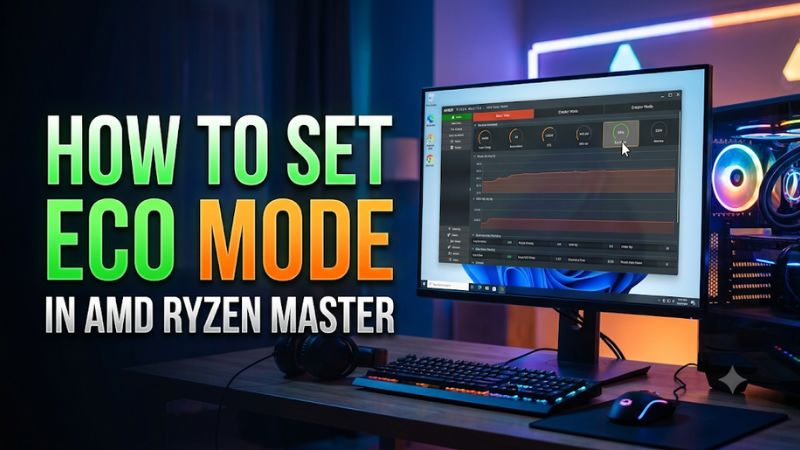
Open AMD Ryzen Master, go to Tuning, and select Eco Mode as the CPU control mode if your processor supports it. Apply the change and restart if prompted. This guide explains how to set Eco Mode in AMD Ryzen Master, verify the active limits under a repeatable load, and return to stock if performance drops too far.
Where do you turn on Eco Mode in AMD Ryzen Master?
On a supported desktop Ryzen system, use the CPU controls under Tuning. Select Eco Mode and apply it. The Dashboard is useful for reading back current values and verifying that the settings took effect.
Confirm support and record your current settings
- What to do Identify your exact processor, install the supported AMD Ryzen Master release, and note your current CPU control mode and any tuning settings you want to keep.
- Expected result Ryzen Master opens for the correct CPU and shows tuning controls on a supported system.
- If the check fails Check AMD’s supported platforms and the download branch for your CPU. A monitoring-only dashboard or a missing control can reflect hardware, OEM, or firmware restrictions.
Save any work before applying changes. If your release supports profile export, save a profile that captures the settings you might need later. Also record firmware-side PBO, manual power, and Curve Optimizer settings if you have used them.
A profile file is useful for remembering settings, but the active firmware configuration can matter as much as the app profile. Check which tool applied your current tune. For a meaningful comparison, keep the other CPU and memory settings consistent when evaluating Eco Mode.
Select Eco Mode and apply the change
- What to do Open Tuning and enter the CPU control view, or open the CPU tuning profile you intend to apply. Select Eco Mode as the Control Mode, then choose Apply. Restart if Ryzen Master requests it.
- Expected result Ryzen Master accepts the mode and the active CPU configuration reflects Eco Mode when you check it after applying.
- If the check fails Read the error and confirm which mode or setting conflicts with Eco Mode. Correct the stated issue, verify support, and retry using the documented control for your version.
Ryzen Master releases differ in presentation. Some builds expose fewer controls in Basic mode.
Where available, open the Advanced user mode or the CPU section in Tuning to check the full control list. Older releases may put the control on a profile page rather than using the newer layout.
Keep the interface’s action buttons distinct. Saving or exporting a profile keeps its configuration available later.
Apply puts the selected settings into effect. If the version offers Apply and Test, it adds the utility’s configured test, which is useful as an initial check. Your real workload still determines whether Eco Mode meets your performance goal.
Read the active settings after applying
- What to do Reopen the Dashboard and check the selected mode and applicable power readings. If a reboot was requested, perform it and read them back again.
- Expected result Supported controls show the intended mode, and the operating limits match the lower power profile under a demand high enough to reach it.
- If the check fails Verify whether you saved a profile without applying it or another tool changed the state at startup. Check the board’s firmware settings when the app and measured limits disagree.
A low idle draw can appear in both stock and Eco Mode. To verify the change, use a repeatable sustained workload and compare the available limits or telemetry.
Percentages by themselves can be misleading when the limit changed. For example, the same PPT percentage against two different maximums represents different socket power.
Record the CPU model, app version, active preset, and test conditions together. If you test again after a BIOS or Ryzen Master update, those notes help you tell whether a change in behavior came from the new software or the original mode.
What does Eco Mode change on a Ryzen processor?
Eco Mode applies a lower processor power profile where supported. The exact options depend on the CPU and platform. Expect the biggest measurable change in sustained work that was reaching the stock power or current limits.
Read TDP, PPT, TDC, and EDC correctly
| Term | Meaning in this comparison | How to use it |
|---|---|---|
| TDP | The processor or profile’s thermal design class | Use it to identify the offered power class |
| PPT | Socket power limit or its measured utilization | Compare the limit and observed socket power under load |
| TDC | Sustained current limit | Check whether sustained work approaches the allowed current |
| EDC | Peak current limit | Check shorter bursts or peak current constraints |
| CPU temperature | A sensor reading in degrees | Compare the same sensor and room conditions |
TDP and PPT use watts, but they describe different things. A lower TDP class in a product description does not state the exact socket power you will see in a workload.
Use the applicable limits shown by your firmware or monitoring tools. Avoid copying numerical limits from another processor’s preset.
In Ryzen Master’s monitoring context, a PPT reading can be expressed as a percentage of the configured limit. If both the percentage and a corresponding watt limit are available, use them together.
Another tool may show PPT in watts or provide a CPU package power row. Compare the same measurement before and after.
Decide whether the change addresses your goal
A lower power limit can reduce heat output during long CPU work. It can also allow the same cooler to operate at a lower fan speed if its curve responds to the lower temperature. The actual change depends on the workload, cooling, and the firmware profile.
Eco Mode can be useful in a small enclosure or on a workstation where sustained fan noise is the main problem. In gaming, a GPU-limited title may show little change if it never approaches the CPU’s new limits. A CPU-heavy game, a simultaneous stream, or a long render can reveal a larger difference.
Use completion time or frame-time consistency to judge the trade-off. A lower peak temperature can be valuable for noise, but it does not establish how quickly the same job finishes.
Likewise, two runs with similar temperatures may differ in fan speed or power draw. Check the outcome you originally wanted.
Keep Eco Mode separate from Curve Optimizer and manual power tuning
Curve Optimizer adjusts the processor’s voltage-frequency behavior. Eco Mode sets a lower power profile.
A manual PBO configuration can change individual limits on a supported board. Those are different adjustments, so combining them during your first comparison makes the result harder to explain.
- What to do Test Eco Mode by itself while leaving memory, Curve Optimizer, and unrelated tuning settings consistent.
- Expected result A change in power, temperature, performance, or noise can be attributed to the mode with fewer confounding factors.
- If the check fails If the current system already has several overlapping changes, document them and test from a known stable CPU configuration before adding Eco Mode.
Check whether your board or another utility writes settings at boot. Use one intended control path for the test, and read back the active configuration after a normal restart. A saved or previously applied firmware profile can outlast the application session.
How do you test Eco Mode against stock settings?
Measure a stock baseline first, then repeat with Eco Mode. Use the workload that generated the power, heat, or noise you want to reduce. Keep the remaining test conditions as close as practical.
Capture a stock baseline with one repeatable workload
- What to do Run a render, build, repeatable game scene, or benchmark at the known stock CPU setting. Record the test conditions, completion time or FPS, and available power, clock, and temperature readings.
- Expected result You have a comparable performance and thermal record for the workload before changing the preset.
- If the check fails If the run contains a background update or an unusually warm start, repeat it under normal conditions. Keep the same polling and capture settings in both modes.
Log CPU Package Power or PPT with its unit and source, along with the CPU temperature sensor you will compare. If the purpose is noise reduction, also track CPU or radiator fan RPM. A room-temperature change can shift the apparent temperature difference even when the same preset is active.
A short game scene can answer whether your favorite title cares about the limit. A sustained render or video encode is useful for seeing how the CPU settles under load. Bring the system to a similar starting state before each run when you plan to compare cooling.
Compare a sustained task and a representative game
A busy all-core task can spend more time near the lower limit. Compare elapsed time for the same output, average power across the working interval, and temperature once the system settles. For a game, compare average frame rate and consistent slow-frame behavior over the same route or replay.
- What to do Apply Eco Mode, then repeat the stock tests with the same settings and measurement tools.
- Expected result You can see whether lower power or noise is worth any change in throughput or frame times.
- If the check fails If the game is capped or the frame-rate data is noisy, repeat the same scene or use another relevant workload before attributing a difference to Eco Mode.
Consider an illustrative example. If a render finishes 8% slower but the fan stays below the speed you find distracting, the result may make sense for a machine in the same room as you. If the work is time-sensitive and fan noise is already acceptable, the stock profile may suit that job better.
For a game that spends most of its time waiting on the GPU, a small difference can sit within normal run-to-run variation. Run a second pass to confirm. Think about the titles and settings you actually use, especially when a competitive game and a GPU-heavy single-player title share the same PC.
Check that the preset stays active when you need it
Restart normally after testing and verify the operating state under enough CPU work to expose the limit. Then check again if your normal workflow launches another monitoring or tuning application at sign-in. A stable result after boot is more useful than a single result immediately after Apply.
Some Ryzen Master releases have preferences related to writing PBO parameters to BIOS. The exact persistence behavior can depend on the control and platform. Check what your setup actually retains before relying on an app label or assuming a saved profile applies itself automatically.
If you want Eco Mode every day and the software choice does not persist as expected, check whether the motherboard offers a documented Eco preset in UEFI. Treat firmware and software as separate configuration paths. Verify the real limit afterward and keep a record of which path applied it.
What should you do if Eco Mode is missing or fails to apply?
First distinguish a hidden control from an unsupported feature. A control may be unavailable because of the processor, board, firmware, app version, or active tuning mode.
Check the software view and processor support
- What to do Move from the monitoring Dashboard into Tuning, confirm the view exposes CPU controls, and look for Eco Mode in the supported Control Mode list.
- Expected result The option is available for your CPU and platform, or the documented restrictions explain why it is absent.
- If the check fails Verify the exact CPU, Ryzen Master release, and BIOS support. If this system has a documented UEFI Eco preset, use the board or OEM instructions to apply that alternative.
Some desktop systems expose monitoring without the full tuning feature set. Laptop and OEM control paths can differ from retail desktop boards. A missing option on one model is a reason to verify support, particularly when an online walkthrough uses another generation.
If the board supports a native Eco preset, check where it appears and what limit it applies. Menu labels vary. Use the preset named for your setup rather than assuming another CPU’s manual PPT, TDC, and EDC values apply.
Resolve an apply error or unexpected power result
- What to do Record the exact error, confirm that no conflicting CPU profile is being applied, and retry from a known stable configuration.
- Expected result The allowed mode applies and a controlled workload confirms the active limits or changes in sustained behavior.
- If the check fails Inspect the selected firmware mode and app settings. Restore the known working profile if the change causes instability, and use vendor support when a documented mode still fails.
A stock workload below the Eco limits can look almost identical after applying the mode. Use a task that creates sustained CPU demand. Look at limit values and elapsed time rather than expecting every light task to draw less power.
If the UI says Eco Mode is active but the before-and-after logs disagree, check the sensor name and the active control source. A percent readout, absolute package wattage, and wall measurement are different fields. Repeat the same workload with the same sensors once you have confirmed the startup state.
How do you return to stock when the trade-off is too large?
Restore the CPU control setting through the method that applied Eco Mode. Keep the rest of the system’s configuration intact where the supported controls allow it. A global reset can affect additional CPU or memory settings.
Restore the previous configuration deliberately
- What to do Use the supported Default CPU control option or restore the documented preceding setting from the source that applied Eco Mode. Follow a requested restart.
- Expected result The stock or previously intended limits return and the baseline workload behaves comparably.
- If the check fails Verify whether UEFI still has an Eco profile active, or whether another utility reapplies a profile after sign-in. Return through the applicable settings path and retest.
Save the old configuration before using a global defaults or reset feature in Ryzen Master. AMD documents reset actions that can extend to other hardware settings. A focused CPU control change is easier to verify, particularly when the PC has a separately configured memory profile.
A successful return to stock is visible in both the active settings and the workload you measured earlier. If a sustained render recovers and the prior power limits return, you have direct evidence. Keep a note of when the quieter profile is useful so you can enable it again with a known procedure.
Compare efficiency as well as peak wattage
For a fixed job, completion time matters to energy use. If you can measure average system power and length for the same task, estimate energy by multiplying watts by hours. Compare the same measurement source in your two runs.
Consider a hypothetical render that averages 200 W at the wall for 12 minutes. That is about 40 Wh. If the same job in Eco Mode averages 165 W and takes 13 minutes, the estimate is about 36 Wh.
Those figures show how lower average power can still save energy even when a task runs longer. The relationship depends on the change in completion time and which parts of the PC account for the draw. A CPU package power estimate answers a more specific question than a whole-system measurement.
A useful comparison reports both elapsed time and the power measurement. If the system spends most of its time at idle, measure that separately. A lower CPU limit during sustained rendering might have little impact on idle power, display consumption, or a game dominated by the graphics card.
Check the cooling outcome you were trying to improve
- What to do Track the same CPU temperature sensor and the same fan speed signal in both modes. Compare during an equivalent part of the task after the cooling system has warmed.
- Expected result You can tell whether Eco Mode lowered the sustained temperature, slowed the fan, or gave you both effects.
- If the check fails If the fans run at a fixed speed or follow another sensor, note that behavior. Check the existing fan control and retest under comparable room conditions.
A small case can behave differently depending on the graphics card and how air reaches the CPU cooler. A lower CPU limit may reduce heat during rendering while the same fan profile stays loud during gaming. Match the workload to the source of noise before changing the CPU preset.
Where the cooler responds to liquid temperature or uses a delayed fan curve, allow time for RPM to settle. Compare the late part of each run rather than a brief burst at application launch. If the same cooling change does not matter in the workload you care about, keep the CPU profile that best meets your performance goal.
Keep the settings and result in the same short note. An entry can name the selected mode, the active power limit where it is visible, the test workload, and the completion time. Include whether the system had already warmed up and which fan signal you compared.
This record is particularly helpful when you plan to switch between stock for deadline-sensitive work and Eco Mode for quieter daily use. You can repeat the same reference task after changing modes to confirm the expected behavior. Keep the amount of testing proportionate to the work you want the preset to handle.
Conclusion
Select Eco Mode under Ryzen Master’s CPU tuning controls on a supported desktop and apply the change. Verify it under a repeatable workload and compare power, noise, and performance with the stock run. When the trade-off does not suit the job, restore the CPU’s previous setting through the same control path and confirm the original limits.