🛒 Best Price Today on Amazon
Prime members get fast, free shipping on everything above, plus member-only deals. New members get a 30-day free trial — cancel anytime.
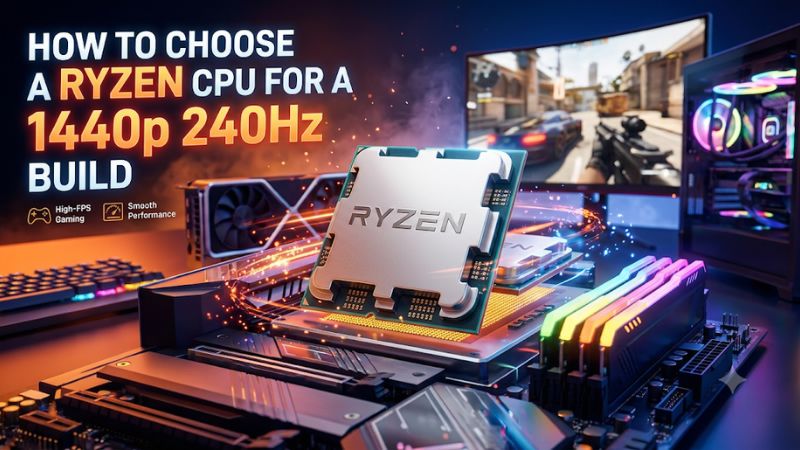
Here’s how to choose a Ryzen CPU for a 1440p 240Hz build around your games and settings. Start with a Ryzen 7 9800X3D for a high-end, gaming-first AM5 build. Compare the 9850X3D if the price gap is small. If the graphics card already limits your frame rate at 1440p, put more of the budget there.
Define what 240Hz needs to mean for your games
A 240Hz monitor can refresh 240 times per second. A game needs to produce frames quickly enough to take advantage of that capability. At 240 fps, the average time budget is about 4.17 milliseconds per frame. Irregular delivery can be noticeable even when the average FPS looks good.
Begin with the games you expect to play, the settings you will actually use, and the scenes where smoothness matters. A ranked multiplayer shooter, a 64-player match, and a single-player game with heavy ray tracing can have very different constraints on the same PC.
| What matters most | How to choose |
|---|---|
| Competitive games at reduced settings | Prioritize CPU-limited benchmarks and frame-time consistency |
| Mixed competitive and visually demanding games | Balance an X3D or standard Ryzen against the GPU you can buy with it |
| AAA games with high presets or ray tracing | Verify GPU performance before moving up a CPU tier |
| Gaming plus CPU-heavy work on the same PC | Compare simultaneous workload performance with an eight-core or Ryzen 9 option |
| Keeping an AM4 motherboard | Compare an in-socket X3D upgrade with an AM5 platform rebuild |
| Stable high refresh across games | Set a realistic target for each title and investigate lows alongside averages |
A 240Hz display can still be useful when a demanding title runs below 240 fps. The monitor can support a fast gaming experience in lighter titles and a variable refresh configuration for games that run slower. Decide which titles actually warrant spending extra on a processor capable of improving 1% lows or raising the CPU-limited frame-rate ceiling.
Use several frame-rate measures
Average FPS tells you the general rate over the measured run. A 1% low is a summary of slower frame delivery and can help distinguish two runs that feel different despite similar averages. Reviewers calculate low metrics differently, so compare them within one test suite and use frame-time graphs when available.
| Target FPS | Average time per frame |
|---|---|
| 120 | 8.33 ms |
| 144 | 6.94 ms |
| 165 | 6.06 ms |
| 200 | 5.00 ms |
| 240 | 4.17 ms |
Compare an illustrative pair of results: 260 fps average with a 150 fps 1% low versus 245 fps average with a 210 fps 1% low. In the same game and test method, the second machine might feel more consistent during the measured section despite the lower average. Look at the trace to see whether the slow frames arrive in clusters or are tied to a reproducible event.
A brief first-run hitch from shader compilation, storage, or a background task can have a disproportionate effect on a short benchmark. Run a repeat pass after the game warms up and record cold-start performance separately if it matters to you. If the hitch persists in the same busy scene, use that scene to compare upgrades. A score collected in a quiet tutorial can miss the problem that affects your matches.
Find the current CPU or GPU limit before buying
Test your preferred 1440p settings and a lighter render load
Use a built-in benchmark, a saved replay, or a repeatable gameplay route. Keep the same game version, map or scene, and frame cap. For a diagnosis run, remove caps or synchronization limits when safe and appropriate, then restore your normal settings afterward. Record average fps, a low metric, and the frame-time trace.
Repeat the same scene at a lower render scale or resolution while keeping CPU-affecting settings such as crowd density and simulation detail consistent. This lowers much of the GPU work. If performance rises substantially, the graphics card was likely placing a meaningful limit on the original run. If the frame rate barely changes, look at CPU or engine limits, remaining caps, and other bottlenecks.
For example, imagine a game averages 155 fps at 1440p High and 228 fps with the same scene and a substantially lighter render load. That suggests the GPU tier matters for the original settings. If a competitive game stays around 185–192 fps despite a large reduction in render load and there is no cap, look more closely at CPU performance, the game engine, and work that persists at lower resolution. These figures illustrate the method. They are not benchmark claims for particular Ryzen models.
Change one setting at a time. Lowering resolution and reducing player density together makes it harder to know which part of the system improved. Keep the game state similar and begin with a predictable comparison before testing your optimized final profile.
Read GPU Busy and processor activity in context
A tool with a per-frame GPU Busy measurement can help compare graphics work with total frame time. When graphics work takes up most of a repeatable slow frame and the GPU is consistently heavily loaded, it is reasonable to investigate the GPU or video settings first. A gap between total frame time and GPU Busy points toward other work or waiting somewhere in the pipeline. It does not identify the cause by itself.
A CPU limit can appear while overall CPU utilization looks modest. A few important game threads can hold back the frame while other cores remain underused. Check individual core activity or effective clocks if that helps, and use the lower-render-load comparison to test the hypothesis. Also check frame caps, V-Sync, background applications, and game-specific settings.
Inspect workloads beyond the processor package too. If stutters coincide with a new area loading, try a second run from the same point and check storage behavior and available RAM. If an online match feels inconsistent despite stable local frame times, observe latency and packet behavior separately. Avoid purchasing a CPU for a problem better explained by asset streaming or the network.
Read CPU reviews and GPU benchmarks for different questions
CPU reviews often use a fast graphics card and settings that expose processor differences. They can be excellent for ranking a CPU under a processor-limited workload. The result may shrink at your own 1440p settings if your GPU reaches its limit first. Use GPU reviews at 1440p to check whether your intended graphics card can reach the desired range.
Match the graphics settings and rendering method. A table using upscaling or frame generation can show a different output rate from a native-rendered test. Frame generation can improve visual smoothness in supported games, while the responsiveness and base rendered cadence still depend on the underlying pipeline. For competitive play, compare rendered frame rates and measured latency when available.
Also compare the memory configuration, software versions, and benchmark date. A game patch or platform change can alter performance. Give priority to same-review comparisons where the GPUs, settings, memory, and test routes are held consistent, then compare the result against your target title. A ranking across several aggregated suites can guide a shortlist while a specific game benchmark informs the purchase.
Choose a Ryzen tier that fits the graphics card and budget
Use the Ryzen 7 9800X3D as a high-end gaming baseline
The Ryzen 7 9800X3D is an eight-core, sixteen-thread AM5 processor with 3D V-Cache. It is a natural baseline for a new gaming-first machine targeting high frame rates with a capable discrete graphics card. The extra cache helps a number of games keep more commonly used data near the cores. The size of the advantage depends on the title and whether the CPU is limiting performance.
Choose it when your favorite games regularly reach a processor limit and the rest of the build can support the target. It is especially worth comparing in titles with large multiplayer scenes, simulation work, or benefits from fast access to a large working set. Check the lows in those games and configurations. A processor that wins a broad average may show a smaller advantage in the specific title you play.
Compare platform cost. Include a compatible board, DDR5, and an appropriate cooler. When the upgrade would require moving down a large step in GPU performance, check the two complete systems at 1440p. In a visually demanding game, the stronger graphics card may make the more visible difference. In your CPU-limited competitive settings, the stronger CPU can protect the frame rate you actually care about.
Compare the Ryzen 7 9850X3D when the price gap is small
The Ryzen 7 9850X3D also offers eight cores and sixteen threads with 3D V-Cache, and AMD lists a higher maximum boost than the 9800X3D. Independent comparisons show that the size of the gaming gain varies by title and test setup. Some results are close enough that the shopping price, cooler, and complete build matter more than the name.
Put the models side by side in the games you play. Compare both averages and lows when they are tested on the same bench. If the 9850X3D costs only a little more and provides a measurable benefit in the CPU-limited scenes you care about, it is a reasonable choice for a high-end build. If the premium could improve the limiting GPU, cooling, or storage instead, compare the effect of that alternative spend on the whole system.
For a current 9800X3D owner, the purchase should solve a verified issue. Look for a clear CPU limit and credible evidence that the newer chip improves your targeted condition by enough to notice. An upgrade within the same eight-core X3D class can change measured performance while leaving an underlying GPU limit, frame cap, or stutter source untouched.
Use a standard Ryzen or a lower-cost X3D when the numbers fit
The Ryzen 5 9600X is a six-core AM5 choice for a build where a larger share of the budget needs to go to the GPU. The Ryzen 7 9700X adds two CPU cores. Compare the eight-core model if you regularly run more CPU-heavy background work, or if reviews show useful gains in your actual games and total system pricing works in its favor.
A Ryzen 5 7500X3D or 7600X3D can also enter the comparison where locally available at an attractive price. Check BIOS support, street pricing, and actual performance in the games you play. These six-core X3D options have a different balance of clock speed, cores, and cache from the eight-core 9000-series X3D models. In some titles the cache makes them interesting. In others, clocks or wider throughput change the ranking.
For a builder playing a tactical shooter and a visually demanding RPG, evaluate the parts budget against both games separately. The shooter may reward spending on the CPU for stable high rates. The RPG may benefit more from the graphics card at the quality settings you prefer. Use your own play time and target settings to decide which trade-off matters throughout the week.
Step up to Ryzen 9 for deliberate mixed workloads
A Ryzen 9 9950X3D or 9950X3D2 Dual Edition belongs in the conversation when you also run substantial CPU-heavy production work. Extra cores can benefit rendering, compiling, and other well-threaded tasks. Before paying for that capacity, measure the jobs you actually do while gaming or between gaming sessions.
Streaming through a supported GPU encoder can have very different CPU demands from encoding through a CPU-heavy workflow. A large project building in the background or a CPU software encode could justify more cores. A gaming-only system with voice chat and a lightweight stream setup often has a different budget priority. Compare either Ryzen 9 option against an eight-core X3D and account for the cooler, power, and system noise.
For a multi-chiplet CPU, use current supported BIOS and chipset drivers, and check the game results with the intended Windows configuration. Measure actual games and workloads rather than assuming more chiplets will raise the frame rate in every title. The case for the Ryzen 9 is strongest when it improves the work the machine must do in addition to high-refresh gaming.
Check whether an AM4 upgrade is enough
A Ryzen 7 5700X3D can be a worthwhile drop-in comparison when the existing AM4 board supports it and gaming tests show the current CPU is limiting performance. Compare its actual cost and condition with rebuilding around AM5, including the motherboard and DDR5. The existing platform can save enough to improve the GPU or defer a complete system rebuild.
Check the board’s CPU support list and minimum BIOS version before changing processors. Confirm cooler mounting and capacity. If the required BIOS update is best performed with the old working CPU, plan the order and follow the board’s procedure. Test the new part in the same game and settings with the same GPU so you can clearly see what the CPU upgrade accomplished.
For a buyer starting from scratch, compare new platform costs directly. For someone with a recent GPU, good DDR4, and a reliable AM4 board, an in-socket upgrade can be a different financial calculation. If that path does not reach the lows or frame rates your competitive games need, price a complete AM5 move including net components you can reuse.
Build the platform around frame-time consistency
Choose the motherboard, memory, and cooler as a set
Buy an AM5 board with confirmed support for the intended CPU and the ports, storage, and USB features you actually need. Read the vendor’s CPU list and the BIOS version needed for the exact chip. If a board is older stock, verify how you can update it or choose a board whose existing support is confirmed.
Use a compatible two-module DDR5 kit and follow the recommended slot layout. Establish stability at a supported baseline before enabling an EXPO profile. A memory tune that produces a better average but occasional stutters, crashes, or long boot problems hurts a machine built for consistent matches. Test games, cold starts, and normal multitasking after enabling the profile.
Choose a cooler that can sustain the workload quietly in your case. Check socket support and physical clearance. In a gaming build with a powerful graphics card, case airflow affects both components and the resulting fan noise. Reproduce the game scene after the system has warmed rather than judging peak performance from a short cold run.
Confirm the monitor is actually running at 240Hz
Connect the monitor to the discrete graphics card with a supported cable and port. Check which input on the display supports 2560×1440 at 240Hz with the features you use. Set 240Hz in the operating system or GPU panel and confirm it in the monitor’s information screen.
Test your intended VRR and frame-cap settings after the basic mode works. Some people prefer a stable cap close to their achievable rates and within the display’s supported variable refresh behavior. Test with the titles you care about. If a game moves between 170 and 240 fps, your best cap or quality setting may differ from a title that stays above the display’s maximum consistently.
After assembly, run the same repeatable tests used to choose the parts. Write down the average, 1% low, frame-time graph, GPU load, and any caps. Recheck a competitive match and a demanding 1440p game. If results are below the expected range, verify resolution, graphics mode, cooling, driver, and memory stability before buying another component.
Conclusion
Start with a Ryzen 7 9800X3D for a high-end 1440p 240Hz build when your games benefit from faster CPU-side frame delivery. Compare the 9850X3D against its real price premium and results in those games. Choose a Ryzen 5 9600X or another suitable value option when the GPU needs more of the budget. Base the decision on repeatable frame-time tests and the performance your actual settings require.