🛒 Best Price Today on Amazon
Prime members get fast, free shipping on everything above, plus member-only deals. New members get a 30-day free trial — cancel anytime.
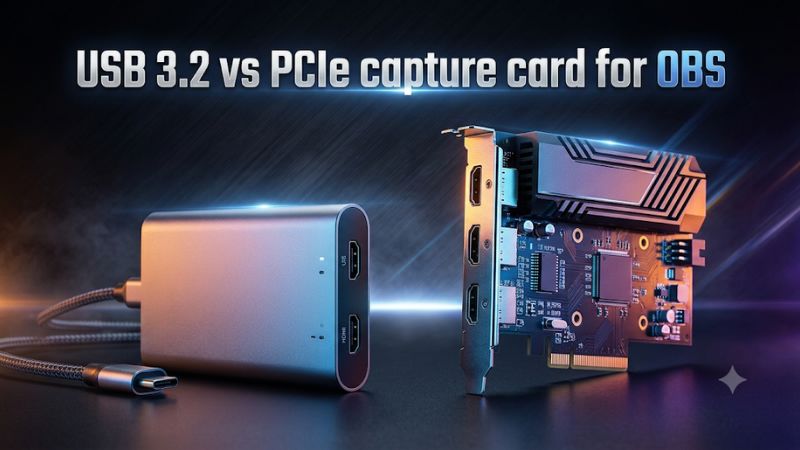
The USB 3.2 vs PCIe capture card for OBS decision starts with your source format and the computer running OBS. Choose USB for a laptop or a single feed on a verified port. Choose PCIe when a desktop has the lanes for the capture format or independent inputs you need. Confirm HDMI passthrough separately.
USB 3.2 vs PCIe capture card for OBS at a glance
The choice affects how video moves from the card into the host computer. A useful comparison includes the actual HDMI mode, the capture format delivered to OBS, and what else shares the host’s resources. Two cards with different interfaces can deliver the same finished program if they provide equivalent source video under the same workload.
| Decision factor | USB 3.2 capture card | PCIe capture card |
|---|---|---|
| Receiving computer | Suitable for laptops, mini PCs, and portable desks | Suitable for compatible desktops with an accessible expansion slot |
| Installation dependency | Port speed, cable, and controller topology | Generation, electrical lanes, clearance, and driver |
| HDMI passthrough | Depends on the exact model and timing | Depends on the exact model and timing |
| Potential resource conflicts | Shared USB controller or upstream dock link | Shared lanes, GPU allocation, or expansion-slot restrictions |
| Multiple video sources | Check input count and controller capacity | Multi-input cards can consolidate feeds in the right slot |
| OBS image quality | Depends on received format, color, and encoding | Depends on received format, color, and encoding |
If you need one 1080p60 console feed on a laptop, a suitable USB card is usually the straightforward fit. If you need multiple independent HDMI inputs on a production tower, check what a multichannel PCIe card can offer. For a 1440p240 gaming monitor, start with the HDMI passthrough requirement and then choose a host connection your streaming machine can support.
Separate the monitor, capture, and encoder paths
The gaming device sends an HDMI signal to the capture card. A model with HDMI Out can send a supported signal to the gameplay display. The card simultaneously exposes a particular capture format to the host over USB or PCIe. OBS composes and encodes the final stream or file.
A 240Hz monitor can run at its negotiated refresh while OBS receives 60 fps from a card that supports the combination. Higher passthrough and higher recording frame rates are separate features. If you are happy with your display timing and want a sharper broadcast, verify the source format, scaling, and OBS encoder. If your display loses refresh when the card is connected, begin with the HDMI timing instead.
The encoder is another stage. A dedicated streaming PC moves composition and encoding off the gaming system when it receives the HDMI feed. The card’s connection does not guarantee the receiving PC can encode every supported capture mode. Verify the intended source format and output while alerts, cameras, and the rest of the scene are active.
Verify the bandwidth behind the USB 3.2 name
USB 3.2 includes 5Gbps, 10Gbps, and 20Gbps signaling options. USB-C tells you the connector shape. A port, cable, dock, and capture device need a compatible data mode, and the connection can operate at a lower common speed. Look for the actual transfer rating in the laptop or motherboard specification.
An external capture device may keep working at 5Gbps while some formats disappear or become limited to lower rates. Compare the manufacturer’s tables for each USB speed. If a particular 10Gbps mode is central to the purchase, check the port you will leave connected during production and confirm the supplied cable supports it. Charging capability alone gives you little information about video transfer.
A dock can still be part of a reliable setup. First establish a direct connection at a supported format and record a baseline. Then connect the card through the dock, activate the other attached devices, and repeat the test. Include an SSD copy or additional cameras if they are part of the desk. Docks and several nearby ports can share upstream bandwidth even when they have separate physical connectors.
Confirm the PCIe slot’s electrical width and generation
A full-length expansion slot can have fewer lanes than its physical connector suggests. Read the motherboard’s expansion table and lane-sharing notes. A card that specifies x4 or x8 needs the supported electrical connection, and other devices can affect whether it is available.
The Elgato 4K Pro specifies PCIe Gen 2 x4. The AVerMedia GC575 specifies Gen 3 x4, and the GC571 specifies Gen 3 x1 in its product specifications. For each model, use the card maker’s requirement and confirm the intended slot supplies it. A wider slot can accept a narrower card physically when compatible. Electrical wiring and motherboard support determine the operational link.
Inspect the tower before buying. A graphics card can block a neighboring slot, or a chosen M.2 socket can disable one. On some boards, adding a second expansion device changes GPU lane allocation. Check the combination with the actual drives installed and consider cooling and bracket clearance. If satisfying the slot requirement means replacing the motherboard or GPU, compare that total cost with a verified external solution.
Compare video formats, bandwidth, and latency
Throughput matters when it changes what OBS can acquire. Work from the width, height, frame rate, and pixel format first. Then compare those requirements with the product’s documented modes and your computer’s sustained performance.
Estimate active-picture bandwidth before comparing cards
For a basic uncompressed estimate, multiply the number of active pixels by frames per second and bits per pixel. NV12 uses 12 bits per pixel in its common 8-bit 4:2:0 form. YUY2 uses 16 bits per pixel in its common 8-bit 4:2:2 form. The figures below exclude transport overhead, audio, and padding.
| Capture format | 8-bit NV12 | 8-bit YUY2 |
|---|---|---|
| 1920×1080 at 60 fps | 1.49Gbps | 1.99Gbps |
| 2560×1440 at 60 fps | 2.65Gbps | 3.54Gbps |
| 2560×1440 at 120 fps | 5.31Gbps | 7.08Gbps |
| 3840×2160 at 60 fps | 5.97Gbps | 7.96Gbps |
This explains why a 5Gbps connection can be suitable for ordinary 1080p60 capture yet may require compression for some higher formats. Uncompressed 1440p120 NV12 already needs more than 5Gbps for the active image alone. A 5Gbps card that advertises 4K60 could support a compressed transport mode, or the headline may refer to passthrough. Check the capture matrix to see what actually reaches OBS.
On 10Gbps USB, a format that fits the approximate calculation still depends on implementation and the provided device modes. PCIe cards also have supported format limits. An arithmetic estimate identifies impossible or tight combinations and helps you ask better questions. Use the vendor’s explicit source mode table and a real recording to verify a particular product.
Compare compression and color with a useful test clip
An external card might send a compressed MJPEG source that the host decodes. Other modes can provide uncompressed NV12 or YUY2. A card’s host interface alone does not identify which format is in use. Read the selected format in OBS and compare the look of the saved video in the intended player.
Use a test scene with readable text, saturated colors, fine HUD graphics, fast motion, and a darker scene. Chroma subsampling, light levels, and encoding all affect the final image. If one clip looks washed out, check color range and HDR conversion before deciding a different interface is responsible. If moving areas look soft, check both the source compression and OBS output bitrate or recording quality setting.
A fair test keeps the HDMI input, the camera and overlay scene, output dimensions, encoder, and playback conditions the same. When exact format matching is impossible, write down which part of the configuration changed. The result can still help you buy, as long as you attribute the visible difference to the actual workflow you tested.
Measure latency on the path you intend to use
The direct gaming display or an inline passthrough output handles the play experience. The OBS preview includes acquisition and rendering. At the viewer end, encoding and network delivery add time. A product can perform well in one path and still lead to a delayed preview, especially when the source buffers or the host is under load.
If preview delay is important, film the monitor and OBS preview with a camera during a repeatable visual change. At 120 fps, one camera frame spans about 8.3 milliseconds. Repeat the measurement because display scanning and the timing of the recorded event can vary. Compare the same monitor settings and OBS configuration when trying two cards.
Check microphone and gameplay sync in the recorded file with separate markers. A wireless monitoring device or an audio interface can add a delay unrelated to capture transport. If the headset feels late and the recorded file stays aligned, focus on the listening path. If the recorded delay grows, isolate the audio routes and source timing before concluding the host interface is the cause.
Choose the connection that fits your actual streaming desk
Start by deciding how many HDMI feeds you need and which computer will receive them. Consider what the card will replace, how often the desk changes, and whether direct gaming capture is already available on the same PC.
Choose USB for a laptop or a portable single-feed setup
An external card works well when the host has an appropriate data port and you move between workstations. A console, a camera, or the separate feed from a gaming PC can use one suitable USB device. Favor a model whose HDMI input and capture modes are documented for your intended source and operating system.
For example, a laptop may record a 1080p60 gameplay feed while an external card passes a supported 120Hz console signal to the monitor. Check the console timing and the card’s listed combination separately from the host speed. When moving the card between computers, keep the cable with it, identify the correct port, and run a quick recording on the receiving system before starting a show.
If you use a dock to power the laptop, establish what can connect directly. The capture card may work best on the high-speed interface while the dock supports keyboard, audio, and other display equipment. A laptop with one port needed for both charging and capture requires a wiring plan. Test that real arrangement before a return period closes.
Choose PCIe for a permanent tower with specific input needs
An internal card can free USB ports and keep a stable HDMI installation in place. It is attractive when it offers a required video format or lets several HDMI feeds arrive through one expansion card. The desktop needs the documented electrical connection, appropriate drivers, and sufficient processing capacity for the simultaneous feeds.
A two-input card works when the single primary feed needs passthrough and the secondary input is a camera. A production with two gaming PCs and two cameras may need independent input timing, more lanes, and separate player monitors. Check whether OBS can address each relevant input as its own source. Count which feeds remain live even while another scene is visible.
Compare the arrangement with an independent external card for each source if you already own the equipment. Multiple USB devices can work across capable host controllers. A multichannel PCIe board can consolidate connections and driver setup when the tower supports it. Measure the complete production configuration and consider how quickly someone can restore it after a disconnected cable or restart.
Check a single-PC workflow before adding capture hardware
If you stream a game running on the same computer as OBS, start by testing the normal software game capture source and a compatible encoder. A capture card is useful when you bring in a console, camera, or another PC. Sending the same computer’s own HDMI output back into a card can add another processing path without removing the OBS encoding workload.
If your goal is to reduce impact on the games, compare a quiet recording with one made under your real OBS scene. Watch rendering misses and encoding skips. When the game and OBS compete for GPU time, the behavior may improve when you change the game’s frame limit or simplify the scene. A second computer can take over dedicated capture and encoding if you need that production layout. Either USB or PCIe can receive its feed.
There are specialized single-PC uses for HDMI capture, such as integrating several external sources or maintaining a specific display topology. In those cases, identify what the device adds. If your present software capture path already produces a consistent file, spend your time checking the specific new input or show format you want to enable.
Run a real OBS comparison before committing
Test the stage that limits you. The device should meet the purchase requirement while the computer performs its normal recording or streaming workload. A five-second preview can establish that a picture appears. A longer clip can reveal dropped motion, changing audio sync, or a connection that fails when another peripheral becomes active.
Build a test around the problem you want to solve
Use the same game, HDMI timing, scene, encoder, and output quality. Record at least ten minutes with fast motion and a few clear audio markers. Compare the first and final markers and check the file for dimensions, cadence, and readable text. If the replacement card claims a higher acquisition format, verify what OBS offers and inspect whether the saved clip contains the new detail or frames.
If you want a higher local recording rate and a simultaneous 60 fps broadcast, test both workloads together. Confirm the recording destination has adequate sustained throughput. Pay attention to how the encode behaves once the camera and overlays are active. The card may be capable of supplying the feed even when the computer cannot finish the intended program reliably.
If you are replacing a USB device after intermittent disconnects, confirm a direct port at the required speed and try an appropriate cable. When the issue returns with a dock or additional USB device connected, use the result to evaluate the host arrangement. If spare PCIe lanes are available, an internal capture route may suit the production. A verified direct USB link can also resolve a problem tied to the original port or shared dock.
Choose by the observed limit
For one game feed on a laptop, a verified USB 5Gbps or 10Gbps capture card can provide everything the show uses. For one high-refresh display on a tower, pick by documented HDMI timings first, then host connection. For several independent HDMI sources, compare usable per-input modes, access from OBS, and host capacity under load.
If capture fails before encoding, check whether frames from the device remain continuous and whether OBS receives the selected format. If the picture is stable and OBS reports encoding skips, focus on the encoder configuration or host workload. If the local recording looks clean and the stream loses frames, examine network delivery. These checks help you replace the component affecting the result.
Record the tested slot or port, card driver, OBS format, output settings, and the proved working cables. That small amount of documentation makes it easier to recover a configuration after a software update or when someone moves equipment. Use it to compare the actual operating cost of a portable external card and a fixed internal installation.
Conclusion
Choose USB 3.2 for a laptop, a movable setup, or a single feed whose capture format fits a verified port. Choose PCIe for a compatible tower when a fixed installation, a specific capture mode, or several independent sources justify the slot. In either case, confirm the exact HDMI passthrough mode and test the final OBS recording with the equipment and workload you use every day.