🛒 Best Price Today on Amazon
Prime members get fast, free shipping on everything above, plus member-only deals. New members get a 30-day free trial — cancel anytime.
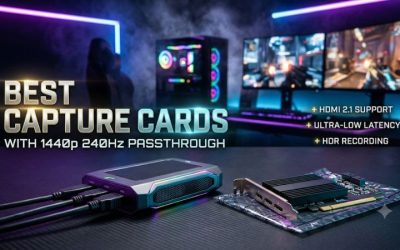
The best PCIe capture cards for dual PC streaming depend on what your gaming PC sends and what your streaming PC can accept. Start with the Elgato 4K Pro or AVerMedia GC575 for high-refresh gameplay. Choose a dual-input card for a game and camera, and verify the electrical slot before ordering any model.
The best PCIe capture cards for dual PC streaming by setup
An esports player with one signal at 1440p240 needs a different card from a producer handling four HDMI sources. The most useful starting points are the number of feeds, the gaming monitor’s connection, and the electrical lanes available in the streaming PC.
| Card | Required PCIe connection | HDMI layout | Best use |
|---|---|---|---|
| Elgato Game Capture 4K Pro | Gen 2 x4 | One input with passthrough | High-refresh Windows setups with advanced recording needs |
| AVerMedia Live Gamer 4K 2.1 (GC575) | Gen 3 x4 | One input with passthrough | Permanent HDMI 2.1 gaming and console setup |
| AVerMedia Live Gamer 4K (GC573) | Gen 2 x4 | One input with passthrough | 4K60, 1440p144, or 1080p240 display path |
| AVerMedia Live Gamer DUO (GC570D) | Gen 2 x4 | Two inputs, passthrough on the first | Gameplay and a clean HDMI camera |
| AVerMedia Live Streamer ULTRA HD (GC571) | Gen 3 x1 | One input with passthrough | A streaming desktop with an available electrical x1 slot |
| Magewell Pro Capture HDMI 4K Plus LT | Gen 2 x4 | One input with loop-through | Production workflow with a controlled HDMI feed |
| Blackmagic DeckLink Quad HDMI Recorder | Gen 3 x8 | Four HDMI inputs | Multiple gaming, camera, or guest feeds |
The card mounts in the streaming PC. The gaming PC supplies HDMI video and any audio embedded in that signal. OBS then composites and encodes the program on the second computer. Leave room in the budget for the streaming PC’s encoder, storage, and other inputs when they affect the finished show.
Elgato Game Capture 4K Pro for high-refresh PC gameplay
The 4K Pro is the first pick for a Windows streaming tower with a suitable four-lane slot and a high-refresh monitor on HDMI. Its documented 1440p240 passthrough makes it a good match for a competitive PC player who wants to keep the monitor at its usual refresh while recording on a separate computer.
If you care about local masters as well as live output, verify the firmware and driver. Elgato’s support notes document native 1440p240 SDR and HDR and native 4K120 SDR capture with the relevant update. Check the available modes in OBS after installing the supported software versions. A workflow that produces a 1080p60 broadcast may use a different profile from one created to record 240 fps for motion analysis.
The monitor and GPU still need a common HDMI mode. If the gaming monitor reaches its top refresh through DisplayPort, leave it directly attached and send a second supported HDMI signal to the card. That lets a DisplayPort gaming setup use the 4K Pro without imposing the primary monitor’s timing on the capture input.
Take this model’s capabilities into account when budgeting for the rest of the receiving computer. Higher-rate local masters can stress the encoder and storage even with a stable HDMI signal. Test the drive you intend to record to and repeat the test with cameras, alerts, and browser sources visible. A PC that handles an ordinary broadcast may need a lower local recording format when both workloads run at once.
AVerMedia Live Gamer 4K 2.1 for a permanent HDMI 2.1 rig
The GC575 fits a Windows workstation with PCIe Gen 3 x4 and a persistent one-feed setup. AVerMedia documents 1440p240 and 4K144 among its passthrough modes. It is an appropriate choice for a desk that regularly changes between high-refresh PC play and supported console timings.
Check the specific frame rates exposed in OBS if you expect to record at a high resolution. AVerMedia identifies 2160p144 capture as a Streaming Center capability. A vendor application’s maximum may differ from the format available to OBS. For a broadcast with face camera and alerts, confirm the supported game capture mode under the full OBS scene instead of relying on the highest number in the overview.
Also verify reconnect behavior. A gaming PC may output a different timing in an exclusive fullscreen game from the desktop it showed at boot. A console added to the same desk can negotiate another signal. Create a short transition test for the devices you will use. Check that audio returns to the intended OBS source and that changing devices leaves both the capture and passthrough monitor working.
AVerMedia Live Gamer 4K for 4K60 or 1440p144
The GC573 makes sense when your known HDMI source fits its documented modes. It uses PCIe Gen 2 x4 and supports 4K60 HDR, 1440p144, and 1080p240 passthrough in the listed combinations. It can be a practical purchase when available at a meaningful discount and a faster 1440p HDMI path has little value for the desk.
A representative setup is a 4K60 source feeding a 1080p60 broadcast. Verify which source format you want to deliver to OBS and how you will handle HDR. If you play on an HDR display and publish in SDR, examine the final file for accurate conversion and usable detail in bright and dark scenes. Settle the color workflow before evaluating the difference in cost between this model and an HDMI 2.1 card.
Check present driver support for your receiving computer’s Windows version before buying a used card. Ask for the exact model code and inspect the bracket and ports when it arrives. Run the intended HDMI mode under a long session and confirm the GPU, storage, and other expansion devices remain stable with the card installed.
PCIe cards for cameras, multiple sources, and smaller slots
A second physical input can matter more than an unused high-refresh feature. Count the sources that must be live at the same time, then identify which of them needs a local monitor output. A camera typically has different requirements from an esports player’s main display.
AVerMedia Live Gamer DUO for gameplay and one HDMI camera
The GC570D provides two independently usable HDMI inputs and passthrough on its first input. AVerMedia lists 1080p60 capture on both. It fits a streamer who wants gameplay and a camera to appear as separate OBS sources while installing one card in a PCIe Gen 2 x4 slot.
Put the gaming device on the input with passthrough. Use the second input for a camera with a clean HDMI output at a supported rate. Disable camera sleep when appropriate and test what happens when you change camera modes or cycle its power. In OBS, confirm the camera remains a useful independent source in full-screen gameplay, a face-camera scene, and any layout you switch to during a session.
Separate audio at setup. The camera may embed room audio while you also capture a commentary microphone. Decide which feed the audience should hear, check the mixer, and listen to a recording of a short conversation. A second microphone signal with a slight delay creates an echo that can be mistaken for poor sync. Keeping the camera video as a distinct source also makes it possible to diagnose its delay without changing the game feed.
This is a strong fit for two 1080p60 sources. If your purchase depends on capturing 4K gameplay as a local master while the camera stays active, look for a device whose capture capabilities cover that requirement. The distinction matters even though the primary GC570D input can pass higher supported timings to the gaming display.
AVerMedia Live Streamer ULTRA HD for an electrical x1 slot
The GC571 is a candidate when the streaming PC has a free PCIe Gen 3 x1 slot and the main output is a modest OBS feed. AVerMedia lists up to 4K30 capture and passthrough modes that include 4K60, 1440p60, and 1080p240. Those timings make it suitable for a narrower set of gaming displays than the higher-end cards.
First confirm physical access. A large GPU can cover the nearby x1 slot. A small case can limit which bracket or profile you can install. If a second full-length slot is electrically x1, check the board documentation and card placement rather than assuming the longer slot delivers more lanes. Include the actual cooling and cable arrangement in that check.
An appropriate gaming use is a 1080p-focused second PC or a console setup operating within the listed modes. If the player’s primary monitor needs 1440p144 or 1440p240, connect it directly to the graphics card and send a supported second HDMI feed into the GC571. Test the complete acquisition mode on the card before it becomes part of a paid or scheduled broadcast.
Magewell Pro Capture HDMI 4K Plus LT for a controlled production feed
The Magewell Pro Capture HDMI 4K Plus LT has an HDMI input, physical loop-through, and PCIe Gen 2 x4 host connection. Its direct value is to a production PC receiving an established HDMI timing, with DirectShow available for Windows workflows. It can fit a desk with a local confidence monitor and a clear understanding of the required input format.
For example, a gaming PC can drive the player’s high-refresh screen directly while sending a separate 4K feed to the production system. The receiving card can forward the HDMI source to a local display and present a supported capture format to the application. Check the exact resolution, rate, and color format you need. Verify the OBS recording and the loop-through display independently.
Use the complete model name when purchasing. If loop-through belongs in the wiring diagram, the LT variant is the item to verify. If you need inline 1440p240 on the player’s monitor, prioritize a model with that explicitly documented HDMI timing. The value of a professional capture card is tied to the formats, monitoring options, and application support that the production actually uses.
Blackmagic DeckLink Quad HDMI Recorder for four independent feeds
The DeckLink Quad HDMI Recorder gives a production tower four independent HDMI 2.0b inputs on one PCIe Gen 3 x8 card. Supported UHD and 4K timings reach 60 fps. The card is a good candidate for a show with several camera angles, two gaming PCs, or a mix of game feeds and guests. Plan for separate player monitor connections.
On the receiving computer, install the appropriate Blackmagic software and verify the OBS Blackmagic Device sources. Start with one feed at a time and match its input mode to what the source sends. Then enable all required feeds and watch their behavior during scene switches. Test with the encoder running. Multiple 4K sources can place demands on the computer even when the final show is delivered at 1080p.
The slot requirement can make or break this purchase. Many desktop boards have a spare full-length slot wired to x4. Some can allocate x8 through lane splitting with the GPU. Check the electrical wiring with the GPU and drives installed. If your computer cannot supply a supported slot, consider changing the capture layout before paying for a card, riser, or replacement board that may fail to solve the constraint.
How to wire and validate a dual-PC streaming setup
Choose the connection between the gaming GPU and the player display before selecting the capture card. The card can sit on the main HDMI cable when it supports the display requirements. A separate feed gives the gaming monitor its direct connection and places a different timing on the capture input.
Use inline passthrough for a shared HDMI timing
Connect the gaming GPU to HDMI In and the monitor to HDMI Out. Choose a timing supported by the source, card, and monitor. Confirm the active signal in the monitor’s information menu and set a usable capture mode in OBS on the second computer. Start with an uncomplicated SDR baseline so you can tell whether the mode works before enabling additional features.
Inline wiring is attractive for a tidy two-computer desk with one gaming monitor. It also means the monitor may depend on the capture card’s powered state. Test the desk with the streaming PC off, after waking from sleep, and after replugging a cable. A setup that comes up reliably is valuable if you want to game privately without booting the production computer every time.
If OBS loses the picture while the monitor remains active, check the acquisition format and source timing separately. A card may pass a timing that it cannot capture at the resolution or format you selected. If both paths lose the signal, verify the cable pair, HDMI mode, and EDID configuration before changing OBS encoder settings.
Keep DisplayPort when the gaming display needs it
Run DisplayPort directly from the gaming GPU to the monitor. Connect a second GPU output over HDMI to the capture card. The gaming PC now treats the card as another display destination. Confirm the active refresh of the main screen with both outputs connected.
Windows display duplication is worth testing on a simple two-output setup. Actual refresh behavior depends on the GPU, displays, and driver. If duplication lowers the main refresh or produces an undesirable cadence, extend the desktop. A fullscreen OBS projector on the gaming PC can deliver a designated game scene to the HDMI output at a card-supported timing. Leave headroom for the extra rendering and verify game performance with the projector running.
Build one representative recording from the capture PC after choosing the topology. Check the beginning and end of the file, motion during rapid pans, and a normal game-to-desktop transition. If a projector has to be restarted after the capture PC sleeps, record that behavior in your checklist so you can recover quickly before going live.
Verify the slot, driver, encoder, and storage together
Read the expansion-table footnotes in the motherboard manual. The relevant questions are the electrical lane count, supported generation, conflicts with populated M.2 sockets, and what happens to the GPU connection after adding a card. Verify bracket height and physical clearance with the graphics card and any adjacent fans in place.
After installation, start with one video source in OBS and record locally. Add the camera and other usual sources while watching rendering misses and encoding skips. Test your final stream configuration afterward so network-dropped frames can be identified separately. If the HDMI image disappears while these counters stay clean, investigate input timing or card delivery. The OBS Stats window measures parts of the output pipeline and can miss a fault upstream of composition.
If the stream is clean and the local archive skips, test the recording encoder, drive, and output format. A USB storage drive or slower disk can add another constraint, even on a system where the PCIe card itself delivers video reliably. Stop and restart the usual recording arrangement after a reboot to check that device names, tracks, and saved scenes still point to the intended inputs.
Build an audio route that someone else can operate
Start by sending game audio with HDMI. Connect the commentary microphone to the receiving PC if that works for the desk. Each feed should have an intentional route into the final mix. If Windows switches the gaming PC to HDMI sound when the card is connected, check how the player will continue listening. An application output device, monitor audio jack, mixer, or another supported routing method may fit the setup.
Validate game, chat, and mic independently. Record a game sound while everyone stays quiet, then capture a short spoken exchange with the game muted. Check both what the player hears and what the program recording contains. If audio appears twice in the mixer, look for a monitored signal being captured again through Desktop Audio or an active camera mic.
Label the cables and note the known working source mode. During a fault, a cable label lets you check the direction of the HDMI connection without reaching around the desk to identify each device. Save a one-source scene for troubleshooting. If the usual scene fails, the simple scene can reveal whether the card supplies a feed before you spend time inspecting filters and overlays.
Conclusion
Choose the Elgato 4K Pro or AVerMedia GC575 for a dedicated high-refresh HDMI setup. Choose the GC570D when gameplay and a camera are your two sources, or the DeckLink Quad HDMI Recorder when four independent inputs justify the electrical x8 slot. Match the card to the monitor path, confirm the streaming PC’s actual lane allocation, and record a full test with the OBS scene and audio routes you plan to use.