🛒 Best Price Today on Amazon
Prime members get fast, free shipping on everything above, plus member-only deals. New members get a 30-day free trial — cancel anytime.
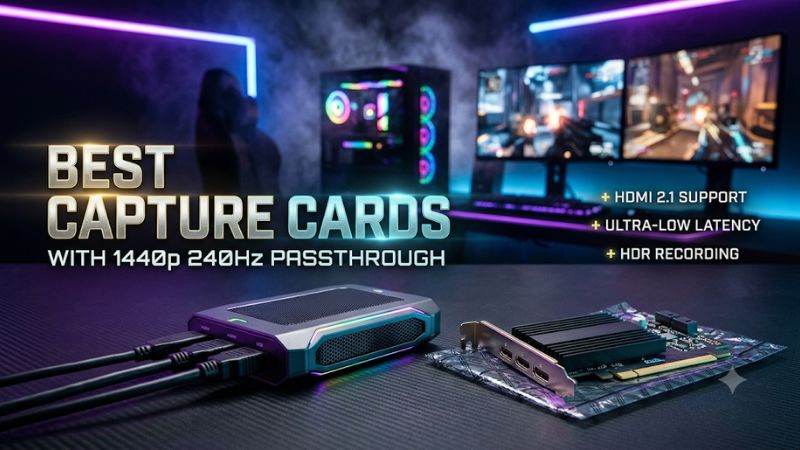
The best capture cards with 1440p 240Hz passthrough preserve your monitor’s 2560×1440 signal while sending a separate feed to OBS. Choose a 10Gbps USB model for a portable setup or a PCIe card for a dedicated desktop. If you also want to record at 240 fps, check the capture mode and driver before buying.
The best capture cards with 1440p 240Hz passthrough at a glance
The Elgato 4K X and AVerMedia GC553G2 are the external picks. The Elgato 4K Pro and AVerMedia GC575 are the internal picks. All four have documented 2560×1440 at 240Hz HDMI passthrough. Your decision after that comes down to the receiving computer, the recording format you need, and how you route game audio.
| Capture card | Host connection | 1440p240 HDMI passthrough | Best fit |
|---|---|---|---|
| Elgato Game Capture 4K X | USB 10Gbps | Yes | Portable PC or Mac capture setup |
| AVerMedia Live Gamer ULTRA 2.1 (GC553G2) | USB 10Gbps | Yes | External capture with wired headset and controller routing options |
| Elgato Game Capture 4K Pro | PCIe 2.0 x4 | Yes | Windows desktop and firmware-dependent native 1440p240 recording |
| AVerMedia Live Gamer 4K 2.1 (GC575) | PCIe 3.0 x4 | Yes | Permanent Windows dual-PC setup |
| Elgato Game Capture 4K S | USB 5Gbps | Up to 144Hz at 1440p | Lower-refresh setup with a 5Gbps host |
| AVerMedia Live Gamer ULTRA S (GC553Pro) | USB 5Gbps | Up to 144Hz at 1440p | Lower-refresh setup that needs several capture format choices |
Passthrough is the signal going from the card to your monitor. Capture is the feed the card makes available to software. A gaming PC can send 240Hz through the card while a second computer records the feed at 60 fps. If your audience primarily watches a 60 fps broadcast, preserving 240Hz on the gaming monitor is a reason to buy the card even when the finished video stays at 60 fps.
Elgato Game Capture 4K X for a portable 240Hz setup
Buy the 4K X if the receiving computer is a laptop, a Mac, or a desktop with a verified 10Gbps USB port. It keeps a compatible 1440p240 HDMI monitor in the signal path and can move between computers without occupying an expansion slot. The supplied cable and a direct high-speed host port give you a good baseline for setup.
For a standard gameplay video, start with a documented capture mode from the 1440p240 input. Elgato’s detailed resolution matrix lists 1440p144 SDR and 1440p60 SDR or HDR options from that signal. Select one the host supports, then match it to what you intend to deliver. A 1440p60 stream still lets the player use the full refresh of the monitor and is a reasonable point from which to test the connection.
Elgato’s product comparison also lists a higher 1440p240 SDR capture ceiling, while its detailed 4K X matrix leaves the corresponding capture combination blank. If 240 fps at native 1440p is your reason for purchasing, ask Elgato which firmware, operating system, application, and format support the specific mode. Once installed, check whether OBS exposes it and verify frame cadence in a recording. Buy with the documented 1440p240 passthrough and the clearly listed capture modes in mind.
A rear USB-C port often makes cable routing tidy, but the connector alone tells you little about link speed. If a 5Gbps connection works at one format, you may still lose other formats that require more bandwidth. Compare the manufacturer’s 5Gbps and 10Gbps format tables if the preview works but the setting you wanted is absent.
AVerMedia Live Gamer ULTRA 2.1 for headset and controller audio
The GC553G2 suits a player who wants an external card with 1440p240 passthrough and physical connections for a wired headset and controller. AVerMedia also lists a range of capture formats, including documented 1440p144 SDR and 1440p60 SDR or HDR options from 1440p240 input. Check the manual for the format and USB link involved.
The main reason to choose it over another external card is the audio path. Consider a console setup where the player wants to hear the game and party chat, and the broadcast needs both sources. Check how the console sends each signal and whether your headset, controller, and adapter wiring expose it. After connecting, ask someone to speak during a quiet moment. Check whether the voice reaches your headset and appears once in the OBS recording. Your ability to hear the chat and the audience’s ability to hear it depend on different parts of the setup.
On a dual-PC desk, start with gameplay audio embedded in HDMI. Add headset or controller audio after your video and game sound are stable. This makes it easier to identify a second copy of gameplay arriving through monitoring or an analog route. If the setup needs HDR, choose a mode the documentation actually lists for HDR capture and verify the saved file. A monitor showing HDR tells you about the HDMI display path.
Elgato Game Capture 4K Pro for a dedicated recording tower
The 4K Pro is the most direct choice here when you want 1440p240 passthrough and are also building a Windows desktop around native high-frame-rate recording. It requires an electrical PCIe 2.0 x4 connection or a suitable wider slot. Elgato’s update notes document native 1440p240 capture in SDR and HDR with the listed firmware and driver combination, including firmware 250416 and driver 1.1.0.203.5 in those notes.
Check your installed versions and the format OBS actually offers. Native capture involves the HDMI timing, the card’s output format, and the application receiving it. A file created at 240 fps can contain repeated images when the game renders fewer unique frames or a stage upstream supplies a lower cadence. Test a repeatable motion sequence, then advance through the recording frame by frame. Use a clip long enough to reveal frame skipping and check that your editor reads the file at its intended rate.
A recording that will be played at quarter speed on a 60 fps timeline has a clear use for a healthy 240 fps feed. A standard stream at 60 fps gains more from stable delivery and an encoder that has headroom. Set up the normal stream profile first, then create a separate profile for high-rate local work. If you plan to stream and record simultaneously, test them together with your usual background applications, overlays, and camera.
The card goes in the streaming PC. An x16-length slot may have only one or four electrical lanes, or a particular M.2 configuration may disable it. Check the motherboard manual with your current GPU and drives in mind. A laptop or a small desktop with one occupied expansion slot points toward one of the external picks.
AVerMedia Live Gamer 4K 2.1 for a fixed dual-PC desk
Choose the GC575 if you have a Windows capture tower with a usable PCIe 3.0 x4 connection and want a permanent 1440p240 HDMI path. AVerMedia documents that passthrough mode with HDR and VRR support under compatible conditions. The card also fits a desk that alternates between a high-refresh gaming PC and an HDMI console.
Check software restrictions if you plan to use different sources. AVerMedia identifies its 2160p144 capture mode as a Streaming Center feature. Look up the workflow you will actually use in OBS and verify the chosen mode in the source properties. When 1080p60 is your public stream, there is little reason to chase the highest capture setting if a supported lower rate gives you stable frames and clean color.
For a desk used by several people, write down the verified gaming-PC timing and the console timing before handing over the setup. If the input changes when a game enters fullscreen, the card may take a moment to reacquire the signal. Test that transition while recording, then test switching between the console and PC. A preview that worked at startup can still interrupt the show when resolution, HDR, or refresh changes during play.
Lower-refresh alternatives when your display allows them
These two cards have a documented 1440p ceiling of 144Hz in the listed configurations. They are useful if you accept a 144Hz HDMI path or keep the gaming display directly connected and supply the card with a second signal.
Elgato Game Capture 4K S for a USB 5Gbps setup
The 4K S fits a console or gaming desk that needs 1440p at up to 144Hz over HDMI and has a 5Gbps host port. Start by checking which resolution and refresh your source actually outputs during gameplay. If the games you cover run through a 120Hz console mode, a card designed for 240Hz at 1440p may offer little extra value on that path.
Check the EDID preset for your exact source. EDID communicates available timings upstream, so changing the preset can change what the gaming device offers. Verify the console’s output and the monitor’s information screen after selecting the configuration you will use. Record a section with rapid motion, a menu, and a few HDR or VRR transitions if those features are part of the purchase decision.
The 4K S is also useful on a gaming PC with a DisplayPort monitor if a second HDMI output can provide an appropriate capture feed. Test duplicate display mode while checking the real refresh on the gaming screen. If the outputs negotiate a lower common mode, an extended desktop with a fullscreen OBS projector can provide a controlled 1080p60 or other supported HDMI feed. Allow enough GPU headroom on the gaming PC for the extra composition.
AVerMedia Live Gamer ULTRA S for a 144Hz HDMI monitor
The GC553Pro works for a buyer who already uses 1440p at 144Hz and wants an external card with multiple capture format choices. The product name resembles the GC553G2, so check the model code on the listing. The GC553Pro uses HDMI 2.0 and a 5Gbps USB host connection. It is a different purchase from the HDMI 2.1 ULTRA 2.1.
Read the applicable mode table if you need a particular 1440p capture rate, HDR, or both. A choice that works in SDR may require a lower rate in HDR or a different video format. Check whether the recording retains appropriate color and whether an editor or player interprets it as intended. A bright image on the connected screen tells you little about color conversion in the file.
If you currently play at 240Hz, spend a match at 144Hz before choosing this fallback. Judge rapid movements, scrolling, and responsiveness in a familiar game. Players who rely on the faster mode every day have a practical reason to keep it. Someone recording slower games or mainly playing a console may prefer the lower host bandwidth requirement and use the higher monitor refresh only outside the capture workflow.
What to check before buying a 1440p240 capture card
Confirm the gaming PC, monitor, and both HDMI cables can form the link you intend to use. Then determine what the capture computer can receive. Checking in that order prevents a USB or PCIe purchase from being used to solve a limitation at the display input.
Check 240Hz over HDMI with the card out of the path
Connect your gaming computer directly to the exact HDMI input you plan to use. Select 2560×1440 at 240Hz in the GPU settings and look for confirmation in the monitor menu. On Windows, Advanced display can report the active signal. Run a game as well because an exclusive fullscreen profile can change the signal after the desktop test passes.
Some 240Hz monitors reach that rate through DisplayPort and have a different HDMI ceiling. If you cannot get 240Hz through the monitor’s HDMI input directly, buy a card for a separate capture path or accept a lower rate on inline HDMI. Also verify the GPU’s own HDMI output. A card’s HDMI capability cannot create a source timing the GPU never sends.
Use short, appropriately rated HDMI cables during the initial test. An inline card requires a working link on both sides. If the monitor flashes or drops the signal, test each cable individually with the direct source-to-monitor connection. Once the pair passes separately, repeat with the card and start with SDR at a fixed rate. Bring HDR and VRR back individually so a failure can be tied to a specific change.
Work through EDID and Display Stream Compression
With an inline display, a display-based or merged EDID mode is a reasonable starting point if the card offers the setting. The source reads the advertised modes and may pick a different format once the card is inserted. If 240Hz disappears from the GPU’s list, check the monitor’s selected HDMI mode and compare the card’s available EDID preferences. If a preset breaks the picture, restore the last working configuration before testing again.
Display Stream Compression can let a monitor use modes that exceed the link’s ordinary uncompressed capacity. Some card and display combinations can show passthrough while capture fails on a DSC-dependent input. A working monitor beside a black OBS source is a reason to check the exact mode and compression support. Reduce the rate or color requirements temporarily and see whether the captured image returns. Use the result to narrow the problem before changing unrelated applications or buying another cable.
If you keep a separate DisplayPort connection, an internal EDID profile on the capture card can be helpful for the second HDMI output. Select a timing supported by both the gaming GPU and the card. Name the extended display in your setup notes so OBS projects to the correct destination after a disconnect or restart. Confirm the main screen stays at 240Hz while the HDMI feed is active.
Choose the OBS capture rate for the footage you will publish
Start from the destination. Standard streaming, casual uploads, match analysis, and slow-motion editing place different demands on capture. A 60 fps workflow can be suitable for a broadcast with a 240Hz play screen. A 120 fps master can provide half-speed playback on a 60 fps timeline when the file has the required unique frames.
To test a higher rate, record a predictable pan or animation and inspect a short sample in the editor. Check which source format OBS is acquiring, which output frame rate you configured, and whether encoding is keeping up. A file’s advertised frame rate indicates playback timing. Inspect successive frames to see whether the feed contains the motion detail you want.
Try the final OBS scene as well. Add the webcam, overlays, alert widgets used by your own stream, and the normal audio inputs. Repeat with both the local recording and the broadcast load if that is your routine. A source that works in a short test with one scene can behave differently once the receiving computer also has to decode other feeds and write a recording.
Verify recovery and decide which features justify the purchase
Run the setup through three normal transitions before you commit. Restart the receiving computer, switch a game between desktop and fullscreen, and wake the monitor after sleep. Confirm both the active 240Hz display mode and the OBS image come back. If you regularly play with a second PC turned off, test what the monitor does when the capture card loses host power. Designs and power states vary, so the result matters more than an assumption about passthrough.
For a one-monitor gaming desk, verify the conditions most likely to change the link. Open a game that enables HDR, try a title that uses a different fullscreen mode, and test the actual headset or speakers. Keep a short local recording and watch it for black intervals, missing game audio, and unintended changes in color. If a fault appears only when one mode changes, you have a much narrower problem than if the whole setup fails intermittently.
For a shared production desk, choose the card people can operate repeatedly. Compare which host has a spare high-speed port or usable slot, how often the source changes, and whether the show needs analog audio connections. Two cards can satisfy the same 240Hz requirement and differ significantly in daily setup time. Verify the purchase against these practical conditions before comparing features that the show will rarely use.
Conclusion
The Elgato 4K X and AVerMedia GC553G2 are the external choices for 1440p240 passthrough on a verified 10Gbps USB setup. For a dedicated Windows tower, choose the Elgato 4K Pro for its documented firmware-dependent native 1440p240 capture or the AVerMedia GC575 for a fixed PCIe 3.0 x4 workflow. Confirm 240Hz over the monitor’s HDMI port and verify the recording format in OBS before relying on either path.