🛒 Best Price Today on Amazon
Prime members get fast, free shipping on everything above, plus member-only deals. New members get a 30-day free trial — cancel anytime.
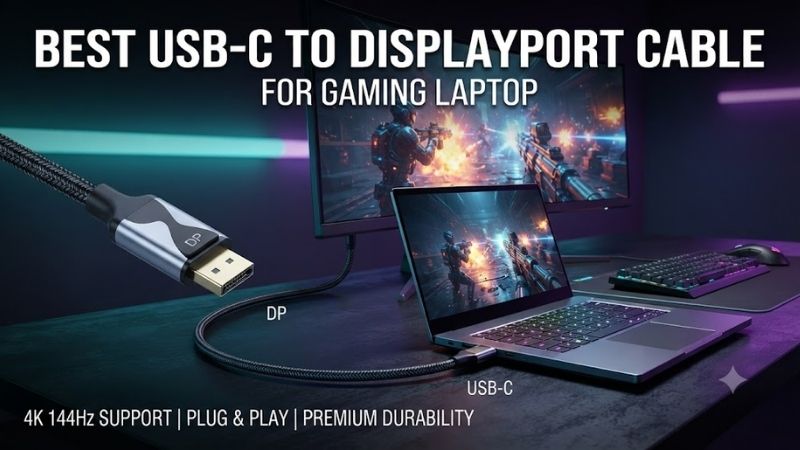
Connecting a gaming laptop to an external high-refresh-rate monitor can improve workspace flexibility and make a larger gaming display easier to use. The best USB C to DisplayPort cable for gaming laptop setups must support the laptop’s actual video-output capabilities, the monitor’s required bandwidth, and a stable connection at the intended resolution.
Quick Verdict: Which USB-C to DisplayPort Cable Should You Buy?
A well-designed USB-C to DisplayPort 1.4 cable is a practical choice for gaming laptops with DisplayPort Alternate Mode or compatible Thunderbolt video output. However, the maximum resolution and refresh rate depend on the complete connection, including the laptop GPU, USB-C port, DisplayPort capabilities, monitor, and whether Display Stream Compression is supported.
Cable Matters USB-C to DisplayPort 1.4 is a strong overall choice for conventional gaming monitors. Club 3D CAC-1557 offers documented bidirectional operation, while StarTech provides several length and compatibility configurations for more specialized setups.
Quick Comparison Table
| Cable | Advertised maximum mode | Direction | Best for |
|---|---|---|---|
| Cable Matters 201036 | 8K 60Hz / 4K 240Hz with compatible DSC | USB-C to DP | High-refresh gaming |
| Club 3D CAC-1557 | 8K 60Hz / 4K 120Hz | Bidirectional | Flexible connectivity |
| StarTech CDP2DP141MB | 8K 60Hz / 4K 120Hz | USB-C to DP | Short direct connections |
| StarTech CDP2DP146B | 8K 60Hz / 4K 120Hz | USB-C to DP | Standard 6-foot setups |
| StarTech 142-USBC-DP-8K-10F | 8K 60Hz / 4K 144Hz | USB-C to DP | Longer desk runs |
| StarTech CDP2DP142MBD | 8K 60Hz / 4K 120Hz | Bidirectional | Reversible connection needs |
Maximum modes are advertised capabilities under compatible conditions. Not every gaming laptop or monitor can achieve them, and some combinations require Display Stream Compression.
How We Selected These USB-C to DisplayPort Cables
Selection focused on manufacturer-documented DisplayPort support, HBR3 capability, DSC compatibility, connector direction, cable length, and suitability for high-refresh-rate gaming monitors. We excluded generic USB-C charging cables because a USB-C connector alone does not establish video-output compatibility.
We also considered real-world troubleshooting requirements. A cable can advertise 8K output yet fail to deliver a particular gaming mode if the laptop’s USB-C port provides fewer video lanes, the GPU lacks the necessary DisplayPort features, or the monitor does not support the requested resolution and refresh rate.
The 6 Best USB-C to DisplayPort Cables for Gaming Laptops
High-refresh-rate external monitors place greater demands on video connectivity than ordinary office displays. Resolution, refresh rate, color depth, and compression support all influence the required bandwidth. The six cables below provide different combinations of performance capability, directionality, and physical length.
Cable Matters USB-C to DisplayPort 1.4 Cable 201036 – Best Overall
The Cable Matters 201036 is a strong overall option for gaming laptops equipped with compatible USB-C video output. Its DisplayPort 1.4 design supports high-bandwidth monitor connections, with advertised capabilities reaching 8K at 60Hz or 4K at 240Hz when the complete system supports the required signal features.
Best for: Gaming laptops connected to high-refresh-rate DisplayPort monitors.
Key specifications
-
USB-C to DisplayPort 1.4
-
Product identifier: 201036
-
DisplayPort HBR3 support
-
Display Stream Compression compatibility
-
Advertised 8K at 60Hz
-
Advertised 4K at 240Hz with compatible DSC
-
Audio transmission support
-
Unidirectional operation
-
No USB Power Delivery through the cable
Why it suits gaming laptops
Many gaming laptops use USB-C ports capable of carrying DisplayPort video signals.
When connected to a monitor with DisplayPort input, a compatible cable can provide a direct connection without requiring a separate HDMI conversion adapter.
The Cable Matters design is useful because its published specifications address modern high-refresh-rate displays.
However, users should not assume that purchasing this cable enables unsupported modes.
The laptop and monitor must both support the target configuration.
Understanding 4K at 240Hz
A 4K 240Hz signal requires substantial bandwidth.
DisplayPort 1.4 HBR3 alone cannot carry every high-resolution, high-refresh-rate configuration without compression or reductions in color format or bit depth.
Display Stream Compression allows compatible hardware to transmit higher-bandwidth modes while maintaining visually lossless image quality under supported conditions.
For 4K 240Hz operation, the laptop, monitor, and connection path must support the required DSC configuration.
Without that support, the available refresh rates may be lower.
Cable direction
This is a unidirectional cable.
The USB-C connector is intended for the video source, such as a compatible gaming laptop.
The DisplayPort connector is intended for the monitor.
The cable cannot be used in reverse to connect a DisplayPort output to an ordinary USB-C display.
This distinction is important because the connectors may physically fit while the connection remains electrically unsupported.
Gaming reliability
A direct cable reduces the number of external adapters in the connection path.
This can simplify troubleshooting and reduce potential points of mechanical failure.
However, stable performance still depends on connector quality, cable condition, and host compatibility.
A loose USB-C port or damaged connector can cause intermittent blanking regardless of the cable’s advertised bandwidth.
Pros
-
High advertised refresh-rate capability
-
DisplayPort 1.4 HBR3 support
-
DSC compatibility
-
Direct laptop-to-monitor connection
-
Manufacturer-documented limitations
Cons
-
Unidirectional
-
Does not provide laptop charging
-
Maximum modes require compatible hardware
-
Not suitable for USB-C-only monitor inputs
Buy If: You have a compatible USB-C video output and want a direct connection to a high-refresh-rate DisplayPort monitor.
Skip If: Your laptop’s USB-C port does not support DisplayPort Alt Mode.
Club 3D CAC-1557 – Best Bidirectional Gaming Cable
The Club 3D CAC-1557 is a DisplayPort 1.4 cable designed for compatible USB-C and DisplayPort connections. Its bidirectional capability makes it more flexible than many conventional USB-C-to-DisplayPort cables, while its HBR3 support addresses high-resolution gaming and productivity applications.
Best for: Users who need documented bidirectional connectivity.
Key specifications
-
Product identifier: CAC-1557
-
DisplayPort 1.4
-
HBR3 support
-
Advertised bandwidth: 32.4Gbps raw link rate
-
Cable length: approximately 1.8 meters
-
Advertised 8K at 60Hz
-
Advertised 4K at 120Hz
-
HDR compatibility
-
Bidirectional design
-
Eight-channel audio support
Understanding bidirectional operation
Most USB-C-to-DisplayPort cables are designed for one signal direction.
The Club 3D CAC-1557 supports compatible configurations in both directions.
This can be useful for users who work with different display systems.
However, bidirectional operation should not be confused with universal USB-C monitor compatibility.
The devices still need to support the required DisplayPort signaling and power arrangements.
A portable USB-C monitor that depends on its video cable for power may require a different connection solution.
Gaming performance
The cable’s HBR3 support makes it relevant to high-refresh-rate monitors.
For a gaming laptop with compatible DisplayPort 1.4 output, it can support demanding video configurations.
Actual modes depend on the graphics hardware, display, and whether compression is required.
The manufacturer’s published 4K 120Hz specification provides a more conservative reference point than assuming every 4K 144Hz or 240Hz monitor will operate at maximum refresh.
Cable length
At approximately 1.8 meters, the CAC-1557 is suitable for many desk arrangements.
It provides enough length for a laptop placed beside or beneath a monitor without requiring an unusually long cable.
However, cable routing should avoid sharp bends near the USB-C connector.
Repeated mechanical stress can damage the port or reduce connection reliability.
Pros
-
Bidirectional functionality
-
HBR3 support
-
HDR support
-
Practical desktop length
-
Manufacturer-documented specifications
Cons
-
Maximum mode lower than some DSC-focused alternatives
-
Requires compatible hardware in either direction
-
Does not replace USB-C charging
-
Not universally suitable for bus-powered USB-C monitors
Buy If: You want a flexible high-bandwidth cable with documented reversible signal capability.
Skip If: You specifically need a verified 4K 240Hz gaming configuration.
StarTech CDP2DP141MB – Best Short USB-C to DisplayPort Cable
The StarTech CDP2DP141MB is designed for short direct connections between compatible USB-C video sources and DisplayPort monitors. Its approximately one-meter length makes it convenient for laptop setups where the computer and monitor are positioned close together.
Best for: Compact gaming desks, monitor arms, and nearby external displays.
Key specifications
-
Product identifier: CDP2DP141MB
-
Cable length: approximately 1 meter
-
DisplayPort 1.4 support
-
HBR3 compatibility
-
HDR support
-
Display Stream Compression compatibility
-
Advertised 8K at 60Hz
-
Advertised 4K at 120Hz
-
USB-C DisplayPort Alt Mode requirement
Why a short cable can be useful
Short cables reduce unnecessary cable loops behind a monitor.
This can make a gaming desk cleaner and simplify cable management.
They also reduce the chance of excess cable becoming tangled with other equipment.
However, cable length alone does not guarantee better signal integrity.
A short, poorly constructed cable can still perform worse than a longer, well-engineered cable.
Construction quality and adherence to supported signal requirements remain important.
Direct connection benefits
The StarTech cable integrates the video connection without requiring a separate USB-C-to-DisplayPort adapter.
This reduces the number of detachable components.
For gaming laptops, this can make setup and troubleshooting easier.
If the monitor does not display an image, the user can focus on the laptop’s USB-C port, monitor input settings, cable seating, and supported video modes.
Performance limitations
The advertised maximum resolutions depend on compatible hardware.
A gaming laptop that only exposes a lower-bandwidth DisplayPort mode may not reach the cable’s maximum advertised configuration.
Users should inspect the laptop’s official specifications before choosing a target refresh rate.
Pros
-
Compact one-meter length
-
DisplayPort 1.4 support
-
HBR3 and DSC compatibility
-
Direct connection
-
Suitable for organized desks
Cons
-
Short length limits placement flexibility
-
Requires DisplayPort Alt Mode
-
Maximum video modes depend on hardware
-
Not for USB-C charging
Buy If: Your laptop and monitor are close together and you want minimal cable clutter.
Skip If: You need more distance between the gaming laptop and monitor.
StarTech CDP2DP146B – Best Standard-Length Connection
The StarTech CDP2DP146B provides a conventional six-foot USB-C-to-DisplayPort connection for gaming laptops and external monitors. It offers more placement flexibility than shorter cables while retaining DisplayPort 1.4 HBR3 and DSC support.
Best for: Everyday gaming desks requiring a moderate cable length.
Key specifications
-
Product identifier: CDP2DP146B
-
Length: approximately 1.8 meters
-
DisplayPort 1.4
-
HBR3 bandwidth support
-
Display Stream Compression compatibility
-
HDR support
-
Advertised 8K at 60Hz
-
Advertised 4K at 120Hz
-
USB-C-to-DisplayPort direction
Desk setup flexibility
A six-foot cable is useful when the laptop sits on a stand, beside a monitor, or beneath a desk shelf.
It provides more freedom to adjust equipment placement without immediately requiring an extension cable.
For gaming laptops, this can help when managing a separate mechanical keyboard, gaming mouse, external monitor, and cooling stand.
The cable should still be routed away from areas where it can be caught or pulled.
High-refresh-rate considerations
The cable supports HBR3 signaling and compatible DSC configurations.
However, the stated bandwidth is a capability of the connection standard, not proof that every laptop can produce the required signal.
For example, a gaming laptop may use a USB-C port that routes through a particular GPU or internal display controller.
The available refresh rate can depend on that routing.
Users should verify which GPU drives the USB-C video output.
Why connector security matters
DisplayPort connectors may include latching mechanisms that help prevent accidental disconnection.
A secure DisplayPort connection is useful when the monitor is mounted on an adjustable arm.
However, the USB-C end remains dependent on the laptop port’s physical condition.
Avoid allowing the cable to hang under tension from the USB-C connector.
Pros
-
Useful six-foot length
-
HBR3 and DSC support
-
Suitable for everyday gaming setups
-
Direct video connection
-
Manufacturer documentation
Cons
-
Unidirectional
-
Requires compatible USB-C video output
-
High-refresh-rate modes depend on hardware
-
More cable to manage than shorter options
Buy If: You need a conventional-length cable for an external gaming monitor.
Skip If: You want reversible signal direction or a much longer run.
StarTech 142-USBC-DP-8K-10F – Best Long Cable for Gaming Desks
The StarTech 142-USBC-DP-8K-10F is designed for users who need more distance between a gaming laptop and a DisplayPort monitor. Its approximately three-meter length makes it useful for larger desks, adjustable monitor mounts, and setups where the laptop is positioned away from the primary display.
Best for: Extended desktop cable routing and larger gaming workstations.
Key specifications
-
Product identifier: 142-USBC-DP-8K-10F
-
Length: approximately 3 meters
-
DisplayPort 1.4
-
HBR3 support
-
DSC compatibility
-
HDR10 support
-
Advertised 8K at 60Hz
-
Advertised 4K at 144Hz
-
USB-C DP Alt Mode, USB4, and compatible Thunderbolt support
-
Latching DisplayPort connector
Why longer cables require attention
High-bandwidth video signals can be sensitive to poor cable construction and connection quality.
As cable length increases, maintaining adequate signal integrity becomes more demanding.
A well-designed longer cable should account for these limitations through suitable electrical construction.
StarTech markets this model specifically for high-resolution video over a longer run.
Nevertheless, buyers should still verify that the cable supports their intended monitor mode.
Gaming setup scenarios
A three-meter cable is useful when the laptop sits on a separate shelf or side table.
It can also help when a desk uses cable-routing channels that require a longer path than the straight-line distance between devices.
For example, a laptop positioned beside a monitor may need a cable that travels down the desk, through a cable tray, and back up the monitor arm.
A short cable might not reach safely.
Performance limitations
The manufacturer advertises 4K at 144Hz under suitable hardware conditions.
However, the full connection must support the necessary DisplayPort signal features.
A laptop’s GPU generation alone does not establish its USB-C output capabilities.
The specific port configuration and monitor requirements remain decisive.
Pros
-
Approximately three-meter length
-
HBR3 support
-
DSC compatibility
-
High-refresh-rate capability
-
Suitable for elaborate desk layouts
Cons
-
More cable bulk
-
Requires careful routing
-
Maximum modes are hardware-dependent
-
Longer runs may be less convenient for portable setups
Buy If: You need a long direct connection from a compatible gaming laptop to a DisplayPort monitor.
Skip If: Your laptop and monitor are close together.
StarTech CDP2DP142MBD – Best Reversible Connection Alternative
The StarTech CDP2DP142MBD is a bidirectional USB-C-to-DisplayPort 1.4 cable designed for compatible video connections in either direction. This makes it useful for people who alternate between DisplayPort monitors and certain externally powered USB-C displays.
Best for: Advanced display setups requiring reversible connectivity.
Key specifications
-
Product identifier: CDP2DP142MBD
-
Length: approximately 2 meters
-
Bidirectional video support
-
DisplayPort 1.4
-
HBR3 signaling
-
Display Stream Compression
-
HDR support
-
Advertised 8K at 60Hz
-
Advertised 4K at 120Hz
-
No USB Power Delivery pass-through
Why reversible connectivity matters
A conventional USB-C-to-DisplayPort cable typically accepts USB-C video input and sends the signal to a DisplayPort monitor.
The CDP2DP142MBD supports certain reverse configurations as well.
This may be useful for specialized workstations where the display or source changes.
However, reverse operation requires a compatible display setup.
The cable does not supply the power needed by every USB-C monitor.
For bus-powered portable displays, another solution may be necessary.
Gaming performance
For ordinary gaming laptop use, the cable can operate as a USB-C-to-DisplayPort connection.
Its HBR3 and DSC support make it relevant to high-resolution displays.
However, bidirectionality does not increase refresh rate or reduce gaming latency by itself.
Its value is connection flexibility.
Users who only need a conventional connection may prefer a simpler unidirectional cable.
Cable management
At approximately two meters, the cable provides reasonable flexibility for desk arrangements.
The additional length can be useful when the laptop is located on a stand or side surface.
As with other high-bandwidth video connections, avoid sharp bends and excessive connector tension.
Pros
-
Bidirectional signal capability
-
DisplayPort 1.4 HBR3
-
DSC support
-
Practical two-meter length
-
Flexible display configurations
Cons
-
More specialized than many users need
-
No power delivery
-
Reverse-mode compatibility requirements
-
Maximum modes depend on source and display
Buy If: You need a reversible video cable for compatible devices.
Skip If: You only require a straightforward USB-C-to-DisplayPort connection.
Buying Guide: How to Choose a USB-C to DisplayPort Cable for Gaming Laptops
Selecting a video cable requires understanding the capabilities of the complete display connection. A high-bandwidth cable cannot create video features that the laptop or monitor does not support. The safest purchasing process begins with the laptop’s USB-C specifications, followed by the monitor’s DisplayPort requirements.
Verify DisplayPort Alt Mode Support
Not every USB-C port supports external video output.
Some USB-C ports only provide charging and ordinary data transfer.
DisplayPort Alternate Mode allows a compatible USB-C connection to carry DisplayPort video signals.
Before purchasing a cable, check the gaming laptop manufacturer’s official specifications.
Look for references to DisplayPort Alt Mode, USB-C DisplayPort output, USB4, or compatible Thunderbolt video functionality.
Do not rely on the physical connector alone.
A cable cannot enable DisplayPort output on a port that lacks the necessary hardware support.
Understand DisplayPort 1.4, HBR3, and DSC
DisplayPort 1.4 is a commonly used video interface specification.
HBR3 refers to a high signaling rate that provides up to 32.4Gbps of raw bandwidth across four lanes.
The actual useful video payload is lower because of encoding overhead.
Display Stream Compression allows certain high-resolution and high-refresh-rate video modes to operate within available bandwidth.
DSC requires compatible source and display hardware.
A cable that advertises DSC support does not independently perform image compression.
The GPU and display system must support the process.
Choose the Correct Cable for 144Hz, 165Hz, 240Hz, or Higher
The cable’s suitability depends on resolution as well as refresh rate.
A 1080p 240Hz display requires substantially less video bandwidth than a 4K 240Hz display at comparable color settings.
Likewise, 1440p 165Hz may be achievable through configurations that cannot support 4K 240Hz without DSC.
When comparing products, inspect the specific resolution and refresh-rate combinations listed by the manufacturer.
Do not assume that an advertised maximum refresh rate applies at every resolution.
Check Which GPU Drives the USB-C Output
Gaming laptops may contain integrated and discrete graphics processors.
The USB-C video output may be routed through one of these processors, depending on the laptop’s design.
This can affect available display features and the way games are presented externally.
Some laptops include a hardware MUX switch or Advanced Optimus configuration.
However, the presence of a discrete GPU does not automatically mean every USB-C port connects directly to it.
Consult the manufacturer’s documentation for the exact laptop model.
Choose the Right Cable Length
A one-meter cable is suitable for compact setups.
A 1.8- or 2-meter cable offers more placement flexibility.
A three-meter cable may be useful when routing around a desk or monitor arm.
Longer cables require appropriate construction to maintain reliable high-bandwidth signaling.
Choose a length that reaches comfortably without excessive tension.
Avoid adding unnecessary extensions when a suitable single cable is available.
Understand Unidirectional Versus Bidirectional Cables
Unidirectional cables support one intended signal direction.
For most gaming laptop setups, this means USB-C on the laptop and DisplayPort on the monitor.
Bidirectional cables can support certain reverse configurations.
However, reverse functionality may depend on an externally powered display and compatible signal requirements.
If you only need to connect a gaming laptop to an ordinary DisplayPort monitor, a unidirectional cable is usually sufficient.
Does USB-C to DisplayPort Support Adaptive Sync?
Adaptive Sync compatibility depends on the graphics hardware, display, drivers, and connection features.
Some gaming monitors support variable refresh rate over DisplayPort.
A suitable cable should carry the required video signaling without introducing an incompatible conversion process.
However, using a DisplayPort cable does not guarantee that G-SYNC Compatible or FreeSync functionality will be available.
Check the monitor’s supported VRR modes and the laptop GPU’s external-display capabilities.
How to Fix a USB-C to DisplayPort Connection That Shows No Signal
First, verify that the USB-C port supports video output.
Confirm that the monitor is set to the correct DisplayPort input.
Reconnect both ends of the cable securely.
If the display remains blank, test a lower resolution or refresh rate.
Update the graphics driver and check for relevant firmware updates.
Try a known-compatible cable or another display input when possible.
If the laptop supports several USB-C ports, check whether only certain ports provide DisplayPort output.
A no-signal condition does not necessarily indicate that the cable is defective.
Frequently Asked Questions
Can USB-C to DisplayPort support 144Hz gaming?
Yes, when the laptop, cable, and monitor support the required resolution and refresh-rate configuration.
Can USB-C to DisplayPort support 4K at 240Hz?
Certain DisplayPort 1.4 configurations can support it with DSC and compatible hardware.
Does USB-C to DisplayPort reduce gaming FPS?
The cable itself does not determine game rendering performance. The laptop’s GPU and display-output configuration can affect the available gaming experience.
Can I use a USB-C charging cable for DisplayPort video?
Not unless it specifically supports the necessary video signaling. Ordinary charging-only cables are unsuitable.
Does a USB-C to DisplayPort cable charge my laptop?
Most direct USB-C-to-DisplayPort cables do not provide laptop charging.
Is DisplayPort better than HDMI for gaming laptops?
Neither interface is universally superior. The best option depends on the laptop’s output capabilities and the monitor’s supported modes.
Do I need Thunderbolt for USB-C to DisplayPort?
No. DisplayPort Alt Mode can provide video output without Thunderbolt.
Can USB-C to DisplayPort support two monitors?
Some systems support multiple displays through suitable MST or docking arrangements, but a basic direct cable normally connects one monitor.
Final Verdict
Cable Matters 201036 is a strong overall choice for gaming laptops with compatible USB-C DisplayPort output, especially when high-refresh-rate support matters. Club 3D CAC-1557 offers bidirectional flexibility, while StarTech provides useful length-specific alternatives. Verify GPU routing, DisplayPort Alt Mode, DSC support, and monitor capabilities before buying.