Table of Contents
- 0.1 🛒 Best Price Today on Amazon
- 1 Best Touch Screen Monitors Compared
- 2 Dell P2424HT — Best for a USB-C Desk Setup
- 3 Lenovo ThinkVision M14t Gen 2 — Best High-Resolution Portable Pick
- 4 ASUS ProArt PA148CTV — Best for Creators
- 5 ViewSonic TD1655 — Best for Flexible Portable Connectivity
- 6 ASUS ZenScreen Touch MB16AMT — Best Battery-Powered Pick
- 7 Acer UT222Q — Best Larger Basic Touch Display
- 8 How to Choose the Best Touch Screen Monitor
- 8.1 Check How Touch Data Reaches Your Computer
- 8.2 Match Resolution to Screen Size
- 8.3 Look Closely at the Stand
- 8.4 Touch Screen Monitors for Gaming
- 9 FAQ
- 9.1 Can a touch screen monitor work with any laptop?
- 9.2 Does every USB-C port support a touch monitor?
- 9.3 Are portable touch screen monitors good for gaming?
- 9.4 Do touch screen monitors work with macOS?
- 10 Conclusion
🛒 Best Price Today on Amazon
Prime members get fast, free shipping on everything above, plus member-only deals. New members get a 30-day free trial — cancel anytime.
- Best Touch Screen Monitors Compared
- Dell P2424HT — Best for a USB-C Desk Setup
- Lenovo ThinkVision M14t Gen 2 — Best High-Resolution Portable Pick
- ASUS ProArt PA148CTV — Best for Creators
- ViewSonic TD1655 — Best for Flexible Portable Connectivity
- ASUS ZenScreen Touch MB16AMT — Best Battery-Powered Pick
- Acer UT222Q — Best Larger Basic Touch Display
- How to Choose the Best Touch Screen Monitor
- FAQ
- Conclusion
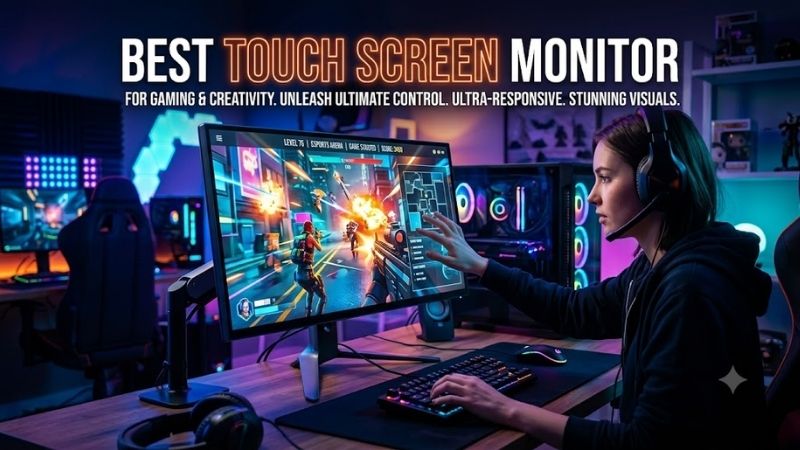
The best touch screen monitor should combine responsive touch controls, clear image quality, practical connectivity, and a stand that feels natural for tapping or writing. This guide compares portable and desktop touch displays for work, travel, creative tasks, and secondary gaming use so you can choose the right fit.
Quick answer: For most people in 2026, the best touch screen monitor is the Dell P2424HT — our #1 rated choice. See the full ranked comparison, alternatives and buying advice below.
Best Touch Screen Monitors Compared
| Monitor | Screen | Resolution | Touch | Refresh Rate | Best For |
|---|---|---|---|---|---|
| Dell P2424HT | 23.8-inch IPS | 1920 x 1080 | Multi-touch | 60Hz | Desktop productivity |
| Lenovo ThinkVision M14t Gen 2 | 14-inch IPS | 2240 x 1400 | 10-point | 60Hz | Sharp portable workspace |
| ASUS ProArt PA148CTV | 14-inch IPS | 1920 x 1080 | 10-point | 60Hz | Creative work |
| ViewSonic TD1655 | 15.6-inch IPS | 1920 x 1080 | 10-point | 60Hz | Flexible travel use |
| ASUS ZenScreen Touch MB16AMT | 15.6-inch IPS | 1920 x 1080 | 10-point | 60Hz | Battery-powered portability |
| Acer UT222Q | 21.5-inch IPS | 1920 x 1080 | 10-point | 60Hz | Kiosks and fixed touch setups |
Dell P2424HT — Best for a USB-C Desk Setup
Dell’s P2424HT is the strongest fit here for a fixed desk. Its 23.8-inch IPS panel runs at 1920 x 1080 and 60Hz, while 10-point touch, 90W USB-C power delivery, Gigabit Ethernet, HDMI, DisplayPort, and a USB hub let it work as both a display and docking point for a compatible laptop. Brightness is rated at 300 nits.
What makes the P2424HT different is its desktop-oriented connectivity rather than portability. The articulating stand supports touch use at lower angles, and 99% sRGB coverage suits general creative and office tasks. The trade-off is obvious: at 17.33 pounds with its stand, this is meant to stay on a desk.
Best For: Home offices, business laptops, permanent touch workstations
Key Features:
- 23.8-inch IPS panel
- 1920 x 1080 at 60Hz
- 90W USB-C Power Delivery
- 99% sRGB
- HDMI and DisplayPort
- Gigabit Ethernet
- USB hub
- 300-nit rated brightness
What Makes It Different: It combines touch input with the connectivity normally expected from a USB-C docking monitor.
Pros:
- Strong laptop connectivity
- USB-C laptop charging
- Integrated Ethernet
- Large touch surface
- Flexible stand design
Cons:
- Too large for regular travel
- Full HD offers lower pixel density than compact high-resolution alternatives
- 60Hz is aimed at productivity rather than competitive gaming
Use Case: A laptop-driven workstation where one monitor handles touch interaction, display output, peripherals, networking, and charging.
Who It’s For: Office users who want a full-size touch screen monitor instead of carrying a portable display.
Lenovo ThinkVision M14t Gen 2 — Best High-Resolution Portable Pick
Lenovo’s ThinkVision M14t Gen 2 is a sharper portable option, using a 14-inch 2240 x 1400 IPS panel with a 16:10 aspect ratio. It supports 10-point touch, up to 4,096 pressure levels, dual USB-C connections, 100% sRGB coverage, and 60Hz refresh, making it useful for notes, drawing, and mobile productivity.
Its biggest advantage is pixel density: the 2240 x 1400 panel gives text and interface elements more detail than common 1080p portable screens. Lenovo also lists Windows 10 and 11 support. The limitation is connectivity, because video input is USB-C rather than HDMI, so your source device must support the required USB-C display path.
Best For: Laptop users who prioritize sharp text, annotation, and portability
Key Features:
- 14-inch IPS display
- 2240 x 1400 resolution
- 16:10 aspect ratio
- 60Hz refresh rate
- 10-point touch
- Up to 4,096 pressure levels
- 100% sRGB
- Dual USB-C
- 700 g listed weight
What Makes It Different: Its 2240 x 1400 resolution provides substantially more workspace density than typical Full HD portable monitors.
Pros:
- High pixel density
- 16:10 workspace
- Strong sRGB coverage
- Pressure-sensitive touch capability
- Lightweight construction
Cons:
- No HDMI video input
- 60Hz refresh rate
- Windows is the primary documented touch platform
Use Case: Extending a compatible Windows laptop for presentations, handwritten notes, design markup, documents, or travel productivity.
Who It’s For: Professionals who want a compact touch display but do not want to drop to 1920 x 1080 resolution.
ASUS ProArt PA148CTV — Best for Creators
ASUS ProArt Display PA148CTV targets creators who want touch input and dependable color in a compact format. The 14-inch IPS screen runs at 1920 x 1080, covers 100% sRGB, is Calman Verified with Delta E below 2, and supports 10-point touch. Two USB-C ports and Micro HDMI broaden device compatibility.
The PA148CTV stands out through its creator controls, including ASUS Dial support, a tripod socket, and color-oriented presets. It is also rated at 300 nits, brighter than some portable rivals. Touch behavior still depends on the operating system, and one-cable USB-C operation requires DisplayPort Alt Mode plus adequate power.
Best For: Photo editing, video controls, creative applications, and portable color work
Key Features:
- 14-inch IPS panel
- 1920 x 1080 resolution
- 60Hz refresh rate
- 10-point capacitive touch
- 100% sRGB
- Calman Verified
- Delta E below 2
- Two USB-C ports
- Micro HDMI
- 300-nit rated brightness
What Makes It Different: Color-focused specifications and ASUS Dial support separate it from general-purpose portable touch monitors.
Pros:
- Verified color-oriented feature set
- Multiple video connection options
- Anti-glare IPS panel
- Tripod socket
- Compact 14-inch size
Cons:
- 60Hz refresh rate
- Smaller than 15.6-inch travel monitors
- Touch capabilities vary by operating system
Use Case: A secondary control, preview, annotation, or editing screen beside a creator laptop or compact workstation.
Who It’s For: Designers, photographers, editors, and content creators who care more about color handling than screen size.
ViewSonic TD1655 — Best for Flexible Portable Connectivity
ViewSonic TD1655 is a practical 15.6-inch portable touch monitor for users who value broad connections over high pixel density. Its IPS panel is 1920 x 1080 at 60Hz with projected-capacitive 10-point touch. Two USB-C ports, Mini HDMI, audio output, dual speakers, and a built-in stand cover common mobile setups.
The TD1655 also supports USB-C power delivery up to 60W and includes a hardened anti-fingerprint touch surface. Its 250-nit brightness and 64% sRGB size specification place it below creator-focused models for color work. For spreadsheets, secondary controls, travel dashboards, and touch navigation, its flexibility is the main appeal.
Best For: Travel, laptop expansion, presentations, and general touch productivity
Key Features:
- 15.6-inch viewable IPS panel
- 1920 x 1080 resolution
- 60Hz refresh rate
- 10-point projected-capacitive touch
- Two USB-C ports
- Mini HDMI
- 60W USB-C power capability
- Dual 0.8W speakers
- 250-nit rated brightness
What Makes It Different: Dual USB-C plus Mini HDMI makes it easier to connect different laptops and devices than USB-C-only portable screens.
Pros:
- Multiple connection options
- Integrated kickstand
- Anti-fingerprint hard coating
- Built-in speakers
- 15.6-inch workspace
Cons:
- Limited color gamut compared with creator models
- 250-nit brightness
- 60Hz refresh rate
Use Case: A portable second display for office software, touch controls, travel presentations, communications, and secondary gaming information.
Who It’s For: Users who value practical connectivity and a larger portable panel more than high resolution or wide color coverage.
ASUS ZenScreen Touch MB16AMT — Best Battery-Powered Pick
ASUS ZenScreen Touch MB16AMT suits travelers who want a touch display that can run from its own battery. It combines a 15.6-inch 1920 x 1080 IPS panel, 10-point touch, USB-C, Micro HDMI, built-in speakers, and a 7,800mAh battery. ASUS rates battery operation at up to four hours under its stated conditions.
That battery reduces how much power the monitor needs to pull from a connected device, which can be useful with phones, cameras, and laptops away from an outlet. The panel remains a 60Hz, 250-nit portable display, so it is better suited to productivity and casual play than high-refresh competitive gaming or color-critical editing.
Best For: Mobile users who frequently work away from wall power
Key Features:
- 15.6-inch IPS display
- 1920 x 1080 resolution
- 60Hz refresh rate
- 10-point touch
- USB-C
- Micro HDMI
- Dual 1W speakers
- 7,800mAh integrated battery
- Up to four hours of listed battery operation
What Makes It Different: The integrated battery allows the display to operate without continuously drawing power from the connected source.
Pros:
- Built-in battery
- USB-C and Micro HDMI
- 15.6-inch portable size
- Integrated speakers
- Touch support
Cons:
- 250-nit brightness
- 60Hz refresh rate
- Heavier than smaller battery-free portable monitors
Use Case: Mobile presentations, laptop expansion, camera monitoring, phone-based workflows, and temporary workspaces without convenient power.
Who It’s For: Travelers who consider self-powered operation more important than maximum resolution or color-gamut performance.
Acer UT222Q — Best Larger Basic Touch Display
Acer UT222Q is the alternative for users who need a larger touch surface without paying for a full USB-C docking monitor. The 21.5-inch IPS panel offers 1920 x 1080 resolution, 10-point touch, 250-nit brightness, and a stand that tilts from 15 to 70 degrees. HDMI, DisplayPort, VGA, and USB upstream are provided.
Its strength is simple workstation use: the larger panel is easier for kiosks, point-of-sale systems, shared controls, or a touch-enabled desk than a 14- to 16-inch portable screen. It lacks the modern single-cable convenience of USB-C video and laptop charging, so separate video, touch-data, and power connections may be required.
Best For: Fixed touch interfaces, shared workstations, kiosks, and point-of-sale systems
Key Features:
- 21.5-inch IPS display
- 1920 x 1080 resolution
- 10-point touch
- 250-nit brightness
- HDMI
- DisplayPort
- VGA
- USB upstream
- 15° to 70° tilt range
- 100 x 100 VESA support
What Makes It Different: It provides a much larger touch area than portable monitors without relying on USB-C for its video connection.
Pros:
- Large 21.5-inch touch surface
- Wide stand tilt range
- HDMI and DisplayPort
- VESA mounting support
- Useful for permanent interactive setups
Cons:
- No USB-C display input
- No laptop charging
- Not designed for travel
Use Case: Interactive counters, shared control panels, kiosks, reception desks, or a permanent touchscreen PC configuration.
Who It’s For: Buyers who want traditional monitor connections and a larger touch screen rather than a portable USB-C accessory.
How to Choose the Best Touch Screen Monitor
Check How Touch Data Reaches Your Computer
Start with touch compatibility, not panel size. A monitor may display video from a laptop yet still require a separate USB data connection before touch works. USB-C can simplify this when the source supports DisplayPort Alt Mode and data, but HDMI alone normally carries video only, so check the monitor’s required touch connection.
Match Resolution to Screen Size
Choose resolution around viewing distance and size. Full HD is comfortable on many 14- to 16-inch portable displays and typical 22- to 24-inch office screens, while 2240 x 1400 provides visibly denser text on a compact 14-inch panel. Higher resolution improves workspace detail but can increase power demand and interface scaling needs.
Look Closely at the Stand
Stand design matters more on a touch monitor than on a conventional screen. Repeated tapping is easier when the display can sit lower and lean back, while rigid upright stands can feel awkward for drawing or annotation. Portable kickstands save weight, but desktop articulated stands usually give better stability during frequent touch input.
Touch Screen Monitors for Gaming
For gaming, treat touch as a convenience feature rather than a substitute for gaming-monitor performance. Most models in this roundup run at 60Hz, which suits strategy interfaces, launchers, emulation menus, and casual games. Competitive players should prioritize higher refresh rates and adaptive sync on their main display.
FAQ
Can a touch screen monitor work with any laptop?
Yes, a touch screen monitor can work with a laptop when the laptop supports the monitor’s video input and the required touch-data connection. With compatible USB-C hardware, one cable may handle video, data, and power. HDMI setups often need an additional USB cable so the computer can receive touch input from the display.
Does every USB-C port support a touch monitor?
No, USB-C does not automatically guarantee touch support. The port may need DisplayPort Alt Mode for video, USB data for touch, and enough power for the display. Some USB-C ports provide only charging or data. Always check both the laptop’s port capabilities and the monitor manufacturer’s connection requirements before buying.
Are portable touch screen monitors good for gaming?
A portable touch monitor is useful for gaming as a secondary display, but most are not designed as high-refresh primary gaming screens. They work well for chat, maps, launchers, streaming controls, or slower games. For fast shooters and esports, a conventional gaming monitor with a higher refresh rate is usually the better main screen.
Do touch screen monitors work with macOS?
Windows is generally the safest platform for full multi-touch support on these monitors, but compatibility varies by model. Some displays can show video on macOS while offering limited or different touch behavior. Check the manufacturer’s operating-system notes before relying on gestures, pen input, pressure sensitivity, or multi-touch workflows.
Conclusion
The best touch screen monitor depends on where you use it. Dell P2424HT fits a permanent USB-C workstation, Lenovo M14t Gen 2 favors sharp portable productivity, ASUS PA148CTV serves color-aware creators, while ViewSonic TD1655 and ZenScreen MB16AMT prioritize travel flexibility. Match touch support to your exact device first.
Ready to decide? Our #1 pick for 2026 is the Dell P2424HT.
Live price & availability on Amazon.