🛒 Best Price Today on Amazon
Prime members get fast, free shipping on everything above, plus member-only deals. New members get a 30-day free trial — cancel anytime.
- PS5 M.2 requirements in 30 seconds
- PS5 M.2 requirements: pass/fail checklist
- PS5 heatsink dimensions: measure the finished assembly
- PS5 HMB compatibility caveat
- PS5 internal M.2 or USB storage?
- PS5 model-group installation differences
- PS5 SSD Speed, Heat and Drive Type: What the Checklist Does Not Spell Out
- PS5 Pro M.2 SSD requirements
- PS5 SSD sequential read 5500 recommendation: what it means
- PS5 requirements decision matrix
- PS5 compatibility risk checklist
- Candidates That Pass the Specification Screen
- Who should add a compatible PS5 M.2 SSD?
- FAQ
A PS5 storage upgrade passes only when the drive, cooling hardware, and assembled dimensions all satisfy Sony’s requirements. The same core M.2 specification applies to the CFI-1000, CFI-2000, and CFI-7000 model groups, but the physical installation instructions are not identical.
Use this checklist before ordering. It screens specifications; it does not certify any third-party SSD. Sony Interactive Entertainment (SIE) explicitly says that it cannot guarantee every M.2 SSD meeting the published requirements will work.

WD_BLACK 2TB SN850P NVMe M.2 SSD Officially Licensed Storage Expansion for PS5 Consoles, up to 7,300MB/s, with heatsink - WDBBYV0020BNC-WRSN
Included for 'PS5 M.2 SSD Requirements & Compatibility Checklist' as a representative home product in this roundup; selection reflects the product set returned for this topic.
View on Amazon
fanxiang 1TB NVMe Internal Gaming SSD for PS5 with Heatsink, Up to 7000MB/s M.2 SSD PCIe Gen 4 SSD Storage Expansion Compatible with PS5, Internal Solid State Drive for Gamers, Professionals, Creators
Included for 'PS5 M.2 SSD Requirements & Compatibility Checklist' as a representative home product in this roundup; selection reflects the product set returned for this topic.
View on Amazon
Samsung SSD 990 PRO with Heatsink 1TB, NVMe M.2, Up to 7,450MB/s | NVMe Internal Solid State Hard Drive best for PlayStation 5 (PS5 SSD) Console Expansion (MZ-V9P1T0CW)
Included for 'PS5 M.2 SSD Requirements & Compatibility Checklist' as a representative home product in this roundup; selection reflects the product set returned for this topic.
View on Amazon
MOVE SPEED HB7450 2TB SSD for PS5 with Heatsink TLC NAND, PCIe 4.0 NVMe M.2 Internal Solid State Drive - Up to 7450MB/s, 3D Storage Expansion Compatible with PS5, Desktops and Laptops
Included for 'PS5 M.2 SSD Requirements & Compatibility Checklist' as a representative home product in this roundup; selection reflects the product set returned for this topic.
View on Amazon
Fikwot FX910 1TB M.2 NVMe SSD for PS5&PC, PCIe Gen4 2280 Gaming SSD with Heatsink, Up to 7300MB/s, Internal Solid State Drive
Included for 'PS5 M.2 SSD Requirements & Compatibility Checklist' as a representative home product in this roundup; selection reflects the product set returned for this topic.
View on Amazon
Lexar 1TB NM790 NVMe SSD w/Heatsink, 7400/6500 MB/s, M.2 2280, PCIe Gen 4x4 | Compatible w/ PS5, Gamers & Content Creators, PC & Laptops, SLC Cache, Single-Sided Design, LNM790X001T-RN9NU
Included for 'PS5 M.2 SSD Requirements & Compatibility Checklist' as a representative home product in this roundup; selection reflects the product set returned for this topic.
View on Amazon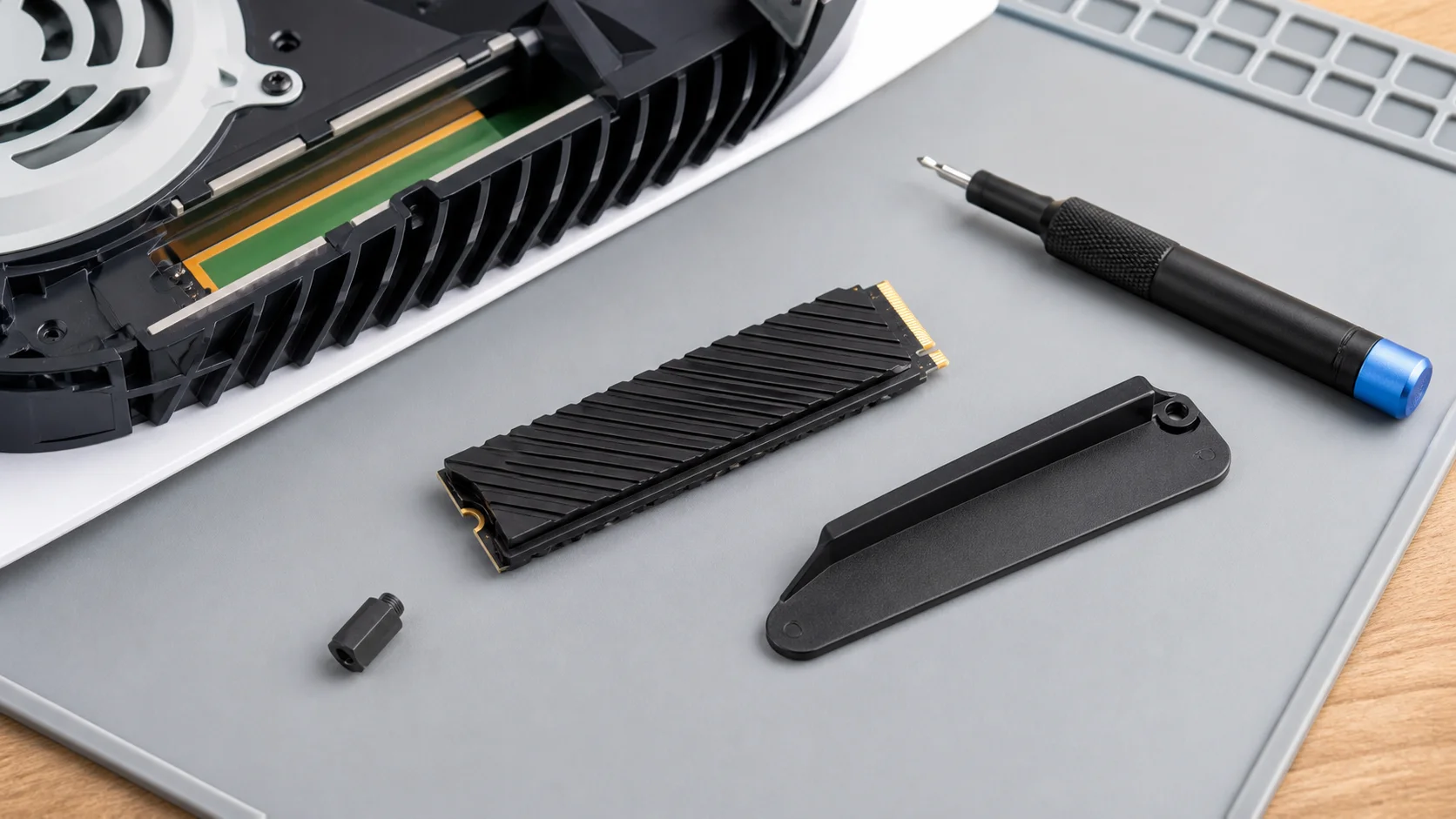
PS5 upgrade illustration—not product photography, fit certification, or speed evidence.
Updated October 2026 – checked against Sony’s published M.2 guidance.
PS5 M.2 requirements in 30 seconds
PS5 M.2 requirements: a PCIe Gen4 x4 NVMe SSD (Key M, Socket 3), 250 GB to 8 TB, with built-in or added cooling, an assembled width of 25 mm or less and thickness of 11.25 mm or less. Sony recommends sequential reads of 5,500 MB/s or faster. The same PS5 SSD requirements apply to the PS5 Pro.
| Item | Requirement |
|---|---|
| Interface | PCIe Gen4 x4, NVMe, Key M (no SATA, no Gen3) |
| Capacity | 250 GB to 8 TB |
| Sequential read | 5,500 MB/s or faster recommended |
| Lengths | 30, 42, 60, 80 or 110 mm (2230 to 22110), 22 mm wide board |
| Heatsink limit | Up to 25 mm wide, 11.25 mm thick: 8.0 mm above and 2.45 mm below the board |
| Cooling | Required: heatsink or heat-transfer sheet |
PS5 M.2 requirements: pass/fail checklist
Mark every required line Pass. A single Fail means the product is not a match for the internal expansion slot.
- Interface — Pass: PCI Express Gen4 x4 M.2 NVMe SSD, Socket 3, Key M. Fail: PCIe Gen3, SATA, mSATA, a 2.5-inch SSD, or an M.2 SATA drive.
- Capacity — Pass: 250 GB through 8 TB. Fail: anything below 250 GB or above 8 TB.
- Form factor — Pass: 2230, 2242, 2260, 2280, or 22110. These codes correspond to 22 mm board width and lengths of 30, 42, 60, 80, or 110 mm. Fail: an unlisted size.
- Cooling — Pass: the SSD has an effective heat-dissipation mechanism, such as a heatsink or heat-transfer sheet. Fail: a bare drive with no cooling structure.
- Assembled size — Pass: no more than 25 mm wide and 11.25 mm thick in total, with no more than 8.0 mm above the board and 2.45 mm below it. Fail: the drive-plus-heatsink assembly exceeds any limit.
- Read specification — Pass for the recommendation: the manufacturer rates sequential read speed at 5,500 MB/s or faster. Caution: Sony presents 5,500 MB/s as a recommendation, not a promise of identical game performance.
- Firmware — Pass: the console is updated to the latest available system software before installation.
Recheck Sony’s M.2 SSD requirements immediately before purchase; support guidance can change.
PS5 heatsink dimensions: measure the finished assembly
The retail listing must disclose enough information to evaluate the SSD with its cooling structure attached. Sony allows up to 25 mm total width. Total thickness is 11.25 mm, divided asymmetrically: up to 8.0 mm above the circuit board and up to 2.45 mm below it. Permitted lengths are exactly 30, 42, 60, 80, and 110 mm.
Both single-sided and double-sided M.2 SSDs are supported. Sony notes that a single-sided cooling structure is easier to fit, but that observation does not make every single-sided heatsink compliant. If the seller reports only bare-board dimensions, treat the fit as unknown. Ask the manufacturer for the assembled dimensions or choose a product with complete specifications.
Do not stack another heatsink onto an SSD with an integrated heatsink. Sony recommends against it because the addition may reduce the built-in cooler’s effectiveness. It may also push the assembly outside the allowed envelope. During installation, the expansion-slot cover must close correctly; forcing it is not a valid fit test.
PS5 HMB compatibility caveat
PS5 consoles do not support Host Memory Buffer (HMB). HMB-capable SSDs may rely on host system memory instead of dedicated onboard DRAM for some controller tasks. Sony warns that such drives may show slower-than-expected performance in PS5 use.
This does not justify a blanket claim that every DRAM-less drive fails or that every drive with DRAM passes. It means buyers should not assume a PC-oriented HMB feature will operate on PS5. Look for explicit controller-memory information from the SSD manufacturer and weigh HMB reliance as a compatibility-performance risk, not as an invented certification rule.
If the interface terminology is unclear, this NVMe versus SATA SSD explainer covers the distinction. For PS5’s internal slot, “M.2” describes the physical family; it does not make an M.2 SATA product compatible.
PS5 internal M.2 or USB storage?
Choose internal M.2 storage when the goal is to download, update, and play PS5 games from the added drive. A compatible internal M.2 SSD can also hold and launch PS4 games and media apps.
USB extended storage serves a different role. PS5 games can be stored on USB storage, but must be copied back to console storage or M.2 SSD storage before play. PS4 games can be played directly from supported USB extended storage. The official PlayStation accessories overview reflects this split between internal M.2 and external USB options.
Therefore, USB is useful for lower-friction library parking or PS4 titles; it is not a substitute for playable PS5 expansion. For a broader desktop installation sequence, see how to install an M.2 NVMe SSD, but follow Sony’s model-specific PS5 directions—not a PC procedure—when opening the console.
PS5 model-group installation differences
Read the printed model number rather than inferring it from color, drive configuration, or a seller’s informal name. This guide follows Sony’s US model-group labels.
The storage specification above applies across the three named groups. The access procedure differs:
- CFI-1000 model group: Sony instructs users to disconnect the console, let it cool, remove the base, position the PS logo downward, and remove the relevant outer cover before opening the long expansion-slot cover. The spacer is moved to the groove matching the SSD length.
- CFI-2000 model group: Sony groups these instructions with CFI-7000. The procedure begins by removing the triangle cover, followed by the expansion-slot cover, screw, and spacer. Feet are reattached during reassembly as applicable.
- CFI-7000 model group: Use the same official CFI-2000/7000 instruction section, including the triangle-cover path. Do not substitute the CFI-1000 cover-removal method.
For all groups, discharge static electricity by touching a metal-grounded object, keep the console off while the cover is removed, insert the drive fully, secure it at the correct spacer position, replace the slot cover, and follow the onscreen format prompt. First-use formatting erases the entire SSD. Sony notes that formatting is not required when moving an M.2 SSD between two PS5 consoles, while access to its games requires the same account on both consoles.
Before opening the system, use Sony’s PS5 system software update instructions and confirm no update remains pending. Menus and behavior can vary by firmware version and region, so current on-console prompts and the support page take precedence over screenshots or older guides.
PS5 SSD Speed, Heat and Drive Type: What the Checklist Does Not Spell Out
Gen5 Drives Are Not Worth the Premium Here
The PS5 slot runs at PCIe Gen4 x4. A Gen5 drive can work, but it is limited to Gen4 speeds, so you pay extra for performance the console cannot use. Choose a good Gen4 drive instead, and put the savings toward a larger capacity.
Why Cooling Matters More Than Peak Speed
The expansion bay has limited airflow. Without a heatsink, a fast drive can heat up and slow down under a sustained write such as a big game install. Some compatibility guides report that installs take much longer on an uncooled drive, which is why Sony requires a heat-dissipation structure. Whichever route you choose, a drive with an integrated heatsink or a separately bought one that fits the height limit, never both stacked together.
DRAM Cache and Sustained Writes
Because the PS5 does not support Host Memory Buffer, drives that rely on it can slow down once their fast cache fills. Guides report that some cache-limited drives fall to a fraction of their rated speed during long writes. Look for drives that list a dedicated DRAM cache, or that have a reputation for stable sustained writes, and read independent reviews before buying a budget model.
Checking the Drive After Installation
- Update the console to the latest system software before you start.
- Install the drive, close the slot cover and power on.
- Follow the on-screen format prompt. Formatting erases the drive.
- Use the console’s storage menu to review the drive’s read speed after formatting.
- Install one large game and confirm that loading and updating work normally.
- Keep the retail box and receipt until you have finished these checks, in case the drive needs to be returned.
Warranty and Safety
Sony designed the console with a user-accessible expansion bay, and its guidance describes adding a compatible drive as a supported upgrade. Handle the SSD by its edges, touch a grounded metal object to discharge static, and never force the slot cover. Remove the SSD before sending the console for repair, as Sony advises.
Capacity Planning
| Capacity | Best for | Note |
|---|---|---|
| 1TB | A few large games at a time | The minimum worth buying in most cases |
| 2TB | Most players with a mixed library | Best balance of cost tier and headroom |
| 4TB and above | Large libraries, fewer deletions | Premium tier, confirm the exact model and specification |
Quick Troubleshooting
- Drive not detected: reseat the drive, check that the spacer is in the correct groove for the drive length and confirm that the drive is NVMe and not SATA.
- Cover will not close: the assembly is too thick or the heatsink is stacked. Do not force it.
- Slow loads or stutter: check cooling, confirm the drive’s sustained write behaviour and consider a different model.
- Format fails: update the system software and try again with the drive correctly seated.
PS5 Pro M.2 SSD requirements
The PS5 Pro uses the same M.2 requirements as the standard PS5 and PS5 Slim: Gen4 x4 NVMe, 250 GB to 8 TB, the same length options, the same heatsink envelope and the same 5,500 MB/s read recommendation. The Pro belongs to the CFI-7000 model group, so use the CFI-2000/7000 cover-removal steps rather than the CFI-1000 method. A drive that passes the checklist above for one model passes it for the others.
PS5 SSD sequential read 5500 recommendation: what it means
Sony recommends 5,500 MB/s or faster sequential read so games load close to the way they do from the console’s built-in storage. It is a recommendation, not a hard gate: a slower Gen4 drive may still install, but the console can warn that performance may be inadequate. Drives rated well above 5,500 MB/s gain little, because the slot is Gen4 and sustained writes depend more on cooling and controller design than on the peak number.
Quick pre-purchase screen
- Is it Gen4 x4 NVMe, Key M? If the listing says only “M.2”, do not buy until it says so.
- Is the rated read 5,500 MB/s or higher?
- Does the listing give heatsink width and thickness for the finished assembly?
- Is the capacity between 250 GB and 8 TB?
- Is there a return window if the slot cover will not close?
PS5 requirements decision matrix
| Candidate | Specification result | Buying decision |
|---|---|---|
| Gen4 x4 NVMe, 250 GB–8 TB, allowed length, compliant heatsink, 5,500 MB/s+ | Passes published screening | Consider buying; still verify vendor fit and return policy |
| Correct drive, but heatsink dimensions missing | Fit unknown | Pause and request assembled measurements |
| Gen4 x4 NVMe that relies on HMB | May fit; performance caveat | Consider only with informed expectations |
| M.2 SATA or PCIe Gen3 SSD | Interface fail | Do not buy for the PS5 internal slot |
| USB SSD | External-storage category | Buy only for PS4 direct play or PS5 game storage/copy-back |
| More than 8 TB or under 250 GB | Capacity fail | Do not buy for the PS5 internal slot |
After screening these requirements, use our PS5 M.2 SSD shopping guide to compare candidates. A roundup mention is not Sony certification.
PS5 compatibility risk checklist
- Confirm the exact model and capacity variant; specifications can differ within one product family.
- Save the manufacturer’s interface, rated read speed, dimensions, and heatsink documentation.
- Verify whether cooling is included or must be added separately.
- Measure the combined assembly, not the box or bare PCB.
- Avoid listings that say only “PS5 compatible” without underlying specifications.
- Check the seller’s return policy in case the console rejects or underperforms with the drive.
- Back up any data on a reused SSD because PS5 formatting erases it completely.
- Never interrupt formatting or a system software update.
- If gameplay problems occur, follow Sony’s troubleshooting advice and move the game to internal console storage.
- Remove the M.2 SSD before sending the console for repair, as Sony instructs.
Candidates That Pass the Specification Screen
Use the checklist above on every drive. These three come from the product database and match the published listing details, but the listing text is not a Sony certification, so verify the exact variant before ordering.
Crucial T500 1TB With Heatsink — Strong All-Round Pick

Crucial T500 1TB PCIe Gen4 NVMe Gaming PS5 SSD with Heatsink, Up to 7,300MB/s, TLC NAND, PlayStation 5 Compatible, Laptop, & Desktop (PC), Solid State Drive, Includes 1Mo Adobe CC – CT1000T500SSD5
Included for 'PS5 M.2 SSD Requirements & Compatibility Checklist' as a representative home product in this roundup; selection reflects the product set returned for this topic.
View on AmazonThe listing describes a Crucial T500 1TB PCIe Gen4 NVMe gaming SSD with a heatsink, up to 7,300MB/s, TLC NAND and PlayStation 5 compatibility. Against the checklist it covers the main items: Gen4 NVMe, capacity within range, a stated read speed above Sony’s 5,500MB/s recommendation and an included heatsink. TLC NAND is generally associated with better sustained write behaviour than QLC designs.
Who it suits: players who want a mainstream drive from a large memory maker and prefer to avoid buying a separate heatsink. Strengths: a clear PS5 listing and a speed rating well above the recommendation. Drawbacks: the listing does not give the assembled thickness in the title text, so confirm it with the manufacturer if you need certainty, and it is in the mid-range tier. Compared with the other drive cards at the top of this guide, it is the alternative if you prefer a different brand.
Seagate Game Drive PS5 NVMe SSD 2TB — Officially Licensed Option

Seagate Game Drive PS5 NVMe SSD for PS5 2TB Internal Solid State Drive - PCIe Gen4 NVMe 1.4, Officially Licensed, Up to 7300MB/s with Heatsink (ZP2000GP3A1001)
Included for 'PS5 M.2 SSD Requirements & Compatibility Checklist' as a representative home product in this roundup; selection reflects the product set returned for this topic.
View on AmazonThe listing identifies this Seagate Game Drive as a 2TB PS5 internal NVMe SSD, PCIe Gen4 NVMe 1.4, officially licensed. A licensed product is designed with the console’s dimensions and cooling needs in mind, which lowers the risk of a fit problem.
Strengths: licensed status, 2TB capacity and a design aimed at the PS5 bay. Drawbacks: it sits in the premium tier, the title text does not state the read speed, and a licence is not a performance guarantee. Check the speed rating on the full listing. Compared with unbranded options, you pay for the licence and reduced compatibility risk.
SABRENT M.2 NVMe PS5 Heatsink (SB-PSHS) — For Drives Without Cooling
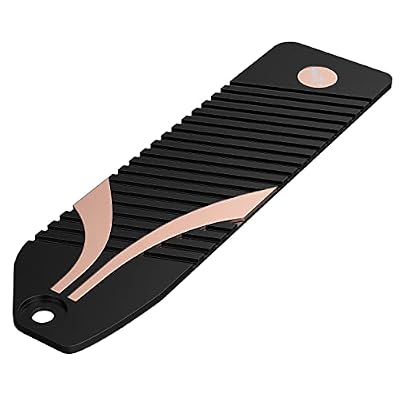
SABRENT M.2 NVMe PS5 heatsink (SB-PSHS)
Included for 'PS5 M.2 SSD Requirements & Compatibility Checklist' as a representative home product in this roundup; selection reflects the product set returned for this topic.
View on AmazonIf you already own a bare Gen4 drive, you need a compliant heat-dissipation structure before you install it. The SABRENT SB-PSHS is listed as an M.2 NVMe heatsink made for the PS5. It does not add speed, but it supplies the cooling the checklist requires.
Strengths: low cost and a PS5-specific design. Drawbacks: you must match the heatsink to the drive length and thickness, and a double-sided drive may not fit every heatsink. Never put it on a drive that already has a heatsink. Compared with a drive that ships with cooling, it is more flexible if you already own the SSD, but you handle the assembly yourself.
Who should add a compatible PS5 M.2 SSD?
An internal M.2 SSD suits players who regularly rotate several PS5 games and want those games playable without a USB copy-back step. It also makes sense for mixed PS5/PS4 libraries when one internal expansion pool is preferred.
It is a weaker fit for someone who mainly archives PS5 games, plays mostly PS4 titles, or does not want to open the console; USB extended storage may meet those needs. Skip the purchase for now if the candidate’s heatsink dimensions, interface, or exact capacity variant cannot be verified.
Do Gen5 SSDs work in PS5?
They can work, but they run at Gen4 speeds, so the extra cost brings no benefit in this slot.
Do I need a heatsink if my SSD does not come with one?
Yes. Sony requires a heat-dissipation structure, and the assembled drive must fit the size limits.
Does installing an SSD void the PS5 warranty?
Sony provides official instructions for adding a compatible drive, so doing it according to those steps is a supported upgrade. Check the warranty terms for your region if you are unsure.
How much storage should I buy?
Most players choose 1TB or 2TB. Choose 2TB if you keep many large games installed.
Can I move my SSD to another PS5?
Sony notes the drive does not need reformatting when moved between two consoles, and access to its games needs the same account.
Is a DRAM cache required?
It is not a published requirement, but because the PS5 does not support Host Memory Buffer, drives with a dedicated cache are the safer choice for sustained writes.
FAQ
Does every PCIe Gen4 M.2 SSD work in PS5?
No. It must also be NVMe Key M, fall within the capacity and form-factor ranges, include compliant cooling, and fit the complete dimensional envelope. Even then, SIE does not guarantee every third-party device.
Is 5,500 MB/s mandatory?
Sony recommends sequential reads of 5,500 MB/s or faster. Treat that threshold as the official buying target, while recognizing that a higher advertised number does not guarantee performance identical to the console’s built-in SSD.
Can PS5 play games from a USB SSD?
PS4 games can play from supported USB extended storage. PS5 games can be stored there but must be copied to console storage or M.2 SSD storage to play.
Do CFI-1000, CFI-2000, and CFI-7000 need different SSDs?
Sony publishes one M.2 requirements table for PS5 consoles. The meaningful model-group difference here is the cover-access and reassembly procedure: CFI-1000 has its own instructions; CFI-2000 and CFI-7000 share another section.
Can I use an HMB SSD?
Do not assume its HMB feature will work. PS5 does not support HMB, and Sony warns that HMB-capable drives may perform more slowly than expected. Verify the drive architecture with its manufacturer.
Sources
- PlayStation Support: How to add an M.2 SSD to a PS5 console
- PlayStation: Official accessories and extra-storage overview
- PlayStation Support: How to update PS5 system software