🛒 Best Price Today on Amazon
Prime members get fast, free shipping on everything above, plus member-only deals. New members get a 30-day free trial — cancel anytime.
- What Is the Best Sitting Posture at a Computer?
- Adjust Your Chair Before Adjusting Everything Else
- Keep Your Feet Supported
- Use the Backrest Properly
- Support the Lower Back
- Position the Monitor Correctly
- Set Up Dual Monitors Based on Usage
- Keep the Keyboard Close
- Keep the Mouse Beside the Keyboard
- Keep the Wrists Neutral
- Avoid Forward Head Posture
- Improve Laptop Posture
- Change Position Frequently
- Take Short Movement Breaks
- Common Sitting Posture Mistakes
- FAQ
- Conclusion

DMI Lumbar Support Pillow for Chair to Assist with Back Support with Removable Washable Cover and Firm Insert to Ease Lower Back Pain while Improving Posture, 14 x 13 x 5, Contoured Foam, Elite, Gray
Included for 'Sitting Posture While Working on Computer: Ergonomic Guide' because the listing specifies 14 x 13 x 5 and Contoured Foam, details this guide uses to compare options.
View on Amazon
Lumbar Support Pillow for Office Chair, Back Support, Memory Foam, Grey | Improve Sitting Posture & Back Pain Relief. Lumbar Pillow Fits Office, Gaming & Car Chairs with Adjustable Dual Straps
Included for 'Sitting Posture While Working on Computer: Ergonomic Guide' because the listing specifies Back Support and Memory Foam, details this guide uses to compare options.
View on AmazonCorrect sitting posture while working on computer tasks should keep the body supported without forcing it into one rigid position. Your feet need stable support, the back should contact the chair, the shoulders should stay relaxed, and the monitor, keyboard, and mouse should be positioned so you do not constantly lean or reach.
What Is the Best Sitting Posture at a Computer?
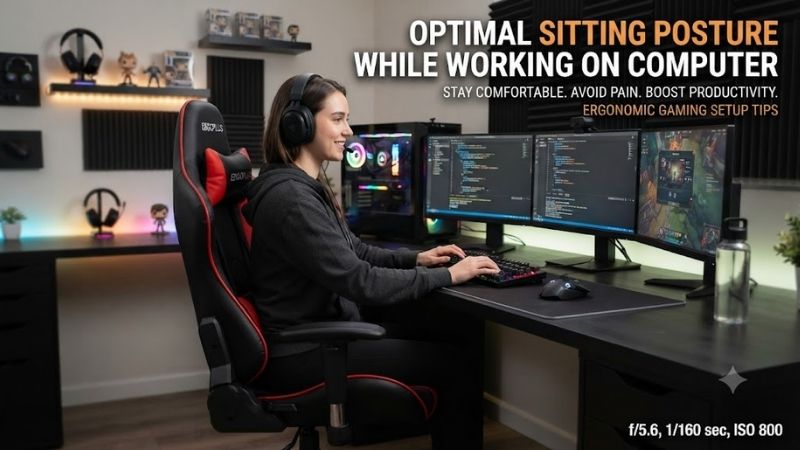
A good starting position places both feet on the floor or a footrest, with the hips supported toward the back of the chair. The lower back should contact the backrest, the shoulders should remain relaxed, and the elbows should stay reasonably close to the body instead of reaching forward for the keyboard.
The head should remain balanced above the torso rather than projecting toward the screen. Your monitor should be high enough that you can see the display comfortably without repeatedly bending your neck. Good posture is not perfectly upright posture; small reclines and frequent position changes can make long computer sessions more comfortable.
Adjust Your Chair Before Adjusting Everything Else
Start with chair height because it affects the relationship between your arms, desk, and feet. Raise or lower the chair until the keyboard can be reached without lifting the shoulders. Your forearms should approach the work surface comfortably while the elbows remain close to your sides.
If the correct chair height leaves your feet hanging, add a footrest instead of lowering the chair and forcing your shoulders upward. This is especially common with fixed-height desks. A good workstation fits the desk to your upper body while still giving the lower body stable support.
Keep Your Feet Supported
Your feet should rest on a stable surface rather than hanging below the chair. This helps distribute body weight more evenly and makes it easier to stay in contact with the backrest. The knees should remain comfortable without excessive pressure behind the thighs.
Avoid holding the legs in one position for hours. Crossing the legs briefly or changing foot position is normal, but repeated movement is better than maintaining a single posture continuously. The goal is support combined with variation, not forcing the legs into an exact angle throughout the day.
Use the Backrest Properly
A chair backrest cannot support you when you sit on the front edge of the seat. Move your hips back until the pelvis and lower back are supported. This reduces the need for the trunk muscles to hold you upright continuously during long periods of typing, gaming, or office work.
A slight recline may feel more comfortable than sitting perfectly vertical. Many ergonomic chairs are designed to move with the user instead of locking the torso at a fixed angle. Use that movement when possible, especially during reading, calls, or less keyboard-intensive tasks.
Support the Lower Back
Lumbar support should contact the inward curve of the lower spine without pushing aggressively into it. If the support is adjustable, change its height and depth until it feels supportive rather than intrusive. The correct position varies because torso length and spinal curvature differ between users.
A chair without adjustable lumbar support can sometimes be improved with a small cushion or rolled towel. Avoid an oversized cushion that pushes the entire upper body away from the backrest. The purpose is to fill the gap gently rather than forcing the spine into an exaggerated curve.
Position the Monitor Correctly
Place the primary monitor directly in front of your normal working position. The upper part of the screen should generally sit near eye level or slightly below, allowing the eyes to look downward naturally. If the screen is too low, the neck may remain bent forward for long periods.
Screen distance should allow you to read text clearly without leaning toward the monitor. If you constantly move your head forward, increase text scaling, enlarge fonts, or adjust the monitor position. Bringing the content into a comfortable viewing range is better than moving your body toward the screen.
Set Up Dual Monitors Based on Usage
If two monitors are used equally, place them close together and center yourself near the point where the screens meet. This reduces the amount of repeated neck rotation required when moving between applications. Keep both displays at similar heights whenever possible.
If one screen is clearly dominant, place it directly in front and keep the secondary display to the side. This arrangement is better than centering yourself between two monitors when most work takes place on only one. Monitor arms can make these positioning changes much easier.
Keep the Keyboard Close
The keyboard should sit close enough that you can type without moving your shoulders forward. If the keyboard is too far away, you may gradually leave the backrest and lean toward the desk. Pulling the keyboard closer often improves posture immediately without changing the chair.
Keep the wrists close to a neutral position rather than bending them sharply upward. Excessive positive keyboard tilt can increase wrist extension for some users. A flatter keyboard angle can be more comfortable when the desk and chair are already adjusted to the correct relative height.
Keep the Mouse Beside the Keyboard
Position the mouse close to the keyboard so the upper arm does not repeatedly reach outward. A full-size keyboard with a number pad can push the mouse farther to the side, which may increase shoulder movement during long sessions. Compact keyboards can create a more centered mouse position.
Adjust pointer sensitivity so normal movements do not require extreme wrist or shoulder motion. Very low sensitivity may demand repeated large sweeps, while very high sensitivity requires precise small corrections. Choose a setting that allows the hand and arm to share the movement comfortably.
Keep the Wrists Neutral
Try to keep the hands aligned with the forearms while typing and using the mouse. Constantly bending the wrist upward or sideways can increase strain over time. Wrist rests are better used during pauses rather than as a surface that carries heavy pressure while the hands are actively moving.
The front edge of the desk should also not press sharply into the wrists or forearms. If this happens, move the keyboard closer, adjust the chair height, or change the desk position. Removing pressure points is often more effective than simply adding another cushion.
Avoid Forward Head Posture
Forward head posture often develops when the screen is too low, text is too small, or the user becomes deeply focused on the task. The head gradually moves ahead of the shoulders, increasing the amount of work required from the neck muscles.
Correct the workstation rather than relying only on reminders to sit straight. Raising the display, increasing text size, improving lighting, and moving the chair closer can make a neutral head position easier to maintain naturally.
Improve Laptop Posture
Laptop design creates an ergonomic compromise because the keyboard and screen are attached. If the keyboard is at a comfortable height, the display is usually too low. Raising the laptop improves the screen position but makes the keyboard too high for comfortable typing.
For long sessions, place the laptop on a stand and connect an external keyboard and mouse. This lets you position the display and input devices independently. A separate monitor can provide the same benefit while also increasing usable screen space.
Change Position Frequently
There is no single perfect sitting posture that should be maintained all day. Even an ergonomic position can become uncomfortable when held for too long. Shift slightly in the chair, recline, move your feet, stand briefly, or change tasks throughout the workday.
A standing desk can make posture changes easier, but standing continuously is not automatically better than sitting continuously. The main advantage is the ability to alternate. Moving between sitting, standing, and walking distributes load more effectively than staying in any one position for hours.
Take Short Movement Breaks
Regular movement gives the muscles and joints a break from static computer work. Stand, walk around the room, stretch gently, or complete a task away from the screen. Break frequency can vary by workload, but waiting until pain appears is usually less effective than moving periodically throughout the day.
Visual breaks also matter. Looking at a distant object gives the eyes a change from constant close focusing. Combining visual rest with a brief walk is an efficient way to interrupt both screen exposure and prolonged sitting during long work or gaming sessions.
Common Sitting Posture Mistakes
A frequent mistake is raising the chair until the arms fit the desk but leaving the feet unsupported. Another is placing the monitor too low and compensating by bending the neck. Both problems usually come from a workstation that was never adjusted as a complete system.
Sitting too far from the desk is another common issue. The user reaches for the keyboard, leaves the backrest, and gradually leans forward. Bringing the chair closer and moving the keyboard inward can improve posture without purchasing any additional equipment.
FAQ
Should I Sit at a Perfect 90-Degree Angle?
No. A rigid 90-degree posture is not necessary. A slightly reclined torso can be comfortable as long as the back remains supported and the keyboard and monitor stay within easy reach.
Should My Feet Be Flat on the Floor?
Your feet should have stable support from the floor or a footrest. They do not need to remain completely motionless. Changing foot and leg position occasionally is useful during long sitting sessions.
How High Should My Computer Monitor Be?
A useful starting point is to place the upper part of the screen around eye level or slightly below. Adjust the height based on screen size, vision, glasses, and comfort rather than following one exact measurement.
Are Armrests Necessary?
Armrests are useful when they support the forearms without lifting the shoulders or preventing the chair from moving close to the desk. Poorly positioned armrests can be more distracting than helpful.
Is a Standing Desk Better Than Sitting?
A standing desk is useful because it allows posture changes, not because standing is always superior. Alternating between supported sitting, standing, and regular movement is generally more practical than staying in either position all day.
Conclusion
Good sitting posture while working on computer tasks depends on support, alignment, and movement. Keep your feet supported, use the chair backrest, place the monitor near eye level, keep the keyboard and mouse close, and avoid reaching forward. Most importantly, change position regularly instead of trying to hold one perfect posture all day.