🛒 Best Price Today on Amazon
Prime members get fast, free shipping on everything above, plus member-only deals. New members get a 30-day free trial — cancel anytime.
- What Are the Main Parts of a Desktop Computer?
- Motherboard
- Central Processing Unit
- Random Access Memory
- Storage Drive
- Graphics Processing Unit
- Power Supply Unit
- CPU Cooler
- Computer Case
- Case Fans
- Network Hardware
- Sound Hardware
- Monitor
- Keyboard and Mouse
- Common Desktop Computer Ports
- How All the Parts Work Together
- FAQ
- Conclusion

DELL Optiplex 7060 SFF Desktop Computer PC | Intel 8th Gen i7-8700 (6 Core) | 32GB DDR4 Ram 512GB NVMe M.2 SSD | Built-in WiFi & Bluetooth | Windows 11 Pro | Wireless Keyboard & Mouse(Renewed)
Included for 'Parts Of A Desktop Computer: Complete Guide for Beginners' because the listing specifies Intel 8th Gen i7-8700 (6 Core) and 32GB DDR4 Ram 512GB NVMe M.2 SSD, details this guide uses to compare options.
View on Amazon
Dell Optiplex 3050 SFF Desktop Computer PC, Intel Quad Core i5-6500 up to 3.6GHz, 16GB DDR4, 256GB SSD, WiFi, 4K Support, DP, HDMI, Windows 11 Pro 64 Bit (Renewed)
Included for 'Parts Of A Desktop Computer: Complete Guide for Beginners' because the listing specifies Intel Quad Core i5-6500 up to 3.6GHz and 16GB DDR4, details this guide uses to compare options.
View on Amazon
Bemaka 502PCS Computer Screws Assortment Kit, Motherboard Standoffs Screws PC Screws for PC Fan, PC Case, HDD Hard Drive, Laptop, SSD, CD-ROM, Used for DIY Installation & Repair of Computer Parts
Included for 'Parts Of A Desktop Computer: Complete Guide for Beginners' because the listing specifies Motherboard Standoffs Screws PC Screws for PC Fan and PC Case, details this guide uses to compare options.
View on Amazon
BONTEC Dual Monitor Stand Riser, Adjustable Length & Swivel Angle, White | Ergonomic Wooden Desktop Organizer with Smartphone Holder, Computer Monitor Stand for PC, Laptop,Printer and Large Storage
Included for 'Parts Of A Desktop Computer: Complete Guide for Beginners' because the listing specifies Adjustable Length & Swivel Angle and White, details this guide uses to compare options.
View on AmazonThe main parts of a desktop computer include the motherboard, processor, RAM, storage drives, graphics card, power supply, cooling system, case, and external peripherals. Each component has a different job, but they work together to process data, display graphics, store files, connect devices, and keep the system operating reliably.
What Are the Main Parts of a Desktop Computer?
A desktop computer is built from several internal components installed inside a case and external devices connected through ports. The internal hardware performs computing, storage, power, and cooling tasks, while peripherals such as the monitor, keyboard, mouse, speakers, and network equipment allow the user to interact with the system.
Understanding these components makes it easier to buy a new PC, diagnose problems, or build a computer from individual parts. You do not need to memorize every specification immediately. Start by learning the function of each major component, then look at compatibility and performance requirements when planning upgrades.
Motherboard
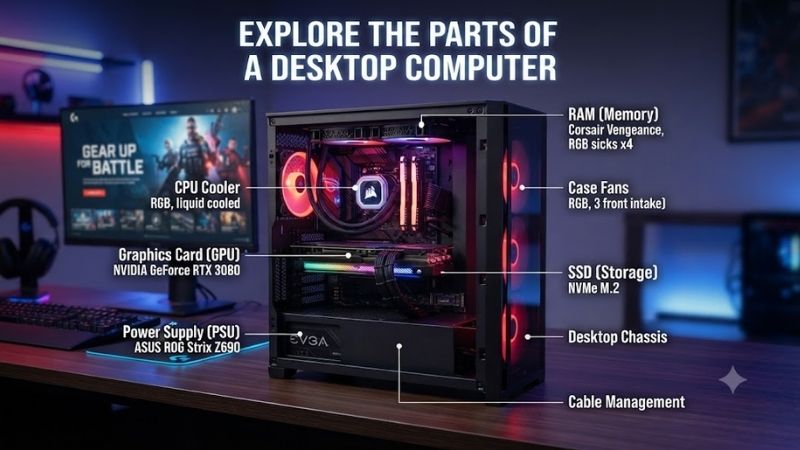
The motherboard is the main circuit board that connects almost every internal component. The CPU, RAM, storage, graphics card, cooling connectors, USB headers, and expansion cards all communicate through it. It also provides external ports for accessories such as keyboards, mice, Ethernet, audio devices, and USB storage.
Motherboards come in different sizes, including ATX, Micro-ATX, and Mini-ITX. They also use specific CPU sockets and chipsets, which means a processor must be compatible with the motherboard before installation. The number of RAM slots, M.2 slots, PCIe slots, USB ports, and networking features also varies by model.
Central Processing Unit
The central processing unit, or CPU, handles instructions and calculations required by software. It affects tasks such as gaming logic, web browsing, video editing, file compression, programming, and multitasking. Modern desktop CPUs usually contain multiple cores and threads so several workloads can be processed at the same time.
A faster CPU does not always make every computer equally faster because performance also depends on the software and other components. Gaming systems need a balanced CPU and GPU, while productivity computers may benefit from additional cores. The processor must also match the motherboard socket and supported chipset.
Random Access Memory
Random access memory, commonly called RAM, temporarily stores information that the CPU needs quickly. Applications, browser tabs, games, and background programs use RAM while they are running. More memory allows the computer to keep more active data available without relying as heavily on slower storage.
RAM is different from an SSD because information stored in RAM disappears when the computer is turned off. Modern desktop systems commonly use DDR4 or DDR5 memory, depending on the platform. RAM modules must match the motherboard generation, supported capacity, and appropriate operating specifications.
Storage Drive
Storage keeps Windows, applications, games, photos, documents, and other files even when the PC is powered off. Modern desktops commonly use solid-state drives because they are much faster than mechanical hard drives. NVMe SSDs connect through M.2 slots, while SATA SSDs use separate data and power connections.
Hard disk drives are slower but remain useful when large amounts of inexpensive storage are required. A desktop can contain several storage devices at once, such as a fast NVMe SSD for Windows and games plus a larger hard drive for backups, videos, or archives that do not require maximum performance.
Graphics Processing Unit
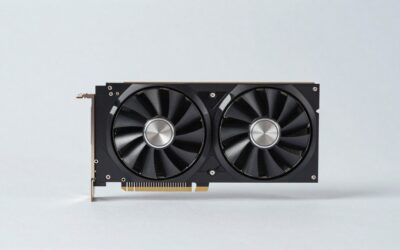
The graphics processing unit, or GPU, creates the images displayed on the monitor and performs highly parallel calculations. Dedicated graphics cards are especially important for gaming, 3D rendering, video production, machine learning, and other visually demanding tasks that exceed the capabilities of basic integrated graphics.
Many processors include integrated graphics that can handle web browsing, video playback, and normal office work without a separate card. A dedicated GPU provides much higher performance but also requires sufficient case space, power supply capacity, and cooling. High-end cards can be among the largest components inside a PC.
Power Supply Unit
The power supply unit converts electricity from the wall into voltages that computer components can use. It supplies power to the motherboard, CPU, graphics card, storage drives, cooling hardware, and accessories. A reliable PSU is important because unstable or insufficient power can cause crashes, shutdowns, or hardware problems.
Power supplies are rated in watts, but wattage alone does not determine quality. The correct model should provide enough capacity for the complete system and include the required connectors. Modular power supplies allow unnecessary cables to be removed, which can simplify cable management and improve the appearance of the build.
CPU Cooler
The CPU cooler removes heat from the processor while the computer is operating. Air coolers use a heatsink and one or more fans, while all-in-one liquid coolers use a pump, tubing, radiator, and fans. Both types can work well when they are correctly sized for the processor and installed properly.
Thermal paste is applied between the CPU and cooler to improve heat transfer between the two surfaces. Cooling performance matters because modern processors can reduce their operating speed when temperatures become too high. Cooler dimensions must also fit the case and avoid conflicts with memory or motherboard components.
Computer Case
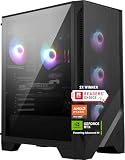
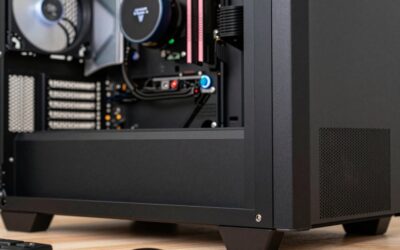
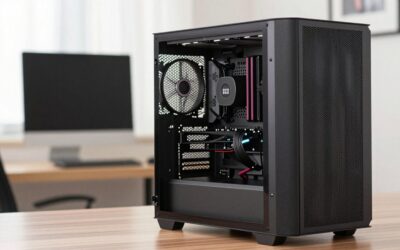
The computer case holds and protects the internal hardware. It provides mounting points for the motherboard, power supply, storage drives, cooling fans, graphics card, and other components. Cases are available in many sizes, so the internal dimensions must match the motherboard format and major hardware being installed.
A good case also provides airflow and cable-management space. Mesh front panels and correctly positioned fans can help cool the CPU and graphics card, while routing cables behind the motherboard tray keeps them away from fans. GPU length, CPU cooler height, radiator size, and PSU length should be checked before buying.
Case Fans
Case fans move cool air into the computer and push warm air out. A basic airflow setup normally uses front or bottom fans as intake and rear or top fans as exhaust. The exact layout depends on the case design, but the goal is to prevent hot air from remaining around the CPU, GPU, and motherboard components.
Adding more fans does not automatically produce better cooling. Fan size, speed, placement, case ventilation, and airflow direction all matter. Too many high-speed fans can also make a computer unnecessarily noisy, so well-planned airflow is usually more useful than installing the maximum number of fans the case supports.
Network Hardware
Desktop computers can connect to networks through Ethernet or WiFi. Ethernet ports are commonly integrated into the motherboard and provide a wired connection to a router or switch. Some motherboards also include built-in WiFi and Bluetooth, while others require a separate PCIe card or USB wireless adapter.
Wired Ethernet is often preferred for gaming, large file transfers, and stationary desktop systems because it can provide stable performance without wireless interference. WiFi is more convenient when running an Ethernet cable is difficult. The actual speed depends on the router, network adapter, internet connection, and local conditions.
Sound Hardware
Most modern motherboards include integrated audio hardware that can power headphones, speakers, and microphones. This is sufficient for many users. External USB audio interfaces, DACs, or dedicated sound devices can be added when better microphone inputs, stronger headphone amplification, or specialized recording features are required.
Audio connectors are normally located on the rear motherboard panel, with additional headphone and microphone ports sometimes available on the front of the case. USB headsets and wireless audio devices may bypass the motherboard’s analog audio hardware completely by using their own digital connection.
Monitor
The monitor displays the visual output produced by the computer. Important specifications include resolution, refresh rate, screen size, panel type, brightness, and available video inputs. Gaming monitors often prioritize higher refresh rates, while creative displays may focus more heavily on resolution and color accuracy.
Monitors normally connect to the graphics card through DisplayPort or HDMI when a dedicated GPU is installed. Connecting the display to the motherboard instead can prevent the dedicated graphics card from being used in some systems, so users should check where the display cable is connected after building a gaming PC.
Keyboard and Mouse
The keyboard and mouse are the primary input devices for most desktop computers. They connect through USB, Bluetooth, or proprietary wireless receivers. Gaming models may emphasize low latency and programmable buttons, while productivity devices often prioritize comfort, quiet operation, battery life, and additional shortcut controls.
These peripherals do not determine the raw processing power of the computer, but they can strongly affect the user experience. A comfortable keyboard and accurate mouse are especially important for people who spend many hours working, gaming, editing, or browsing at the desk every day.
Common Desktop Computer Ports
| Port | Common Use |
|---|---|
| USB-A | Keyboards, mice, drives, accessories |
| USB-C | Storage, docks, phones, peripherals |
| HDMI | Monitor or TV connection |
| DisplayPort | High-refresh monitors |
| Ethernet | Wired network connection |
| 3.5 mm Audio | Headphones, speakers, microphones |
| Thunderbolt | High-speed storage, docks, displays |
| PS/2 | Older keyboards and mice |
How All the Parts Work Together
When you launch a program, storage loads the required data into RAM, the CPU processes instructions, and the GPU handles visual output when necessary. The motherboard allows these components to communicate, while the power supply delivers electricity and the cooling system removes heat generated during operation.
The monitor then displays the result, while input devices send commands back to the system. Every component contributes to the overall experience, which is why balanced hardware is important. A very powerful graphics card, for example, may be limited by a weak CPU, inadequate power supply, or insufficient cooling.
FAQ
What Are the Most Important Parts of a Desktop Computer?
The essential internal parts are the motherboard, CPU, RAM, storage, power supply, cooling system, and case. A dedicated graphics card is also important for gaming and graphics-intensive applications, although many basic computers can operate using graphics built into the processor.
What Part Stores Files Permanently?
SSDs and hard drives store files permanently until they are deleted or the drive fails. Unlike RAM, storage retains data when the computer is turned off. The operating system, games, programs, documents, photos, and other files are all stored on one or more drives inside the computer.
Does Every Desktop Need a Graphics Card?
No. A dedicated graphics card is unnecessary if the processor includes integrated graphics and the computer is used mainly for office work, web browsing, or video playback. Gaming, 3D rendering, and GPU-accelerated workloads usually benefit significantly from a dedicated graphics card.
What Is the Difference Between RAM and Storage?
RAM holds temporary data needed by currently running programs, while storage keeps files permanently. RAM is much faster but loses its contents when power is removed. SSDs and hard drives retain Windows, applications, games, and personal files even after the computer is shut down.
Which Part Should Be Upgraded First?
The best upgrade depends on the current limitation. Adding an SSD can transform a system still using a hard drive, while additional RAM helps when memory is consistently full. Gaming performance may improve more from a GPU upgrade, and an older CPU can limit both games and productivity applications.
Conclusion
The main parts of a desktop computer each perform a specific function, from processing instructions and storing data to generating graphics, supplying power, and removing heat. Understanding the CPU, motherboard, RAM, storage, GPU, PSU, cooling system, case, networking, and peripherals makes building, buying, and upgrading a desktop much easier.