🛒 Best Price Today on Amazon
Prime members get fast, free shipping on everything above, plus member-only deals. New members get a 30-day free trial — cancel anytime.

Logitech MK270 Full Size Wireless Keyboard and Mouse Combo - Black | Full size keyboard with spill-resistant design, compact ambidextrous mouse, connect via single included USB-A Nano Receiver
Included for 'Parts of the Computer Keyboard and Their Functions Guide' because the listing specifies Black and Full size keyboard with spill-resistant design, details this guide uses to compare options.
View on AmazonThe main parts of the computer keyboard include alphanumeric keys, function keys, modifier keys, control keys, navigation keys, arrow keys, and the numeric keypad. Each group has a specific purpose, from typing letters and numbers to controlling software, moving through documents, entering shortcuts, and navigating computer interfaces efficiently.
What Are the Main Parts of a Computer Keyboard?
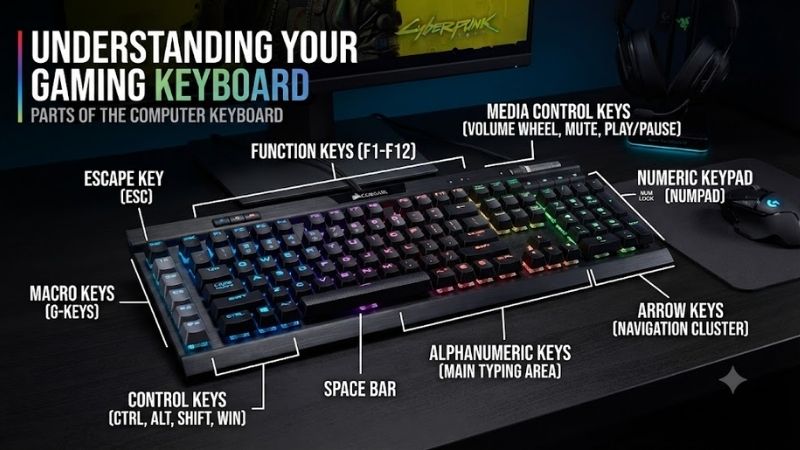
A standard keyboard is divided into several groups according to the function of each key. Although full-size, laptop, gaming, and compact keyboards may look different, most follow the same basic structure. Understanding these sections helps users type faster, use shortcuts correctly, navigate software, and control games more efficiently.
The most common sections are the alphanumeric area, function row, modifier keys, control keys, navigation cluster, arrow keys, and numeric keypad. Some modern keyboards also add media controls, macro keys, lighting controls, shortcut buttons, or programmable functions, but these are additional features rather than essential keyboard sections.
Alphanumeric Keys
The alphanumeric section is the largest part of most keyboards. It includes letters from A to Z, numbers from 0 to 9, punctuation marks, and commonly used symbols. On English keyboards, these keys usually follow the QWERTY layout, named after the first six letters found on the top alphabet row.
These keys are used for writing documents, entering passwords, typing web addresses, sending messages, and inputting commands. The number row also contains secondary symbols that appear when Shift is held, allowing one key to perform multiple functions without making the keyboard unnecessarily large.
Function Keys
Function keys are normally positioned along the top edge of the keyboard and labeled F1 through F12. Their role changes depending on the operating system and application. F1 often opens help, F5 commonly refreshes content, while other function keys may trigger shortcuts inside games, browsers, office software, or development tools.
On laptops and compact keyboards, these keys often share secondary controls such as volume, brightness, wireless settings, or keyboard backlighting. Users may need to hold the Fn key to access one of these functions, depending on the device configuration and whether Function Lock is enabled.
Modifier Keys
Modifier keys change the behavior of another key when pressed together. Common examples include Shift, Ctrl, Alt, Windows, and Command on Apple keyboards. These keys make shortcuts possible and significantly expand the number of actions a keyboard can perform without requiring dozens of dedicated buttons.
For example, Ctrl+C copies selected content, Ctrl+V pastes it, and Shift creates uppercase letters or accesses secondary symbols. Modifier keys are essential for gaming, editing, programming, productivity, and general navigation because many software commands depend on combinations rather than individual keys.
Control Keys
Control keys perform specific actions instead of entering normal text. Common examples include Enter, Esc, Backspace, Delete, Tab, Caps Lock, and Spacebar. They help users confirm commands, cancel actions, move between fields, remove characters, create spaces, and control how text or software interfaces behave.
Enter usually confirms an action or starts a new line, while Backspace removes the character behind the cursor. Delete often removes the character ahead of the cursor or deletes selected files and objects. Esc commonly closes menus, cancels operations, or exits full-screen functions depending on the application.
Spacebar
The spacebar is typically the longest key on the keyboard and sits beneath the alphanumeric section. Its main purpose is inserting spaces between words, but software can assign other functions to it. In games, for example, the spacebar is often used for jumping, pausing, confirming, or activating specific actions.
Its wide design allows either thumb to press it comfortably while typing. Mechanical and gaming keyboards often use stabilizers beneath the spacebar so the key moves evenly even when pressed near one side instead of directly in the center.
Enter, Backspace, and Delete Keys
The Enter key confirms commands, submits forms, sends messages, and starts new lines in text applications. Full-size keyboards may also include a second Enter key on the numeric keypad, giving users faster access when entering numbers or working with spreadsheets and accounting software.
Backspace removes characters behind the cursor, while Delete removes characters ahead of it or deletes selected content. Understanding this difference helps users edit text more efficiently because they can remove mistakes in either direction without constantly repositioning the cursor.
Tab and Caps Lock Keys
The Tab key moves the cursor to the next field, creates indentation, or shifts focus between interface elements. In web forms, pressing Tab can move from one input box to another. In programming and writing tools, it is commonly used to create structured indentation or organize text.
Caps Lock keeps alphabetic letters in uppercase until the key is pressed again. It is useful for acronyms and extended uppercase text, but accidental activation can cause typing mistakes. Many keyboards include an indicator light showing when Caps Lock is enabled.
Navigation Keys
Navigation keys are designed to move through documents, pages, spreadsheets, and interfaces. A traditional navigation cluster includes Insert, Delete, Home, End, Page Up, and Page Down. Full-size keyboards normally place these controls between the main typing area and the numeric keypad.
Home and End commonly move the cursor to the beginning or end of a line, while Page Up and Page Down scroll through larger sections of content. Insert can switch between text insertion and overwrite modes in software that supports it, although this key is less commonly used today.
Arrow Keys
The arrow-key cluster contains Up, Down, Left, and Right controls. These keys move the cursor, navigate menus, scroll through content, and control movement in some games. Most full-size keyboards arrange them in an inverted-T shape, making them easy to identify by touch.
In spreadsheets, arrow keys move between cells, while in text editors they move the cursor one position at a time. Compact keyboards may combine arrow functions with other keys through an Fn layer to save space, especially on 60% and 65% layouts.
Numeric Keypad
The numeric keypad is positioned on the right side of most full-size keyboards. It includes numbers arranged like a calculator along with arithmetic operators, decimal input, Enter, and Num Lock. This layout helps users enter large amounts of numerical data more quickly than using the number row.
People working with spreadsheets, accounting systems, financial software, or data entry often benefit from a dedicated keypad. Tenkeyless and smaller keyboards remove this section to reduce width and provide more desk space for mouse movement, which is often preferred by gamers.
Num Lock Key
Num Lock changes the behavior of the numeric keypad on many keyboards. When enabled, the keypad enters numbers. When disabled, some keys may function as navigation controls such as Home, End, Page Up, Page Down, or directional commands.
Most desktop users leave Num Lock enabled because separate navigation keys are already available. On certain laptops, however, Num Lock can activate a hidden numeric keypad integrated into the letter section, making it more important in compact designs.
Windows, Command, and Fn Keys
The Windows key opens the Start menu and works with other keys to activate system shortcuts. Combinations can open File Explorer, lock the computer, launch settings, switch windows, or perform other operating-system functions without requiring mouse navigation.
Apple keyboards use the Command key for many similar shortcut tasks. The Fn key is different because it usually activates secondary hardware functions such as brightness, volume, media controls, keyboard lighting, or function-row commands on laptops and compact keyboards.
Media and Special Keys
Modern keyboards may include dedicated buttons for volume, mute, playback, browser shortcuts, calculators, screenshots, or lighting control. Gaming keyboards can also add macro keys, profile switches, and programmable controls that execute custom commands or complex key combinations.
These buttons are optional rather than essential. Their value depends on the user. Gamers may prefer macro and profile keys, while office users may benefit more from media controls or calculator shortcuts. Minimalist keyboard designs often remove these features to save space.
FAQ
What are the main parts of a computer keyboard?
The main parts are the alphanumeric section, function keys, modifier keys, control keys, navigation keys, arrow keys, and numeric keypad. Some layouts combine or remove certain sections, but these groups form the basic structure of a standard full-size computer keyboard.
What is the alphanumeric section used for?
The alphanumeric section is used for typing letters, numbers, punctuation, and symbols. It is the most frequently used area of the keyboard because it handles everyday tasks such as writing documents, entering passwords, browsing websites, sending messages, and typing commands.
What is the numeric keypad used for?
The numeric keypad is designed for fast number entry. It is especially useful in spreadsheets, accounting, finance, and data-entry work. Full-size keyboards include it on the right side, while compact and tenkeyless keyboards often remove it to reduce overall width.
What is the difference between function keys and control keys?
Function keys such as F1 through F12 perform commands assigned by software or the operating system. Control keys such as Enter, Esc, Backspace, and Delete perform broader actions involving confirmation, cancellation, editing, and navigation across many applications.
Do all keyboards have the same parts?
No. Full-size keyboards include nearly every traditional section, while tenkeyless models remove the numeric keypad. Smaller 75%, 65%, and 60% layouts may combine function and navigation commands into secondary layers. Laptop keyboards also merge several controls to save space.
Conclusion
The main parts of the computer keyboard include alphanumeric keys, function keys, modifiers, control keys, navigation controls, arrow keys, and the numeric keypad. Each section performs a specific role, and understanding how they work together makes typing, gaming, editing, shortcuts, data entry, and everyday computer navigation much faster and easier.