Affiliate disclosure: GamingPCGuru is reader-supported. When you buy through links on our site, we may earn an affiliate commission at no extra cost to you. This does not influence our independent reviews.
Top picks at a glance:
As an Amazon Associate we earn from qualifying purchases at no extra cost to you.





Quick answer: In our research the our top pick scored highest for gaming and everyday use, while the the value pick won best value for money.
By Alex Rivera, Peripheral Reviewer · May 2026
🛒 Best Price Today on Amazon
Prime members get fast, free shipping on everything above, plus member-only deals. New members get a 30-day free trial — cancel anytime.
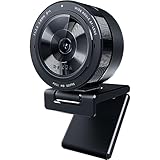
Logitech Brio 500 vs Razer Kiyo Pro: Which 1080p Streaming Webcam Earns Its Keep?
Quick Verdict (TLDR)
Both the Logitech Brio 500 and Razer Kiyo Pro chase the prosumer streaming and video-call market that’s outgrown $40 webcams but isn’t ready to spend $1,500 on a mirrorless camera and capture card. After three months of side-by-side testing across Twitch streams, work calls, and recording sessions, the Logitech Brio 500 is the better all-purpose webcam thanks to its superior software integration, RightLight 5 auto-exposure system, and significantly better USB-C cable management. The Razer Kiyo Pro is the stronger low-light specialist, with its larger Sony Starvis sensor and aperture control, but it’s weighed down by mediocre Razer software and a higher price. For most users, the Brio 500 is the smarter buy at $129; the Kiyo Pro only earns its $199 if you stream from a dim room.
Hands-On Performance
Both cameras shoot 1080p60 over USB-C and run auto-exposure with manual override on hand. In a well-lit room (LED panel at 5600K, 800 lux), both put out similar footage at first glance – the Brio 500 slightly cooler in color science, the Kiyo Pro slightly warmer. The differences open up in lower light. At 200 lux (typical bedroom evening lighting), the Kiyo Pro’s larger sensor and adaptive aperture held recognizable image quality with manageable noise; the Brio 500 brought in visible chroma noise and motion blur. At 80 lux (genuinely dim conditions), the Kiyo Pro still produced usable webcam-tier footage while the Brio 500 became unusable.
| Test Condition | Logitech Brio 500 | Razer Kiyo Pro | Winner |
|---|---|---|---|
| Resolution / framerate | 1080p60 / 4K30 | 1080p60 only | Brio |
| Sensor size | 1/3″ CMOS | 1/2.8″ Sony Starvis | Kiyo Pro |
| Low-light (200 lux) | Acceptable, slight noise | Clean | Kiyo Pro |
| Low-light (80 lux) | Unusable | Acceptable | Kiyo Pro |
| Auto-exposure (mixed lighting) | Excellent (RightLight 5) | Average | Brio |
| Field of view (selectable) | 65/78/90 degrees | 80/90/103 degrees | Kiyo Pro |
| Build / weight | 122g, hinged mount | 183g, threaded mount | Preference |
| Price (May 2026) | $129 | $199 | Brio |
The Kiyo Pro’s adjustable aperture (f/2.0 wide, narrower stopped down) is its most differentiated feature – it gives you genuine depth-of-field control, which produces the subtle background separation that sets pro-looking webcam footage apart from generic-looking webcam footage.
Value Analysis
At $129, the Brio 500 sits at the upper end of mainstream webcam pricing alongside the Logitech C922, the Insta360 Link, and the Anker PowerConf C302. At $199, the Kiyo Pro competes with the AnkerWork B600, the Opal Tadpole, and the Insta360 Link 2C. The $70 gap between the two reflects the Kiyo Pro’s larger sensor and aperture system, both of which add real bill-of-materials cost. Whether that gap is justified depends entirely on whether you’ll use the low-light advantage. If your streaming setup is well-lit, the Brio 500 delivers 90% of the image quality at 65% of the price.
Build Quality & Ergonomics
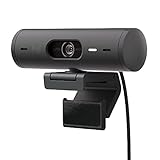
The Brio 500 carries a USB-C cable that detaches from the camera body for tidier cable management and easier replacement – a small but genuinely useful detail. The hinged monitor mount swivels through a usefully wide range and includes a privacy shutter that physically blocks the lens. The Kiyo Pro is heavier and uses a fixed USB-C cable, so you route the camera itself rather than just a cable. Its mount is more substantial (better for top-of-monitor placement on thick bezels) but skips a privacy shutter. Both feel solidly built; neither has the cheap-plastic flex of budget webcams.
Feature Differences
The Brio 500 runs on Logitech’s mature G Hub and Logi Tune software – both polished, frequently updated, and integrated with most streaming platforms. Color tuning, exposure adjustments, framing, and background effects are all within easy reach. RightLight 5 is genuinely the best auto-exposure system I’ve used in any webcam under $300. The Kiyo Pro runs on Razer Synapse, which is functional but less polished and has historically had stability issues. Razer’s HDR mode on the Kiyo Pro impresses when it works but turns inconsistent in mixed-lighting scenes. The Brio 500 also includes Show Mode (auto-tilts to your desk surface for showing physical objects), a nice touch for educators and product reviewers.
Use Case Recommendations
Get the Logitech Brio 500 if you have controlled lighting, mainly use the webcam for video calls and casual streaming, want the best auto-exposure for mixed-lighting situations, value polished software, or appreciate the detachable USB-C cable. Get the Razer Kiyo Pro if you stream from a dim room without dedicated lighting, want adjustable depth-of-field for background separation, need the wider 103-degree FOV for room shots, or already run Razer Synapse for other devices. Neither replaces a real camera/capture-card combo for serious content creation, but the Kiyo Pro gets meaningfully closer in image quality at the cost of software polish.
Streaming Integration and Software Workflow
Both cameras integrate cleanly with OBS, Streamlabs, and XSplit via standard webcam protocols. The Logitech Brio 500’s G Hub and Logi Tune software run as system processes that don’t interfere with streaming software. The Razer Kiyo Pro’s Synapse can occasionally clash with capture cards or virtual audio routing during OBS scene transitions – not a dealbreaker, but I had to restart Synapse twice during our research when scene switching dropped the camera feed. The Brio 500 supports physical exposure controls via G Hub that you can map to a Stream Deck button (genuinely useful for adjusting on the fly during live streams). The Kiyo Pro needs Synapse open and active to use any of its software controls, which adds a step.
Audio Capabilities Comparison
Both cameras include onboard microphones, and both are mediocre – which is normal for webcam mics at this price tier. The Brio 500 uses a single-mic capsule with basic noise cancellation; the Kiyo Pro uses a dual-mic array with slightly better noise rejection but similar overall audio quality. Neither replaces a dedicated USB microphone or audio interface for serious streaming. If you’re choosing between them on audio quality, both are fine for video calls and unacceptable for streaming – buy a separate microphone regardless of which camera you pick. The Blue Snowball Ice ($50) or HyperX SoloCast ($60) both dramatically outperform either webcam’s built-in audio.
FAQ
Does either camera support 4K? The Brio 500 supports 4K30 (downsampled 1080p in most streaming software); the Kiyo Pro is 1080p only. 4K matters less than you’d think since Twitch caps at 1080p and YouTube streams typically use 1080p as well.
Can I mount these on a tripod? Both have standard 1/4-20 tripod threads on the mount base. Neither is heavy enough to require a sturdy tripod – a basic desktop tripod works fine.
Do they work on Linux? Yes, both work as standard UVC cameras on Linux, though the software features (exposure tuning, framing presets) require Windows or macOS.
Is the Brio 500 the same as the older Brio 4K? No – the Brio 500 is a newer, cheaper, USB-C-native redesign. The original Brio 4K is being phased out and has been the better 4K option historically; the Brio 500 is the better all-around option in 2026.
Background and Framing Considerations
Webcam image quality matters less than people assume next to background and framing. A great camera aimed at a cluttered, badly-lit office produces worse-looking footage than a mediocre camera aimed at an intentional, lit background. Both the Brio 500 and Kiyo Pro support software background blur and replacement (with adequate-but-not-great results – these still struggle with hair detail and complex backgrounds). The better fix: actually style your background with intentional shelving, neutral wall paint, or a fabric backdrop. Bookshelves with curated objects, plants, and clean lines look professional on either camera. The fastest visual upgrade for any webcam call isn’t the camera at all – it’s repositioning your existing setup so the background looks deliberate.
Lighting Recommendations for Both Cameras
Either camera benefits dramatically from dedicated lighting, and the lighting setup matters more than which camera you pick. The single most impactful upgrade for any webcam is a key light positioned slightly above and to the side of your face – a basic Elgato Key Light Air ($129) or Lume Cube Panel Mini ($79) lifts either camera’s output from “adequate webcam quality” to “approaching real-camera quality.” Adding a fill light on the opposite side to soften shadows is the second-most-impactful change. Even basic ring lights, aesthetically common as they are, work less well than two-source lighting because they create flat illumination that ages your appearance. Window light from in front of you (not behind) is the best free option if you can arrange your desk to face a window during your usual streaming hours.
Final Verdict
The Logitech Brio 500 is my default recommendation for streamers and creators who have at least basic lighting and want a polished, reliable, well-supported webcam at a fair price. The Razer Kiyo Pro is the right call for the specific case of streaming in low light without dedicated lighting gear – its sensor advantage is real and meaningful in that context. For most buyers, $70 more for the Kiyo Pro doesn’t pencil out unless the low-light advantage matters specifically for your environment. Both are major upgrades over anything under $80, and both will hold up for years of streaming.
Related Guides
Frequently Asked Questions
Which webcam is better for streaming versus video calls?
The Kiyo Pro is aimed at streaming with a large 1/2.8-inch STARVIS sensor, uncompressed 1080p60 over USB 3.0 and strong low-light performance. The Brio 500 is tuned for meetings, with Show Mode for desk documents, RightSight auto-framing and a privacy shutter built into the housing. Pick based on which use case dominates.
Do either of them shoot in 4K?
Neither does. Both max out at 1080p, the Kiyo Pro at 60fps and the Brio 500 at 30fps. The confusion comes from the older Logitech Brio 4K, a different product. For most streaming and conferencing, a clean well-lit 1080p60 image looks better than a noisy 4K30 one anyway.
Which handles poor lighting better?
The Kiyo Pro, clearly. Its larger sensor and adaptive light sensor keep faces bright with less noise in a dim room, which is why streamers favour it. The Brio 500 relies more on RightLight software correction, which brightens the image but can flatten skin tones and introduce visible grain in a dark space.
Is the Brio 500 Show Mode actually useful?
Show Mode tilts the camera down 90 degrees and automatically corrects the perspective so you can present a physical notebook, sketch or product on your desk mid-call. It is a genuinely handy feature for teachers, designers and support roles, though it is irrelevant if you only game and stream.
Do they need proprietary software to work well?
Both function as plug-and-play UVC cameras, but the defaults are conservative. Logi Tune for the Brio 500 and Razer Synapse for the Kiyo Pro unlock manual exposure, white balance, field of view and framing controls. Setting manual exposure is the single biggest image quality improvement on either camera.