🛒 Best Price Today on Amazon
Prime members get fast, free shipping on everything above, plus member-only deals. New members get a 30-day free trial — cancel anytime.
The best webcam for Twitch should deliver clean motion, consistent skin tones, reliable exposure, and enough control to match your lighting and stream layout. This roundup focuses on creator-focused webcams that handle 1080p60 or 4K capture while offering useful features for OBS, gaming streams, chatting, and content production.
Quick Comparison
| Webcam | Best For | Maximum Resolution | 1080p60 | Focus | Standout Feature |
|---|---|---|---|---|---|
| Elgato Facecam MK.2 | Dedicated Twitch streaming | 1080p60 | Yes | Fixed | Camera Hub controls |
| Razer Kiyo Pro Ultra | Low-light image quality | 4K30 | Yes | Autofocus | 1/1.2-inch STARVIS 2 sensor |
| OBSBOT Tiny 2 | AI tracking | 4K30 | Yes | Autofocus | Motorized PTZ tracking |
| Insta360 Link 2 | Versatile creator setups | 4K30 | Yes | Autofocus | AI tracking and DeskView |
Elgato Facecam MK.2
Best For: Dedicated Twitch gaming streams
Key Features:
- Up to 1080p60 video
- Sony STARVIS CMOS sensor
- Elgato Prime Lens
- HDR support
- Fixed-focus design
- 84-degree diagonal field of view
- USB 3.0 Type-C connection
- 1/4-inch mounting thread
- Camera Hub software controls
The Elgato Facecam MK.2 is built around the resolution and frame rate many Twitch creators actually use. It captures uncompressed 1080p at up to 60 fps rather than prioritizing 4K specifications. For a face camera displayed beside gameplay, that combination provides sharp detail and fluid motion without unnecessary capture overhead.
Elgato uses a Sony STARVIS CMOS sensor paired with its Prime Lens. The lens has an f/2.4 aperture and a focus range of roughly 30 to 120 cm, which suits a streamer sitting at a desk. Fixed focus also prevents the camera from suddenly hunting between your face, microphone, hands, or background during a live broadcast.
The Facecam MK.2 supports HDR, although HDR operation tops out at 1080p30 rather than 60 fps. That gives streamers a choice between smoother motion and additional highlight control. If you have controlled key lighting, standard 1080p60 is usually the more useful Twitch mode because exposure can be solved with lighting rather than HDR processing.
Camera Hub is another major advantage for streamers who want manual control without moving to a mirrorless camera. Exposure, white balance, framing, and other camera settings can be adjusted from the desktop. Once your lighting is consistent, locking key settings can prevent automatic changes from making your face brighter or darker during gameplay.
What Makes It Different: The Facecam MK.2 prioritizes dependable 1080p streaming instead of chasing 4K resolution. Fixed focus, uncompressed output, creator software, and a desk-friendly focus range make it well suited to a streamer who stays relatively stationary while gaming and wants repeatable camera settings every time OBS opens.
Pros:
- Smooth 1080p60 output
- Excellent Camera Hub integration
- Fixed focus avoids focus hunting
- HDR available at lower frame rate
- Compact mounting options
- Strong fit for OBS workflows
Cons:
- No 4K capture
- Fixed focus is less flexible for close product shots
- Requires USB 3.0 or better
Use Case: A Twitch gamer using a dedicated key light, OBS, a separate USB or XLR microphone, and a face-camera window positioned beside gameplay.
Who It’s For: Streamers who want straightforward 1080p60 performance and detailed manual camera controls without paying for resolution they may not use during live broadcasts.
Razer Kiyo Pro Ultra
Best For: Low-light Twitch streaming
Key Features:
- 4K at up to 30 fps
- 1080p at up to 60 fps
- 1/1.2-inch Sony STARVIS 2 sensor
- 2.9-micron pixel size
- f/1.7 aperture lens
- Face-tracking autofocus
- HDR at 30 fps
- Built-in privacy shutter
- 1/4-inch mounting thread
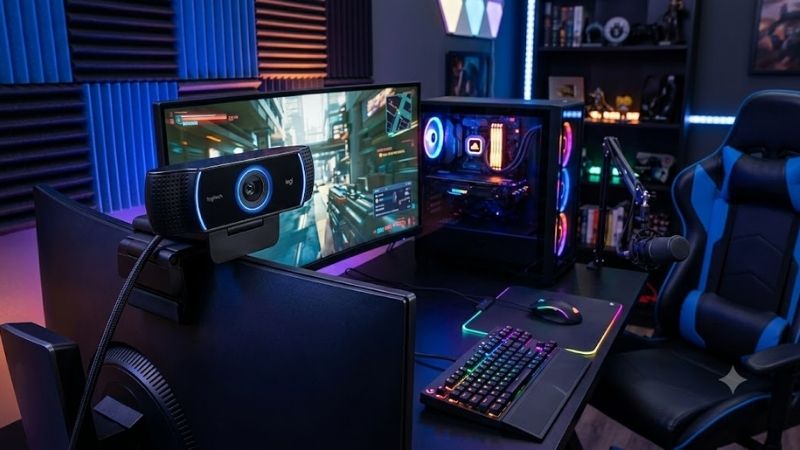
The Razer Kiyo Pro Ultra targets streamers who want more sensor area and stronger low-light performance than a conventional webcam. Razer uses a 1/1.2-inch Sony STARVIS 2 sensor with an f/1.7 aperture lens. That combination gathers more light than smaller webcam sensors, helping preserve facial detail in darker gaming rooms.
Resolution support includes 4K30, 1440p30, and 1080p at up to 60 fps. For Twitch, 1080p60 is usually the practical gaming mode, while 4K capture becomes useful for recording, cropping, or repurposing footage. The camera can also output uncompressed 4K24, 1440p30, or 1080p60 in supported configurations.
Autofocus tracks the face and works with automatic exposure to keep the streamer sharp while moving within the frame. This is useful for creators who lean toward the monitor, sit back between matches, or regularly move around a larger desk. The trade-off is that autofocus behavior can become more noticeable than a fixed-focus webcam in complex scenes.
Razer also supports HDR at 30 fps and provides controls for zoom, pan, tilt, shutter speed, and ISO through Synapse. Those options help creators balance image quality against lighting conditions. Rather than relying entirely on automatic exposure, experienced streamers can lock settings after dialing in their key light and background lighting.
What Makes It Different: The Kiyo Pro Ultra is primarily about sensor size and optics. Streamers working in dim rooms, RGB-heavy backgrounds, or mixed lighting gain more from its large sensor and f/1.7 lens than creators already using bright studio lights. It bridges the gap between ordinary webcams and more complicated camera setups.
Pros:
- Large 1/1.2-inch sensor
- Strong low-light capability
- 4K30 and 1080p60
- Face-tracking autofocus
- Manual camera controls
- Built-in privacy shutter
Cons:
- Large physical webcam body
- 4K is limited to 30 fps
- Autofocus is unnecessary for completely static framing
Use Case: A dark gaming room with RGB lighting, a streamer who moves frequently, or a creator who wants stronger background separation without using a full mirrorless-camera capture setup.
Who It’s For: Twitch creators who care most about sensor performance, low-light image quality, and autofocus while still wanting simple USB webcam operation.
OBSBOT Tiny 2
Best For: AI tracking and movement
Key Features:
- 1/1.5-inch CMOS sensor
- 4K at up to 30 fps
- 1080p at up to 60 fps
- Motorized PTZ movement
- AI tracking with auto zoom
- Voice control
- Gesture control
- Autofocus
- USB 3.0
- Dedicated desktop software
The OBSBOT Tiny 2 is different from a conventional fixed webcam because it can physically pan and tilt to follow the subject. It combines a 1/1.5-inch CMOS sensor with an AI-powered motorized platform. For Twitch creators who stand, demonstrate hardware, or move between gaming and presentation areas, that tracking can be more valuable than extra resolution.
Video capture reaches 4K30 and 1080p60, covering both detailed creator recording and smoother live-streaming modes. The larger sensor also gives the camera more image-quality headroom than entry-level webcams. For a conventional seated Twitch stream, 1080p60 provides the better balance of fluidity and processing demand.
AI tracking can follow the streamer while automatically adjusting the composition. This is especially useful during Just Chatting streams, fitness content, tabletop demonstrations, music, or hardware tutorials. A traditional webcam may require manual reframing, whereas the Tiny 2 can reposition the camera as the creator moves around the room.
Gesture and voice controls provide another way to manage the camera without reaching for software during a live session. A creator can interact with tracking or framing while standing away from the desk. These functions matter less for a streamer who remains seated in the same position, but they add flexibility for mixed-format Twitch channels.
What Makes It Different: Motorized PTZ tracking is the Tiny 2’s defining advantage. Instead of cropping heavily into a fixed wide image, the webcam can physically reposition itself. That makes the camera particularly effective for creators whose Twitch content extends beyond seated gameplay and includes demonstrations, chatting, or movement.
Pros:
- Motorized AI tracking
- 4K30 and 1080p60
- Large 1/1.5-inch CMOS sensor
- Auto zoom
- Voice and gesture controls
- Useful for standing content
Cons:
- Tracking features add complexity
- More camera than a static gaming stream needs
- Moving framing may not suit every Twitch layout
Use Case: A Twitch channel combining gaming with Just Chatting, unboxings, hardware demonstrations, tabletop content, or other streams where the creator does not stay directly in front of one monitor.
Who It’s For: Creators who want their webcam to follow them automatically rather than keeping the camera locked to a single desk position.
Insta360 Link 2
Best For: Flexible Twitch and creator workflows
Key Features:
- 1/2-inch sensor
- 4K up to 30 fps
- 1080p up to 60 fps
- f/1.8 aperture
- Autofocus from 10 cm to infinity
- HDR
- AI tracking
- 2-axis gimbal
- DeskView mode
- Smart Whiteboard mode
- AI noise-canceling audio
Insta360 Link 2 combines a 1/2-inch sensor with a two-axis gimbal, making it a versatile choice for creators who need more than a static face camera. It records at up to 4K30 and 1080p60, while the f/1.8 aperture helps gather light in typical indoor environments. Autofocus operates from around 10 cm to infinity.
The gimbal supports AI tracking, so the camera can physically follow movement rather than relying only on digital cropping. This can be useful when a streamer shifts between a seated gaming position and another part of the room. A static facecam may remain preferable for competitive gameplay, but tracking creates more options for varied Twitch content.
Link 2 also includes DeskView and Smart Whiteboard modes. DeskView can reposition the perspective toward objects on the desk, while Whiteboard mode targets presentation content. These features are not necessary for a standard gameplay stream, but they help creators who also stream art, hardware, tutorials, card games, or product demonstrations.
HDR is supported across the listed resolutions and frame rates, giving Link 2 additional flexibility in high-contrast scenes. That can help when bright monitors, lamps, or windows sit behind the streamer. Good lighting is still preferable because HDR processing cannot replace a properly positioned key light that illuminates the face consistently.
What Makes It Different: Link 2 provides a broader creator toolkit than most gaming-focused webcams. Its gimbal, tracking, DeskView, autofocus, and 4K capture suit streamers who also produce tutorials or recorded videos. The trade-off is that a creator who only needs a fixed 1080p facecam may use only a fraction of those features.
Pros:
- 4K30 and 1080p60
- Two-axis gimbal
- AI subject tracking
- Fast close-range autofocus
- HDR support
- DeskView and Whiteboard modes
Cons:
- Extra modes are unnecessary for basic Twitch gaming
- Gimbal movement can complicate fixed stream layouts
- 4K capture is limited to 30 fps
Use Case: Twitch creators mixing seated gaming with tutorials, product demonstrations, art streams, desktop shots, presentations, or standing Just Chatting sessions.
Who It’s For: Streamers who want one webcam to handle live gaming, general creator work, and more dynamic camera positions.
How to Choose the Best Webcam for Twitch
1080p60 vs 4K
For most Twitch gaming streams, 1080p60 is more useful than 4K30 because movement looks smoother and the camera normally occupies only part of the final stream. A 4K sensor still has value for recording, cropping, and producing YouTube content, but buying 4K solely for a small Twitch facecam window may provide little visible benefit.
Sensor Size
A larger image sensor can collect more light and generally gives the camera more information to work with in darker scenes. This matters in gaming rooms where the main light may come from monitors or RGB strips. Sensor size is not everything, however, because lens quality, exposure settings, processing, and lighting still influence the final image.
Low-Light Performance
Low-light capability matters because gaming setups are often darker than offices. A webcam with a larger sensor and brighter lens can retain more detail before aggressive noise reduction becomes necessary. Even so, a modest key light can improve almost any webcam more dramatically than switching between two similarly capable models without fixing poor illumination.
Autofocus vs Fixed Focus
Autofocus is useful when you move closer to the camera, hold products near the lens, or change position during a stream. Fixed focus is useful when you remain at a predictable desk distance because there is no focus hunting. Neither approach is universally better; the right choice depends on how much your distance from the webcam changes.
Field of View
A wider field of view shows more of the gaming room, while a narrower view keeps attention on your face and hides surrounding clutter. Streamers using overlays often do not need an extremely wide camera because the face window may be small. Consider how much background you actually want visible before treating the widest specification as an advantage.
Manual Camera Controls
Manual exposure and white balance can make a Twitch stream look more consistent. Automatic systems may react when a bright game appears on a monitor or RGB lighting changes behind you. Once lighting is controlled, locking exposure and white balance can stop the webcam from constantly adjusting your skin tone and brightness during a broadcast.
OBS Compatibility
A webcam intended for Twitch should work reliably with OBS or another streaming application at the resolution and frame rate you want. USB bandwidth also matters, especially when several cameras, capture devices, and microphones share the same controller. Follow manufacturer connection requirements and avoid overloaded hubs when high-bandwidth modes become unstable.
Mounting Options
Monitor clips are convenient, but a 1/4-inch thread provides more flexibility for streamers using tripods, arms, or overhead mounts. Moving the camera away from the display can improve framing and reduce monitor vibration. It also makes it easier to place the lens near eye level instead of forcing every shot to originate from the top of a large monitor.
Built-In Microphones
Webcam microphones are useful as backups, but a dedicated microphone normally gives Twitch viewers clearer and more consistent voice audio. The webcam should therefore be chosen primarily for image quality and controls rather than microphone specifications. Stream audio quality often has a greater effect on viewer comfort than a small increase in camera resolution.
FAQ
Is 1080p60 Good Enough for Twitch Streaming?
Yes. For a gaming facecam, 1080p60 provides enough detail for most layouts while keeping motion smooth when the streamer moves. Because the webcam is commonly displayed in a small window beside gameplay, viewers may see little benefit from 4K capture. Good lighting and proper exposure often improve the image more than extra resolution.
Do I Need a 4K Webcam for Twitch?
A 4K webcam is not required for Twitch, but it can be useful if you also record YouTube videos, create clips, or crop into the image. Capturing at a higher resolution gives more flexibility in post-production. For live gameplay alone, a strong 1080p60 webcam can provide everything needed for a professional-looking face-camera feed.
Is 30 FPS or 60 FPS Better for a Twitch Webcam?
Sixty frames per second produces smoother facial and hand movement, while 30 fps may allow features such as HDR or higher resolution on some cameras. For gaming streams, 60 fps pairs naturally with smooth gameplay. For slower Just Chatting content, 30 fps can look completely acceptable and may allow higher image quality in difficult lighting.
Should I Use Autofocus for Twitch?
Autofocus is helpful if you move around, hold objects toward the camera, or change your seating distance. A fixed-focus webcam can be more predictable when you remain in one position because focus cannot unexpectedly shift toward a microphone or background object. Streamers should choose based on movement rather than assuming autofocus is essential.
What Webcam Does a Twitch Streamer Really Need?
A useful Twitch webcam should provide stable exposure, clean 1080p output, enough frame rate for your content, compatible mounting, and reliable software support. A larger sensor helps in dark rooms, while 4K and tracking are useful for more advanced creator workflows. Your lighting and camera placement remain equally important to final quality.
Can a Webcam Replace a Mirrorless Camera for Twitch?
A premium webcam can produce a polished Twitch image without a capture card, dummy battery, interchangeable lens, or large camera mount. A mirrorless camera can still provide superior optical control and background separation, but the extra hardware adds cost and setup complexity that many gaming streams do not actually require.
Conclusion
The best webcam for Twitch depends on how you stream rather than the highest resolution on the box. Facecam MK.2 suits dedicated 1080p gaming streams, Kiyo Pro Ultra favors low-light quality, Tiny 2 excels at automated tracking, and Insta360 Link 2 offers versatile tools for creators mixing Twitch gaming with other content.