🛒 Best Price Today on Amazon
Prime members get fast, free shipping on everything above, plus member-only deals. New members get a 30-day free trial — cancel anytime.
- Introduction
- What Makes a Printer a Good Match for a Dell Computer
- Inkjet, Laser, and Tank Printers: Which Type Fits Your Dell Setup
- All-in-One or Single-Function: Do You Need a Scanner
- Connectivity: USB, Wi-Fi, Ethernet, and Bluetooth
- Setting Up a Printer on a Dell Computer Running Windows 11
- What to Check Before You Buy
- Comparison Table
- Troubleshooting Common Printer Problems on Dell Computers
- Frequently Asked Questions
- Conclusion
As an Amazon Associate we earn from qualifying purchases.
Introduction
Finding the best printers for a Dell computer is less about the Dell badge on your desktop or laptop and more about matching a printer to how you actually print. Dell computers run Windows, and almost every modern printer from the major brands is built to work with Windows, so compatibility is rarely the hard part. The real decision is about print volume, colour needs, running costs, desk space, and whether you want scanning and copying as well as printing.
This guide walks through the whole decision in plain terms: the main printer types, how each one fits a Dell setup, how to connect a printer over USB or Wi-Fi, how to install it on Windows 11, and how to fix the most common problems. It also includes a comparison table, a buying checklist, and answers to the questions Dell owners ask most often.
What Makes a Printer a Good Match for a Dell Computer
Dell sells a wide range of computers, from compact Inspiron laptops and XPS ultrabooks to OptiPlex office desktops, Precision workstations, and Alienware gaming rigs. The good news is that printer compatibility does not depend much on which Dell model you own. What matters is the operating system, the connection options on your computer, and your printing habits.
Most Dell computers sold in recent years run Windows 11, with older machines on Windows 10. Both versions include built-in support for a huge range of printers, and Windows Update can often fetch the right driver automatically. Before buying, check the printer specifications for Windows 11 and Windows 10 support, and check whether the maker offers a full driver package or relies on the basic driver built into Windows.
Connection options matter more than brand matching. A Dell desktop usually has several spare USB ports on the back, so a USB cable connection is simple and reliable. A Dell laptop, especially a thin XPS model with only USB-C ports, may need a USB-C adapter or a wireless connection instead. If your Dell computer connects to your home Wi-Fi network, a wireless printer can sit anywhere in the room and serve every computer, phone, and tablet in the house. That flexibility is one reason wireless models have become the default choice for most Dell owners.
Print volume is the factor people underestimate most. A printer that is perfect for twenty pages a month can become expensive and frustrating at two hundred pages a month, because small ink cartridges run out quickly and cost more per page. Conversely, a heavy-duty office laser printer is wasted money and desk space if it prints a boarding pass twice a year. Think honestly about your monthly page count, how much of it is colour, and whether you print photos.
Inkjet, Laser, and Tank Printers: Which Type Fits Your Dell Setup
Inkjet all-in-one printers
Inkjet printers spray tiny droplets of ink onto paper, and most models sold for home use are all-in-one machines that also scan, copy, and sometimes fax. They are the most versatile choice for a Dell home computer. They handle colour documents, school projects, and the occasional photo well, and they are usually compact and affordable to buy. Their weakness is running cost: standard-size ink cartridges hold relatively little ink, so heavy users replace them often. Ink can also dry out if a printer sits unused for months, which can clog the print head.
Monochrome laser printers
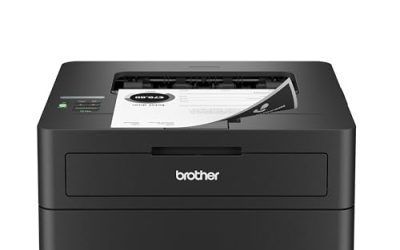
Laser printers use toner powder and a heated roller to fuse text onto paper. A monochrome laser printer prints only in black and white, but it does so quickly, sharply, and cheaply per page. Toner does not dry out the way ink does, so a laser printer can sit idle for weeks and still print perfectly on the first page. These printers are workhorses for text-heavy jobs: essays, contracts, invoices, shipping labels, and work documents.
Ink tank printers
Ink tank printers, also sold under names such as supertank or EcoTank-style systems, are inkjet printers with large refillable ink reservoirs instead of small cartridges. You pour ink from bottles into the tanks, and a single fill can last for thousands of pages. The printer itself costs more up front than a cartridge inkjet, but the cost per page is far lower, which makes these models attractive for families, students, and home offices with steady printing needs.
Photo printers
Dedicated photo printers produce excellent prints on photo paper, with richer colour and finer detail than a general-purpose inkjet. However, they are slow for documents, expensive per page, and often limited to smaller paper sizes. Unless photography is a serious hobby or part of your work, a good general-purpose inkjet all-in-one will cover the occasional photo print well enough. Do not buy a dedicated photo printer as your only printer for a Dell computer.
All-in-One or Single-Function: Do You Need a Scanner
An all-in-one printer combines printing with scanning and copying, and often fax as well. For most Dell owners, the all-in-one is the sensible default. Scanning is useful far more often than people expect: digitising school forms, receipts, identity documents, signed contracts, and old photos. A flatbed scanner with an automatic document feeder can scan a multi-page document in seconds, while a single-function printer leaves you with no way to digitise paper at all.
Single-function printers still have a place. They are usually smaller, simpler, and cheaper than an equivalent all-in-one, and there are fewer parts to go wrong. A monochrome laser printer without a scanner is a good choice for a desk where space is tight and every print is a black-and-white document. For everyone else, the convenience of having a scanner built in outweighs the small extra cost and size.
Connectivity: USB, Wi-Fi, Ethernet, and Bluetooth
USB connection
A USB cable is the simplest and most reliable way to connect a printer to a Dell computer. Plug the cable into the printer and a USB port on the computer, and Windows will usually detect the printer and install a driver within a minute or two. USB is ideal for a printer that serves a single desktop computer and never moves. Thin Dell laptops with only USB-C ports may need a USB-C to USB-A adapter or a docking station, so check your ports before choosing a USB-only printer.
Wi-Fi connection
Wi-Fi is the most flexible option for a Dell household with more than one device. A wireless printer joins your home network, and any computer, laptop, phone, or tablet on the same network can print to it. You can place the printer wherever there is power and a decent Wi-Fi signal, rather than next to the computer. Most modern wireless printers also support direct printing from phones through the maker’s mobile app, as well as cloud printing services.
Wi-Fi printing does introduce a few things that can go wrong. The printer and the computer must be on the same network, and some home networks split the 2.4 GHz and 5 GHz bands into separate networks with different names, which can confuse setup. Many printers only support the 2.4 GHz band, which reaches further through walls but is slower. For a Dell laptop that moves around the house, Wi-Fi printing is still worth the occasional troubleshooting.
Ethernet connection
An Ethernet cable connects a printer directly to your router or a network switch, giving it a stable wired network connection. This is the best option for a shared office printer that several Dell computers use every day, because it never drops off the network the way a weak Wi-Fi connection can. The downside is that the printer must sit near a network port, and most home users do not have Ethernet wiring in every room. If your Dell desktop and your router share the same desk, Ethernet is simple and dependable.
Bluetooth and mobile printing
Bluetooth printing is a convenience feature for printing from a phone or tablet nearby, but it is not a substitute for USB or Wi-Fi on a Dell computer. Windows support for Bluetooth printers is limited, and the connection is short-range. Treat Bluetooth as a bonus, not a deciding factor.
Setting Up a Printer on a Dell Computer Running Windows 11
Setting up a printer on a Dell computer is usually straightforward, and following the steps in order avoids most problems. Start by unboxing the printer, removing all packing tape and protective materials, and installing the ink cartridges or toner as described in the quick-start guide. Load plain paper in the tray, plug the printer into power, and switch it on. Let it complete its first-time setup, which usually includes aligning the print heads and printing a test page.
Next, connect the printer to your computer or network. For USB, simply plug in the cable when the setup software tells you to, not before. For Wi-Fi, use the printer’s control panel or the maker’s setup app to join your home network, and confirm the connection with a network test page if the printer offers one. For Ethernet, plug the cable into the printer and the router.
Then install the software on your Dell computer. The best source is the printer maker’s official support website, where you can search for your exact model and download the latest full driver and software package for Windows 11. Avoid driver download sites you do not recognise. If you prefer not to install the full software package, Windows 11 can often handle the job on its own: open Settings, go to Bluetooth and devices, select Printers and scanners, and choose Add device.
Finally, print a test page and set the new printer as your default if it will be your main printer. In Settings under Printers and scanners, select the printer and open its printing preferences to check the default paper size, print quality, and two-sided printing settings. If the printer offers automatic firmware updates, turn them on, because firmware updates fix bugs and security issues.
What to Check Before You Buy
A short checklist prevents the most common buying mistakes. First, confirm Windows compatibility and driver availability for your exact version of Windows, especially if your Dell computer is an older model. Second, measure your desk space and check the printer dimensions, including the space needed for the paper tray and for the scanner lid to open fully.
Comparison Table
| Printer type | Best for | Colour | Running cost | Needs regular use |
|---|---|---|---|---|
| Inkjet all-in-one | Mixed home and school printing with scanning | Yes | Higher per page | Yes |
| Monochrome laser | High-volume black-and-white documents | No | Lower per page | No |
| Colour laser | Office documents with colour charts and graphics | Yes | Moderate per page | No |
| Ink tank | Frequent colour printing for families and home offices | Yes | Lowest per page | Yes |
| Dedicated photo printer | High-quality photo prints | Yes | Highest per page | Yes |
Troubleshooting Common Printer Problems on Dell Computers
The printer is not detected
If Windows does not find the printer, start with the basics: check that the printer is switched on, that the USB cable is firmly seated at both ends, and that the printer is on the same Wi-Fi network as the computer. Restart both the printer and the computer, then open Settings, go to Printers and scanners, and use Add device again. If the printer still does not appear, download the latest driver package from the maker’s website and run the installer.
Prints are faded, streaked, or missing colours
Faded or streaked output usually points to low ink or toner, a clogged print head, or a dirty roller. Check the ink or toner levels in the printer software first. For an inkjet, run the print head cleaning utility from the printer software or the control panel, then print a nozzle check pattern to see whether the cleaning worked. For a laser printer, remove the toner cartridge, gently rock it side to side to redistribute the toner, and check for a low-toner warning.
The printer shows as offline
A printer that shows as offline in Windows is often a network problem rather than a printer problem. Check that the printer is powered on and connected to the network, and that your Dell computer is on the same network. In Settings, open the printer queue and make sure the “Use Printer Offline” option is not selected. If the printer uses Wi-Fi, restarting the router can resolve addressing problems.
Print jobs get stuck in the queue
A stuck print job blocks everything behind it. Open the print queue from Settings or the taskbar printer icon, cancel all documents, and restart the computer if the queue does not clear. If one particular document always gets stuck, try printing it as a PDF first, because very large or complex files are a common cause of stalled jobs.
Frequently Asked Questions
Do I need a Dell-branded printer for my Dell computer?
No. Dell computers work with printers from all major brands, including HP, Brother, Canon, and Epson. There is no Dell-branded printer requirement, and no advantage to matching the printer brand to the computer brand. Choose the printer based on print type, volume, features, and running costs, and confirm Windows driver support for your model.
Is a laser printer or an inkjet printer better for a Dell home office?
It depends on what you print. A monochrome laser printer is better for high-volume black-and-white text, because it prints faster, the toner does not dry out, and the cost per page is lower. An inkjet all-in-one is better if you need colour printing, photo printing, and scanning in one machine. For a home office that prints a mix of colour documents every week, an ink tank printer can combine colour flexibility with low running costs.
How do I install a printer driver on my Dell computer?
The most reliable method is to download the latest driver package for your exact printer model from the printer maker’s official support website, then run the installer and follow its prompts. Windows 11 can also install many printers automatically through Settings, under Bluetooth and devices and then Printers and scanners, by choosing Add device. Keep the driver updated through Windows Update or the maker’s software, and avoid third-party driver download sites.
Why does my printer keep going offline on my Dell computer?
The most common cause is a Wi-Fi problem: the printer may have lost its network connection, changed its network address, or joined a different network band from the computer. Restarting the printer and router often fixes it temporarily. For a lasting fix, place the printer within good range of the router, update its firmware, and consider giving it a fixed network address in the router settings. If the problem continues, a USB or Ethernet connection removes the wireless link from the equation entirely.
Conclusion
The best printers for a Dell computer are the ones that fit your printing habits, your desk, and your budget for ink or toner over the life of the machine. For mixed home use with scanning and occasional colour, an inkjet all-in-one is the versatile default. For heavy black-and-white document printing, a monochrome laser printer is faster and cheaper to run. For households that print colour documents every week, an ink tank printer can bring running costs down sharply. Wireless connectivity suits most Dell laptops and shared households, while USB and Ethernet remain the most dependable options for a single desktop or a busy office printer.
Before buying, confirm Windows driver support, measure the space the printer will occupy in use, and work out the running costs for your real monthly volume. After buying, install the driver from the maker’s official site, set your default print preferences, and keep the firmware updated. Follow those steps, and the printer will quietly do its job in the background of your Dell setup for years, which is exactly what a good printer should do.