🛒 Best Price Today on Amazon
Prime members get fast, free shipping on everything above, plus member-only deals. New members get a 30-day free trial — cancel anytime.
Dust and debris around a gaming mouse’s optical sensor can interfere with tracking consistency, especially when particles accumulate near the sensor opening or mouse feet. Choosing the best gaming mouse sensor dust cleaning kit helps maintain the device without risking damage to delicate optical surfaces. Safe cleaning methods matter more than aggressive scrubbing.
Quick Verdict: Which Gaming Mouse Cleaning Kit Is Best?
The best approach is to remove loose dust before attempting any contact cleaning. A manual air blower is often sufficient for debris around the sensor opening, while soft brushes and clean microfiber cloths can help maintain surrounding surfaces. Direct contact with the sensor window should be minimized.
Best complete kit: iFixit Precision Cleaning Kit
Best for noncontact dust removal: iFixit Dust Blower
Best for delicate external surfaces: iFixit Anti-Static Brush
Best for mouse body maintenance: iFixit Microfiber Cleaning Cloths
Best high-capacity manual blower: Giottos Rocket Air Blaster
Best broader electronics maintenance: iFixit Laptop Cleaning Kit
Quick Comparison Table
| Product | Cleaning method | Best application | Main limitation |
|---|---|---|---|
| iFixit Precision Cleaning Kit | Multiple precision tools | Complete maintenance | Some tools unsuitable for direct lens contact |
| iFixit Dust Blower | Manual airflow | Loose dust near sensor | Does not remove adhered residue |
| iFixit Anti-Static Brush | Soft brushing | Exterior crevices | Avoid optical-window pressure |
| iFixit Microfiber Cloths | Gentle surface wiping | Mouse shell and feet | Can drag abrasive debris |
| Giottos Rocket Air Blaster | Manual airflow | Larger dust-removal tasks | No direct residue cleaning |
| iFixit Laptop Cleaning Kit | Mixed cleaning tools | Complete gaming setup | More accessories than a mouse needs |
How We Selected These Gaming Mouse Cleaning Tools
We prioritized tools that allow gentle maintenance without introducing unnecessary moisture, abrasive contact, or excessive air pressure. Particular attention went to whether a product was suitable for the sensor opening itself or primarily for cleaning the mouse shell and surrounding components.
A sensor cleaning kit should not be confused with a digital camera sensor cleaning kit. Camera sensor swabs and wet-cleaning liquids are designed for different hardware, and their use on gaming mouse optics may introduce unnecessary risk.
The 6 Best Gaming Mouse Sensor Dust Cleaning Options
Gaming mouse sensors are typically protected behind a small optical window or lens assembly. Dust may collect in the recessed area around this component, but tracking problems can also arise from dirty mousepads, damaged skates, incompatible surfaces, or software settings. The following tools are useful when cleaning is actually necessary.
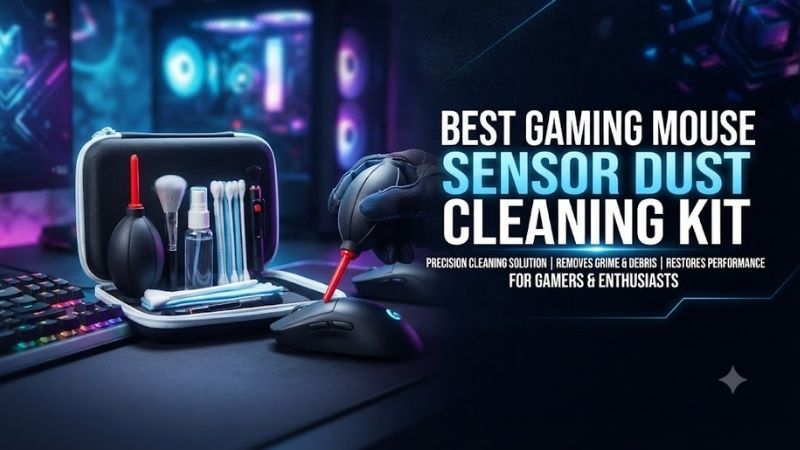
iFixit Precision Cleaning Kit – Best Overall Cleaning Kit
The iFixit Precision Cleaning Kit is a practical choice for users who maintain gaming mice, keyboards, and other computer peripherals. It includes reusable tools for reaching narrow spaces and removing contamination from areas that are difficult to access with an ordinary cloth.
Best for: Enthusiasts maintaining several gaming peripherals.
Key features
-
Precision cleaning tools
-
Small brushes
-
ESD-conscious components
-
Tools designed for narrow spaces
-
Reusable construction
-
iFixit part number IF145-523-1
Why a precision kit is useful
Gaming mice contain several areas that accumulate debris.
These include the scroll-wheel opening, side-button gaps, mouse-feet edges, and the recessed sensor cavity.
An ordinary cloth cannot reach every location.
Precision brushes can help remove debris from accessible exterior crevices.
However, the sensor lens should not be treated like a general mechanical contact.
The safest method begins with noncontact dust removal.
Cleaning the sensor area
Turn the mouse off and disconnect external power.
Inspect the sensor opening under good lighting.
Use gentle airflow to remove loose particles.
If residue remains, follow the mouse manufacturer’s cleaning instructions rather than immediately applying liquids or brush pressure to the optical surface.
The presence of precision tools does not mean every included tool should touch the sensor.
Broader usefulness
The iFixit kit is more versatile than a single cleaning brush.
It can help maintain keyboards, ports, and other electronics.
This makes it attractive for users who want one organized maintenance kit.
However, some tools and solutions are intended for electrical contacts or other components, not optical mouse lenses.
Use each product only for its documented application.
Pros
-
Multiple precision tools
-
Useful across gaming peripherals
-
Reusable construction
-
Suitable for narrow crevices
-
More versatile than a single brush
Cons
-
Not every tool should contact the sensor
-
Requires careful technique
-
May be unnecessary for simple dust removal
-
Cleaning solutions require compatibility checks
Buy If: You want a complete maintenance kit for several computer accessories.
Skip If: You only need to blow a small amount of loose dust away from the sensor opening.
iFixit Dust Blower – Best for Safe Noncontact Dust Removal
The iFixit Dust Blower is a simple manual tool for dislodging loose particles from delicate electronics. Its main advantage is controlled airflow without requiring direct physical contact with the sensor opening.
Best for: Routine removal of loose dust around optical mouse sensors.
Why manual airflow matters
Loose dust can often be removed without touching the optical surface.
A hand-operated blower creates airflow through a small nozzle.
This reduces the need for brushes, cloths, or cleaning liquids near the sensor.
For a gaming mouse with a recessed sensor window, this approach is often sufficient.
Correct technique
Hold the mouse with the sensor facing downward or at an angle where loosened debris can fall away.
Keep the nozzle a safe distance from the opening.
Apply several gentle bursts.
Do not insert the nozzle into the sensor cavity.
Avoid creating mechanical contact with the lens.
Limitations
A blower is designed for loose debris.
It will not reliably remove oily residue or contamination firmly attached to a surface.
Repeated strong airflow is not a substitute for appropriate maintenance when another problem is causing tracking errors.
Pros
-
Noncontact cleaning
-
No liquid required
-
Reusable
-
Simple operation
-
Suitable for routine maintenance
Cons
-
Limited effectiveness on sticky residue
-
Cannot repair damaged optics
-
Requires careful nozzle positioning
Buy If: You want a straightforward tool for loose dust removal.
Skip If: You need a complete maintenance kit for multiple peripheral components.
iFixit Anti-Static Brush – Best for Mouse Exterior Crevices
The iFixit Anti-Static Brush is useful for removing dust from accessible electronic surfaces and narrow exterior gaps. It is particularly relevant to gaming mice with complex shells, button openings, or visible debris around the mouse feet.
Best for: External mouse maintenance rather than direct optical cleaning.
Why brush design matters
Ordinary household brushes may use stiff bristles or materials that are unsuitable for delicate electronics.
An appropriate electronics brush can provide more controlled contact.
The goal is to dislodge dust without scraping the surrounding surface.
However, even a soft brush can carry trapped particles.
A contaminated brush should never be used near sensitive optics.
Practical applications
Use the brush around button seams and the scroll-wheel opening.
It may also help remove dust from accessible edges of the mouse shell.
For the sensor cavity, begin with a blower instead.
Do not press the bristles directly against the sensor lens unless the manufacturer specifically recommends that procedure.
Pros
-
Useful for narrow gaps
-
Designed for electronics maintenance
-
Reusable
-
Convenient for surrounding surfaces
Cons
-
Not the first choice for sensor glass
-
Bristles require cleaning
-
Cannot remove all adhered residue
Buy If: Your gaming mouse accumulates dust around buttons and shell openings.
Skip If: You only want noncontact sensor maintenance.
iFixit Microfiber Cleaning Cloths – Best for Mouse Body and Feet
iFixit Microfiber Cleaning Cloths are useful for removing fingerprints, dust, and ordinary surface contamination from gaming mouse shells. They also help maintain the surrounding plastic surfaces after loose abrasive particles have been removed.
Best for: Mouse shell cleaning and routine exterior maintenance.
Material advantages
A clean microfiber cloth can lift ordinary surface contamination without requiring aggressive pressure.
This is useful for matte or glossy mouse finishes.
However, microfiber is not automatically safe when contaminated with grit.
A dirty cloth can drag abrasive particles across the surface.
For that reason, loose debris should be removed before wiping.
Sensor-related limitations
The sensor window is a delicate optical component.
Direct wiping should not be the default method.
If the manufacturer permits contact cleaning, use a clean, appropriate material and minimal pressure.
Never rub the optical surface repeatedly in an attempt to eliminate a tracking problem without first identifying its cause.
Mouse-feet maintenance
Dust around PTFE mouse feet can affect glide.
A clean cloth can help remove residue from accessible surrounding areas.
Avoid pulling on the skates or allowing fibers to become trapped at their edges.
Pros
-
Useful for exterior cleaning
-
Reusable
-
No specialized power source
-
Suitable for general peripheral maintenance
Cons
-
Requires clean fabric
-
Poor choice for loose abrasive particles
-
Direct sensor contact should be minimized
Buy If: You want a practical tool for cleaning mouse surfaces and surrounding components.
Skip If: You only need noncontact dust removal.
Giottos Rocket Air Blaster – Best Manual Blower for Larger Cleaning Tasks
The Giottos Rocket Air Blaster is a familiar manual air-cleaning accessory designed to dislodge loose dust from delicate equipment. Its larger bulb can provide convenient repeated airflow for users maintaining several electronics rather than one mouse.
Best for: Enthusiasts cleaning gaming mice and other delicate equipment.
Why a larger blower can help
A larger hand-operated blower can be comfortable during repeated cleaning.
It does not require a power cable or compressed-gas cartridge.
The airflow can help remove loose particles from narrow openings.
However, more airflow is not always necessary.
For a small gaming mouse sensor cavity, controlled gentle bursts are preferable.
Practical use
Keep the nozzle away from the optical window.
Direct airflow toward the contaminated area without touching it.
Allow dust to exit naturally.
Do not seal the nozzle against the sensor opening.
If debris remains, inspect it under adequate lighting before deciding whether additional cleaning is appropriate.
Pros
-
Reusable manual blower
-
Suitable for multiple electronics
-
No liquid required
-
Useful for loose dust
Cons
-
Larger than a compact cleaning tool
-
Limited effectiveness on adhered residue
-
Requires careful handling near sensors
Buy If: You maintain several electronics and want a reusable dust blower.
Skip If: You need a pocket-sized tool for occasional travel.
iFixit Laptop Cleaning Kit – Best for Complete Gaming Setup Maintenance
The iFixit Laptop Cleaning Kit is a broader maintenance solution for gamers who use laptops, mice, keyboards, and other accessories. Its appeal lies in covering more than one cleaning task rather than focusing exclusively on the mouse sensor.
Best for: Gaming laptop owners maintaining an entire workstation.
Practical versatility
Gaming setups accumulate dust across different materials.
A laptop screen requires different cleaning methods from a keyboard switch or mouse shell.
A broader kit provides tools intended for several surfaces and openings.
However, users must match each tool and solution to the component being cleaned.
A screen-cleaning liquid should not automatically be used on a mouse sensor.
Mouse maintenance
The most relevant components are gentle tools for exterior dust removal and controlled surface cleaning.
Use noncontact airflow around the sensor whenever possible.
Reserve other tools for the mouse shell, charging port, and surrounding areas where they are appropriate.
Pros
-
Useful across gaming peripherals
-
Supports broader workstation maintenance
-
Convenient for laptop owners
-
Multiple cleaning functions
Cons
-
More expensive than a basic blower
-
Some tools are unnecessary for mouse cleaning
-
Cleaning solutions require careful use
Buy If: You want one kit for a gaming laptop and its peripherals.
Skip If: Your only concern is a small amount of loose sensor dust.
Buying Guide: How to Clean a Gaming Mouse Sensor Safely
A mouse sensor cleaning routine should prioritize diagnosis and gentle maintenance. The sensor does not need frequent direct cleaning simply because the mouse is used daily. Unnecessary contact can introduce damage or contamination.
Understand Common Causes of Tracking Problems
Tracking problems can originate from several sources.
Dust near the sensor is one possibility.
A dirty mousepad, unsuitable surface, damaged mouse feet, low battery, wireless interference, and firmware issues can also affect cursor movement.
Before cleaning the sensor, test the mouse on a clean compatible surface.
If tracking becomes normal, the issue may not involve the sensor.
Use Noncontact Cleaning First
Turn off the mouse.
Inspect the sensor opening under good lighting.
Use a manual blower to remove loose dust.
Avoid pressing tools against the optical window.
This method reduces the chance of scratching delicate surfaces.
If the manufacturer provides specific cleaning instructions, follow them.
Avoid Liquids and Harsh Chemicals
Do not spray cleaning liquid directly into the sensor cavity.
Liquids can enter the mouse housing and reach electronic components.
Harsh solvents may damage plastic or optical coatings.
Even products marketed for camera lenses are not automatically appropriate for gaming mouse sensors.
Clean the Mousepad and Mouse Feet
A clean sensor cannot compensate for an unsuitable or contaminated playing surface.
Remove dust from the mousepad according to its material requirements.
Glass mousepads may have different care instructions from cloth pads.
Check the mouse feet for trapped debris or visible damage.
Frequently Asked Questions
Can dust make a gaming mouse sensor skip?
Yes, contamination can interfere with tracking, although other causes are also possible.
Should I use compressed air on a mouse sensor?
A gentle manual blower is generally preferable. High-pressure airflow can introduce unnecessary risk.
Can I clean the sensor with alcohol?
Do not assume alcohol is safe. Follow the manufacturer’s cleaning instructions.
Should I touch the sensor lens?
Avoid direct contact unless an approved cleaning procedure requires it.
How often should I clean the sensor?
Inspect it when tracking problems appear or visible debris accumulates. Routine direct cleaning is usually unnecessary.
Can a cleaning kit improve mouse polling rate?
No. Cleaning may resolve contamination-related tracking problems but does not alter polling hardware.
Final Verdict
The iFixit Precision Cleaning Kit is the strongest general maintenance choice, while the iFixit Dust Blower is the simplest option for loose sensor dust. Anti-static brushes and microfiber cloths are useful for surrounding surfaces. Prioritize noncontact cleaning, avoid aggressive liquids, and diagnose tracking problems before touching the sensor window.