🛒 Best Price Today on Amazon
Prime members get fast, free shipping on everything above, plus member-only deals. New members get a 30-day free trial — cancel anytime.
- What Is Computer Hardware?
- Central Processing Unit
- Motherboard
- Random Access Memory
- Storage Drives
- Graphics Processing Unit
- Power Supply Unit
- Computer Case
- Cooling System
- Network Hardware
- Sound Hardware
- Monitor
- Keyboard
- Mouse
- Computer Ports and Connectors
- Expansion Cards
- Internal Hardware vs External Hardware
- FAQ
- Conclusion
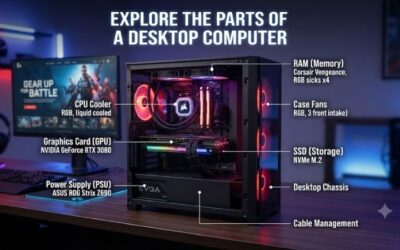
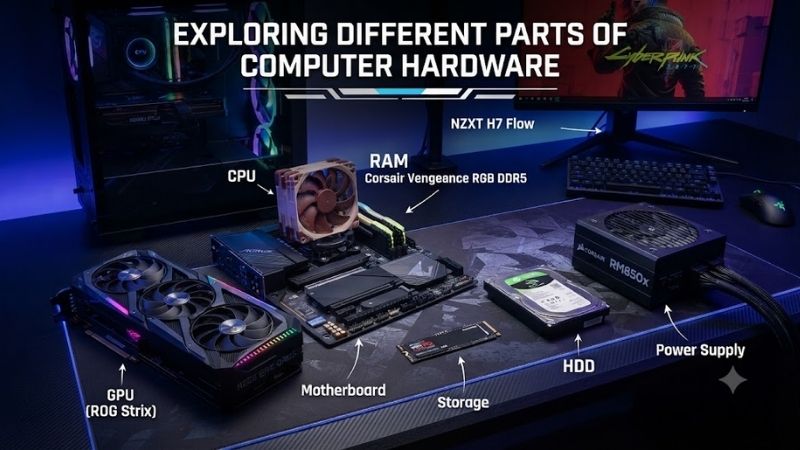
The different parts of computer hardware work together to process data, store files, display information, connect peripherals, and keep the system running reliably. Some components sit inside the computer case, while others are external devices such as the monitor, keyboard, and mouse. Understanding each part makes upgrades and troubleshooting easier.
What Is Computer Hardware?
Computer hardware refers to the physical parts of a computer system that you can see or touch. It includes internal components such as the processor, motherboard, memory, storage, graphics card, and power supply, as well as external devices such as monitors, keyboards, mice, speakers, webcams, and printers.
Hardware works together with software. Hardware provides the physical resources needed to perform tasks, while software provides the instructions. A word processor, game, web browser, or operating system cannot run without processor power, memory, storage, and other physical components supporting it.
Central Processing Unit
The central processing unit, or CPU, is responsible for executing instructions and performing calculations. It handles tasks requested by the operating system and applications, including logic, data processing, game calculations, file compression, web browsing, and many background processes running at the same time.
Modern processors contain multiple cores and threads, allowing them to handle several tasks efficiently. CPU performance depends on architecture, clock speed, core count, cache, power limits, and workload. A powerful CPU is especially important for gaming, video editing, software development, simulation, and heavy multitasking.
Motherboard
The motherboard is the main circuit board that connects nearly every internal component. The CPU, RAM, storage drives, graphics card, cooling hardware, and expansion cards all connect to it directly or through cables. It also provides rear ports for USB devices, networking, audio, monitors, and other accessories.
Motherboards come in different sizes, including ATX, Micro ATX, and Mini ITX. Compatibility depends on processor socket, chipset, memory generation, expansion slots, storage connectors, and case size. Choosing the correct motherboard is essential because many other hardware decisions depend on its supported features.
Random Access Memory
Random access memory, or RAM, temporarily stores data that the CPU needs quickly. When you open applications, browser tabs, games, or documents, much of the active information is held in RAM because it can be accessed faster than data stored on a hard drive or SSD.
RAM is temporary memory, meaning its contents disappear when the computer is switched off. More memory can improve multitasking when the system would otherwise run out of available RAM. Capacity, speed, latency, memory generation, and the number of installed modules can all influence performance.
Storage Drives
Storage devices keep the operating system, programs, games, documents, images, videos, and other files even when the computer is powered off. Modern computers commonly use solid-state drives, while traditional hard disk drives remain useful for inexpensive high-capacity storage, archives, and backup purposes.
SSDs have no moving parts and offer much faster access than mechanical hard drives. NVMe SSDs use PCI Express and are commonly installed in M.2 slots, while 2.5-inch SATA SSDs remain useful for older systems. HDDs offer slower performance but often provide more storage capacity for the money.
Graphics Processing Unit
The graphics processing unit, or GPU, creates the images shown on the monitor and performs highly parallel calculations. Dedicated graphics cards are especially important for gaming, 3D rendering, video production, artificial intelligence workloads, and other applications that require substantial graphical or compute performance.
Some processors include integrated graphics, which can handle basic desktop tasks and lighter applications without a separate graphics card. Dedicated GPUs include their own video memory, cooling system, and processing hardware. Their performance depends on architecture, core resources, memory, power limits, and software support.
Power Supply Unit
The power supply unit converts electricity from the wall outlet into the voltages required by the computer’s internal components. It distributes power to the motherboard, processor, graphics card, storage drives, fans, and other devices while operating within defined electrical and safety limits.
A power supply should have enough capacity for the system without relying only on its advertised wattage. Build quality, connectors, efficiency, protection features, and compatibility also matter. High-performance graphics cards may require specific power connectors and can increase total system power demand significantly.
Computer Case
The computer case houses and protects the internal hardware. It provides mounting locations for the motherboard, storage drives, graphics card, power supply, fans, and cooling equipment. Cases also influence airflow, cable management, noise, component clearance, and the ease of installing or upgrading hardware.
Case size must match the motherboard and other components. A compact enclosure may limit graphics card length, CPU cooler height, radiator support, or storage capacity. Larger cases usually provide more working room, but they also occupy more desk or floor space than smaller Micro ATX or Mini ITX designs.
Cooling System
Computer components generate heat during operation, and cooling hardware keeps temperatures within acceptable limits. Common cooling components include CPU heatsinks, fans, liquid coolers, graphics card coolers, thermal paste, and case fans that move warm air away from internal hardware.
Good airflow usually brings cooler air into the case and removes warmer air through exhaust fans. Cooling requirements depend on component power consumption and case design. Excessive heat can reduce performance through thermal throttling, increase fan noise, and place additional stress on hardware over time.
Network Hardware
Network hardware allows a computer to communicate with local networks and the internet. Desktop computers may use built-in Ethernet ports, Wi-Fi adapters, or expansion cards. Laptops usually include integrated wireless networking and may also provide wired Ethernet through a built-in port or external adapter.
Ethernet generally provides consistent performance for gaming, file transfers, and desktop work, while Wi-Fi offers greater convenience. Network speed depends on the computer adapter, router, cabling, wireless conditions, internet connection, and other network equipment rather than one individual component alone.
Sound Hardware
Computer audio can be handled by integrated motherboard audio, a dedicated sound card, an external audio interface, or USB audio devices. These components convert digital information into signals that speakers or headphones can reproduce and can also process microphone input for communication or recording.
For many users, integrated audio is sufficient. Dedicated hardware becomes more useful when additional inputs, higher-quality recording, professional microphones, studio monitors, or specialized audio connections are required. Gaming headsets with USB connections may contain their own integrated audio processing hardware.
Monitor
The monitor is the primary output device used to display the operating system, applications, games, videos, and other visual information. Important specifications include screen size, resolution, refresh rate, panel technology, response characteristics, brightness, adaptive synchronization, and available video connections.
For gaming, higher refresh rates can make movement appear smoother when the computer can generate enough frames. Higher resolution provides more image detail but also places greater demand on the graphics card. Productivity users may prioritize screen size, text clarity, workspace, and color accuracy instead.
Keyboard
The keyboard is an input device used to enter text, commands, shortcuts, and game controls. Keyboards can use membrane, mechanical, optical, or magnetic switch technologies and may connect through USB, Bluetooth, or dedicated wireless receivers depending on the model.
Layout also varies. Full-size keyboards include a number pad, while tenkeyless and compact models save desk space. Gaming keyboards may add programmable keys, high polling rates, adjustable actuation, RGB lighting, or onboard profiles, while office keyboards often focus more on comfort and quiet operation.
Mouse
A computer mouse controls pointer movement and provides buttons for selecting, dragging, scrolling, and interacting with software. Modern optical mice use sensors to detect movement across a surface and may connect through a cable, Bluetooth, or a dedicated wireless USB receiver.
Gaming mice often focus on sensor accuracy, polling rate, weight, shape, switch design, and additional programmable buttons. Office mice may prioritize ergonomics, silent clicks, battery life, and multi-device connectivity. The correct shape depends heavily on hand size, grip style, and individual comfort.
Computer Ports and Connectors
Ports allow computers to communicate with external devices. USB ports support peripherals, storage devices, cameras, controllers, and many other accessories. HDMI and DisplayPort are commonly used for monitors, while Ethernet connects wired networks and 3.5 mm audio ports can connect headphones, speakers, or microphones.
USB-C has become increasingly common because the connector can support data, power delivery, and display output depending on the device. However, identical-looking USB-C ports do not always provide identical features. Users should check supported standards before assuming a port can drive a monitor or charge high-power equipment.
Expansion Cards
Expansion cards add functions that are not already built into the computer. They are normally installed into PCI Express slots on the motherboard. Graphics cards are the most common example, but other expansion hardware includes network adapters, sound cards, capture cards, USB controllers, and storage expansion cards.
The available number and size of slots depend on motherboard and case design. Large graphics cards can physically block neighboring slots, while compact systems may have little expansion capacity. Before adding hardware, check slot type, physical clearance, power requirements, and operating-system support.
Internal Hardware vs External Hardware
Internal hardware operates inside the computer case and includes the CPU, motherboard, RAM, storage drives, graphics card, power supply, and cooling system. These components perform the core computing work and normally require the case to be opened before they can be installed, replaced, or upgraded.
External hardware connects from outside the computer. Examples include monitors, keyboards, mice, speakers, webcams, external drives, printers, controllers, and USB hubs. These devices are usually easier to replace and can often be moved between computers without modifying the internal system.
FAQ
What Are the Main Parts of a Computer?
The main internal components are the CPU, motherboard, RAM, storage, graphics hardware, power supply, cooling system, and case. A complete desktop setup also normally includes a monitor, keyboard, mouse, and network connection.
Which Computer Part Stores Files Permanently?
SSDs and HDDs provide long-term storage. Unlike RAM, they retain data after the computer is switched off. The operating system, applications, games, photos, documents, and other files are normally stored on these drives.
Which Part Is the Brain of a Computer?
The CPU is commonly described as the brain of the computer because it executes program instructions and processes data. However, the entire computer depends on several components working together, including memory, storage, graphics hardware, and the motherboard.
Is RAM the Same as Storage?
No. RAM temporarily holds active data needed by running programs, while an SSD or HDD stores files permanently. RAM loses its contents when power is removed, but storage drives keep their data after shutdown.
Do All Computers Need a Graphics Card?
All computers need some form of graphics processing to display an image, but a separate dedicated graphics card is not always necessary. Many CPUs include integrated graphics that are sufficient for browsing, office work, video playback, and other basic tasks.
Conclusion
The different parts of computer hardware each perform a specific role. The CPU processes instructions, RAM handles active data, storage keeps files, the GPU creates graphics, and the motherboard connects everything together. Understanding these components makes it easier to choose, upgrade, maintain, and troubleshoot a computer system.