🛒 Best Price Today on Amazon
Prime members get fast, free shipping on everything above, plus member-only deals. New members get a 30-day free trial — cancel anytime.
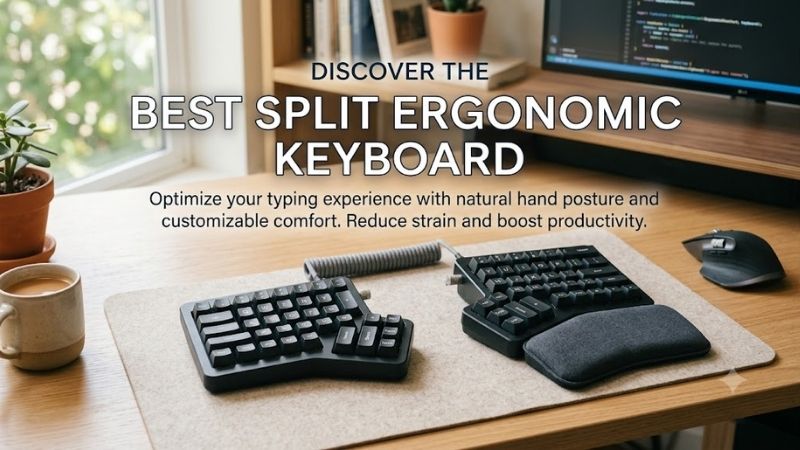
The best split ergonomic keyboard should let each hand sit at a natural width and angle while keeping important keys easy to reach. This roundup compares true split models for typing, coding, productivity, and gaming, focusing on tenting, key wells, thumb clusters, switches, software, and connectivity rather than hype.
Quick answer: For most people in 2026, the best split ergonomic keyboard options for work and gaming is the Keyboard — our #1 rated choice. See the full ranked comparison, alternatives and buying advice below.
Best Split Ergonomic Keyboard Picks at a Glance
| Keyboard | Best For | Layout Style | Connectivity | Key Advantage |
|---|---|---|---|---|
| Kinesis Advantage360 | Deep ergonomic positioning | Concave key wells | Wired USB | Sculpted wells and separated halves |
| ZSA Moonlander | Maximum customization | Columnar split | Wired | Adjustable thumb modules and QMK |
| Dygma Defy | Gaming and productivity | Columnar split | USB, Bluetooth, RF | Large thumb cluster and gaming-focused wireless |
| MoErgo Glove80 | Long typing sessions | Concave low-profile | Bluetooth LE, USB | Low deck and curved key wells |
| Keychron Q11 | Easier transition | Staggered split 75% | USB-C | Familiar layout with aluminum construction |
Kinesis Advantage360
Best For: Maximum ergonomic structure for touch typing
The Kinesis Advantage360 is built around deep concave key wells, separated halves, thumb clusters, and adjustable tenting. That geometry favors users who want a highly structured ergonomic position instead of a flat board. Its learning curve is real, but the layout rewards touch typists who are willing to retrain muscle memory.
Key Features
- Concave key wells
- Independent split modules
- Dedicated thumb clusters
- Mechanical switch options
- USB connectivity
- Multi-platform support
What Makes It Different
The Advantage360 places the keys inside sculpted wells rather than on flat plates. This reduces the distance fingers travel between rows and creates a more defined home position. The design feels substantially different from a conventional mechanical keyboard and demands a deliberate adjustment period.
Pros
- Deeply sculpted ergonomic layout
- Independent positioning for each hand
- Strong separation between finger and thumb duties
- Multiple tenting positions
- Designed around touch typing
Cons
- Significant adjustment period
- Large desk footprint
- Less familiar for conventional keyboard users
- Standard version is wired
Use Case: Long coding, writing, development, and workstation sessions.
Who It’s For: Touch typists prepared to retrain their habits for a more structured ergonomic layout.
ZSA Moonlander
Best For: Custom layouts, layers, and adjustable ergonomics
The ZSA Moonlander combines a fully split layout with adjustable thumb modules, built-in tenting hardware, hot-swappable switches, and deep firmware customization. It suits users who want to tune both physical position and key behavior. The main trade-off is adaptation because layers and thumb keys take time to become automatic.
Key Features
- Two independently positioned halves
- Articulating thumb modules
- Adjustable tenting
- Hot-swappable mechanical switches
- PBT keycaps
- QMK-based firmware
- Programmable layers
What Makes It Different
The articulating thumb module can be repositioned to suit different hand sizes and desk setups. Combined with programmable layers, macros, dual-function keys, and onboard layout storage, this makes the Moonlander especially adaptable for users who want to redesign how they interact with shortcuts and commands.
Pros
- Highly adjustable physical layout
- Powerful firmware customization
- Hot-swappable switches
- Adjustable thumb positioning
- Strong support for layers and macros
Cons
- Steeper learning curve than staggered keyboards
- Wired design adds desk cables
- Advanced layouts require setup time
- Thumb cluster positioning needs experimentation
Use Case: Programming, content creation, productivity workflows, shortcuts, and custom gaming layers.
Who It’s For: Power users who want extensive control over both ergonomics and key behavior.
Dygma Defy
Best For: Gaming with serious ergonomic customization
The Dygma Defy is a columnar split keyboard with a large thumb cluster, hot-swappable switches, optional steep tenting, and wired or wireless configurations. Its gaming-oriented wireless mode and extensive remapping make it relevant to players who want stronger ergonomics without giving up flexible controls and responsive input.
Key Features
- Columnar split design
- Large thumb cluster
- Hot-swappable sockets
- Adjustable tenting
- USB, Bluetooth, and RF connectivity
- NKRO support
- Programmable layers, macros, and remapping
- Multi-platform support
What Makes It Different
Dygma puts unusually strong emphasis on thumb functionality. Frequently used modifiers, layer controls, Space, Backspace, Enter, or gaming commands can move away from weaker fingers, while dedicated RF connectivity gives gamers an alternative to Bluetooth when responsiveness and consistency matter.
Pros
- Strong gaming-oriented feature set
- Large programmable thumb area
- Wired and wireless configurations
- Hot-swappable switches
- Extensive remapping
- Aggressive tenting options
Cons
- Thumb cluster needs retraining
- Columnar layout differs from standard keyboards
- High tenting may require gradual adaptation
- Feature-rich design can feel complex initially
Use Case: PC gaming, productivity, streaming controls, shortcuts, macros, and mixed work-play setups.
Who It’s For: Gamers who want a genuinely ergonomic split keyboard without giving up extensive remapping or low-latency wireless connectivity.
MoErgo Glove80
Best For: Low-profile typing and long workstation sessions
The MoErgo Glove80 uses low-profile switches, concave key wells, curved thumb clusters, wireless separation, and adjustable tenting. Its low deck and sculpted geometry reduce the reach needed across rows. It is best for users prioritizing relaxed long-session typing over a conventional keyboard shape or familiar staggered layout.
Key Features
- 80-key split layout
- Concave key wells
- Curved thumb clusters
- Low-profile switches
- Adjustable tenting
- Bluetooth connectivity
- USB-C connection
- Multi-device support
- ZMK firmware
What Makes It Different
Glove80 combines a pronounced key well with a comparatively low physical profile. The switches and key positions sit closer to the desk than many sculpted ergonomic boards, while the curved thumb clusters are designed around the natural arc of thumb movement for easier access to frequently used commands.
Pros
- Low-profile ergonomic construction
- Concave finger positioning
- Wireless independent halves
- Curved thumb clusters
- Adjustable tenting
- Multi-device connectivity
Cons
- Major transition from standard staggered keyboards
- Different keycap and switch ecosystem
- Less familiar for conventional mechanical keyboard users
- Gaming users may prefer dedicated RF connectivity
Use Case: Writing, coding, editing, remote work, and extended daily typing.
Who It’s For: Users who value low finger travel, sculpted ergonomics, wireless separation, and long-session typing comfort.
Keychron Q11
Best For: Users who want a familiar split keyboard transition
The Keychron Q11 takes a more familiar route with a split 75% layout in two aluminum halves, hot-swappable switches, programmable firmware, and wired USB-C connectivity. It is easier to approach than a key-well design because the rows remain conventional, but it offers less built-in tenting and thumb optimization.
Key Features
- Split 75% layout
- Aluminum construction
- Hot-swappable switch sockets
- Mechanical switch compatibility
- South-facing RGB
- USB-C connectivity
- High polling rate
- Programmable firmware
What Makes It Different
The Q11 preserves the staggered layout most desktop users already know. You can separate and rotate the halves without simultaneously learning a columnar arrangement, key wells, or dedicated thumb clusters. That makes the transition easier for users who want split positioning without rebuilding their typing habits.
Pros
- Familiar staggered layout
- Solid aluminum construction
- Hot-swappable switches
- Broad mechanical switch compatibility
- Responsive wired connection
- Easier transition from conventional keyboards
Cons
- No sculpted key wells
- Limited integrated tenting
- No dedicated ergonomic thumb cluster
- Wired-only connectivity
Use Case: Office work, mechanical keyboard enthusiasts, gaming, and users experimenting with split positioning.
Who It’s For: Anyone who wants split-hand positioning without completely changing the familiar desktop keyboard layout.
How to Choose the Best Split Ergonomic Keyboard
Split Width and Rotation
A split layout matters because it lets you place each half in line with your forearms instead of forcing both wrists toward the center. Wider separation can also reduce shoulder rounding. The benefit depends on desk space and technique, so choose a board whose halves can sit securely at your preferred width without cable strain.
Tenting Adjustment
Tenting raises the inner edges of the keyboard so the forearms can rest with less pronation. Small angles are easier for beginners, while steep tenting can feel more natural for some users but may demand palm support and a new wrist position. Adjustable systems are preferable when you do not yet know your ideal angle.
Staggered vs Columnar vs Key-Well Layouts
Columnar layouts and concave key wells shorten some finger reaches by aligning keys more closely with finger motion. They can improve comfort for trained users, but they also change muscle memory more than a standard staggered board. If you need immediate productivity, a familiar split layout may be easier to adopt.
Thumb Clusters
Thumb clusters move common functions such as Space, Backspace, Enter, modifiers, or layer keys away from the pinkies. This can reduce repeated stretching, but cluster shape matters because keys that sit too far away are wasted. Users with smaller hands should favor adjustable or tightly curved thumb areas that remain easy to reach.
Gaming Features
For gaming, prioritize stable wired or low-latency wireless input, rollover behavior, easy remapping, and a layout that preserves comfortable access to WASD, Shift, Ctrl, and number keys. Extreme layer dependence can be excellent for productivity but awkward in games unless you build a dedicated gaming layer and practice it first.
Which Split Ergonomic Keyboard Fits Each User?
| User Type | Recommended Model | Main Reason |
|---|---|---|
| Dedicated touch typist | Kinesis Advantage360 | Deep concave wells and structured hand placement |
| Customization enthusiast | ZSA Moonlander | Extensive layers, remapping, and adjustable thumb modules |
| Gamer | Dygma Defy | Gaming-focused wireless and programmable thumb controls |
| Long-session writer or coder | MoErgo Glove80 | Low-profile key wells and wireless split positioning |
| Split-keyboard beginner | Keychron Q11 | Familiar staggered layout with independent halves |
FAQ
Are Split Ergonomic Keyboards Good for Gaming?
A split keyboard can be better for gaming when it lets the left half sit at a natural shoulder width and angle, creating more mouse space on the right. The advantage is ergonomic positioning, not automatic speed. Competitive players should also check latency, rollover, key access, and whether the layout disrupts familiar bindings.
How Long Does It Take to Get Used to a Split Keyboard?
A split ergonomic keyboard often requires an adjustment period because hand spacing, thumb use, tenting, and columnar layouts can change long-established muscle memory. Start with a conservative split and low tenting angle, then change one variable at a time. This makes it easier to identify what improves comfort without hurting accuracy.
Do I Need Concave Key Wells?
A key well is not required for a split keyboard to be ergonomic. Flat split boards still let you separate and rotate the halves, which can improve wrist and shoulder position. Key wells add another layer of reach optimization, but they also increase the learning curve. The right choice depends on how much layout change you can accept.
Are Hot-Swappable Switches Important?
Hot-swappable switches matter if you want to change typing feel without soldering. They are useful for testing lighter, quieter, tactile, or linear switches after you learn the layout. They do not make a keyboard more ergonomic by themselves, but switch force and feel can affect fatigue during long typing or gaming sessions.
Is Wireless Better for a Split Ergonomic Keyboard?
Wireless split keyboards reduce cable clutter and make wide separation easier, but connection type matters for gaming. Bluetooth is convenient for productivity and multi-device use, while dedicated low-latency RF or wired USB is usually more appropriate for timing-sensitive play. Battery management is another trade-off to consider.
Conclusion
The best split ergonomic keyboard depends on how much change you want. Kinesis, Moonlander, Defy, and Glove80 push deeper into ergonomic geometry, while the Keychron Q11 keeps a familiar staggered feel. Choose the design that matches your hand position, learning tolerance, software needs, and gaming or work priorities.
Ready to decide? Our #1 pick for 2026 is the Keyboard.
Live price & availability on Amazon.