Table of Contents
- 0.1 🛒 Best Price Today on Amazon
- 1 Best USB-C Power Delivery Monitors Compared
- 2 1. Dell UltraSharp U3225QE — Best for Laptop Docking
- 3 2. ASUS ROG Swift OLED PG32UCDM — Best Premium Gaming Pick
- 4 3. MSI MPG 321URX QD-OLED — Best Gaming Value Alternative
- 5 4. BenQ PD3225U — Best for Creative Professionals
- 6 5. ASUS ProArt PA279CRV — Best Compact 4K Creator Monitor
- 7 How to Choose the Best Monitor With USB-C Power Delivery
- 7.1 Match Power Delivery to Your Laptop
- 7.2 Confirm USB-C Video Support
- 7.3 Choose the Right Refresh Rate
- 7.4 Check the Built-In USB Hub
- 7.5 Decide Between IPS and OLED
- 7.6 Choose 27 Inches or 32 Inches
- 8 FAQ
- 8.1 Can a USB-C Monitor Charge a Laptop and Display Video at the Same Time?
- 8.2 Is 90W USB-C Power Delivery Enough for a Laptop?
- 8.3 Do I Need Thunderbolt for a USB-C Monitor?
- 8.4 Is a 140W USB-C Monitor Safe for a Lower-Power Laptop?
- 8.5 Do USB-C Monitors Work With MacBooks?
- 9 Conclusion
🛒 Best Price Today on Amazon
Prime members get fast, free shipping on everything above, plus member-only deals. New members get a 30-day free trial — cancel anytime.
- Best USB-C Power Delivery Monitors Compared
- 1. Dell UltraSharp U3225QE — Best for Laptop Docking
- 2. ASUS ROG Swift OLED PG32UCDM — Best Premium Gaming Pick
- 3. MSI MPG 321URX QD-OLED — Best Gaming Value Alternative
- 4. BenQ PD3225U — Best for Creative Professionals
- 5. ASUS ProArt PA279CRV — Best Compact 4K Creator Monitor
- How to Choose the Best Monitor With USB-C Power Delivery
- FAQ
- Conclusion
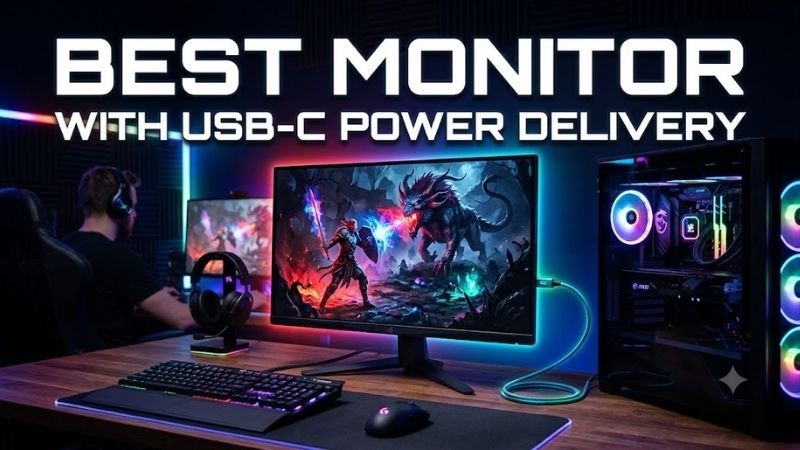
The best monitor with USB-C power delivery can replace a charger, video cable, and basic dock with one connection. The strongest options combine enough wattage for your laptop with sharp 4K panels, useful USB hubs, and refresh rates that fit work or gaming, without forcing you to trade away connectivity.
Quick answer: For most people in 2026, the best monitor with usb is the Dell UltraSharp U3225QE — our #1 rated choice. See the full ranked comparison, alternatives and buying advice below.
Best USB-C Power Delivery Monitors Compared
| Monitor | Best For | Resolution / Refresh Rate | USB-C Power Delivery | Key Advantage |
|---|---|---|---|---|
| Dell UltraSharp U3225QE | Laptop docking and productivity | 3840 × 2160 / 120Hz | Up to 140W | Thunderbolt 4 hub, 2.5GbE, extensive connectivity |
| ASUS ROG Swift OLED PG32UCDM | Premium gaming | 3840 × 2160 / 240Hz | Up to 90W | QD-OLED, HDMI 2.1, KVM, USB hub |
| MSI MPG 321URX QD-OLED | Gaming with USB-C | 3840 × 2160 / 240Hz | Up to 90W | QD-OLED, KVM, HDMI 2.1, Type-C video |
| BenQ PD3225U | Creative workflows | 4K / 60Hz class | Up to 85W | Thunderbolt, KVM, creator features |
| ASUS ProArt PA279CRV | Compact 4K creative desk | 3840 × 2160 / 60Hz | Up to 96W | 27-inch 4K, daisy chain, USB hub |
1. Dell UltraSharp U3225QE — Best for Laptop Docking
Best For: Productivity, professional laptops, multi-device desks
Key Features:
- 31.5-inch 4K IPS Black panel
- Up to 120Hz
- Thunderbolt 4 upstream
- Up to 140W USB-C EPR Power Delivery
- 2.5GbE Ethernet
- USB-A and USB-C hub
- DisplayPort daisy-chain output
- KVM-capable connectivity
Dell’s UltraSharp U3225QE is the strongest all-round office pick here because its Thunderbolt 4 upstream port can deliver up to 140W while driving a 31.5-inch 4K panel at up to 120Hz. That matters for higher-power laptops that may charge slowly on common 65W or 90W monitor connections without a separate brick.
Its hub is unusually complete, with multiple USB-A and USB-C ports, 2.5GbE Ethernet, DisplayPort output for daisy chaining, HDMI, and a second Thunderbolt 4 port. The 120Hz refresh rate also makes desktop scrolling and lighter gaming feel smoother than on typical 60Hz productivity displays at a work desk.
The trade-off is focus: this is a premium productivity monitor rather than a high-refresh esports screen. Its IPS Black panel emphasizes text clarity, workspace, connectivity, and contrast over OLED-level blacks or 240Hz motion. It fits power users who want one cable for a serious desk setup every day.
What Makes It Different: 140W charging is significantly more generous than the 85W–96W outputs found on several competing creator and gaming displays.
Pros
- 140W USB-C EPR charging
- 4K at up to 120Hz
- Thunderbolt 4
- 2.5GbE Ethernet
- Extensive USB connectivity
- Daisy-chain support
Cons
- Not designed for 240Hz competitive gaming
- No OLED-level black performance
Use Case: Connect a capable Windows laptop or compatible Mac through one Thunderbolt cable, then leave Ethernet, storage, keyboard, mouse, and secondary display connections attached to the monitor.
Who It’s For: Professionals who want their monitor to replace much of a dedicated desktop dock while retaining a smoother-than-60Hz 4K screen.
2. ASUS ROG Swift OLED PG32UCDM — Best Premium Gaming Pick
Best For: 4K gaming, gaming laptops, desktop-and-laptop setups
Key Features:
- 31.5-inch 4K QD-OLED
- 240Hz refresh rate
- USB-C DisplayPort Alt Mode
- Up to 90W Power Delivery
- HDMI 2.1
- DisplayPort 1.4 DSC
- KVM switch
- USB hub
- G-SYNC Compatible
The ASUS ROG Swift OLED PG32UCDM is built for users who want USB-C charging without giving up premium gaming features. It pairs a 31.5-inch 4K QD-OLED panel with a 240Hz refresh rate, HDMI 2.1, DisplayPort 1.4 with DSC, and USB-C video input with up to 90W Power Delivery for a cleaner single-cable laptop connection.
That combination suits a gaming laptop or desktop setup where one screen handles high-refresh PC gaming, current consoles, and a USB-C notebook. The QD-OLED panel brings very fast pixel response and deep blacks, while the integrated USB hub and KVM make switching peripherals between systems more practical.
Its limitation is that 90W may not fully cover every high-performance gaming laptop under sustained load, especially models designed around larger AC adapters. OLED also needs more care around static desktop content than IPS. This model makes most sense when image quality and 240Hz gaming are priorities.
What Makes It Different: It combines high-end 4K OLED gaming specifications with meaningful 90W laptop charging instead of treating USB-C as a low-power convenience port.
Pros
- 4K 240Hz QD-OLED
- 90W USB-C Power Delivery
- HDMI 2.1
- Integrated KVM
- USB hub
- Strong PC and console connectivity
Cons
- 90W may not replace every gaming-laptop charger
- OLED is less carefree for persistent static desktop content
Use Case: Keep a gaming desktop on DisplayPort or HDMI while plugging a work or gaming notebook into USB-C for display output, charging, and shared peripherals.
Who It’s For: Gamers who want OLED image quality and 240Hz speed but still need their monitor to function as a practical USB-C workstation.
3. MSI MPG 321URX QD-OLED — Best Gaming Value Alternative
Best For: 4K 240Hz gaming with practical USB-C connectivity
Key Features:
- 31.5-inch QD-OLED
- 3840 × 2160 resolution
- 240Hz refresh rate
- 0.03ms GtG specified response time
- USB-C DisplayPort Alt Mode
- 90W Power Delivery
- Two HDMI 2.1 inputs
- DisplayPort 1.4a
- KVM support
MSI’s MPG 321URX QD-OLED targets the same 4K 240Hz gaming class but gives USB-C a central role: the Type-C port supports DisplayPort Alt Mode and up to 90W Power Delivery. It also includes two HDMI 2.1 inputs, DisplayPort 1.4a, a USB hub, KVM support, and headphone output for a flexible multi-system gaming desk.
For mixed laptop and desktop use, that means a single USB-C cable can carry video and charging while the monitor remains ready for a dedicated gaming PC. Its 31.5-inch QD-OLED panel is especially appealing for HDR games, dark scenes, and fast motion, where 60Hz productivity monitors feel comparatively limited.
The compromise is similar to the ASUS: 90W is enough for many thin-and-light and creator laptops but not every workstation-class or gaming notebook at full load. Buyers who spend long hours in static spreadsheets may also prefer IPS. Choose this when gaming performance matters as much as cable simplicity.
What Makes It Different: MSI combines the same core 4K 240Hz QD-OLED format sought by high-end gamers with a 90W Type-C input capable of both charging and video.
Pros
- 4K 240Hz QD-OLED
- 90W USB-C charging
- HDMI 2.1
- KVM support
- USB-C can run 4K at up to 240Hz according to MSI
Cons
- USB hub uses USB 2.0 Type-A ports
- 90W may not satisfy every high-wattage gaming notebook
Use Case: Run a gaming PC through DisplayPort while using USB-C for a work notebook, then share peripherals through the monitor’s KVM rather than reconnecting devices manually.
Who It’s For: Gamers comparing premium OLED monitors who consider USB-C charging and laptop integration essential rather than optional.
4. BenQ PD3225U — Best for Creative Professionals
Best For: Photography, design, video workflows, Thunderbolt desks
Key Features:
- 31.5-inch 4K display
- Thunderbolt connectivity
- Up to 85W Power Delivery
- Thunderbolt downstream connection
- KVM switch
- USB hub
- Factory calibration report
- Calman Verified
- Pantone Validated
- Hotkey Puck G2
BenQ’s PD3225U is the creator-focused option in this group. Its 31.5-inch 4K display uses Thunderbolt 3 for video, data, and up to 85W Power Delivery, while a second Thunderbolt connection supports downstream devices and daisy chaining. A built-in KVM and USB hub simplify dual-computer workflows with fewer external adapters.
The emphasis here is color-managed work rather than frame rate. BenQ lists factory calibration, Calman Verified and Pantone Validated credentials, along with professional display modes and its Hotkey Puck controller. That makes the PD3225U more relevant to design, photo, and video users than competitive gamers.
Its 85W charging ceiling is lower than the Dell’s 140W and below the 90W gaming OLEDs, so check your laptop’s real power needs before replacing its charger. The 60Hz-class creative focus also makes it less compelling for fast gaming. Its strength is a polished Thunderbolt workstation experience for color-critical work.
What Makes It Different: The PD3225U prioritizes creator workflow controls and color-management features rather than maximum refresh rate or maximum charging wattage.
Pros
- Thunderbolt connectivity
- 85W laptop charging
- KVM switch
- Daisy-chain capability
- Creator-focused display modes
- Factory calibration documentation
Cons
- Lower charging wattage than Dell U3225QE
- Not designed for high-refresh gaming
Use Case: Keep a MacBook or creator laptop connected through Thunderbolt while attaching storage, peripherals, and another compatible display through the monitor.
Who It’s For: Designers, photographers, editors, and creative professionals who care more about color workflow and Thunderbolt integration than 120Hz or 240Hz gaming.
5. ASUS ProArt PA279CRV — Best Compact 4K Creator Monitor
Best For: 27-inch desks, creators, productivity laptops
Key Features:
- 27-inch 4K display
- USB-C DisplayPort Alt Mode
- 96W Power Delivery
- DisplayPort 1.4 input and output
- Two HDMI 2.0 ports
- Three USB-A ports
- Additional USB-C hub port
- Height, pivot, swivel, and tilt adjustment
The ASUS ProArt PA279CRV is the most compact creator pick here, combining a 27-inch 4K panel with USB-C DisplayPort Alt Mode and up to 96W Power Delivery. It also provides HDMI 2.0, DisplayPort 1.4 input and output for daisy chaining, three USB-A ports, another USB-C port, and speakers for a tidy creator workstation.
A 96W ceiling is useful for many MacBook Pro, Windows ultrabook, and mobile workstation setups because it leaves more headroom than 65W-class monitors. The 27-inch 4K format also produces a dense desktop for text and image work, while the adjustable stand supports height, pivot, swivel, and tilt across long work sessions.
This is still a 60Hz productivity-oriented monitor, so motion clarity is not its main advantage. It is better suited to creators who want strong USB-C charging, 4K sharpness, and a practical hub without moving to a 32-inch screen. For fast gaming, the 240Hz OLED options are a clearer fit for motion-heavy games.
What Makes It Different: Its 96W output gives it stronger charging capability than many conventional USB-C office monitors while keeping the more compact 27-inch 4K format.
Pros
- 96W Power Delivery
- 27-inch 4K resolution
- DisplayPort daisy chaining
- USB hub
- Fully adjustable stand
Cons
- Limited to 60Hz
- Less immersive than 32-inch alternatives for gaming
Use Case: Use one USB-C connection for a creator laptop, keep keyboard and storage devices attached to the monitor, and add another DisplayPort monitor when a dual-screen workspace is required.
Who It’s For: Creators and professionals who value pixel density, compact size, and stronger-than-average USB-C charging more than high-refresh gaming performance.
How to Choose the Best Monitor With USB-C Power Delivery
Match Power Delivery to Your Laptop
Start with power delivery, because the wattage determines whether the monitor can genuinely replace your laptop charger. Around 90W to 100W covers many premium notebooks, while 140W USB-C EPR gives more margin for demanding mobile workstations. Always compare the monitor output with your laptop’s USB-C charging requirement.
A laptop that ships with a 140W or 240W power adapter does not automatically accept the same wattage over USB-C. Some systems impose lower USB-C charging limits or require their proprietary adapter for maximum performance. Check the laptop manufacturer’s specifications before treating monitor wattage as a direct charger replacement.
Confirm USB-C Video Support
Next, confirm that the USB-C port carries video through DisplayPort Alt Mode or Thunderbolt, not just power and data. A port labeled USB-C can have very different capabilities. For a true one-cable desk, you want display signal, charging, and USB data on the same upstream connection without extra cables.
The same check applies to the laptop. A monitor may support USB-C video perfectly, but the computer’s Type-C connector must also expose DisplayPort Alt Mode or Thunderbolt. USB-C describes the connector shape; it does not guarantee that every port supports charging, display output, and high-speed data simultaneously.
Choose the Right Refresh Rate
Refresh rate should match your workload. A 60Hz 4K monitor is fine for editing, coding, and office use, while 120Hz noticeably improves desktop motion and casual gaming. Competitive or high-end gaming benefits more from 240Hz, but that jump raises cost and is usually paired with OLED rather than productivity IPS panels.
A 4K 240Hz monitor also places far greater demands on the connected GPU than a 4K 60Hz screen. Buying the fastest monitor available makes little sense if your games rarely approach its refresh ceiling. Productivity users may get more practical benefit from stronger charging, Ethernet, or additional hub ports instead.
Check the Built-In USB Hub
Look at the hub as part of the purchase, not as a bonus. USB-A ports, extra USB-C connections, Ethernet, KVM switching, and daisy-chain support can remove a separate dock from your desk. The more devices you connect, the more useful a well-designed monitor hub becomes for switching between a laptop and desktop.
KVM functionality is particularly useful for users with a work laptop and personal PC. The monitor can let both computers share the same keyboard and mouse, reducing cable swapping. Ethernet is equally valuable on permanent desks because a single laptop cable can then provide display output, charging, networking, and peripherals.
Decide Between IPS and OLED
Panel type changes the experience as much as charging power. IPS and IPS Black are strong for text, static interfaces, and long work sessions, while QD-OLED delivers deeper blacks and faster pixel response for games and media. OLED users should still consider static-content habits and built-in panel-care features.
For a monitor that spends eight hours a day showing spreadsheets, browsers, IDEs, and fixed application toolbars, an IPS model can be the simpler long-term choice. Gamers who divide their time between work and cinematic titles may find QD-OLED’s contrast and motion characteristics worth the additional panel-care considerations.
Choose 27 Inches or 32 Inches
Resolution and size should be chosen together. A 27-inch 4K monitor gives very high pixel density for sharp text, while 31.5-inch 4K offers more physical workspace at a comfortable scaling level. If you sit farther back or use multiple windows side by side, the larger 32-inch class can be easier to manage.
The 27-inch format also takes less desk space and pairs naturally with a second monitor. A 32-inch screen gives games, timelines, spreadsheets, and preview windows more physical room, but it needs greater viewing distance. Neither size is inherently superior; desk depth and application layout should decide the better fit.
FAQ
Can a USB-C Monitor Charge a Laptop and Display Video at the Same Time?
Yes, a USB-C monitor can charge a laptop while displaying video if the port supports both Power Delivery and DisplayPort Alt Mode or Thunderbolt. The key is wattage: if the monitor supplies less power than the laptop normally expects, the battery may charge slowly or still drain during heavy workloads.
Is 90W USB-C Power Delivery Enough for a Laptop?
For many laptops, 90W USB-C Power Delivery is enough for everyday use, office work, and creative tasks. It may be insufficient for high-performance gaming laptops or mobile workstations that ship with much larger power adapters. Check the manufacturer’s USB-C charging specification before relying on one cable.
Do I Need Thunderbolt for a USB-C Monitor?
Thunderbolt is not required for USB-C Power Delivery, but it can add faster data, better docking features, and easier daisy chaining. A standard USB-C port with DisplayPort Alt Mode can still carry video and charging perfectly well. The right choice depends on the peripherals and displays you plan to connect.
Is a 140W USB-C Monitor Safe for a Lower-Power Laptop?
A 140W USB-C monitor is most useful for laptops that support higher-power USB-C EPR charging. Devices limited to lower USB-C input levels will only draw what they support, so extra monitor wattage does not force more power into the laptop. Compatibility still depends on the laptop and cable supporting the required standard.
Do USB-C Monitors Work With MacBooks?
USB-C monitors work with many MacBooks as long as the display supports USB-C video or Thunderbolt and provides enough charging power. Features such as high refresh rate, daisy chaining, and KVM behavior can vary by model and macOS support, so verify those separately instead of assuming every hub feature will behave identically.
Conclusion
The best monitor with USB-C power delivery depends on whether charging headroom, gaming speed, or creator features matter most. Dell’s U3225QE leads for 140W docking, the ASUS and MSI OLEDs target 4K 240Hz gaming, while BenQ and ProArt focus on creative work. Match wattage to your laptop first before comparing panel features.
Ready to decide? Our #1 pick for 2026 is the Dell UltraSharp U3225QE.
Live price & availability on Amazon.