🛒 Best Price Today on Amazon
Prime members get fast, free shipping on everything above, plus member-only deals. New members get a 30-day free trial — cancel anytime.
- Best Monitors for Unity Developers Compared
- ASUS ProArt PA279CRV — Best for Unity Art and UI Work
- BenQ PD2705U — Best for Multi-System Unity Workflows
- Dell UltraSharp U2723QE — Best Unity Developer Desk Hub
- GIGABYTE M27U — Best for High-Refresh Unity Game Testing
- LG 27UP850N-W — Best for Straightforward 4K Development
- How to Choose the Best Monitor for Unity Development
- FAQ
- Conclusion
Unity work mixes code, scene editing, animation, shaders, profiling, and repeated play-mode checks, so the best monitor for Unity developers should balance sharp text, practical screen space, accurate color, and flexible inputs. A 27-inch 4K IPS display is the safest baseline, while higher refresh rates help game-focused workflows.
Quick answer: For most people in 2026, the best monitor for unity developers is the ASUS ProArt PA279CRV — our #1 rated choice. See the full ranked comparison, alternatives and buying advice below.
Best Monitors for Unity Developers Compared
For most Unity developers, 27-inch 4K is the strongest all-around format because it keeps the editor, Inspector, Console, documentation, and IDE readable without demanding an oversized desk. USB-C is especially useful for laptop developers, while 120Hz or faster refresh is worth prioritizing when gameplay testing is part of daily work.
| Monitor | Resolution | Refresh Rate | Key Strength | Best For |
|---|---|---|---|---|
| ASUS ProArt PA279CRV | 3840 × 2160 | 60Hz | Wide color gamut, 96W USB-C | Unity art and UI workflows |
| BenQ PD2705U | 3840 × 2160 | 60Hz | KVM, creator modes, 65W USB-C | Multi-system development |
| Dell UltraSharp U2723QE | 3840 × 2160 | 60Hz | USB hub, 90W USB-C, Ethernet | Laptop workstation setups |
| GIGABYTE M27U | 3840 × 2160 | Up to 160Hz | High-refresh 4K, KVM | Gameplay and motion testing |
| LG 27UP850N-W | 3840 × 2160 | 60Hz | 4K IPS, USB-C, ergonomic stand | General Unity development |
ASUS ProArt PA279CRV — Best for Unity Art and UI Work
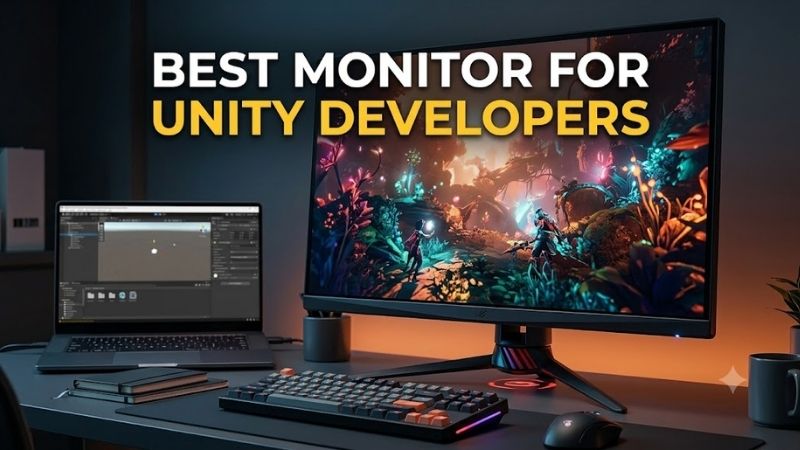
The ASUS ProArt PA279CRV fits developers who also handle UI art, textures, lighting, or marketing assets. Its 27-inch 4K IPS panel gives dense workspace for Unity panels and code, while broad color coverage helps when visual consistency matters. The 60Hz ceiling is the main trade-off for developers building fast-action games.
Its strongest workflow feature is USB-C with 96W Power Delivery, which can carry video, data, and laptop charging through one cable. DisplayPort daisy chaining also suits dual-screen desks. This model makes the most sense for creators who value color control and clean connectivity more than high-refresh play-mode inspection.
Best For: Unity developers combining programming with UI, textures, animation, or other visual production.
Key Features
- 27-inch IPS panel
- 3840 × 2160 resolution
- 60Hz maximum refresh rate
- 99% DCI-P3
- 99% Adobe RGB
- 100% sRGB
- Factory-calibrated Delta E under 2
- USB-C with 96W Power Delivery
- DisplayPort daisy chaining
- Height, swivel, tilt, and pivot adjustment
What Makes It Different: Its combination of broad color coverage, factory calibration, and high-power USB-C is aimed more directly at mixed development and creative work than gaming-first monitors.
Pros
- Sharp 4K workspace for Unity and code
- Strong color-space coverage
- High-power USB-C connection
- Flexible ergonomic stand
- Useful for multi-monitor configurations
Cons
- Limited to 60Hz
- High-refresh game testing requires another display
Use Case: Keep Unity on the main screen while working on UI graphics, textures, lighting references, or video assets that benefit from controlled color reproduction.
Who It’s For: Developers who spend substantial time on both game logic and visual content.
BenQ PD2705U — Best for Multi-System Unity Workflows
The BenQ PD2705U is a practical fit for Unity developers who move between coding, interface work, 3D assets, and content review. The 27-inch 4K IPS panel provides 163 PPI, while 99% sRGB and 99% Rec.709 coverage target common digital workflows. Its CAD/CAM and Animation modes add useful viewing options for asset-heavy projects.
A built-in KVM switch is valuable when one keyboard and mouse need to control two systems, such as a desktop build machine and a development laptop. USB-C supplies up to 65W and carries display plus data. The limitation is again 60Hz, so it favors productivity, UI, and art pipelines over high-frame-rate game testing.
Best For: Developers switching between a laptop and desktop or working heavily with Unity assets.
Key Features
- 27-inch IPS display
- 3840 × 2160 resolution
- 60Hz refresh rate
- 163 PPI
- 99% sRGB
- 99% Rec.709
- CAD/CAM and Animation modes
- Built-in KVM switch
- USB-C with 65W Power Delivery
- Height, swivel, tilt, and pivot adjustment
What Makes It Different: The integrated KVM and creator-specific display modes make it especially convenient for developers running more than one computer at the same desk.
Pros
- Useful KVM functionality
- Detailed 4K workspace
- Creator-oriented display presets
- USB-C video, data, and charging
- Fully adjustable stand
Cons
- 60Hz maximum refresh
- Lower USB-C charging output than some alternatives
Use Case: Connect a development laptop and desktop workstation while sharing the same monitor, keyboard, and mouse.
Who It’s For: Unity developers with multi-device setups or asset-heavy pipelines.
Dell UltraSharp U2723QE — Best Unity Developer Desk Hub
The Dell UltraSharp U2723QE stands out for developers building a workstation around one display. Its 27-inch 4K IPS Black panel combines dense text rendering with a 2000:1 specified contrast ratio, while the integrated USB hub and Ethernet port reduce dock clutter. It is particularly useful for office, hybrid, and laptop-based Unity setups.
USB-C can deliver up to 90W while carrying DisplayPort video, and the monitor also provides multiple USB downstream ports plus 1GbE networking. That turns the screen into a capable desk hub for peripherals and wired networking. The refresh rate is limited to 60Hz, so gameplay-focused developers may prefer a faster panel.
Best For: Laptop-based Unity developers who want the monitor to replace much of a separate docking station.
Key Features
- 27-inch IPS Black panel
- 3840 × 2160 at 60Hz
- 2000:1 specified contrast ratio
- 100% sRGB
- 100% Rec.709
- 98% DCI-P3
- USB-C with up to 90W Power Delivery
- USB 3.2 Gen 2 hub
- 1GbE Ethernet
- Height, swivel, tilt, and pivot adjustment
What Makes It Different: Its extensive USB connectivity and integrated Ethernet make it more workstation-oriented than a conventional 4K monitor.
Pros
- Strong docking functionality
- Numerous peripheral connections
- Integrated wired networking
- 4K resolution for dense Unity layouts
- Flexible ergonomic adjustment
Cons
- 60Hz refresh rate
- No built-in speakers
Use Case: Run a laptop through one USB-C cable while connecting development peripherals and wired networking directly through the monitor.
Who It’s For: Hybrid developers and programmers building a clean single-cable workstation.
GIGABYTE M27U — Best for High-Refresh Unity Game Testing
The GIGABYTE M27U is the strongest fit here for developers who spend significant time judging motion, input feel, camera behavior, or high-frame-rate gameplay. It pairs 3840×2160 resolution with refresh rates up to 160Hz, giving Unity’s editor a sharp workspace while making play-mode movement much smoother than on a 60Hz display.
Its KVM function can switch control between connected systems, and USB-C supports DisplayPort Alternate Mode. The compromise is power delivery: the USB-C port is rated up to 18W, far below the laptop-charging capability of the ASUS, Dell, or BenQ options. Choose it when refresh rate matters more than single-cable laptop power.
Best For: Unity developers creating shooters, racers, action games, or other projects where high-frame-rate motion needs frequent inspection.
Key Features
- 27-inch SuperSpeed IPS panel
- 3840 × 2160 resolution
- Up to 160Hz refresh rate
- 95% DCI-P3
- DisplayPort 1.4 with DSC
- Two HDMI 2.1 ports
- Built-in KVM
- USB-C with DisplayPort Alternate Mode
- USB-C Power Delivery up to 18W
- 130mm height adjustment
What Makes It Different: It combines 4K editor space with a substantially higher refresh rate than the productivity-oriented monitors in this roundup.
Pros
- High-refresh 4K display
- Better suited to motion inspection
- Built-in KVM
- HDMI 2.1 and DisplayPort connectivity
- Strong fit for gaming-focused development
Cons
- USB-C charging is limited to 18W
- Stand does not provide swivel or pivot adjustment
Use Case: Edit code and scenes at 4K, then enter play mode to inspect camera movement, animation, input response, and high-frame-rate gameplay without changing monitors.
Who It’s For: Developers whose Unity projects emphasize responsive or fast-moving gameplay.
LG 27UP850N-W — Best for Straightforward 4K Development
The LG 27UP850N-W is a straightforward 4K option for developers who want a clean mix of resolution, wide-gamut color, and USB-C without workstation-focused extras. Its 27-inch IPS panel supports 3840×2160 resolution, DCI-P3 95% coverage, and up to 60Hz. That combination suits coding, UI work, shaders, and general Unity production.
The stand supports height, tilt, and pivot adjustment, which matters during long coding sessions and when rotating the display for documentation or logs. USB-C, DisplayPort, and two HDMI inputs cover common desktop and laptop connections. It is less suitable for high-refresh gameplay checks, where the M27U has a clear technical advantage.
Best For: Developers who mainly want a conventional 27-inch 4K workspace with USB-C and useful ergonomic adjustment.
Key Features
- 27-inch IPS panel
- 3840 × 2160 resolution
- 60Hz maximum refresh rate
- 400 cd/m² typical brightness
- DCI-P3 95% coverage
- USB-C
- DisplayPort 1.4
- Two HDMI inputs
- Height adjustment
- Tilt and pivot support
What Makes It Different: It keeps the feature set focused on mainstream 4K development rather than adding extensive workstation docking or gaming-specific controls.
Pros
- Sharp 4K panel
- Wide DCI-P3 coverage
- USB-C connectivity
- Adjustable stand
- Simple fit for mixed programming and visual work
Cons
- Refresh rate stops at 60Hz
- Fewer workstation-oriented features than the Dell
Use Case: Use Unity, Visual Studio or Rider, documentation, and creative applications on one high-density display without requiring gaming-focused hardware.
Who It’s For: General Unity developers who prioritize resolution and uncomplicated connectivity.
How to Choose the Best Monitor for Unity Development
Prioritize Resolution and Workspace
Resolution should come first for most Unity workflows. A 4K panel gives more usable room for the Scene view, Game view, Hierarchy, Inspector, Console, profiler windows, and an external code editor. On a 27-inch screen, scaling can keep text comfortable while preserving extra workspace, although GPU load rises when games are rendered natively at 4K.
Match Refresh Rate to the Games You Build
Refresh rate depends on what you build. A 60Hz display is sufficient for coding, level layout, UI work, and most asset review, but 120Hz or higher makes rapid camera movement and animation easier to inspect. Developers targeting competitive or high-frame-rate PC games benefit most, provided the GPU and connection can drive the chosen refresh rate.
Consider USB-C and KVM Support
USB-C matters most for developers using laptops. A single cable can combine video, data, and charging when the monitor supports adequate Power Delivery, reducing the need for a separate dock. Desktop users may care more about DisplayPort, HDMI, a USB hub, or KVM support. Always match the monitor’s ports to the systems you actually use.
Decide How Important Color Accuracy Is
Color accuracy matters when a Unity developer also creates textures, UI elements, lighting references, trailers, or store assets. Wide-gamut coverage can help with visual production, but a dependable sRGB mode is often more relevant for general game content. High refresh deserves priority when motion analysis matters more than color work.
Check the Stand and VESA Support
Ergonomics affect productivity during long development sessions. Height, tilt, swivel, and pivot adjustment help position the screen around your chair, desk, and second monitor. VESA mounting can also free desk space and improve multi-monitor alignment when Unity, an IDE, documentation, and profiling tools stay open together.
FAQ
Is a 4K monitor worth it for Unity development?
Yes, 4K is worthwhile for Unity development when you want sharper text and more room for editor panels, code, documentation, and profiling tools. A 27-inch 4K monitor is especially practical because it combines high pixel density with a familiar desktop footprint. The trade-off is heavier GPU demand when testing games at native 4K.
Do Unity developers need a 144Hz monitor?
A 144Hz or faster monitor is useful for Unity developers who build action games, shooters, racing titles, or any project where motion and input feel matter. It is not required for scripting, UI, scene setup, or asset management. If high-refresh testing is rare, a 60Hz 4K monitor can provide better connectivity or color features for the same budget.
Is an ultrawide monitor better for Unity?
Ultrawide monitors can be useful for Unity because they provide extra horizontal space for the Scene view, Inspector, Hierarchy, Console, and code windows. However, a 27-inch 4K display often delivers sharper text and more vertical pixel density. Choose ultrawide for layout breadth and 4K for compact sharpness and standard 16:9 testing.
Do I need two monitors for Unity development?
Two monitors are not mandatory for Unity, but they can improve workflow by separating the editor from an IDE, documentation, profiler, version control, or communication tools. A single 4K screen can still work well with window snapping and virtual desktops. Dual displays become more valuable as projects and debugging sessions grow more complex.
Conclusion
The best monitor for Unity developers depends on whether your priority is coding space, color work, laptop connectivity, or high-refresh game testing. The ASUS PA279CRV and BenQ PD2705U favor creative workflows, the Dell U2723QE excels as a desk hub, and the GIGABYTE M27U is the better fit when motion clarity matters most.
Ready to decide? Our #1 pick for 2026 is the ASUS ProArt PA279CRV.
Live price & availability on Amazon.