🛒 Best Price Today on Amazon
Prime members get fast, free shipping on everything above, plus member-only deals. New members get a 30-day free trial — cancel anytime.
- Quick comparison: the picks at a glance
- Best budget (and best for most people): Ryzen 7 780M-class 14″ ultrabook
- Best overall if you want one laptop for everything: Lenovo Legion Pro 5-class 16″
- Best for very heavy custom content and mods: 32 GB with two SO-DIMM slots
- Best screen for builders and creators: 14″ OLED with 100% DCI-P3
- Best for long-term upgradeability: Framework Laptop 13 or 16
- How to choose: the numbers that actually matter for The Sims
- Situation → pick
- Frequently Asked Questions
The best laptop for The Sims is usually not a gaming laptop: a 16 GB ultrabook with a Ryzen 7 7840U-class processor and Radeon 780M integrated graphics runs The Sims 4 with a full set of expansions at 1080p high settings for around $550–$800, and it stays quiet and cool on your lap for a four-hour build session. You only need a discrete GPU if you also play other games, run a custom content folder bigger than roughly 30 GB, or want headroom for whatever EA ships after The Sims 4. Everything below is organized around what the game actually stresses — single-thread CPU speed, RAM headroom for CC, and sustained thermals — not around the spec sheet that gaming laptop marketing pushes.
Quick comparison: the picks at a glance
| Pick | Best for | Key specs | Typical price |
|---|---|---|---|
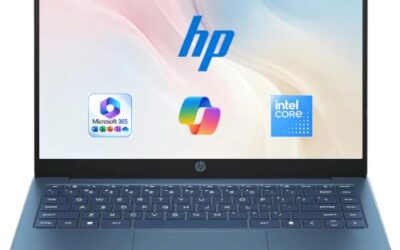
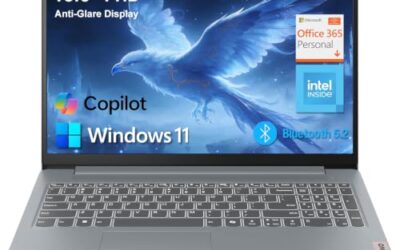
| Ryzen 7 780M-class ultrabook (e.g. Acer Swift Go 14, Lenovo IdeaPad Slim 5 14) | Most Sims players, vanilla to moderate CC | 8-core Ryzen 7, Radeon 780M iGPU, 16 GB LPDDR5X, 512 GB–1 TB NVMe, 14″ 1080p–2.8K | Usually $550–$800 |
| Lenovo Legion Pro 5-class 16″ | One machine for Sims plus other games | HX-class Core i7 / Ryzen 7, RTX 4060/5060-class dGPU (8 GB VRAM), 16–32 GB DDR5 (2 slots), 1 TB NVMe | Usually $1,100–$1,500 |
| Asus TUF Gaming A16-class with 32 GB | Very heavy CC, 40 GB+ mod folders | Ryzen 7/9, 8 GB VRAM dGPU, 32 GB DDR5 in two SO-DIMM slots, 1–2 TB NVMe, 16″ 165 Hz | Usually $1,000–$1,400 |
| Asus Zenbook 14 OLED-class | Builders, decorators, screenshot/thumbnail makers | Core Ultra 7, Arc integrated graphics, 16–32 GB (soldered), 1 TB NVMe, 14″ 3K OLED 100% DCI-P3 | Usually $800–$1,100 |
| Framework Laptop 13 or 16 | Long-term ownership and upgrades | Ryzen 7040/8040-class mainboard, 2 SO-DIMM slots, 2 M.2 slots, user-replaceable battery and ports | Usually $1,100–$1,800 |
Best budget (and best for most people): Ryzen 7 780M-class 14″ ultrabook
The Radeon 780M integrated GPU inside a Ryzen 7 7840U, 8840U or similar chip is genuinely enough for The Sims 4 at 1080p with high settings. In published reviews of 780M-class laptops, The Sims 4 typically lands somewhere in the 40–60 fps range at 1080p high — the exact number varies with settings, resolution, CPU model and patch, so treat it as a band, not a benchmark. A 14-inch chassis with this chip runs cool, stays under 40 dB of fan noise in most configurations, and gives you 6–9 hours of battery on light work and roughly 3 hours of continuous Sims play.
Who it suits: players with the base game plus a handful of expansions and a CC folder under about 20 GB. Main trade-off: no upgrade path for RAM in most 14″ designs, and it will struggle with other demanding games at high settings. Per Acer’s spec sheet, the Swift Go 14 pairs a 780M-class chip with an OLED panel and 16 GB of LPDDR5X — check whether the RAM is soldered before buying, because on this class of machine it almost always is.
Best overall if you want one laptop for everything: Lenovo Legion Pro 5-class 16″
If The Sims is one game among several, a 16-inch Legion Pro 5-class machine with an RTX 4060/5060-class GPU, 16–32 GB of DDR5 in two SO-DIMM slots and a 1 TB NVMe SSD is the balanced pick. The Sims will never use that GPU — it’s wildly overkill — but the two RAM slots and the second M.2 slot are the real reason to buy it, because they let you add 32 GB and 2 TB later for the price of a game instead of a new laptop. The 16″ 2560×1600 panel at 165 Hz is comfortable for the game’s build mode, and the extra screen real estate helps when you keep the gallery open next to the game.
Who it suits: players who split time between The Sims and shooters or simulation-heavy titles. Main trade-off: it’s 2.3–2.6 kg, needs the power brick for full performance, and its fans will spin up audibly during long play sessions even though the game barely loads the GPU.
Best for very heavy custom content and mods: 32 GB with two SO-DIMM slots
Custom content changes the buying math more than any graphical setting does. A 40 GB CC folder full of high-resolution furniture, hair and build/buy meshes is loaded and cached in system memory, and script mods stack on top of that. An Asus TUF Gaming A16-class laptop with 32 GB of DDR5 in two slots, 8 GB of VRAM and a 1–2 TB NVMe drive handles that load without the stutter you get when Windows starts paging to disk. It also has a user-accessible bottom panel, so upgrading to 64 GB later is a ten-minute job with a screwdriver.
Who it suits: players running dozens of script mods alongside a large CC library, or anyone who keeps several generations of saves alive at once. Main trade-off: you’re paying for a gaming GPU you don’t need, and the chassis is heavier and louder than an ultrabook.
Best screen for builders and creators: 14″ OLED with 100% DCI-P3
If you spend more time in build mode than in live mode — recoloring, decorating, taking screenshots or making thumbnails — panel quality matters more than frame rate. An Asus Zenbook 14 OLED-class machine with a 3K OLED panel covering 100% DCI-P3, an Intel Core Ultra 7 and Arc integrated graphics runs The Sims 4 comfortably at 1080p high and shows colors the way they were authored. Arc integrated graphics are broadly in the same performance band as Radeon 780M for this game, per published reviews, so you are not giving up playability for the panel.
Who it suits: builders, decorators and anyone who posts screenshots or videos. Main trade-off: RAM is soldered, there is no discrete GPU, and a thin chassis will thermally throttle during very long sessions — which matters little for The Sims but a lot for other games.
Best for long-term upgradeability: Framework Laptop 13 or 16
Framework is the only mainstream laptop line where the RAM, storage, battery, ports and eventually the mainboard are all user-replaceable, with replacement parts sold directly by the manufacturer. For a game you may keep playing for another five years, that changes the total cost of ownership: a RAM and SSD upgrade costs far less than a new laptop. A Framework 13 with a Ryzen 7040/8040-class mainboard and 16 GB handles The Sims easily; the Framework 16 adds a swappable graphics module if you want other games covered.
Who it suits: players who keep hardware for five-plus years and dislike soldered components. Main trade-off: higher entry price than equivalent-spec mainstream laptops, a heavier chassis on the 16, and a smaller support ecosystem for drivers than Dell, HP or Lenovo.
How to choose: the numbers that actually matter for The Sims
CPU: single-thread speed, not core count
The Sims 4’s simulation — pathing, autonomy, relationship decay, the speed of the 3× clock — runs largely on one or two threads. A modern 8-core Ryzen 7 or Core Ultra 7 with strong single-core performance will feel faster in this game than a 16-core chip from several generations back. This is why a $650 ultrabook can feel smoother in live mode than an older gaming laptop with a bigger GPU. EA’s published recommended specification for The Sims 4 still lists 8 GB of RAM and a GTX 960-class GPU, per the game’s official system requirements — a spec from the game’s 2014 origins that has barely moved since.
GPU and VRAM: how much you need per resolution
VRAM demand for this game is modest, and you can estimate it directly. At 1080p high settings with HD CC textures, The Sims 4 uses roughly 2.5–3.5 GB of VRAM. At 1440p ultrawide high it sits around 4–5 GB. At 4K high with heavy HD CC it approaches 6 GB. So 6 GB of VRAM covers every realistic Sims 4 setup; 8 GB is future-proofing for whatever comes next. Do not buy a laptop on the strength of its GPU tier alone.
RAM: a worked budget
| Load | Approximate RAM used |
|---|---|
| Windows 11 plus background apps (browser, Discord, Spotify) | 5–7 GB |
| The Sims 4 base game in a large, long-running save | 3–4 GB |
| A dozen or more expansions and game packs loaded | 1–2 GB |
| A 40 GB custom content folder | 2–4 GB |
| Script mods (MCCC and similar) | 0.5–1 GB |
| Total | 11.5–18 GB |
That total is the reason 16 GB is the floor and 32 GB is the comfortable target. If your CC folder is small and you close the browser, 16 GB is fine forever. If you are near the top of every range, 16 GB means Windows starts paging to the SSD during load screens, which is exactly the stutter people blame on their GPU.
Storage: a worked total
Windows 11 plus the EA app is about 35 GB. The Sims 4 with all expansions and game packs is roughly 60–70 GB. A 40 GB CC folder adds 40 GB, and saves, screenshots and video captures can easily reach 20 GB. That’s about 165 GB before you install anything else. On a 512 GB drive (roughly 476 GB usable) that leaves around 310 GB — fine, until you add two modern games at 100 GB each and drop to about 110 GB free. A 1 TB NVMe drive is the sane target, and it also shortens load screens: The Sims 4’s load times and its CAS scroll with a big CC library are bound by storage speed and RAM, not by the GPU.
Thermals, screen and battery
Sustained thermals matter more here than peak performance, because a Sims session runs for hours. A chassis that throttles after 30 minutes will produce more stutter in a four-hour build session than a slower laptop that holds its clocks. Fan noise is also a real quality-of-life factor in a game this quiet.
For battery, the arithmetic is straightforward. A 70 Wh battery with The Sims 4 running on integrated graphics draws roughly 23 W total — about 15 W for the CPU package, 4 W for the display and 4 W for the rest of the system — which works out to about 3 hours. Add a discrete GPU drawing 30–40 W and you’re at 55–60 W, or roughly 1.2 hours. If unplugged play matters to you, integrated graphics isn’t a compromise; it’s the only option.
Situation → pick
| Your situation | What to buy |
|---|---|
| Base game plus a few packs, CC under 20 GB, no other games | Ryzen 7 780M-class 14″ ultrabook, 16 GB, 512 GB–1 TB |
| CC folder 30–50 GB, several script mods, long saves | 32 GB RAM in two SO-DIMM slots, 1–2 TB NVMe |
| Sims plus other games at high settings | 16″ machine with a 4060/5060-class GPU and two RAM slots |
| Mostly build mode, screenshots, thumbnails, video | 14″ OLED, 100% DCI-P3, 16–32 GB |
| You keep laptops 5+ years | Framework 13/16 or any chassis with two RAM slots and a replaceable battery |
| You play mostly unplugged | Integrated graphics, 60 Wh+ battery, no discrete GPU |
Frequently Asked Questions
Is 8 GB of RAM enough for The Sims 4?
It’s enough for the base game with a handful of packs and no custom content, which is what EA’s published recommended spec assumes. Once you add a large CC folder and script mods, 8 GB means constant paging to the SSD and long load screens. Treat 16 GB as the practical minimum for a modded setup and 32 GB as the comfortable one.
Do I need a gaming laptop to play The Sims with mods?
No. The Sims 4’s simulation is CPU-bound and its GPU demands are light, so a modern 8-core ultrabook with integrated graphics handles a modded game fine at 1080p. What a gaming laptop buys you is RAM and storage expandability, better sustained cooling, and the ability to play other games — not Sims performance.
Will The Sims 4 run well on a MacBook?
The Sims 4 runs natively on Apple Silicon Macs, and an M-series MacBook Air or Pro with 16 GB handles the game and moderate custom content smoothly. The catch is upgradeability — RAM and storage are fixed at purchase — and some community CC-creation tools are Windows-only, so check the specific tools you rely on before committing to macOS.
How much storage do I need for all expansions plus custom content?
Budget roughly 165 GB: about 35 GB for Windows and the EA app, 60–70 GB for the game with all packs, 40 GB for a large CC folder, and 20 GB for saves, screenshots and captures. A 1 TB SSD leaves enough room for a couple of other games; a 512 GB drive works only if The Sims is the sole large install.
Does The Sims 4 use multiple CPU cores?
Only partially. Rendering and some background work spread across cores, but the simulation tick — the thing that determines how fast the 3× speed setting feels — is largely limited to one or two threads. That’s why single-core performance and clock speed matter more than core count when you compare laptops for this game.
Do I need a high-refresh screen for The Sims?
No. The game is not competitive and 60 Hz is perfectly comfortable, so a 120 Hz or 165 Hz panel is a nice-to-have rather than a requirement. Spend the difference on RAM or a 1 TB SSD instead — both change how the game actually feels, while refresh rate barely does. If you do buy a high-refresh panel, note that The Sims 4’s frame rate is capped by its engine and your CPU, not by the display.