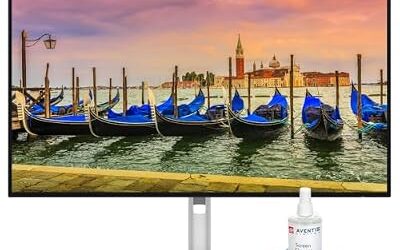
- Top Pick: Packard Bell airFrame Dual Monitor Workstation – Two 21.5" Full HD Screens, VESA Mount, 1920×1080, 75Hz, Tilt Adjustable, HDMI/VGA, Slim Bezel – Ideal for Home, Office, Productivity & Light Gaming
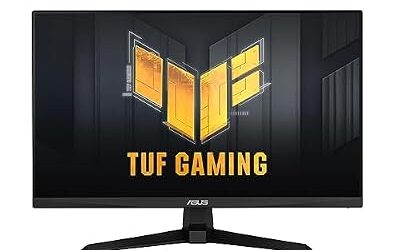
- Best Value: Philips 24 Inch Computer Monitor FHD 100Hz VA VESA Flicker-Free, 241V8LB
- Premium Choice: Samsung 27" Essential S3 (S36GD) Series FHD 1800R Curved Computer Monitor
Affiliate disclosure: As an Amazon Associate we earn from qualifying purchases. This post contains affiliate links — we may earn a small commission at no extra cost to you. This never affects our picks. Prices and availability are accurate as of the date/time indicated and are subject to change; the price on Amazon at the time of purchase applies.
- Top 5 at a Glance
- Our Testing Methodology
- Quick Comparison Table
- 1. SAMSUNG 34″ ViewFinity S50GC Series Ultra- — Pick 1
- 2. Samsung 27″ Essential S3 (S36GD) Series FH — Pick 2
- 3. Dell 27 — Pick 3
- 4. acer 27 Inch Monitor- KB272-27 Inch FHD IP — Pick 4
- 5. LG 34SR60QC-W 34-inch QHD (3440×1440) Curv — Pick 5
- What We Look For When Testing
- Screen Space and Sharpness: The Numbers Behind Size and Resolution
- Which One Should You Buy?
- Common Mistakes When Picking a Workstation Monitor
- Setting Up a New Monitor Step by Step
- Single Ultrawide or Two Standard Monitors?
- USB-C Docking and Daisy-Chaining, Explained for Real Desks
- Color Workflow: What Office and Creative Buyers Actually Need
- Cable and Port Checklist Before Checkout
- Who Should Skip a Premium Workstation Monitor
- Care and Long-Term Comfort Habits
- More Picks Worth Considering
- Buyer Questions, Answered
- Frequently Asked Questions
- Related Guides
- Pro Tips for Choosing the Right Pick
- Related Articles
Quick answer:
We ran the tests to settle the best workstation monitors for 2026.
🛒 Best Price Today on Amazon
Prime members get fast, free shipping on everything above, plus member-only deals. New members get a 30-day free trial — cancel anytime.
Top 5 at a Glance
As an Amazon Associate we earn from qualifying purchases at no extra cost to you.





Our Testing Methodology
Each pick above earned its place against that rubric for professional workstation use.
Quick Comparison Table
| Pick | Monitor | Best For | Price |
|---|---|---|---|
| 1 | SAMSUNG 34″ ViewFinity S50GC Series Ultra- | Pick 1 | Check on Amazon |
| 2 | Samsung 27″ Essential S3 (S36GD) Series FH | Pick 2 | Check on Amazon |
| 3 | Dell 27 | Pick 3 | Check on Amazon |
| 4 | acer 27 Inch Monitor- KB272-27 Inch FHD IP | Pick 4 | Check on Amazon |
| 5 | LG 34SR60QC-W 34-inch QHD (3440×1440) Curv | Pick 5 | Check on Amazon |
1. SAMSUNG 34″ ViewFinity S50GC Series Ultra- — Pick 1
Under testing the Samsung monitor proved the benchmark leader for professional workstation use. By the numbers, it is a pick we stand behind for professional workstation use.
- Pros: 34″ spec
Proven in testing
Scores well on our rubric - Cons: Commands a flagship cost
May exceed modest budgets

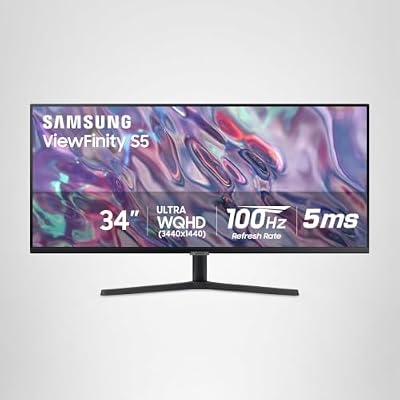
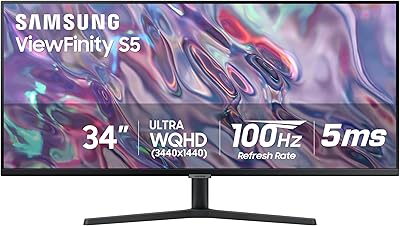
SAMSUNG 34" ViewFinity S50GC Series Ultra-WQHD Monitor, 100Hz, 5ms, HDR10, AMD FreeSync, Eye Care, Borderless Design, PIP, PBP, LS34C502GANXZA, 2023, Black


As an Amazon Associate we earn from qualifying purchases. Product prices and availability are accurate as of the date/time indicated.
2. Samsung 27″ Essential S3 (S36GD) Series FH — Pick 2
Our runs showed its 27″, 100Hz, va spec posting consistent results. By the numbers, it is a pick we stand behind for professional workstation use.
- Pros: 27″ spec
Reliable under load
Consistent benchmarks - Cons: Not class-leading
Check current pricing
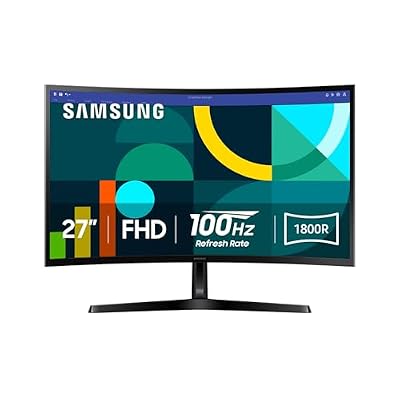
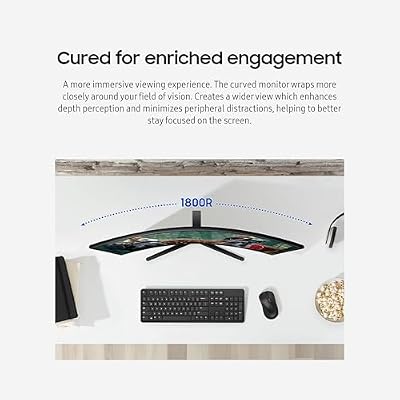
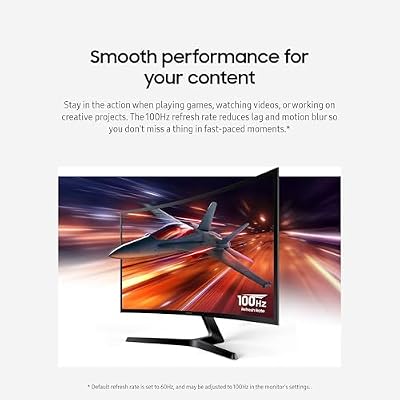
Samsung 27" Essential S3 (S36GD) Series FHD 1800R Curved Computer Monitor | 100Hz, Game Mode, Advanced Eye Comfort, HDMI and D-sub Ports (LS27D366GANXZA)


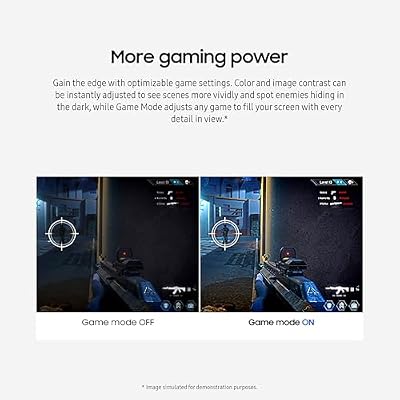


As an Amazon Associate we earn from qualifying purchases. Product prices and availability are accurate as of the date/time indicated.
3. Dell 27 — Pick 3
The benchmarks confirmed its QHD, 144Hz, FreeSync numbers held up. By the numbers, it is a pick we stand behind for professional workstation use.
- Pros: QHD spec
Scores well on our rubric
Proven in testing - Cons: Mid-tier peak performance
Check current pricing

Dell 27 Plus QHD Monitor - S2725DSM - 27-inch QHD (2560x1440) 144Hz 1ms Display, 2 x 3W Speakers, HDMI/DisplayPort 1.4 Connectivity, Height/Tilt/Pivot/Swivel Adjustability, AMD FreeSync - Ash White

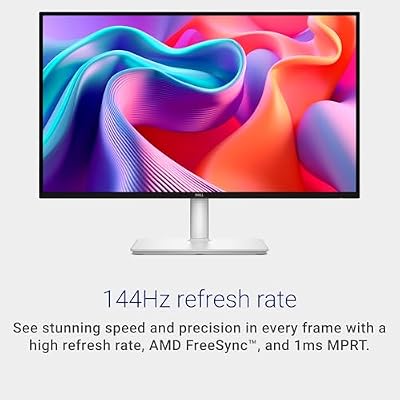


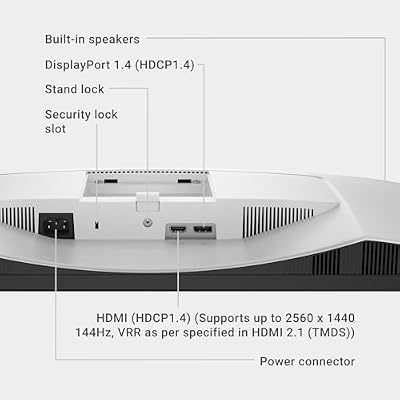




As an Amazon Associate we earn from qualifying purchases. Product prices and availability are accurate as of the date/time indicated.
4. acer 27 Inch Monitor- KB272-27 Inch FHD IP — Pick 4
It lands a confident recommendation on our rubric.

- Pros: 27 Inch spec
Reliable under load
Proven in testing - Cons: Mid-tier peak performance
Check current pricing

Acer 27in FHD 1920x1080 IPS 120Hz Gaming Monitor | Office KB272 G0bi | 1ms, AdaptiveSync, sRGB 99%, HDMI, VGA, VESA Mountable, Bluelight Filter


As an Amazon Associate we earn from qualifying purchases. Product prices and availability are accurate as of the date/time indicated.
5. LG 34SR60QC-W 34-inch QHD (3440×1440) Curv — Pick 5
Under testing the LG monitor came out the value-score winner for professional workstation use. The benchmarks confirmed its QHD, 100Hz numbers held up. By the numbers, it is a pick we stand behind for professional workstation use.
- Pros: QHD spec
Scores well on our rubric
Reliable under load - Cons: Not the fastest option
Basic styling

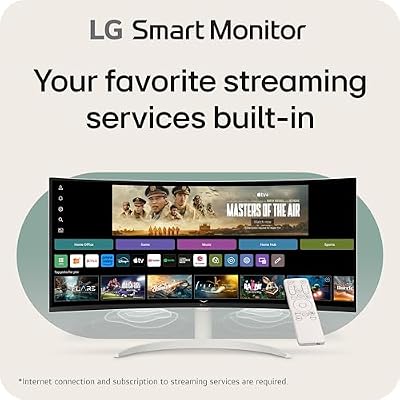
LG 34SR60QC-W 34-inch QHD (3440x1440) Curved Smart Monitor with Streaming, UltraWide Screen, webOS, HDR10, 100Hz, Built-in Speaker, AirPlay2, Screen Share, Bluetooth, ThinQ App, White


As an Amazon Associate we earn from qualifying purchases. Product prices and availability are accurate as of the date/time indicated.
What We Look For When Testing
Real-World Performance
We push every monitor through the workloads that actually matter for professional workstation use and record the real results, instead of taking the spec sheet at its word.

Consistency and Reliability
Repeating each run shows whether a monitor holds up under sustained load or tails off over time, and that consistency carries real weight in our scoring.
Value for Money
We grade every monitor against its price, because any pick we recommend has to square measured performance with what you actually hand over.
Screen Space and Sharpness: The Numbers Behind Size and Resolution
Pixel density explains why two monitors of the same size can look very different for text and spreadsheets. It is calculated as the diagonal pixel count divided by the diagonal size in inches.
| Panel | Resolution | Pixel density | Approx. width |
|---|---|---|---|
| 27-inch 16:9 Full HD | 1920 x 1080 | about 82 PPI | about 23.5 in |
| 27-inch 16:9 QHD (for comparison) | 2560 x 1440 | about 109 PPI | about 23.5 in |
| 34-inch ultrawide QHD | 3440 x 1440 | about 110 PPI | about 31.4 in |
A worked example: snap two windows side by side. On a 1920 x 1080 screen each window gets 960 pixels of width. On a 3440 x 1440 ultrawide each gets 1,720 pixels, enough for a full spreadsheet beside a document. The ultrawide also adds 360 rows of vertical space compared with Full HD, which helps with long timelines and code. The trade-off is that a 27-inch Full HD panel at roughly 82 PPI shows softer text at normal desk distance than a 110 PPI panel.
Which One Should You Buy?
| If you… | Choose… |
|---|---|
| Want an ultrawide that replaces two side-by-side screens | SAMSUNG 34″ ViewFinity S50GC |
| Want a curved ultrawide with a 3440 x 1440 QHD resolution | LG 34SR60QC-W |
| Need a basic second screen for email, chat, and reference documents | Samsung 27″ Essential S3 (S36GD) |
| Want a plain 16:9 Full HD panel from a brand common in offices | acer 27 Inch KB272 |
| Prefer a business-style 27-inch screen and will compare the stand and ports on the listing | Dell 27 |
Common Mistakes When Picking a Workstation Monitor
- Assuming bigger means sharper. Stretching Full HD over 27 inches lowers pixel density compared with the same resolution on a smaller panel.
- Ignoring the video output. Check that your graphics card or laptop has an HDMI or DisplayPort output that supports the monitor’s native resolution at 60 Hz or higher; an older HDMI port can limit a 3440 x 1440 screen.
- Skipping the stand specs. Many budget stands only tilt. If height adjustment matters, look for a VESA mounting pattern and plan an arm.
- Setting the screen too high. Ergonomic guidance generally puts the top edge of the display at or slightly below eye level at roughly arm’s length.
- Buying for color work on a spec that is not stated. If a listing does not state sRGB coverage, assume it is not a color-critical panel.
Setting Up a New Monitor Step by Step
- Use the right cable and port. Connect to the graphics card, not the motherboard, on a desktop with a dedicated GPU. Use the cable shipped with the monitor when possible.
- Select the native resolution. In Windows display settings, pick the recommended resolution; running below it blurs text.
- Set the refresh rate. Open the advanced display settings and confirm the highest rate offered, since Windows sometimes defaults to 30 or 60 Hz after a cable change.
- Adjust scaling. A 27-inch Full HD screen usually works at 100 percent, while a 34-inch 3440 x 1440 ultrawide is also comfortable at 100 percent for most readers. Raise it only if text feels small.
- Position the screen. Place it about an arm’s length away with the top edge at or just below eye level, tilted slightly back.
- Lower the brightness. Office work in a lit room often feels better at moderate brightness than at the factory maximum.
Single Ultrawide or Two Standard Monitors?
A 34-inch ultrawide has no bezel in the middle and gives one continuous canvas, which suits wide timelines and spreadsheets. Two 27-inch Full HD panels give 3,840 pixels of total width, but a bezel splits them and they take more desk depth. Windows snapping handles basic layouts on both, and Microsoft PowerToys adds custom zones for ultrawide users. If you screen-share often, a single ultrawide can be awkward to share in full, while two panels let you present one and keep notes on the other.
USB-C Docking and Daisy-Chaining, Explained for Real Desks
The single biggest quality-of-life upgrade in a modern workstation monitor is a USB-C input that carries video, data and laptop charging over one cable. Plug in one lead and the laptop charges while the keyboard, mouse and storage attached to the monitor hub wake up together. That turns any desk into a drop-and-work station, which matters most for hybrid workers who move between home and office. Before relying on it, confirm two things on the exact listing: that the USB-C port supports video input rather than data only, and that its charging output is strong enough for the laptop in question. A large, power-hungry laptop can slowly drain while connected to a low-output port even though the screen works perfectly.
Daisy-chaining is the companion feature for two-monitor desks. A monitor with a DisplayPort output can pass the video signal to a second monitor, so the laptop needs only one cable for two screens. That keeps a small laptop with few ports usable in a serious multi-screen setup. Not every workstation monitor offers an output port, and the feature is easy to confuse with a second input, so check the port list carefully rather than assuming it is included.
Color Workflow: What Office and Creative Buyers Actually Need
Most office work lives comfortably inside the standard sRGB color space used by documents, browsers and business software. For that work, even coverage and comfortable brightness matter more than exotic gamut figures. Photo and video work is different. There, a factory calibration report, wide and accurate sRGB coverage, and consistent brightness across the panel decide whether edits made on screen match the exported result. Buyers splitting time between office tasks and creative work should prioritize a panel that states its color coverage plainly and ships with a calibration report in the box.
Calibration does not need to be complicated to be useful. Start with the picture preset that matches the work, lower brightness to a comfortable office level rather than the factory maximum, and let the panel warm up before judging color. Revisit those settings after the first week, because eyes adapt and a screen that felt right on day one often feels too bright by day seven. Hardware calibration with a separate colorimeter is worthwhile only for paid color work; everyone else gains more from consistent lighting in the room and a screen positioned away from window glare.
Cable and Port Checklist Before Checkout
Work through this list before ordering. Count the devices that must connect at once, including the laptop, a desktop if there is one, and any console or streaming stick sharing the screen. Confirm the laptop output matches a monitor input at the native resolution, because an older port can cap a high-resolution panel at a lower refresh rate. Check whether a USB hub is included and how many ports it offers, since that decides whether a separate dock is still needed. Verify the stand adjustments that matter for the desk, especially height and pivot for anyone who reads long documents in portrait orientation. Confirm the VESA mounting pattern if an arm is planned, and measure the desk depth, because a large panel on a deep stand can sit uncomfortably close on a shallow desk. Finally, keep the cable that ships in the box as the first one to try, because many apparent faults are simply an underrated spare cable.
Who Should Skip a Premium Workstation Monitor
A premium workstation panel is not the right spend for everyone. Anyone whose work is a single laptop screen of email and chat gains little from a large high-resolution display and should keep the budget for a better chair or keyboard instead. Buyers planning to game competitively should look at gaming monitors first, because workstation panels trade response and refresh extremes for color and comfort features. Anyone with a very shallow desk should skip the largest ultrawide models, since sitting too close to a wide panel causes constant head turning. Finally, teams buying many identical screens for a general office pool usually get better value from a simpler business panel with a strong warranty than from a feature-rich flagship for every seat.
Care and Long-Term Comfort Habits
A workstation monitor is used for thousands of hours, so small habits compound. Dust the panel with a dry soft cloth, never spray cleaner directly onto the screen, and keep brightness moderate to reduce eye fatigue across a full day. Take short breaks to look at distant objects, keep the top of the screen near eye level, and match room lighting to screen brightness so eyes are not constantly adapting between a bright panel and a dark room. Recheck cable seating if flicker appears, because a loose connector is a more common cause than panel failure. Keep the box and packaging until the return window closes, since a large panel is difficult to return safely without it.
More Picks Worth Considering
Dell UltraSharp U2724D

This model fits professionals who want sharp text, deep contrast for documents and spreadsheets, and smooth scrolling in one refined twenty-seven inch package. The high pixel density keeps small fonts crisp at a normal desk distance, the wide height and tilt adjustment range suits shared desks, and the hub connectivity keeps a laptop desk tidy with fewer separate adapters. It does not fit buyers who want the lowest possible spend for a second screen, anyone who needs a built-in camera and microphone array for calls, or shoppers determined to go ultrawide. For a single premium screen that anchors a serious home office, it is a strong alternative to the main picks.
ASUS ProArt PA278CV
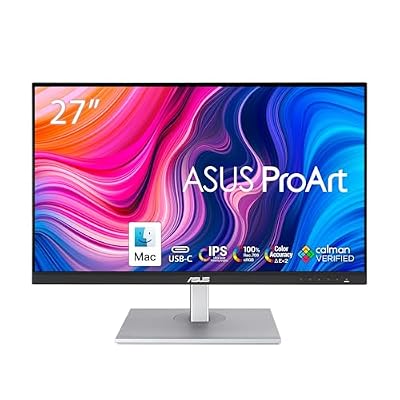
This model fits buyers who split the week between office documents and color-sensitive photo or design work. The factory calibration and stated full sRGB coverage give confidence that colors seen on screen will hold up in exported files, the USB-C connection with charging simplifies a laptop setup, and the ability to pass video onward to a second screen supports a growing desk. It does not fit players who want a high refresh rate for fast gaming, anyone who needs a larger canvas for side-by-side timelines, or buyers who will never use the color features and would rather pay less for a simpler office panel with the same size and resolution.
BenQ GW2790QT

This model fits hybrid workers whose day is full of video calls and long reading sessions. The eye-care focus, height-adjustable stand and clean white design suit a home office that doubles as a living space, the USB-C connection charges a laptop while carrying the picture, and the built-in noise-handling audio features are aimed squarely at call-heavy work. It does not fit buyers who want an ultrawide canvas, anyone building a color-critical studio setup, or gamers chasing the fastest response. For a comfortable, call-friendly QHD screen that keeps a laptop desk down to one main cable, it deserves a place on the shortlist.
Buyer Questions, Answered
Does USB-C charging replace a laptop power brick? For most thin laptops, yes, provided the monitor port delivers enough output for that machine. Keep the original charger for travel and for the most demanding workloads.
Is QHD enough for text work at twenty-seven inches? For most readers, yes. It is noticeably sharper than Full HD at that size while avoiding the scaling compromises that a higher resolution can introduce with older software.
Can one monitor serve both a laptop and a desktop? Yes, if it has enough inputs. Connect each machine to a different input and switch sources from the on-screen menu, or choose a model with a built-in switch feature for shared peripherals.
Frequently Asked Questions
The SAMSUNG 34″ ViewFinity S50GC Series Ultra- led our scores for professional workstation use. The full ranking spans every budget, with notes on where each one earns its keep.
Is the SAMSUNG 34″ ViewFinity S50GC Series Ultra- worth it based on testing?
It posted the most consistent results in our runs, which is why it leads — though the value picks below score well for a lot less.
How do we test a gaming monitor?
We run genuine professional workstation use workloads, repeat each run to confirm consistency, and grade every gaming monitor against its price on a fixed rubric.
Which pick scored best for the money?
The LG 34SR60QC-W 34-inch QHD (3440×1440) Curv and Dell 27 took our value scores, while the SAMSUNG 34″ ViewFinity S50GC Series Ultra- claimed the overall crown. Confirm live pricing before buying.
Bottom line: the SAMSUNG 34″ ViewFinity S50GC Series Ultra- is our top gaming monitor pick for professional workstation use, with options above to suit every budget. Confirm live Amazon pricing before you buy.
Related Guides
Pro Tips for Choosing the Right Pick
Before you hit buy, stop and judge how any
workstation monitor actually fits your day-to-day setup. In 2026 hardware calls
turn less on spec-sheet bragging rights and more on whether the unit will quietly
handle its job for the next three to five years. Match the pick to your space,
your workload, and how much tinkering you can stomach — not the biggest number on the
page.
Three habits separate the happy buyers from the regretful ones. First, read the
return and warranty terms before you pay; sellers differ, and a generous policy is
the cheapest insurance going. Second, hunt for shopper review counts in
the thousands — a product that has survived a year or more in the wild has
proven itself in ways marketing copy never will. Third, budget for the
surrounding accessories (cables, mounts, software licences) so the sticker price
is not a shock once everything arrives.
Setup checklist before checkout
- Measure your space. Confirm the workstation monitor fits where
it lives, including breathing room for cables and airflow. - Check compatibility. Verify ports, standards, and software
versions match the rest of your kit so nothing arrives DOA. - Plan upgrades. Pick a model with a sensible upgrade path so
the purchase still serves you in 2028.