🛒 Best Price Today on Amazon
Prime members get fast, free shipping on everything above, plus member-only deals. New members get a 30-day free trial — cancel anytime.
- What Is a USB Receiver for a Wireless Keyboard and Mouse?
- How Does a Wireless USB Receiver Work?
- Can One USB Receiver Connect Both Keyboard and Mouse?
- Are Wireless Keyboard and Mouse Receivers Universal?
- USB Receiver vs Bluetooth
- Is a USB Receiver Better for Gaming?
- Where Should You Plug In the USB Receiver?
- Can USB 3.0 Interfere With a 2.4 GHz Receiver?
- Does a USB Receiver Need Drivers?
- What Happens If You Lose the USB Receiver?
- How to Pair a Keyboard or Mouse With a New Receiver
- Why Is the Wireless Keyboard or Mouse Not Working?
- Can You Use a USB Hub With the Receiver?
- FAQ
- Conclusion
A USB receiver for wireless keyboard and mouse devices is a small adapter that lets compatible peripherals communicate with a computer over a dedicated wireless connection. It is often faster and simpler than Bluetooth, but receivers are not universally interchangeable, and one dongle can control both devices only when the hardware supports it.
What Is a USB Receiver for a Wireless Keyboard and Mouse?
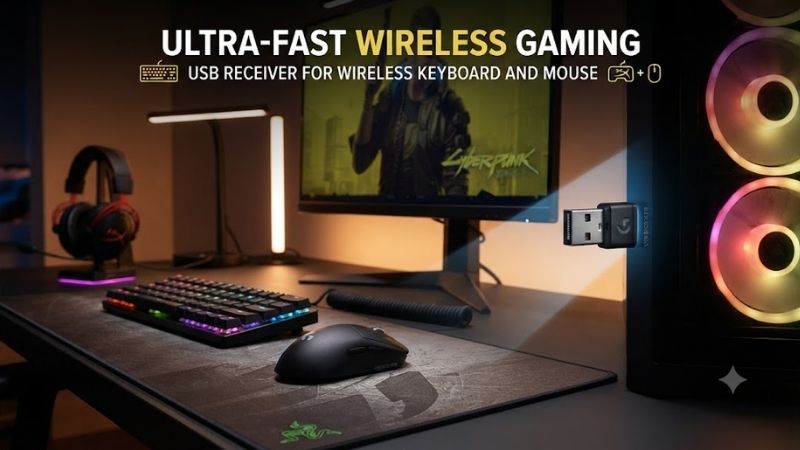
A USB receiver is a small radio adapter that plugs into a computer’s USB port and receives signals from a compatible wireless keyboard, mouse, or other peripheral. Most models use the 2.4 GHz frequency range and appear to the operating system as standard input devices, so additional configuration is often minimal.
The receiver communicates with the keyboard or mouse through a wireless protocol defined by the manufacturer. Unlike a wired USB device, the peripheral sends button presses, pointer movement, or scroll information through radio signals first. The receiver then converts those signals into input the computer can recognize.
How Does a Wireless USB Receiver Work?
When a wireless keyboard or mouse is paired with its receiver, both devices store information that allows them to recognize each other. The peripheral transmits input data through its built-in radio, and the receiver listens for that signal. The computer then processes the received information like ordinary keyboard or mouse input.
This approach differs from Bluetooth because the dedicated receiver handles the wireless connection itself. The computer does not necessarily need built-in Bluetooth hardware. That makes 2.4 GHz dongles useful for desktop PCs, older laptops, gaming systems, and office computers where Bluetooth support is unavailable or unreliable.
Can One USB Receiver Connect Both Keyboard and Mouse?
One receiver can connect both a wireless keyboard and mouse only when the manufacturer has designed the devices and receiver to support multi-device pairing. Some keyboard-and-mouse bundles ship pre-paired to one dongle, while certain ecosystems allow several separately purchased compatible peripherals to share a receiver.
You cannot assume that two products from the same brand will use the same receiver technology. Manufacturers may operate several wireless platforms at the same time, and gaming devices can use protocols different from office peripherals. Always check the exact receiver family before trying to combine multiple devices on one USB adapter.
Are Wireless Keyboard and Mouse Receivers Universal?
Wireless USB receivers are generally not universal. A generic 2.4 GHz mouse receiver cannot normally be replaced by another random 2.4 GHz dongle, even when the connector and frequency are identical. Pairing methods, encryption, firmware, identifiers, and radio protocols can differ significantly between manufacturers and product families.
This is why losing a receiver can be a problem with inexpensive wireless peripherals. Some models are permanently paired at the factory and offer no supported replacement procedure. Others can connect to a separately purchased compatible receiver through manufacturer software, but compatibility must be confirmed for the exact keyboard or mouse.
USB Receiver vs Bluetooth
A USB receiver uses a dedicated wireless adapter, while Bluetooth relies on the Bluetooth radio built into the computer or an external Bluetooth adapter. Receiver-based peripherals can be easier to set up because pairing is often completed at the factory, whereas Bluetooth devices usually need to be discovered and paired through operating-system settings.
Dedicated 2.4 GHz connections are also commonly used in gaming mice and keyboards because manufacturers can optimize polling behavior and latency for their own hardware. Bluetooth prioritizes broad compatibility and convenience across phones, tablets, and computers, but performance characteristics vary by device and Bluetooth implementation.
Is a USB Receiver Better for Gaming?
A dedicated receiver is often preferable for gaming when the keyboard or mouse was designed around a low-latency 2.4 GHz connection. Gaming manufacturers can optimize the radio link for fast input reporting, while some devices lower their polling rate or change behavior when operating through Bluetooth to reduce battery consumption.
However, the receiver alone does not guarantee low latency. Sensor processing, keyboard scanning, firmware, polling rate, wireless interference, and the quality of the peripheral all affect response time. A well-designed gaming mouse with its original receiver is different from a basic office mouse that simply uses the same 2.4 GHz spectrum.
Where Should You Plug In the USB Receiver?
For most users, the receiver can be connected to any compatible USB port, but physical placement can affect wireless reliability. Metal cases, dense cable bundles, other USB devices, and distance can interfere with the radio signal. A front USB port or short extension cable can sometimes provide a cleaner path to the keyboard and mouse.
Gaming mouse manufacturers often include an extension adapter that lets the receiver sit closer to the mouse pad. Reducing distance and obstacles can improve connection consistency in environments with many wireless devices. This does not make the mouse inherently faster, but it can reduce the chance of interference-related input drops.
Can USB 3.0 Interfere With a 2.4 GHz Receiver?
USB 3.x equipment can generate electromagnetic noise around frequencies that overlap with the 2.4 GHz band. In some setups, placing a wireless receiver immediately beside an active USB 3 external drive or cable may reduce wireless reliability. The effect varies with hardware, shielding, distance, and surrounding interference.
If the keyboard or mouse occasionally disconnects, skips, or responds inconsistently, move the receiver away from USB 3 storage devices and hubs before replacing hardware. Using a short extension cable or another USB port can be an easy diagnostic step, especially when the problem appears only while a high-speed external drive is active.
Does a USB Receiver Need Drivers?
Most basic wireless keyboard and mouse receivers use standard USB Human Interface Device support built into Windows, macOS, and other operating systems. This lets common functions work without manually installing a driver. The computer may automatically configure the receiver shortly after it is connected for the first time.
Manufacturer software may still be required for advanced features such as button remapping, macros, RGB lighting, battery information, firmware updates, profile management, or receiver pairing. Removing that software usually does not stop basic typing and pointer movement, but additional functions may become unavailable.
What Happens If You Lose the USB Receiver?
The correct solution depends on the peripheral. Some wireless devices support replacement receivers that can be paired through official software, while others work only with the dongle originally included in the package. Certain keyboards and mice also include Bluetooth, giving the user another connection option if the receiver is lost.
Before buying a replacement, identify the exact model number and receiver technology. A physically similar dongle may not work. Avoid assuming that all receivers with the same brand logo are compatible, because product generations and wireless ecosystems can use different hardware even when their external appearance is almost identical.
How to Pair a Keyboard or Mouse With a New Receiver
If the manufacturer supports receiver replacement, connect the compatible dongle and install the official pairing utility when required. Put the keyboard or mouse into pairing mode according to its instructions, then follow the software process. Some systems automatically detect compatible devices once the receiver enters pairing mode.
Do not use random third-party pairing tools or firmware unless the manufacturer specifically supports them. Incorrect firmware can make the receiver or peripheral unusable. If the device was sold as a permanently paired budget model with no replacement procedure, replacing the complete keyboard or mouse may be the only practical option.
Why Is the Wireless Keyboard or Mouse Not Working?
Start by checking battery charge, the power switch, receiver connection, and USB port. Reconnect the receiver directly to the computer instead of through an unpowered hub. If possible, test another port and restart the peripheral. These simple checks can distinguish a power or USB problem from an actual wireless pairing failure.
Wireless interference is another common cause. Move the receiver closer to the peripheral and away from routers, external drives, hubs, or other 2.4 GHz equipment. If only one device in a shared keyboard-and-mouse bundle stops working, its battery, pairing state, or hardware may be the issue rather than the receiver itself.
Can You Use a USB Hub With the Receiver?
A keyboard or mouse receiver usually consumes very little bandwidth, so it can work through a standard USB hub. Problems are more likely to involve power quality, radio placement, or interference than bandwidth. A hub hidden behind a metal desktop PC may provide a worse wireless position than a direct front-panel connection.
If the receiver behaves inconsistently through a hub, test it directly on the computer. This is particularly useful with crowded hubs containing external SSDs, webcams, capture devices, and other high-speed USB hardware. Separating the receiver can improve both signal positioning and troubleshooting clarity.
FAQ
Do Wireless Keyboards and Mice Need Separate USB Receivers?
Not always. Bundled devices may share one receiver, and some manufacturer ecosystems support several compatible peripherals on one dongle. Other products require separate receivers. Compatibility depends on the wireless platform rather than simply whether both devices use 2.4 GHz.
Can I Replace a Lost Wireless Mouse Dongle?
Sometimes. Certain manufacturers sell or support compatible replacement receivers that can be paired through official software. Other mice are permanently paired to the original dongle. Check the exact model and receiver family before purchasing another adapter.
Is 2.4 GHz Better Than Bluetooth for a Mouse?
A well-designed 2.4 GHz gaming connection can offer lower latency and higher polling rates than some Bluetooth modes. Bluetooth is more convenient because it does not occupy a USB port. The better choice depends on gaming requirements, battery life, device support, and the specific peripheral.
Can One Receiver Work With Different Brands?
Normally no. Wireless receivers use manufacturer-specific protocols, firmware, and pairing systems. Even receivers from the same company may belong to different ecosystems. Use only a receiver explicitly listed as compatible with the exact keyboard or mouse.
Why Does My Wireless Mouse Lag With the Receiver?
Possible causes include low battery power, radio interference, excessive distance, poor receiver placement, USB 3.x interference, or a crowded 2.4 GHz environment. Moving the receiver closer with an extension cable can help identify whether the problem is related to signal quality.
Conclusion
A USB receiver for wireless keyboard and mouse devices provides a simple dedicated connection without relying on built-in Bluetooth. One receiver can handle both peripherals when the system supports shared pairing, but dongles are rarely universal. For reliable use, match the correct receiver, reduce interference, and position it near the devices.