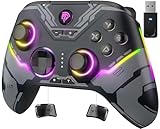
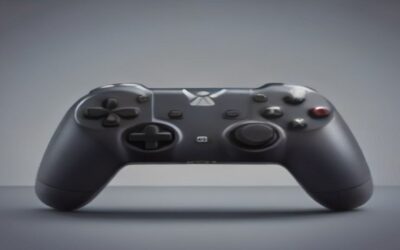
- Top Pick: AceGamer 2 Pack Stinto Pro Wireless Controller for Nintendo Switch 2/Switch/Lite/OLED/PC/Steam, Hall Effect Joysticks & Triggers, RGB Grip, Dual Vibration/Wake-Up/Turbo/Macros/4-Way D-Pad
- Best Value: VOYEE Switch Controllers for Switch/Lite/OLED/PC Windows, RGB Star LED
- Premium Choice: Diswoe Switch Controllers, 2 Pack Wireless Pro Controller for Switch 2/Lite/OLED with Mappable Buttons, Hall Effect Gaming Controller for PC/Android with Motion Control/Vibration/Turbo/Wake Up
The Nintendo Switch Pro Controller is one of the best-built pads on the market, and the good news is you can absolutely use it on a Windows PC. To pair a Switch Pro Controller to PC, you either connect it over USB-C or link it through Bluetooth, then let Steam or a mapping tool handle the button layout. This guide walks through every method, plus the accessories that make the experience seamless.
As an Amazon Associate I earn from qualifying purchases.
As an Amazon Associate we earn from qualifying purchases at no extra cost to you. Product prices and availability are accurate as of the date shown and are subject to change.





🛒 Best Price Today on Amazon
Prime members get fast, free shipping on everything above, plus member-only deals. New members get a 30-day free trial — cancel anytime.
How to Pair a Switch Pro Controller to PC: The Direct Answer
The fastest way to pair a Switch Pro Controller to PC is over Bluetooth. Open Windows Settings, go to Bluetooth & devices, and click “Add device.” On the controller, hold the small round sync button on the top edge next to the USB-C port until the four LEDs scroll back and forth. Select “Pro Controller” from the Windows list and it connects in seconds. Alternatively, plug in a USB-C data cable for an instant wired link with no pairing at all. For gaming, enable Steam Input so the Nintendo-style buttons map correctly to each title.
Best Accessories to Pair a Switch Pro Controller to PC
Whether you go wired or wireless, the right cable, adapter, or Bluetooth dongle removes the friction. These picks were chosen for stable connections, low latency, and clean compatibility with Windows.
| Product | Best For | Standout Feature | Rating |
|---|---|---|---|
| Anker USB-C to USB-A Cable | Reliable wired play | Data-capable, tangle-free braid | 4.8/5 |
| TP-Link UB500 Bluetooth Adapter | Adding Bluetooth to a desktop | Plug-and-play BT 5.0 range | 4.7/5 |
| 8BitDo Wireless USB Adapter 2 | Effortless auto-pairing | Remembers the controller instantly | 4.7/5 |
| Mayflash Magic-NS 2 | Lowest wireless latency | Multi-controller compatibility | 4.5/5 |
| Genki Covert Dock USB-C Hub | Charging while gaming | Passthrough power and data | 4.4/5 |
Method 1: Pair a Switch Pro Controller to PC via Bluetooth
Native Bluetooth is the cleanest wireless route. Put the pad in pairing mode with the sync button, add it through Windows settings, and it appears as “Pro Controller.” Modern laptops have Bluetooth built in, but desktop users usually need a small dongle like the TP-Link UB500. Once paired, the connection is remembered, so it reconnects when you press Home. If your desktop lacks Bluetooth, our wireless PC controller guide covers dongle options in depth.
Method 2: Wired USB-C Connection
If you want zero latency and zero pairing steps, plug the controller into your PC with a data-capable USB-C cable. Windows detects it immediately, and this method also charges the pad while you play. The key detail is using a true data cable, not a charge-only one, since the latter will power the controller without registering it. See our controller cable buying tips for how to tell the difference.
Method 3: Use a Dedicated Wireless Adapter
Adapters like the 8BitDo Wireless USB Adapter 2 or the Mayflash Magic-NS 2 create a private low-latency link that behaves more like an Xbox pad, which some games prefer. You pair the controller to the dongle once, and it reconnects automatically every time. These adapters also let you use the Pro Controller on other systems, making them a versatile buy. We rank the best in our controller adapter comparison.
Configuring Steam Input After You Pair
Windows sees the Pro Controller, but the ABXY layout is mirrored compared to Xbox, which confuses many games. Steam solves this: open Settings, enable Nintendo Switch Pro Configuration Support, and Steam remaps everything automatically. For non-Steam titles, a tool like DS4Windows can emulate an Xbox pad. Our Steam controller setup walkthrough shows the exact toggles to flip.
Fixing Common Pairing Problems
If the controller will not pair, first make sure it is charged, since a dead battery blocks Bluetooth mode. Remove any old “Pro Controller” entry in Windows before re-adding it, as a stale pairing frequently causes failures. Finally, keep the pad within a few feet of the dongle during the initial sync. More troubleshooting lives in our controller connection fixes resource.
Wired or Wireless: Which Way to Pair a Switch Pro Controller to PC?
Choose wired if you play competitive or rhythm games where every millisecond counts, since USB-C eliminates any wireless delay. Choose Bluetooth or a dedicated dongle if you sit across the room or hate cable clutter. Many readers keep a cable handy for charging and default to a wireless adapter for everyday play, getting the best of both. Whatever you pick, enabling Steam Input ensures the buttons behave correctly in the vast majority of PC games.
Frequently Asked Questions
Does the Switch Pro Controller work on PC without extra software?
Windows will detect the controller over USB or Bluetooth on its own, but many games read the button layout incorrectly because it differs from an Xbox pad. Enabling Steam Input or installing a mapping tool like DS4Windows fixes this instantly, so most players consider that step essential rather than optional for smooth gameplay.
Why won’t my Switch Pro Controller pair over Bluetooth?
The usual culprits are a drained battery, a stale pairing entry in Windows, or forgetting to hold the sync button long enough. Charge the pad fully, delete any existing “Pro Controller” device from Bluetooth settings, then hold the top sync button until the LEDs scroll before selecting it again in the add-device menu.
Can I use the Pro Controller’s motion and gyro on PC?
Yes, but only through software that supports it. Steam Input exposes the gyroscope for motion aiming in compatible games, and it works well once enabled in the controller configuration. Outside of Steam, gyro support depends on the individual game or a third-party tool, so results vary by title and setup.
Does connecting to PC affect using the controller on Switch again?
Not permanently, but pairing to a PC overwrites the controller’s stored Bluetooth link. To use it on your Switch afterward, simply dock it with the USB-C cable or hold the sync button and re-pair through the console’s controller menu. The pad switches between devices without any lasting issues or firmware changes.
Ready to decide? Our #1 pick for 2026 is the Anker USB-C to USB-A Cable.
Live price & availability on Amazon.