🛒 Best Price Today on Amazon
Prime members get fast, free shipping on everything above, plus member-only deals. New members get a 30-day free trial — cancel anytime.
- Best refresh rate for gaming at a glance
- 60 Hz vs 144 Hz: the upgrade almost everyone notices
- 144 Hz vs 240 Hz: worth it for competitive play
- 240 Hz vs 360 Hz: strongly diminishing returns
- OLED vs fast IPS for a 27-inch 1440p competitive monitor in 2026
- What GPU do you need for each refresh rate?
- FPS caps and settings that matter
- Pick X if…
- Frequently Asked Questions
For most players 144 Hz is the best-value refresh rate, 240 Hz is the sweet spot for competitive shooters when your GPU can sustain the frames, and 360 Hz is mainly for dedicated esports players. The jump from 60 Hz to 144 Hz is the one nearly everyone notices; every step above that brings smaller gains and asks more of your graphics card. This guide compares 60, 144, 240 and 360 Hz, explains diminishing returns, covers the OLED vs fast IPS question for a 27-inch 1440p competitive monitor, and shows what GPU and FPS cap you need.
Best refresh rate for gaming at a glance
| Refresh rate | Frame time | Best for | What you need |
|---|---|---|---|
| 60 Hz | about 16.7 ms | Consoles at 60 fps, slow single-player, office work | Any GPU |
| 120 to 144 Hz | about 8.3 to 6.9 ms | Most PC players, mixed games | A mid-range GPU at 1080p or 1440p |
| 240 Hz | about 4.2 ms | Competitive shooters and fast games | Strong GPU and CPU, esports-tuned settings |
| 360 Hz and above | about 2.8 ms or less | Dedicated esports players | Top-end CPU, tuned settings, low resolution |
The frame times are simple arithmetic: one second divided by the refresh rate. They show why returns shrink. Going from 60 to 144 Hz removes roughly 9.8 ms between frames, 144 to 240 Hz removes about 2.7 ms, and 240 to 360 Hz removes only about 1.4 ms.

Pixio PX248 Wave Pink 24 inch 200Hz Refresh Rate FHD 1080p Resolution Fast IPS Panel 1ms GTG Response Time Built-in Speakers Gaming Monitor with Adaptive Sync
Included for 'What Is the Best Refresh Rate for Gaming? 60, 144, 240 and 360 Hz Compared' as a relevant option in this category; details come from the product listing.
View on Amazon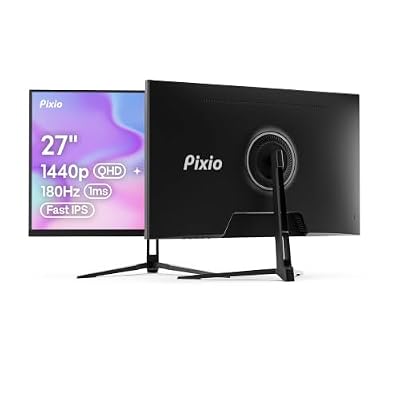
Pixio PX278 Wave 27 inch 180Hz Refresh Rate Quad HD 1440p Resolution Fast IPS Panel 1ms GTG Response Time Built-in Speakers Gaming Monitor with AMD FreeSync
Included for 'What Is the Best Refresh Rate for Gaming? 60, 144, 240 and 360 Hz Compared' as a relevant option in this category; details come from the product listing.
View on Amazon
Samsung 27” Odyssey G5 (G53F) Series QHD Gaming Monitor | 200Hz Refresh Rate, IPS panel, HDR10, AMD FreeSync™ Premium, Black Equalizer, Auto Source Switch (LS27FG532ENXZA)
Included for 'What Is the Best Refresh Rate for Gaming? 60, 144, 240 and 360 Hz Compared' because the listing specifies 200Hz Refresh Rate and IPS panel, details this guide uses to compare options.
View on Amazon
Pixio PX248 Wave Mint Green 24 inch 200Hz Refresh Rate FHD 1080p Resolution Fast IPS Panel 1ms GTG Response Time Built-in Speakers Gaming Monitor with Adaptive Sync
Included for 'What Is the Best Refresh Rate for Gaming? 60, 144, 240 and 360 Hz Compared' as a relevant option in this category; details come from the product listing.
View on Amazon60 Hz vs 144 Hz: the upgrade almost everyone notices
Buying guides from hardware sites broadly agree that 60 to 144 Hz is the big universal upgrade. Mouse movement looks more continuous, fast camera pans are easier to follow and input feels more immediate. This holds even outside shooters, so a 144 Hz or 165 Hz panel is a sensible default for anyone with a mid-range or better graphics card.
The catch is that the monitor only helps if the game renders more than 60 frames per second. A game locked to 60 fps on a 144 Hz screen will not look smoother, although variable refresh rate technology avoids tearing.
144 Hz vs 240 Hz: worth it for competitive play
Moving to 240 Hz is a smaller, more specialised gain. Reviewers describe it as worthwhile for competitive players in fast shooters who can sustain 200 plus fps, and less obvious for slower single-player games. Because the gap is under 3 ms per frame, people coming from a good 144 Hz panel often describe the change as subtle, while players who already hit very high frame rates in esports titles tend to appreciate the clearer motion.
- Pick 144 or 165 Hz if you play a mix of genres and your GPU struggles to hold more than 120 fps in demanding titles.
- Pick 240 Hz if you mostly play competitive shooters, run lowered settings and reach well over 200 fps.
240 Hz vs 360 Hz: strongly diminishing returns
At 360 Hz and above, the extra frame-time saving is about 1.4 ms, and reviewers generally limit the benefit to professional or very dedicated players with top-end CPUs. Panel response time and pixel behaviour usually matter more than the headline number: a 240 Hz panel with fast pixel response can look smoother than a 360 Hz panel with slow transitions that smear motion. If your budget is limited, putting money toward panel quality, resolution or HDR is usually the better trade.
OLED vs fast IPS for a 27-inch 1440p competitive monitor in 2026
For a 27-inch 1440p monitor, the choice is typically a fast IPS panel or an OLED, including QD-OLED. Both are sold at 240 Hz and above.
| Factor | Fast IPS | OLED / QD-OLED |
|---|---|---|
| Pixel response | Fast, but typically measured in milliseconds | Around 0.1 ms is commonly cited, giving very clear motion |
| Brightness in a bright room | Strong and sustained | Good, but some models dim on large bright areas |
| Contrast and HDR | Good with local dimming, otherwise limited | Excellent black levels per pixel |
| Burn-in and image retention | Not a concern | A trade-off; makers publish warranty terms and care features |
| Text clarity | Sharp and consistent | Depends on the subpixel layout of the specific panel |
| Cost tier | Budget to mid-range | Mid-range to premium |
Reviewers often argue that an OLED at a lower refresh rate can feel as responsive in motion as a faster-refresh LCD because of its near-instant pixel response. That is a subjective impression, not a measured law, so treat it as a reason to compare reviews of the specific model. A fast IPS suits bright rooms, mixed desktop use and tighter budgets, while OLED suits players who prioritise motion clarity and contrast and can accept the burn-in trade-off.
Strobing as an alternative
Some LCD monitors offer backlight strobing modes, such as the maker-branded ULMB 2 and G-Sync Pulsar, which flash the backlight to improve motion clarity. Reviewers note the costs: lower brightness, possible flicker, and in some modes limits on variable refresh rate. The monitor’s manual lists which modes and refresh ranges apply.
What GPU do you need for each refresh rate?
The refresh rate is a ceiling, and your frame rate is set by the GPU, the CPU, the game and the resolution. As a general guide, rather than a benchmark claim:
| Target | Typical hardware class | Notes |
|---|---|---|
| 144 fps at 1080p | Entry to mid-range current GPU | Most esports titles are easy; demanding titles need lower settings. |
| 144 fps at 1440p | Mid-range to upper mid-range GPU | Upscaling and frame generation can help in supported games. |
| 240 fps at 1440p | High-end GPU plus fast CPU | Realistic mainly in esports titles with reduced settings. |
| 360 fps | High-end CPU is often the limit | Mostly lightweight competitive games at 1080p. |
Frame generation on recent GPU families can raise displayed frame rates, but reviewers note it adds latency compared with natively rendered frames, so competitive players often prefer native frames. Independent benchmarks for your specific games are the best guide when buying around a refresh target.
FPS caps and settings that matter
- Enable the monitor’s top refresh rate in the operating system display settings and the GPU control panel; monitors often default to 60 Hz after first connection.
- Use variable refresh rate (G-Sync Compatible or FreeSync, when the monitor supports it) so the display follows your frame rate and avoids tearing.
- Cap fps slightly below the refresh rate when using variable refresh with V-Sync, a common suggestion from display reviewers, to keep the game inside the variable refresh window. Exact offsets vary by monitor and game.
- Use a quality cable and port: a DisplayPort or HDMI cable rated for the bandwidth the monitor lists, since high refresh at 1440p can exceed what an older cable carries.
- Avoid overclocking the panel beyond the maker’s stated settings; it can cause instability and may affect the warranty.
Pick X if…
| If you… | Choose |
|---|---|
| Play casually or single-player | 144 to 165 Hz |
| Play fast shooters seriously with a strong PC | 240 Hz, IPS or OLED |
| Play in a bright room, want a tighter budget | Fast IPS |
| Want the best motion clarity and contrast | OLED or QD-OLED |
| Chase a pro-level edge and have a top CPU | 360 Hz or higher |
Frequently Asked Questions
Is 144 Hz enough for gaming?
For most players, yes. It gives a large improvement over 60 Hz and can be driven by a mid-range GPU. Only competitive players with very high frame rates tend to benefit noticeably from more.
Is 240 Hz worth it over 144 Hz?
It can be, for fast competitive shooters where you hold well over 200 fps. The saving is about 2.7 ms per frame, so the change is subtler than going from 60 to 144 Hz.
Does a higher refresh rate help if my fps is low?
Not much. The display can only show the frames your PC produces, although variable refresh rate helps reduce tearing and stutter when fps is below the maximum.
Is OLED better than IPS for competitive gaming?
OLED offers very fast pixel response and strong contrast, while fast IPS offers brightness and no burn-in worry at a lower cost tier. The better choice depends on room lighting, budget and your tolerance for the OLED care requirements.
Should I cap my fps?
With variable refresh rate, capping a few frames below the maximum refresh rate is a common reviewer suggestion to keep the game within the variable range. Without it, uncapped fps may tear but can reduce latency in some games.
Do I need a special cable for high refresh rates?
Often yes. Use the cable supplied with the monitor or one rated for the bandwidth the maker lists, because older cables may limit refresh rate or resolution.