🛒 Best Price Today on Amazon
Prime members get fast, free shipping on everything above, plus member-only deals. New members get a 30-day free trial — cancel anytime.
- Best Monitors for Steam Deck at a Glance
- ASUS ROG Strix XG27ACS — Best for USB-C Desk Gaming
- LG UltraGear 27GR83Q-B — Best for Steam Deck and Gaming PC
- Dell UltraSharp U2723QE — Best for Steam Deck Desktop Mode
- Arzopa Z1FC — Best Portable Monitor for Steam Deck
- How to Choose the Best Monitor for Steam Deck
- Steam Deck Monitor Resolution and Refresh Rate Explained
- FAQ
- Conclusion
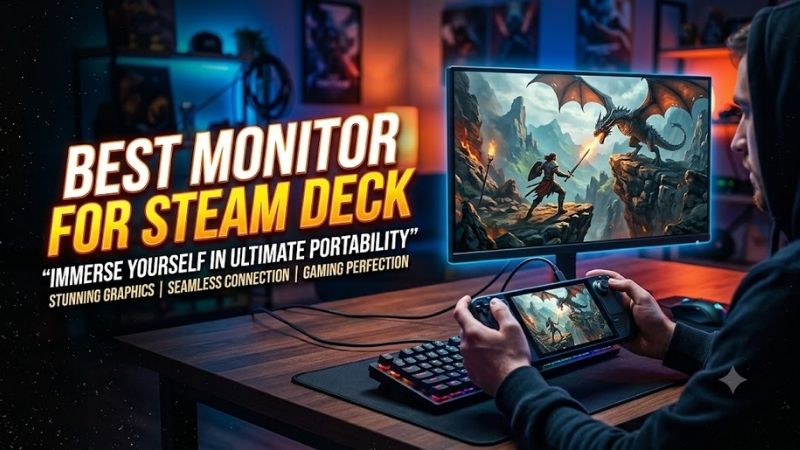
The best monitor for Steam Deck should match how you actually use the handheld: portable play, desk gaming, or desktop-style work. USB-C video, sensible resolution, refresh rate, and charging support matter more than chasing extreme specs the Deck may not fully use. These picks cover the most practical setups.
Quick answer: For most people in 2026, the best monitor for steam deck is the Monitor — our #1 rated choice. See the full ranked comparison, alternatives and buying advice below.
Best Monitors for Steam Deck at a Glance
| Monitor | Best For | Resolution | Refresh Rate | Steam Deck Connection |
|---|---|---|---|---|
| ASUS ROG Strix XG27ACS | USB-C desk gaming | 2560 × 1440 | Up to 180Hz | USB-C DP Alt Mode |
| LG UltraGear 27GR83Q-B | Steam Deck + gaming PC | 2560 × 1440 | Up to 240Hz | Dock via HDMI/DisplayPort |
| Dell UltraSharp U2723QE | Desktop Mode and productivity | 3840 × 2160 | 60Hz | USB-C DP Alt Mode |
| Arzopa Z1FC | Portable gaming | 1920 × 1080 | 144Hz | USB-C / mini HDMI |
Valve gives the Steam Deck USB-C DisplayPort output, while the official Docking Station provides DisplayPort 1.4 and HDMI 2.0 with support up to 4K 60Hz or 1440p 120Hz. That makes connectivity and realistic game performance more important than simply buying the monitor with the highest advertised refresh rate.
ASUS ROG Strix XG27ACS — Best for USB-C Desk Gaming
Best For: Steam Deck owners who want a 1440p gaming display with direct USB-C video.
Key Features
- 27-inch Fast IPS panel
- 2560 × 1440 resolution
- Up to 180Hz refresh rate
- USB-C with DisplayPort Alt Mode
- DisplayPort 1.4
- HDMI 2.0
- Adaptive-Sync
- Height, swivel, pivot, and tilt adjustments
- 7.5W USB-C Power Delivery
ASUS ROG Strix XG27ACS is a strong desk gaming match because its 27-inch Fast IPS panel runs at 2560 x 1440 and up to 180Hz, while USB-C accepts DisplayPort Alt Mode. That gives Steam Deck owners a clean direct-video option without requiring HDMI for every session, while still leaving DisplayPort and HDMI available for a PC or console.
What Makes It Different
Its limitation is power delivery: the USB-C port supplies only 7.5W, far below the Steam Deck’s normal 45W charging input. In practice, treat USB-C here as a display connection rather than a charging dock. For longer sessions, power the Deck separately or use a powered dock, especially when pushing 1440p output or connecting accessories.
Pros
- Direct USB-C DisplayPort connection
- Sharp 1440p resolution
- High refresh rate also suits gaming PCs
- Fully adjustable stand
- Adaptive-Sync support
Cons
- USB-C cannot provide enough power to replace the Deck charger
- No built-in speakers
- 180Hz capability exceeds what most Steam Deck games need
Use Case: A permanent gaming desk where the Steam Deck sometimes replaces a desktop PC or console.
Who It’s For: Players who value USB-C convenience but are comfortable powering the Steam Deck separately.
LG UltraGear 27GR83Q-B — Best for Steam Deck and Gaming PC
Best For: Gamers sharing one fast 1440p monitor between a Steam Deck and a powerful desktop PC.
Key Features
- 27-inch IPS display
- 2560 × 1440 resolution
- Up to 240Hz refresh rate
- HDMI 2.1
- DisplayPort
- AMD FreeSync Premium
- NVIDIA G-SYNC Compatible
- Height, tilt, and pivot adjustments
- USB hub
LG UltraGear 27GR83Q-B suits players who want one monitor for a gaming PC and Steam Deck. The 27-inch IPS panel supports 2560 x 1440 at up to 240Hz, with HDMI 2.1, DisplayPort, FreeSync Premium, and G-SYNC compatibility. The Deck will not exploit 240Hz in most games, but the monitor remains useful for a faster desktop GPU.
What Makes It Different
For Steam Deck use, the main trade-off is connectivity rather than panel speed. The 27GR83Q-B has no USB-C video input, so the Deck needs a dock or adapter that outputs HDMI or DisplayPort. Valve’s official dock supports up to 1440p 120Hz, making that a sensible ceiling to target instead of focusing only on the monitor’s maximum refresh rate.
Pros
- 1440p resolution suits desk gaming
- Very high refresh rate for a separate gaming PC
- HDMI 2.1 and DisplayPort connectivity
- FreeSync Premium support
- Adjustable stand
Cons
- No direct USB-C video input
- Requires a dock or adapter for Steam Deck
- 240Hz is unnecessary for typical Steam Deck workloads
Use Case: A mixed setup where the monitor serves both a Steam Deck and a higher-performance Windows gaming PC.
Who It’s For: PC gamers who own a Deck as a secondary system and do not need one-cable USB-C connectivity.
Dell UltraSharp U2723QE — Best for Steam Deck Desktop Mode
Best For: Productivity, browsing, office work, and lighter gaming through SteamOS Desktop Mode.
Key Features
- 27-inch IPS Black panel
- 3840 × 2160 resolution
- 60Hz refresh rate
- USB-C with DisplayPort 1.4 Alt Mode
- Up to 90W USB-C Power Delivery
- HDMI
- DisplayPort
- Integrated USB hub
- 400-nit rated brightness
Dell UltraSharp U2723QE is the most practical choice for users who dock the Steam Deck for desktop work, browsing, and strategy games. Its 27-inch IPS Black panel runs at 3840 x 2160 and 60Hz, while USB-C supports DisplayPort Alt Mode and up to 90W Power Delivery. That lets one cable carry video while supplying ample power to the Deck.
What Makes It Different
The 4K panel makes text, spreadsheets, web pages, and SteamOS desktop mode look crisp, but native 4K gaming is demanding for the Deck’s GPU. Many games are better rendered at 1080p or 1440p and scaled to the display. The U2723QE is therefore best for mixed productivity and lighter gaming, not high-refresh competitive play.
Pros
- USB-C video and charging through one connection
- 90W Power Delivery exceeds the Deck’s charging requirement
- Sharp 4K desktop image
- Extensive USB connectivity
- Strong productivity orientation
Cons
- Limited to 60Hz
- 4K is demanding for native game rendering
- Gaming features are less extensive than dedicated gaming monitors
Use Case: Turning the Steam Deck into a compact desktop computer for office work while retaining the option to play games.
Who It’s For: Users who prioritize text clarity, USB-C docking, charging, and productivity over high refresh rates.
Arzopa Z1FC — Best Portable Monitor for Steam Deck
Best For: Travel, hotel gaming, small desks, and portable Steam Deck setups.
Key Features
- 16.1-inch IPS panel
- 1920 × 1080 resolution
- 144Hz refresh rate
- Two USB-C ports
- Mini HDMI
- Integrated stand
- Built-in speakers
- Approximately 1.72-pound weight
Arzopa Z1FC is the travel-focused option. Its 16.1-inch IPS display uses a 1920 x 1080 resolution, 144Hz refresh rate, dual USB-C connections, mini HDMI, built-in speakers, and an integrated stand. Arzopa lists Steam Deck support, so it fits hotel desks, small workspaces, and portable multiplayer setups better than a full-size monitor.
What Makes It Different
Because portable monitors depend heavily on cable and power behavior, setup matters. A full-featured USB-C connection can carry video, but the display may still need separate power depending on the source. For Steam Deck travel, carrying a charger or powered hub avoids relying on the handheld to power both itself and the screen.
Pros
- Compact enough for travel
- 1080p resolution is practical for Steam Deck gaming
- 144Hz refresh rate
- USB-C connectivity
- Built-in stand and speakers
Cons
- Much smaller than a desktop monitor
- Power setup can require an additional cable or adapter
- 144Hz may exceed the frame rate of demanding Deck games
Use Case: Expanding the Steam Deck to a larger screen without carrying a conventional desktop monitor.
Who It’s For: Frequent travelers, students, and players who move their Steam Deck setup between locations.
How to Choose the Best Monitor for Steam Deck
Resolution
Resolution should match the Steam Deck’s performance envelope. A 1080p monitor is easy to drive and works well for portable screens, while 1440p gives a sharper desktop image and still pairs sensibly with Valve’s dock. A 4K panel is useful for productivity, but demanding games often need a lower render resolution for smoother frame rates.
USB-C and Power Delivery
USB-C is most useful when it combines DisplayPort Alt Mode with enough Power Delivery to charge the Deck. A monitor that accepts USB-C video but provides only a few watts still requires separate power. If the monitor has only HDMI or DisplayPort, plan on a dock or adapter rather than assuming the Deck can connect with a simple USB-C cable.
Refresh Rate
Refresh rate should be chosen around the games you play, not the largest number on the box. Valve’s official dock supports up to 1440p at 120Hz, so a 120Hz, 144Hz, 165Hz, or faster monitor can still make sense, especially if it also serves a gaming PC. For slower games, 60Hz with better resolution or connectivity may be more useful.
Variable Refresh Rate
Variable refresh rate can help external play feel smoother when frame rates fluctuate, but support depends on the monitor, connection, dock, and settings. Valve lists FreeSync support for its official Docking Station. If VRR matters, verify that the exact input you plan to use supports it rather than assuming every port behaves identically.
Screen Size
A 27-inch screen is a practical size for a desk because 1440p looks sharp without creating an oversized setup around the handheld. Portable 15- to 16-inch displays trade immersion for mobility. Larger monitors can work, but screen size does not reduce the GPU workload; resolution and rendering settings remain the important performance variables.
Direct USB-C vs a Steam Deck Dock
Direct USB-C is simplest when the monitor supports video and adequate Power Delivery, because one cable can potentially handle the display and charging. A dock is more versatile when you need HDMI, DisplayPort, Ethernet, keyboards, controllers, storage, or other USB devices. Choose based on peripherals rather than treating a dock as mandatory.
Steam Deck Monitor Resolution and Refresh Rate Explained
The Steam Deck itself supports DisplayPort output over USB-C, with Valve listing external connectivity up to 8K 60Hz or 4K 120Hz for current Deck specifications. Those interface limits do not mean games will render smoothly at those resolutions. Actual playable settings depend on each game’s GPU demand, frame-rate target, and rendering resolution.
The official Steam Deck Docking Station has different published display limits: up to 4K 60Hz or 1440p 120Hz through its external display outputs. That distinction matters when shopping for a 144Hz, 180Hz, or 240Hz monitor. A faster panel can still be worthwhile for another PC, even when the Deck connection operates at a lower refresh rate.
FAQ
Can the Steam Deck run a 4K monitor?
Yes, the Steam Deck can drive a 4K monitor. Valve lists external display support up to 4K at 120Hz from the Deck’s USB-C DisplayPort connection, while the official Docking Station is specified for up to 4K at 60Hz or 1440p at 120Hz. Game performance at native 4K will vary widely, so lower render resolutions are often more practical.
Do I need a dock to connect Steam Deck to a monitor?
A dock is not always required. Monitors with USB-C DisplayPort Alt Mode can accept video directly from the Steam Deck, provided the cable supports video. A dock becomes useful when you need HDMI, DisplayPort, Ethernet, USB peripherals, or charging passthrough. It also makes a permanent desk setup easier to connect and disconnect.
Is 1080p or 1440p better for Steam Deck?
For most Steam Deck desk setups, 1440p is the more balanced resolution. It is sharper than 1080p for desktop use and aligns well with the official dock’s stated 1440p 120Hz capability. A 4K monitor makes more sense when productivity and text clarity matter more than native-resolution gaming performance in demanding titles.
Should a Steam Deck monitor have USB-C charging?
USB-C charging from the monitor is useful, but the amount of Power Delivery matters. The Steam Deck ships around a 45W charging design, so a monitor offering substantial USB-C PD can replace a separate charger. Low-power USB-C ports may carry video yet charge slowly or not meaningfully, making a powered dock or charger the better setup.
Is a 144Hz monitor worth using with Steam Deck?
A 144Hz monitor can be worthwhile, especially for lighter games capable of high frame rates or when the screen also serves another gaming system. However, refresh rate alone should not drive the purchase. Resolution, USB-C support, VRR, charging, and the limits of your chosen dock or adapter can affect the Steam Deck experience more directly.
Conclusion
The best monitor for Steam Deck depends on where the handheld spends most of its time. Choose the ASUS XG27ACS for direct USB-C gaming, the LG 27GR83Q-B for a shared PC setup, the Dell U2723QE for 4K productivity, or the Arzopa Z1FC for travel. Match resolution, input type, and power delivery to your real use.
Ready to decide? Our #1 pick for 2026 is the Monitor.
Live price & availability on Amazon.